Yearly Budget Template in Google Sheets: A Practical Guide
Learn to build a robust yearly budget template google sheets with monthly tracking, formulas, and dashboards. This step-by-step guide covers setup, data organization, automation, and maintenance for students, professionals, and small business owners.


Create a reusable yearly budget template google sheets that tracks income, expenses, and savings by month. You'll set up a 12-month calendar, define categories, and use simple formulas to roll up totals into yearly insights. The template will support scenario planning and easy sharing with teammates or clients, all within google sheets without extra software.
Why a yearly budget template matters
A yearly budget template google sheets helps you map money across the entire year, not just month by month. For students, it clarifies how tuition, housing, and discretionary costs fit into a single plan. For professionals and small business owners, it reveals cash flow trends, seasonality in revenue, and opportunities to reallocate funds before they run out. With a defined template, you can quickly answer questions like: Are you on track to meet your annual savings goal? Is there a month where expenses spike? By standardizing inputs, the template reduces scattered notes and manual reconciliations. The result is more time for analysis and decision‑making, not endless data entry. According to How To Sheets, a well‑structured budgeting workbook scales with your planning horizon and becomes more valuable as you add scenarios and dashboards. A template is especially powerful when you share it with a team; it ensures everyone uses the same categories and formats, which makes collaboration smoother.
Core components of a yearly budget template
A robust yearly budget template google sheets should include a few essential components so you can enter data once and roll it up automatically. The income section should capture all revenue sources, with monthly breakdowns and a clear yearly total. Expense categories should cover fixed costs (rent, insurance) and variable costs (groceries, transportation) to reveal seasonality. A separate savings line helps you track progress toward goals. The template should also provide a yearly summary that aggregates totals across months, plus a cash flow indicator. Finally, include a dashboard section with charts so stakeholders can understand the financial picture at a glance. Data integrity, validation rules, and clear labeling ensure the workbook remains trustworthy as you scale.
Designing a scalable Google Sheets layout
Structure matters for long‑term use. Create three logical tabs: Inputs (data entry), Calculations (formulas), and Dashboard (visuals). Name ranges or structured references keep formulas readable. Freeze headers, use consistent formatting, and apply a single currency symbol. Build a category sheet to standardize names and subcategories; validation rules prevent typos. When you copy or share the file, these conventions keep the workbook reliable and easy to audit. Include a Notes section for assumptions and a changelog to track updates over time.
Step-by-step: set up the year calendar and categories
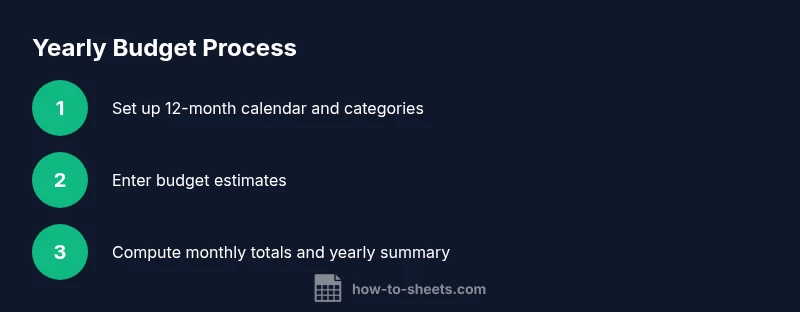
Begin by creating a 12‑month header across the top of the Inputs tab. Under each month, provide subcolumns for Income and Expenses and a space for Notes. On a separate Categories tab, list main categories (Income, Housing, Utilities, Groceries, Transportation, Insurance, Debt, Savings, Discretionary, Other) with standardized subcategories and short labels. Use consistent naming and currency formatting; this foundation ensures accurate, scalable calculations as you expand the template.
Step-by-step: implement monthly totals and yearly summaries
Add monthly totals by summing all income lines and all expense lines, then compute Net Monthly Cash Flow as Income minus Expenses. Create a Yearly Total by summing the 12 Monthly Totals, and a Yearly Variance column that compares Actuals to Budget. Use clear, commented formulas so future users can audit and adjust the logic without breaking links. This step turns scattered data into meaningful annual insights.
Step-by-step: add scenario planning and dashboards
Extend the template with a Scenario switch (Best, Expected, Worst) that recalculates key figures using IF/CHOOSE formulas. Build a simple Dashboard with charts: a stacked bar for monthly category breakdown, a line chart for cash flow over time, and a donut chart for expense distribution. Dashboards provide at-a-glance insight for quick decisions and stakeholder communication.
Step-by-step: share, review, and maintain your template
Set sharing permissions appropriate for your audience (private, team, or public). Protect cells that contain formulas or constants to prevent accidental edits while keeping input areas open. Create a short guide that explains how to use the template, what each sheet represents, and how to update assumptions. Schedule periodic reviews to keep the budget aligned with changing goals and realities.
Visualizing your yearly budget
Visuals make data memorable. Utilize a multi‑chart layout: a monthly income vs. expenses stacked bar, a line chart showing cumulative savings over the year, and a pie chart illustrating category distribution. Use color cues (green for favorable variances, red for unfavorable) to convey status quickly. A well‑designed visualization communicates narrative beyond raw numbers and helps you persuade stakeholders.
Practical tips for maintaining your budget template
- Update actuals weekly to keep forecasts realistic and relevant.
- Validate category names to avoid drift and ensure consistent reporting.
- Backup the file and enable version history so you can revert changes if needed.
- Document assumptions in a dedicated Notes area for future users or auditors.
- Revisit budgeting goals quarterly to realign with changing priorities.
Tools & Materials
- Google account with access to Google Sheets(Needed to create and save the template.)
- Google Sheets (web or mobile app)(Use the web version for advanced features; mobile is optional.)
- Draft budget categories and monthly estimates(Provide a starter list of categories and sample numbers.)
- Starter template file (optional)(Copy a starter file to save time and ensure consistency.)
Steps
Estimated time: 45-90 minutes
- 1
Create the new Google Sheet
Open Google Sheets, create a new blank spreadsheet, and rename it to 'Yearly Budget Template'. This establishes the master file you will customize. Ensure you are in the correct Google account and name the file clearly for future access.
Tip: Save a backup copy before making structural changes. - 2
Set up the year calendar and inputs tab
Create a 12‑month header and under each month provide Income and Expenses sections. Add an Inputs tab to gather all entry data in one place and keep calculations separate from raw data.
Tip: Use bold headers and freeze the top row for easy navigation. - 3
Define categories and standardize naming
Populate a Categories sheet with main groups and subcategories. Use consistent labels to prevent drift and simplify filtering and reporting across the year.
Tip: Use a short, uniform label (e.g., ‘Housing_Rent’ vs ‘Rent’). - 4
Enter initial budget numbers
Input planned amounts for each category by month. Start with conservative estimates and leave space for adjustments as real data comes in.
Tip: Mark placeholders with a distinct color so they’re easy to identify. - 5
Add monthly and yearly totals
Insert formulas to total Income and Expenses each month, then compute Net and Year‑to‑date sums. Keep formulas readable with comments and explainers.
Tip: Prefer SUM for monthly totals and use relative references to copy across months. - 6
Create a dashboard and charts
In a Dashboard tab, add visuals such as a stacked bar chart for monthly category breakdowns, a line chart for cash flow, and a donut chart for category distribution.
Tip: Label charts clearly and keep color coding consistent with the data sheet. - 7
Set sharing and review cadence
Share the template with teammates or stakeholders, protect critical cells, and establish a quarterly review to adjust assumptions and goals.
Tip: Add a short user guide to speed up onboarding for new users.
FAQ
What is a yearly budget template?
A yearly budget template organizes expected income and expenses for every month of the year, then aggregates totals into a yearly view. It supports scenario planning and easy sharing, making it simpler to monitor cash flow and achieve financial goals.
A yearly budget template organizes income and expenses month by month and summarizes them for the year, with quick scenario planning and easy sharing.
How do I share the template with teammates?
Share the Google Sheets file with the desired people and set permissions (viewer, commenter, or editor). Protect critical cells to prevent accidental edits while leaving input areas open for collaboration.
Share the sheet and set permissions; protect important cells so teammates can contribute safely.
Can I customize the template for multiple currencies?
Yes. Set the currency in the sheet settings and apply the format to amount cells. If you work with multiple currencies, consider separate sheets or a conversion strategy for consistency.
You can use multiple currencies by setting the currency in the cells and being consistent across the sheet.
How can I automate monthly totals?
Use SUM across the monthly columns for each category and then aggregate those totals into a yearly summary. Tag recurrent formulas with comments to simplify future edits.
Automate totals with SUM and create a yearly summary that updates automatically.
Is Google Sheets suitable for complex budgets for a growing business?
Google Sheets can handle many budgets, but very complex or high-volume budgets may benefit from advanced features or dedicated budgeting software. Start with a solid template and evaluate whether you need more automation or data capacity over time.
Google Sheets works for many budgets, but as complexity grows, consider stepping up to more powerful tools if needed.
Watch Video
The Essentials
- Plan with a clear 12‑month structure.
- Link monthly data to a single yearly summary.
- Use dashboards to communicate insights quickly.
- Maintain consistency in categories for reliable reporting.