Zero Balance Budget Template Google Sheets: A Practical Guide
Learn how to build a zero balance budget with a Google Sheets template. Step-by-step setup, formulas, and tips to keep every dollar assigned.


With this guide, you will create a zero balance budget using a Google Sheets template. You’ll need a Google account, access to a ready-made template, and your monthly income and expenses. Follow these steps to assign every dollar a job, set targets, and track your progress in real time consistently.
What zero balance budgeting means in practice
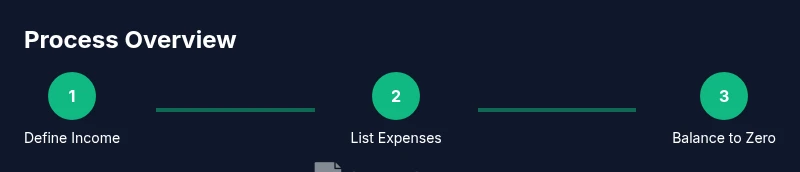
A zero balance budget is a method where every dollar of your income is assigned a specific job—expenses, debt repayment, savings, or investments—until your available cash equals zero. The goal is intentional spending, not simply tracking what you earn. In practice, you forecast income, categorize every dollar as either a needed expense or a discretionary choice, and then adjust until income minus allocations equals zero. This approach helps you avoid lifestyle creep and build financial momentum over time. The How To Sheets team emphasizes that templates make this discipline easier by providing a repeatable, scalable structure you can reuse each month. By using a zero balance budget template google sheets, you gain visibility, real-time updates, and the ability to iterate quickly as life changes.
Benefits include improved cash flow clarity, reduced impulse spending, and a clear path toward debt payoff and savings targets. It’s not about austerity for its own sake; it’s about lending intention to every dollar you earn so you reach defined financial goals more predictably.
How a zero balance budget template google sheets accelerates your workflow
When you adopt a template in Google Sheets, you unlock automatic calculations, conditional formatting, and sharable, cloud-based access. A well-designed template lays out income, fixed expenses, variable expenses, debt payments, and savings as distinct sections with explicit targets. You’ll see at-a-glance whether the month is on track or if adjustments are needed. The Google Sheets environment also lets you copy the template for future months, preserving formulas and structure so you don’t reinvent the wheel. This consistency is especially valuable for students managing tight budgets, professionals planning monthly cash flow, and small business owners who juggle irregular income. The result is steady progress toward zero balance without manual re-entry every month, reducing errors and saving time for more important tasks.
Core components you’ll typically include in the template
- Income: Net salary, side gig revenue, and any passive income streams.
- Fixed expenses: Rent, utilities, insurance, loan payments.
- Variable expenses: Groceries, dining out, entertainment, gas.
- Debt and savings: Minimum debt payments, emergency fund contributions, retirement to-dos.
- Allocations: A line for every dollar to balance to zero, or for special sinking funds. By organizing these items clearly, you ensure every dollar has a defined purpose. The template should offer a quick balance check and a final “zero” line that confirms alignment with your plan. The benefits of a Google Sheets version include easy sharing with a financial partner or team and automatic backups in the cloud.
Design principles that improve accuracy and usability
A strong zero balance budget template google sheets uses data validation to restrict invalid entries, names ranges for consistent formulas, and clear color cues to distinguish between income, expenses, and allocations. It should also provide a simple method to input actuals after the month ends, so you can compare planned versus actual performance. When done right, the template becomes a living document you update as needed, not a static, one-off sheet. Try incorporating a monthly review section to capture insights and adjust future allocations based on patterns you observe over time. The end result is a transparent, actionable budgeting tool that reduces guesswork and increases accountability.
Suggestions for customization and scalability
As your needs grow, you can tailor the template to track multiple income streams, incorporate a savings ladder, or split expenses by project or department in a small business context. Use named ranges for income and expense lists so you can copy and paste the template into new months without breaking formulas. Add a separate tab for debt payoff progress and a small dashboard that highlights progress toward your zero balance goal. Remember to back up templates and maintain a version history, so you can track improvements over time and revert if needed.
Tools & Materials
- Google Sheets access(A Google account with access to Sheets; cloud-based editing is essential)
- Zero Balance Budget Template Google Sheets file(Copy or download a ready-made template to customize)
- Income data(Recent pay stubs or income records; include all sources)
- Expense categories list(Standard and optional categories; ensure they cover fixed and variable costs)
- Optional data validation lists(Dropdowns for category, month, and status to reduce errors)
Steps
Estimated time: 30-45 minutes
- 1
Create a new Google Sheets file and name it
Open Google Sheets and start a new spreadsheet. Name it clearly (for example, 'Zero Balance Budget - [Month]'). This provides an immediate reference point for monthly budgeting and keeps your templates organized.
Tip: Use a consistent naming convention so you can archive past months without confusion. - 2
Add an Income section header
Insert a dedicated section for income sources. List each source (salary, freelance work, gifts) with a column for expected and actual amounts. This makes it easy to total income at a glance.
Tip: If you have multiple income streams, include a separate row for each to improve accuracy. - 3
Enter monthly net income
Input your total monthly net income in the Income section. This value acts as the starting point for the zero balance calculation. Ensure you account for all sources to avoid underfunded expenses.
Tip: Double-check that income reflects take-home pay after taxes and deductions. - 4
Create an Expenses section with categories
Set up fixed and variable expense lines (rent, utilities, groceries, transport, entertainment). Group similar items to simplify tracking and reordering later.
Tip: Include a row for debt payments and another for savings contributions if relevant. - 5
Enter planned amounts for each category
Fill planned amounts next to each category. These represent how you intend to allocate your income. Keep totals aligned with your goal to reach zero balance by month end.
Tip: Use conservative estimates for variable expenses to avoid overcommitment. - 6
Create a total Expenses formula
Add a formula to sum all expense categories. This ensures you always have an up-to-date total to compare against income.
Tip: Place the total in a clearly labeled cell for quick reference. - 7
Enter actual amounts during the month
As the month unfolds, replace planned amounts with actuals. This keeps the template current and ready for month-end review.
Tip: Log receipts or statements weekly to avoid backlog at month-end. - 8
Add a balancing formula to ensure the budget zeros out
Create a balance cell that calculates Income minus total expenses and allocations. The target is zero, which confirms you’ve allocated every dollar.
Tip: If the balance is not zero, adjust one or more categories and re-check until the balance is zero. - 9
Apply conditional formatting and save templates
Use color rules to highlight overspending or imbalances. Save your file as a template for future months to maintain consistency.
Tip: Set a monthly reminder to review and reset the template for the next cycle.
FAQ
What is zero balance budgeting in simple terms?
Zero balance budgeting assigns every dollar of income a specific job, leaving no leftover cash. The goal is to balance income with expenses, debt payments, and savings so the final balance is zero.
Zero balance budgeting means every dollar has a purpose, and you end the month with no unassigned cash.
Why use a Google Sheets template for this method?
A Google Sheets template provides a reusable, cloud-based structure with built-in calculations and formatting. It makes budgeting consistent across months and easy to share with partners or teams.
Sheets templates keep your budget consistent and easy to share.
Can I adapt the template for irregular income?
Yes. You can set flexible income rows or separate tabs for months with variable income. The template can accommodate fluctuations by adjusting planned amounts and rebalancing throughout the month.
The template can handle irregular income by adjusting plans as needed.
How does the zero balance budget help debt reduction?
By explicitly allocating funds to debt payments, you prioritize reducing balances and track progress toward payoff. The zero balance mindset prevents funds from drifting into nonessential spending.
It directs funds toward debt payoff and keeps you accountable.
What formulas ensure the budget stays balanced?
Common formulas include a total expenses sum and a balance line like Balance = Income - SUM(Expenses) - Savings - Debt. When Balance equals zero, the plan is balanced for the month.
Balance equals income minus expenses, savings, and debt so it shows zero.
Is it necessary to keep a separate sinking fund tab?
A sinking fund helps you save for planned future expenses. It’s optional but recommended if you want to smooth large costs (like car repairs or holidays) over several months.
If you expect big future costs, a sinking fund helps you prepare.
Watch Video
The Essentials
- Balance every dollar with a clear allocation.
- Reuse templates to save time and avoid mistakes.
- Validate inputs and monitor deviations regularly.
- Review monthly to improve accuracy and outcomes.
- Share the sheet for collaboration when needed.