How to Mail Merge from Google Sheets: A Practical Guide
Learn how to mail merge from Google Sheets to Gmail with add-ons or Apps Script. Map fields, create templates, test, and send personalized emails at scale.


You will learn how to perform a mail merge from Google Sheets to send personalized emails via Gmail. This step-by-step guide shows how to map sheet columns to a Gmail template, create a draft, test your merge, and send safely. You'll also compare methods using Google Add-ons and Apps Script.
Why mail merge from Google Sheets matters
Personalization drives engagement, and Google Sheets is a natural data source for mass emails. This is where the magic happens: you pull recipient data from a single sheet and combine it with a ready-made message template. According to How To Sheets, a well-planned mail merge keeps data organized and scales outreach without sacrificing relevance. In practice, you can tailor greetings, product recommendations, or deadline reminders for hundreds of recipients in minutes rather than hours. The approach also helps ensure consistency across your communications, since the template enforces a single voice and formatting. When done correctly, mail merges reduce manual copy-paste errors, save time, and improve response rates across campaigns. For students, professionals, and small business owners, mastering this workflow turns Google Sheets into a powerful outreach engine.
This section lays the foundation by explaining why a merge works so well with Sheets and Gmail, and how planning upfront reduces post-merge cleanup. You’ll see how data quality directly affects deliverability and personalization quality, which is why the next sections emphasize data hygiene and template design as a prerequisite to any merge.
Prerequisites: Tools and Access
Before you start, assemble a few essentials. A Google Sheets document with your contact data and a Gmail-enabled account are non-negotiables. You’ll also need a message template that uses merge fields (placeholders) aligned with your sheet headers, such as {{FirstName}} or {{Company}}. If you plan to use an add-on for a guided experience, have it installed and authorized. For a code-based path, access to the Apps Script editor inside Google Sheets is required. A stable internet connection and a test list of recipients help you verify results without risking real messages. This preparation minimizes surprises during the actual merge and helps you maintain data integrity across sends.
Methods Overview: Add-ons vs Apps Script
There are two common paths for mail merging from Google Sheets. Add-ons provide a point-and-click workflow with built-in templates, field mapping, and sending controls, which is great for teams and quick deployments. Apps Script offers a programmable route: you can build customized logic, error handling, and even complex conditions directly in JavaScript, which is ideal for unique business rules. Both methods pull data from Sheets and populate a template, but the choice depends on your comfort with coding, required customization, and how often you run merges. This section helps you weigh the trade-offs and decide which path fits your workflow.
Data Hygiene and Template Design
The quality of your data determines the success of any mail merge. Start by validating email addresses and standardizing names, companies, and other fields. Use consistent headers that clearly map to your placeholders, and avoid special characters that can break template rendering. Build a clean, maintainable email template with merge fields in the body and, if needed, in the subject line. Consider using a short, clear subject and a fallback for missing data (e.g., if FirstName is blank, use a generic greeting). A well-structured template reduces errors and makes the merge predictable across recipients.
Common Pitfalls and How to Avoid Them
Common issues include mis-mapped fields, broken placeholder syntax, or sending limits being exceeded. To avoid these, always preview a test run with a small recipient list, verify every field maps to the intended placeholder, and check the final rendered message for formatting or link errors. Avoid including overly long URLs or dynamic links that rely on user data—these can break in some clients. Finally, set up a clear opt-out or unsubscribe option to stay compliant and maintain trust with your audience.
Compliance, Privacy, and Deliverability
Mail merges touch on privacy and deliverability. Always obtain proper consent before emailing recipients and provide a visible unsubscribe option. Respect Gmail sending limits and avoid bulk-sending patterns that look like spam. Use a verified sending domain if you’re sending at scale and monitor delivery metrics like open rates and bounce rates. By aligning with best practices, you reduce the risk of being flagged as spam and protect your sender reputation over time.
Final Preparation Checklist
Before you execute a full merge, perform a final pass of the following: confirm headers exactly match placeholders, ensure the template renders correctly with sample data, run at least one test to verify subject and body formatting, and review deliverability considerations (time of day, audience segmentation, and opt-out options). Having this checklist in place makes a full send smoother and more reliable, especially for student projects, client communications, or internal announcements.
Tools & Materials
- Google Sheets document containing recipient data(Headers match merge placeholders.)
- Gmail account(With sending permissions for your domain.)
- Email template with merge fields(Placeholders like {{FirstName}} in body (and optionally subject).)
- Mail merge add-on (optional)(For a guided, no-code workflow (e.g., Yet Another Mail Merge).)
- Google Apps Script editor (optional)(For a custom, code-based merge solution.)
- Test recipient list(Used for preview and test runs.)
- Internet connection(Stable connectivity during setup and runs.)
Steps
Estimated time: 30-45 minutes
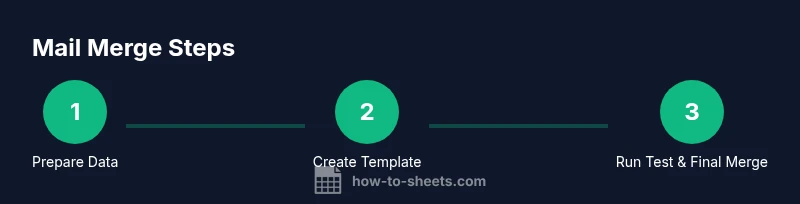
- 1
Prepare your data in Google Sheets
Open your Google Sheet and verify columns. Ensure headers match the placeholders you’ll use in the template, and clean any blank rows or invalid emails. This setup ensures predictable merges.
Tip: Use data validation to avoid typos in emails. - 2
Create a Gmail draft with merge fields
In Gmail or Google Docs, create a draft containing placeholders like {{FirstName}} that will be replaced during the merge. Save the draft or link to a template location for easy access during the run.
Tip: Use clear, unique placeholder tokens to avoid misreplacement. - 3
Choose a merge method (Add-on vs Apps Script)
Decide whether to use a trusted add-on (for a point-and-click workflow) or Apps Script for a code-based, customizable merge. Both will pull values from the sheet into the template.
Tip: Add-ons are faster to set up; Apps Script offers deeper control. - 4
Run a test merge with a small recipient list
Select a tiny recipient subset and run the merge to verify field mappings and formatting before sending to everyone.
Tip: Check for formatting glitches in the message body. - 5
Review results and fix errors
Scan the test results for misapplied fields, broken links, or wrong data types. Correct your sheet or template as needed.
Tip: Use the log or report output from your tool to catch errors. - 6
Send or schedule the final merge
After successful tests, run the full merge or schedule it for a specific time. Monitor delivery and bounces. Keep an eye on bounce rates and responses.
Tip: Respect sending limits and recipient preferences.
FAQ
What is mail merge, and how does it work with Google Sheets?
Mail merge combines data from a Google Sheet with a templated message to produce personalized emails. The sheet provides the fields, and the template defines how each email looks. You can run the merge with a add-on or Apps Script, depending on your preference for ease of use or customization.
Mail merge pulls data from Sheets into a personalized email template, using either an add-on or Apps Script.
Do I need a paid add-on to mail merge from Google Sheets?
No. You can perform a mail merge with Google Apps Script for a free, customizable solution, though an add-on can simplify setup and execution for non-developers.
You can use Apps Script for free, or an add-on for a quicker setup.
Can I personalize subject lines as well as body content?
Yes. You can include placeholders in the subject line just like the body. Ensure your placeholders are correctly mapped, and test the subject rendering during your preview run.
Absolutely, you can personalize both subject and body.
How can I test my mail merge without sending emails?
Most tools offer a preview or test mode. Use a small sample and verify that all placeholders render correctly before a full send.
Use a test run with a tiny list to verify placeholders.
What are sending limits for Gmail when performing mail merge?
Gmail has sending limits that vary by account type. To stay compliant, batch your sends and consider staggered timing or using a service designed for mass mail while respecting limits.
Be mindful of Gmail’s sending limits and stagger your sends.
How do I handle invalid or missing data in merge fields?
Use defaults or conditional logic in your template. Validate data in Sheets and consider fallback values if a field is blank to avoid broken messages.
Set defaults for missing fields and validate your data.
Watch Video
The Essentials
- Prepare clean data with consistent headers
- Choose a merge method that matches your skill set
- Test thoroughly before sending to all recipients
- Monitor deliverability and comply with privacy rules
- Document your merge workflow for future runs