Gmail to Google Sheets: A Practical Guide to Automating Email Data
Learn practical methods to pull data from Gmail into Google Sheets, automate extraction, formatting, and updates with Apps Script, Zapier, or Add-ons.


This guide shows how to move data from gmail to google sheets by three practical methods: Apps Script, automation tools, and add-ons. You'll learn which approach fits your workflow, what you need, and the exact steps to set up, test, and maintain reliable data imports. It emphasizes practical setup, error handling, and scalability for students, professionals, and small business owners.
Why Gmail to Google Sheets matters
In modern workflows, emails carry actionable data: customer requests, order confirmations, support tickets, and meeting invites. Turning those messages into structured data stored in Google Sheets helps teams track responsibilities, pipelines, and deadlines without manual copy-paste. The phrase gmail to google sheets captures a practical goal: convert unstructured inbox content into a consistent data feed that can be analyzed, filtered, and shared.
With Sheets as a central data hub, you can standardize fields such as Date, Sender, Subject, Snippet, Labels, and Thread ID. When you automate this transfer, you reduce human error and free time for more-value work like responding to customers or refining reports. For students, automation accelerates research workflows; for professionals, it streamlines client communication logs; for small business owners, it supports simple dashboards that illuminate response times and workload distribution.
How To Sheets has observed that teams adopting this integration report faster onboarding of new teammates and more reliable reporting cycles. The goal of this guide is to help you start small, validate results, and gradually scale from a one-off export to a resilient Gmail-to-Sheets pipeline that runs on a schedule or in response to triggers.
How data flows from Gmail to Sheets
The data path starts with a Gmail message or thread. At a minimum, an automation extracts metadata such as the sender, date, subject, and a short snippet; optionally, labels or thread identifiers are captured for grouping. This data is then mapped to your sheet columns—Date, Sender, Subject, Snippet, Labels, Thread ID—creating a repeatable schema for every run. Depending on your method, you might pull messages by a label (for example, “Export to Sheets”), by a search query, or by scanning the most recent conversations. If you’re using Google Apps Script, you’ll access Gmail data through the GmailApp service; if you’re using a no-code tool like Zapier, you’ll configure a trigger when new mail matching your criteria arrives. In Sheets, you can apply data validation and formatting to keep the data clean and ready for analysis. The key to reliability is a well-defined schema and robust error handling, so each execution yields consistent rows that feed your reports, dashboards, or audit trails.
Methods to connect Gmail and Google Sheets
- Google Apps Script: Build a custom, fully controllable flow inside your Google Workspace. Pros: complete flexibility, rich parsing, and direct access to Gmail and Sheets; Cons: requires coding and debugging.
- Zapier or Make (formerly Integromat): No-code or low-code automation that connects Gmail to Sheets through visual workflows. Pros: quick setup, large app ecosystem; Cons: ongoing task limits and potential costs.
- Gmail Add-ons and Sheets integrations: Some add-ons offer one-click exports or scheduled syncs. Pros: simple UI, minimal setup; Cons: limited customization.
- Pros and cons at a glance: choose Apps Script for control, or a no-code tool for speed; combine methods if you need both reliability and speed. Data mapping is the same in all approaches: you’ll map Gmail fields to your defined sheet columns and then automate the write operation. No matter which method you pick, start with a clean schema and test with sample messages before going live.
Getting started with Apps Script (high-level overview)
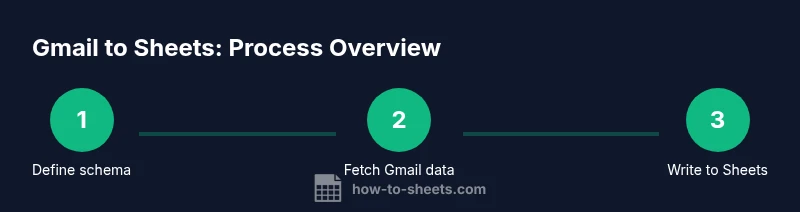
Using Apps Script gives you maximum control while staying within Google’s environment. You’ll author a script that queries Gmail, parses message data, and appends it to Sheets. The process starts with defining a target sheet and a data schema, then writing a function to fetch messages with a label or search query, followed by a parser that transforms each message into a row. Finally, you’ll write the rows to your sheet and set up a time-based trigger to run automatically. This approach is ideal if you need custom parsing, special formatting, or integration with other Google services. You can gradually add error handling, logs, and alerts to ensure visibility into every run.
Troubleshooting common issues
Even well-planned automations encounter hiccups. Common issues include authorization prompts for Gmail and Sheets, quota limits on GmailApp searches, and mismatches between your data schema and the actual message content. If you see missing rows, verify the search query or label, and check that the script has permission to access both Gmail and Sheets. For formatting glitches, normalize date formats and trim whitespace during parsing. If you’re using a no-code tool, review the field mappings and ensure the target sheet exists and is accessible by the integration. Logging and simple error notifications help you spot failures early.
Tips for reliability and governance
Practical tips to keep Gmail-to-Sheets automations robust over time:
- Plan privacy and compliance: avoid pulling sensitive content without consent; limit the data you export to what you need.
- Use stable identifiers (Thread ID) to prevent duplicates.
- Version control your Apps Script: utilize a naming convention and comments.
- Start with a test sheet and a sample inbox.
- Schedule checks and alerts to catch errors.
- Document the data schema and rate limits.
Tools & Materials
- Google account with Gmail access(You need permission to access Gmail and Sheets in the same account.)
- Google Sheets(Prepare a target sheet and headers.)
- Google Apps Script editor(Built-in editor via Tools > Script editor.)
- Optional automation tool (Zapier or Make)(For no-code workflows.)
- Sample data sheet(For testing without affecting production data.)
- Labels or search query knowledge(Define what messages to pull.)
Steps
Estimated time: 60-90 minutes
- 1
Define your data schema
Decide which fields to capture from Gmail (Date, Sender, Subject, Snippet, Labels, Thread ID). Create headers in your target sheet.
Tip: Start with a minimal schema to validate the flow - 2
Create a target sheet and headers
Open a new Google Sheet and add the headers that match your schema. This ensures consistent mapping.
Tip: Freeze the header row to keep it visible - 3
Open the Apps Script editor
From the sheet, open Tools > Script editor to start a new script project.
Tip: Name the project clearly to avoid confusion later - 4
Write a function to fetch Gmail threads
Use GmailApp.search or GmailApp.getMessagesForThread to fetch relevant messages based on label or query.
Tip: Limit results to recent messages to stay within quotas - 5
Parse message data
Extract the fields you defined (date, sender, subject, snippet). Normalize date formats if needed.
Tip: Use Utilities.formatDate for consistent date strings - 6
Append data to Sheet
Append rows to your target sheet, matching the header columns. Include error handling.
Tip: Batch write for performance - 7
Set a trigger for automation
Create a time-driven trigger to run the function automatically (e.g., every hour).
Tip: Test with a dry run to avoid unintended writes - 8
Test, monitor, and refine
Run the script, check results, adjust the query, and handle any edge cases.
Tip: Add try-catch blocks and logs for troubleshooting
FAQ
What is the easiest way to import Gmail data into Sheets?
For non-developers, automation platforms like Zapier or Make offer a no-code path to export Gmail data to Sheets. For developers, Apps Script provides more control.
No-code options exist, or you can customize with Apps Script.
Can I automate Gmail to Sheets without coding?
Yes. Zapier, Make (Integromat), and Google Workspace add-ons can move data from Gmail to Sheets without writing code.
Yes, you can automate without coding using popular tools.
What data can I extract from Gmail?
You can extract sender, date, subject, message snippet, labels, and thread IDs. Attachments require additional handling.
You can get sender, date, subject, and more; attachments need extra steps.
How do I handle Gmail API quotas?
Set queries to limit results; aggregate data efficiently and use batch operations to ensure you stay within quotas.
Be mindful of limits and use batch writes.
Is Gmail to Sheets secure for customer data?
If you use Google services with proper permissions and access controls, data stays within the Google ecosystem, subject to your organization's policy.
Security depends on permissions and controls you set.
Can attachments be saved to Sheets?
Attachments are not stored in normal cells; you can store links or metadata and, with scripting, fetch attachments to Drive.
Attachments can be linked or saved separately, not in a cell.
Watch Video
The Essentials
- Automate Gmail-to-Sheets to save time
- Define a stable data schema first
- Test and iterate for reliability