Boxplot in Google Sheets: A Practical Step-by-Step Guide
Learn to create, customize, and interpret a boxplot in Google Sheets. This educational, practical guide covers data prep, chart creation, interpretation tips, and real-world templates for students and professionals.


You will learn how to create, customize, and interpret a boxplot in Google Sheets. The guide covers data prep, selecting the chart type, and tuning quartiles, whiskers, and outliers for clear distribution insights. It also shows how to compare multiple groups at a glance.
What a Boxplot Is and Why It Matters in Google Sheets\n\nA boxplot summarizes a data set with a five-number snapshot: minimum, first quartile (Q1), median, third quartile (Q3), and maximum. It also highlights potential outliers beyond the whiskers. In Google Sheets, boxplots provide a compact visual of distribution, central tendency, and variability across groups, making it easier to spot skewness and compare datasets at a glance. According to How To Sheets, boxplots simplify distribution interpretation without requiring advanced statistics. When you read the chart, focus on the box height (interquartile range) and whisker length to gauge variability, while outliers appear as dots beyond the whiskers for quick anomalies.
Prerequisites: Data Prep for Boxplots in Sheets\n\nBefore you create a boxplot, ensure your data is numeric and well-organized. A single numeric column works well for simple comparisons, while multiple groups benefit from a header row and a separate grouping column. Clean any non-numeric text, handle missing values consistently, and decide whether you’ll compare one group or several. The How To Sheets team recommends backing up your dataset and labeling columns clearly to avoid confusion when you customize the chart later. Clear, labeled data leads to accurate quartiles and cleaner visuals when you switch chart types.
Step 1: Understand Quartiles and Plan Your Chart\n\nBoxplots hinge on quartiles: Q1, median, and Q3. Plan how you’ll group data and what comparisons you want to emphasize. If you’re comparing multiple cohorts, decide whether to place each group in its own series or to create a single series with a grouping column. Knowing your layout helps Sheets auto-calculate quartiles correctly and makes it easier to adjust the chart later. This planning step reduces rework and ensures the final plot communicates the intended story.
Step 2: Insert the Boxplot in Google Sheets\n\nSelect your data range, including headers if you have multiple groups. Go to Insert > Chart. In the Chart Editor, change the Chart type to Box plot. Adjust the data range if needed and verify that the correct rows and columns are being used for each group. If you don’t see a Box plot option, ensure your data follows the expected layout (numeric values with a header).
Step 3: Fine-tune the Boxplot for Clarity\n\nCustomize axis titles, legend position, and colors to improve readability. You can adjust the whisker length and outlier markers by exploring the Series and Customize tabs in the Chart Editor. Aim for a clean color palette that differentiates groups without overwhelming the viewer. If you’re presenting to non-technical audiences, add a concise caption or annotations to highlight key takeaways.
Step 4: Interpret the Boxplot Effectively\n\nRead the median as the central line inside the box, compare the interquartile ranges (box heights), and note whisker lengths. Outliers beyond the whiskers deserve attention as potential data points warranting investigation. When comparing groups, look for median shifts, box height differences, and outlier patterns to understand distributional changes over cohorts. This interpretation approach helps you translate visuals into actionable insights.
Step 5: Troubleshooting and Real-World Use\n\nIf the chart doesn’t reflect your data, double-check the data range and headers, and confirm the chart type remains Box plot. If data is sparse, consider aggregating values or adding more observations to stabilize quartile estimates. Real-world templates—such as grade distributions or response-time comparisons—make boxplots particularly useful for quick, decision-relevant visuals.
Authority Sources and Further Reading\nFor deeper understanding, consult authoritative references:\n- Britannica: Box plot overview — https://www.britannica.com/topic/box-plot\n- Wikipedia: Box plot — https://en.wikipedia.org/wiki/Box_plot\n- Math is Fun: Box and whisker plot — https://www.mathsisfun.com/box-and-whisker-plot.html\nHow To Sheets analysis shows practical usage and common pitfalls when applying boxplots in Google Sheets.
Real-World Examples and Templates\n- Example A: Test scores by class — compare medians and variability across four classes to identify which class performed consistently.\n- Example B: Customer response times by channel — quickly see which channel yields faster median response times and narrower variability.\n- Template idea: A single sheet with a Data range for each group, a dedicated legend, and a short interpretation note under the chart.
Tools & Materials
- Google Sheets account(Ensure you are logged into a Google account with access to Sheets.)
- Numeric data column(s) with headers(Each group can be in its own column or use a grouping column for multi-series boxplots.)
- Stable internet connection(Needed to load Sheets and chart options reliably.)
- Backup copy of dataset(Always keep a copy before creating or changing charts.)
- Optional sample dataset(Use to practice boxplots without risking your real data.)
- Note-taking or screenshot tool(Capture chart settings for sharing or reporting.)
Steps
Estimated time: 15-25 minutes
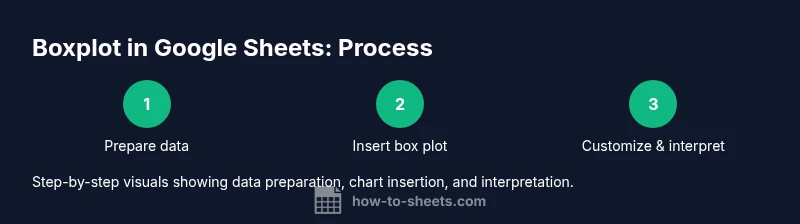
- 1
Prepare data range
Highlight the numeric data (and headers if you have multiple groups) in Google Sheets. Ensure all cells contain numeric values and remove any non-numeric text. This gives boxplots accurate quartile calculations and prevents chart errors.
Tip: Keep a clean column layout with a single header row for easy data range selection. - 2
Insert the chart and pick Box plot
Go to Insert > Chart, then open the Chart Editor and choose the Box plot type. Google Sheets will use your selected range to compute quartiles and whiskers. If the option isn’t visible, adjust the data layout or update to the latest Sheets version.
Tip: If multiple groups exist, place each group in its own column before selecting the range. - 3
Verify and adjust the data range
Check that the Chart Editor reflects the correct data range and series. If needed, expand or shrink the range and configure grouping to ensure each series represents a group. This ensures accurate comparisons.
Tip: Use the Data range and Customize tabs to fine-tune which rows/columns feed the plot. - 4
Customize visuals for clarity
In Chart Editor, adjust colors, legend position, axis titles, and outlier markers. A clean color scheme helps viewers distinguish groups, while clear axis labels prevent misinterpretation of quartiles and whiskers.
Tip: Prefer contrasting but harmonious colors and enable data labels only if necessary. - 5
Interpret and share
Review the median lines, box heights, and whiskers to interpret distribution and differences between groups. Save the chart in your sheet and share with teammates or include it in reports.
Tip: Add a short interpretation note beneath the chart for non-technical readers.
FAQ
What data format does a boxplot in Google Sheets require?
The boxplot expects numeric data arranged in a clean column or columns with a header row. If you compare multiple groups, each group should occupy its own column with a clear label. Non-numeric entries should be removed or coerced to numbers before charting.
Use clean numeric columns with headers; remove any text from data columns before creating the chart.
Can I compare more than one group in a single boxplot in Sheets?
Yes. Place each group in a separate column and select all groups when inserting the chart. The Box plot will display separate boxes for each group, enabling side-by-side comparison of medians and variability.
Yes—put groups in separate columns and compare the resulting boxes side by side.
Why don’t I see a Box plot option in the Chart Editor?
Box plots require numeric data arranged in a compatible layout. If the range is not suitable, Sheets may default to other chart types. Re-check the data layout and headers, then re-open the Chart Editor.
Make sure your data is numeric and correctly arranged; reopen the chart editor after adjusting the range.
How do I interpret the whiskers and the box in a Google Sheets boxplot?
The box represents the interquartile range (Q1 to Q3), the line inside the box shows the median, and whiskers show the range where most data fall. Dots beyond whiskers indicate outliers.
Look at the box height for variability, the median line for central tendency, and whiskers for the typical spread; outliers are shown as dots beyond the whiskers.
Can I customize outliers or the quartile markers in Sheets?
Yes. The Chart Editor lets you adjust the appearance of outliers and quartiles to improve readability. You can change colors and enable/disable outlier markers as needed.
You can tweak colors and outlier markers in the chart settings to make the plot clearer.
Is a boxplot suitable for very small datasets?
Boxplots are most informative with larger samples. For very small datasets, the quartile estimates may be unstable, so supplement with descriptive statistics or a different visualization if precision matters.
Boxplots work better with more data; small samples can mislead, so consider other visuals too.
Watch Video
The Essentials
- Prepare clean numeric data before charting
- Choose Box plot as the chart type for distribution insights
- Interpret medians, quartiles, and outliers to compare groups
- Customize visuals for readability and accurate conclusions