How to Make a Graph in Google Sheets: Step-by-Step
Learn how to create, customize, and share charts in Google Sheets with a practical, step-by-step approach designed for students, professionals, and small businesses.


By the end of this guide you will be able to create a graph in Google Sheets from a dataset, choose the right chart type, customize axes and labels, and share or export the result. Before you start, ensure your data has headers, clean blanks, and decide whether a line, bar, or pie chart best communicates your story.
Getting started: define your data and goal
If you ask how do you make a graph on google sheets, the first step is to clarify your goal and prepare reliable data. Determine what story your chart should tell: trend over time, comparison among categories, or distribution across groups. This orientation keeps you from overcomplicating the chart later. According to How To Sheets, success begins with clean, well-structured data and clearly labeled columns. Create a single data table with headers for each series and one row per observation. Remove blank rows, ensure consistent data types (numbers where numbers belong), and avoid merged cells that can confuse the charting engine.
Next, set up your data for easy selection. Place the independent variable in the leftmost column (e.g., dates or categories) and place dependent values in adjacent columns. If you plan to add more data later, format your table with named ranges or a defined data range. Use numeric formatting for figures (commas for thousands, decimals where appropriate) and keep text labels short and descriptive. Your goal is to supply Google Sheets with a clean matrix that the Chart Editor can translate into visuals.
Choose the right chart type for your data
Not every dataset wants the same visualization. A line chart works well for trends over time; a column or bar chart excels at comparing categories; a pie chart highlights proportions; area charts emphasize magnitude; combo charts mix series to tell richer stories. In practice, start by sketching the narrative you want and then map that narrative to a chart type. Remember that color, scale, and orientation affect readability as much as data values do. If you’re uncertain, create two or three chart variants and compare how clearly each communicates the intended message.
Step-by-step: insert a chart in Google Sheets
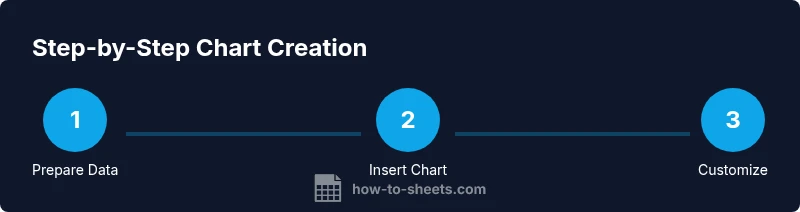
- Select the data range you want to visualize, including headers. 2) Open the Insert menu and choose Chart. 3) The Chart Editor panel will appear on the right; Google Sheets defaults to a chart based on your data. 4) In the Setup tab, pick a chart type from the drop-down menu and verify that the data range is correct. 5) If your data has multiple series, choose whether to 'Switch rows/columns' to display the series the way you prefer. 6) Click Customize to refine appearance. 7) Move or resize the chart on the sheet as needed. Tip: keep a clean, one-chart-per-sheet layout to simplify editing.
Customize your chart: axes, titles, legend
Visual clarity matters. Add a descriptive chart title, and provide axis titles that explain units and measurements. Adjust the legend position to avoid covering data, and use gridlines sparingly to reduce clutter. Choose a readable font size and a color palette with sufficient contrast. For accessibility, consider color-blind friendly palettes and ensure labels remain legible on small screens. If your chart is meant for a presentation, export a higher-resolution image or copy it into your slides with linked data so updates propagate automatically.
Advanced options: data range, series, and formatting
Tweak the data range to include or exclude rows as needed. You can add or remove series by expanding the data range or using the Series section in the Chart Editor. For each series, you can customize color, point shape, and line thickness. Enable data labels to display exact values, or add a trendline to show direction. If your data is irregular, consider using a smoothing option or a stepped line to better reflect the pattern. When using multiple axes, assign one axis per axis scale to maintain proportionality.
Sharing, exporting, and embedding your chart
Charts are table-side visuals that can travel with your data. To share, either grant view access to collaborators with the sheet or copy the chart into another Google Workspace app. You can embed a chart in Google Docs, Slides, or Websites by selecting Insert > Chart > Linked Chart in the destination app. For static needs, export your chart as PNG, JPG, or SVG; for editing later, keep the chart in Sheets and reuse the linked image in documents.
Common pitfalls and how to avoid them
- Overloading charts with too many data series; limit to 3-4 for readability. - Mislabeling axes or failing to specify units; always include axis titles. - Ignoring data blanks or outliers; handle missing values with a clear rule. - Choosing colors without considering accessibility; test with grayscale mode. - Not updating the chart when the data changes; use named ranges for dynamic updates. By anticipating these issues, you’ll produce clearer graphics.
Practical examples: from budget to trends
We'll walk through three scenarios: (1) A monthly budget vs. actuals using a column chart with a target line. (2) A sales trend over quarters using a line chart with a secondary axis for growth rate. (3) A customer survey showing preferences with a stacked bar chart. For each example, start with a clean data table, choose the appropriate chart type, and then customize titles, colors, and data labels to emphasize the key takeaway. These patterns translate to almost any dataset you encounter in class, work, or personal planning.
When to update and maintain your chart
Data evolve; your chart should evolve with it. Use dynamic ranges or named ranges to ensure new rows automatically appear in the chart. Periodically review the chart’s readability: update fonts, adjust color contrasts, and realign labels as your sheet grows. If you share the chart externally, consider publishing to the web or exporting a static image to prevent accidental edits. A well-maintained chart remains a reliable decision-support tool.
Tools & Materials
- A computer or tablet with internet access(Stable connection to Google Sheets)
- A Google account(Needed to access Sheets)
- Your dataset (CSV or Spreadsheet)(Headers included; clean data)
- Web browser (Chrome recommended)(Recommended for best compatibility)
- Optional: mouse or trackpad(Helpful for precise selections)
- Optional: screenshot tool for exporting charts(If you plan to share as images)
Steps
Estimated time: Total time: 15-25 minutes
- 1
Prepare data
Ensure headers exist, data types are consistent, and blanks are minimized. This foundation prevents misinterpretation when the chart is created.
Tip: Label headers clearly so the chart editor maps fields correctly. - 2
Select the data range
Highlight the range you want to visualize, including the header row for automatic series labeling.
Tip: Include all relevant rows to avoid needing later range edits. - 3
Insert the chart
Go to Insert > Chart to create a default chart based on your selection.
Tip: If the chart appears empty, double-check the data range. - 4
Choose a chart type
In the Chart Editor Setup tab, pick a type (e.g., line, bar, or pie) that best communicates your data story.
Tip: Switch rows/columns if the series orientation is inverted. - 5
Customize basics
Add titles, axis labels, and a legend. Adjust fonts and colors for readability.
Tip: Use accessible color palettes and concise labels. - 6
Refine data series
Modify colors, add or remove series, and consider data labels or a trendline if informative.
Tip: Limit to 3-4 series for clarity. - 7
Share or export
Copy the chart into another app or export as PNG/SVG for presentations or reports.
Tip: Link charts to sources to keep updates synchronized.
FAQ
What is the best chart type for comparing categories?
For comparing categories side-by-side, bar or column charts usually work best. They make differences in magnitude easy to see at a glance.
Bar or column charts are ideal for side-by-side category comparisons.
How do I change the data range after creating the chart?
Click the chart to open the Chart Editor, then use the Setup tab to adjust the data range or switch rows and columns to reshape how data is presented.
Open the Chart Editor and adjust the data range on the Setup tab.
Can I use Google Sheets on mobile to create a chart?
Yes, the Google Sheets mobile app supports chart creation, though the interface is simplified compared to desktop. Plan for a few extra taps.
Yes, charts can be created on mobile, with a slightly different workflow.
Why are my numbers unreadable in the chart?
Check data formatting and axis scaling. Ensure numeric columns are numbers (not text) and use appropriate units on axes.
Ensure numeric data types and proper axis labels to improve readability.
How can I export the chart as an image?
Use the chart's three-dot menu to download as PNG, JPG, or SVG. For editing later, keep the chart in Sheets with a linked image available.
Download the chart as PNG, JPG, or SVG from the chart menu.
How do I embed the chart in Google Docs?
Copy the chart or use Linked Chart to insert it into Google Docs. Updates in Sheets can propagate to the document automatically.
You can embed or link the chart in Google Docs for live updates.
The Essentials
- Prepare clean data before charting
- Choose chart type that matches your data story
- Add descriptive titles and axis labels
- Use accessible colors and readable fonts
- Keep charts updated with dynamic ranges