Graph in Google Sheets: A Practical Step-by-Step Guide to Charts
Learn how to graph in google sheets with a practical step-by-step guide. From data prep to chart types and customization, discover how to visualize data clearly in Sheets.


Learn how to graph in google sheets by selecting the data, inserting the right chart, and customizing axes, labels, and colors to create clear, compelling visuals for reports or presentations. This quick guide highlights required data, chart types, and essential formatting steps to publish readable charts quickly.
What is a graph in Google Sheets?
A graph, or chart, in Google Sheets is a visual representation of your data that helps reveal patterns, trends, and comparisons at a glance. When you select a data range and insert a chart, Sheets automatically generates a graph that updates as you modify the data. In practical terms, graphs turn rows and columns of numbers into a single, interpretable image. For clarity, you will often map one axis to categories (time, items, or groups) and the other axis to measures (sales, counts, percentages). The phrase graph in Google Sheets is common in tutorials because the app combines data organization with charting capabilities in a single, cloud-based tool. The How To Sheets team emphasizes that starting with clean data is critical: the quality of your graph depends on the clarity of the underlying data. If you keep headers descriptive and avoid merged cells, you’ll get charts that are both accurate and easy to read.
wordCountSentenceEstimateSimilarlyToBlockAndGeneralNoteIfNeededAndKeepThisAsOneBlockForLengthAndConsistency.
Tools & Materials
- Computer with internet access(Any modern browser; Google account preferred for seamless access to Sheets.)
- Google account(Needed to open Google Sheets and store charts in Drive.)
- Dataset for charting(Have a clean, headered dataset ready in Sheets (no merged cells for reliable charts).)
- Visualization palette(Optional set of brand-safe colors to improve readability.)
- Screen capture or export tool(Useful for sharing charts as images in reports.)
Steps
Estimated time: 5-15 minutes
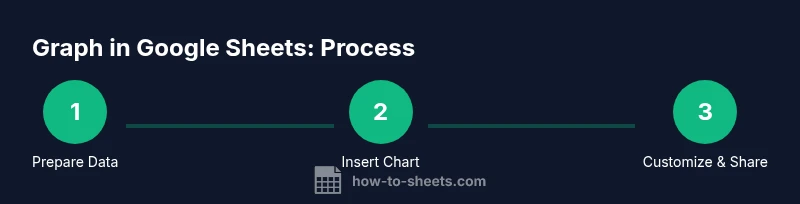
- 1
Prepare data for charting
Start with a clean, well-labeled dataset. Ensure headers describe each column, remove blank rows, and keep numeric values in a single column for the measure you’re visualizing. If you plan multiple series, place them in adjacent columns. This setup makes the charting process predictable and scalable.
Tip: Use a distinct header for the category axis and avoid mixing data types in the same column. - 2
Insert the chart
Select the data range you want to chart, then go to Insert > Chart. Google Sheets will propose a default chart type based on your data. If you’re unhappy with the suggested chart, you can switch types in the Chart Editor without changing your data.
Tip: If the Chart Editor doesn't appear, click the chart and select the three dots to open the editor. - 3
Choose the right chart type
In the Chart Editor, choose a type that matches your data story: line charts for trends, bar/column for comparisons, or pie for composition. Use the “Switch rows/columns” option to experiment with how you present the data. Adjust data ranges if needed.
Tip: Avoid using more than one chart type on the same sheet unless it clearly communicates different aspects of the data. - 4
Refine labels and data ranges
Add axis titles, a chart title, and a legend if necessary. Ensure the axis labels are concise, and the data series are clearly distinguished. If you add multiple series, confirm the data ranges reflect all series you want included.
Tip: Turn on the legend only if it improves clarity; too many items can clutter the chart.
FAQ
Can I create multiple charts from one data set?
Yes. You can insert several charts from the same data by selecting different ranges or duplicating charts. Each chart can highlight a different aspect of the data.
Yes. You can make multiple charts from the same data by selecting different ranges or duplicating charts.
How do I switch rows and columns in a chart?
In the Chart Editor, use the Switch rows/columns option to swap the orientation of your data. This is helpful to explore whether a bar or line orientation better communicates the trend.
Use the Switch rows/columns option in the Chart Editor to flip how data is interpreted.
Why isn’t my chart updating when data changes?
If the chart isn’t linked to the data range, reselect the range or edit the data range in the Chart Editor. Charts should automatically update as you edit cells.
Make sure the chart is still linked to the correct data range; reselect if needed.
Which chart type is best for time-series data?
Line charts are typically best for time-series data because they reveal trends over time. You can add markers or smooth lines for readability.
Line charts are usually the go-to for time-series data.
Can I export a chart as an image?
Yes. Click the chart, use the three-dot menu, and choose Save image to download a PNG or SVG. This makes it easy to include the chart in reports.
Yes. You can save a chart as an image for use in reports.
Watch Video
The Essentials
- Plan data layout before charting.
- Choose chart type that matches data story.
- Label clearly and keep visuals simple.
- Update charts as data changes to keep visuals accurate.