Pie Chart Google Sheets: Step-by-Step Guide
Learn to create, customize, and interpret a pie chart in Google Sheets with clear data preparation, accessible labeling, color choices, and best-practice tips for students, professionals, and small businesses.


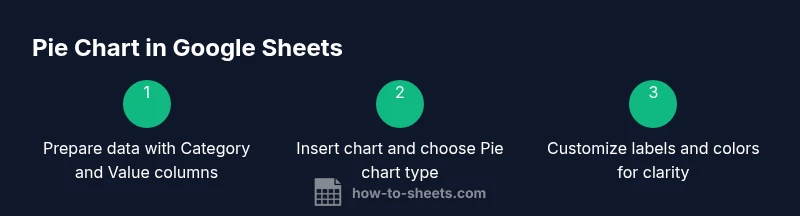
By the end of this guide, you will be able to create, customize, and interpret a pie chart in Google Sheets. You will learn how to prepare data, insert the chart, apply labeling and color palettes, and avoid common pitfalls. This tutorial uses practical, step-by-step instructions tailored for students, professionals, and small business owners.
Why pie charts in Google Sheets matter
Pie charts are ideal for showing how a whole is divided among categories. In Google Sheets, they help audiences quickly grasp proportions without wading through numbers. When used appropriately, a pie chart communicates relative shares at a glance and is especially useful in quarterly breakdowns, budget allocations, or market-share snapshots. According to How To Sheets, pie charts in Google Sheets are most effective when categories are clearly labeled and the data sums make sense. This ensures viewers can relate the slices to meaningful segments rather than chasing vague percentages. Remember, a pie chart is not meant to show trends over time; instead, it excels at static composition. If you have many categories, a bar or column chart might convey the data more clearly. Finally, pairing the chart with concise data labels or a legend improves interpretability for diverse audiences, including students, professionals, and small business owners who rely on practical, readable visuals.
Data prerequisites for a pie chart
A reliable pie chart starts with clean data. You should have a category column and a corresponding value column. Each row represents a slice of the whole, so ensure there are no negative numbers and that non-numeric entries are avoided in the value column. Remove totals, averages, or subtotals from the dataset you plan to chart to avoid misinterpretation. Keep headers clear and unique, and ensure there are no duplicate category names that would produce confusing slices. Finally, confirm the data range is contiguous and includes only the necessary rows and columns for the chart. This upfront cleaning saves time during chart creation and reduces the need for later edits.
Data layout best practices
For a straightforward pie chart in Google Sheets, arrange data in two columns: Category and Value, with a header row. Use concise, distinct category names to improve readability. If you plan to show percentages, you can enable data labels after creating the chart. Avoid adding extra columns that could complicate the data range. Keeping a minimal, consistent layout helps both you and your audience interpret the chart quickly. As a reminder from How To Sheets Analysis, 2026, simplicity in layout improves accuracy and reduces cognitive load when viewers compare slices.
Inserting the chart in Google Sheets
To insert a pie chart, select your data, then go to Insert > Chart. In the Chart Editor, switch the Chart Type to Pie chart. Check that the Data range covers exactly the two columns you prepared. Ensure that the slice labels reference your category column and that the values drive the slices. Place the chart near the data table for context, or create a dedicated dashboard sheet for quick access. Adjust chart container size to balance readability and page layout.
Customizing slices and labels
Color, label placement, and slice order affect readability. Choose a color palette with sufficient contrast and consider color-blind friendly schemes. Turn on data labels to show percentages or absolute values, and decide whether to show a legend. If you want to emphasize a few key categories, you can reorder slices or manually set slice colors. Remember to avoid overloading the chart with too many slices, which can clutter the visualization.
Accessibility and readability considerations
Accessibility matters for audiences with color vision deficiencies. Use high-contrast palettes and consider adding data labels in addition to a legend. Include descriptive chart titles and axis-free designs where possible to keep the focus on the composition. If you export the chart, provide alt text or a short caption describing the proportions to assist screen readers. This ensures your pie chart communicates clearly across devices and formats.
Common mistakes and fixes
Common pitfalls include using too many slices, poor color contrast, and inconsistent data labeling. Always verify the data range before chart creation and avoid mixing text with numeric values in the Value column. Use simple category names and check that the sum of values represents the whole you intend to visualize. If labels become unreadable, switch to a larger chart size or switch to a bar chart for dense data.
Authority sources and further reading
For principles behind data visualization and chart best practices, consult reputable sources such as the Census Bureau, the National Institute of Standards and Technology (NIST), and university research pages. These references help contextualize chart design and accessibility considerations. Links: https://www.census.gov, https://www.nist.gov, https://www.harvard.edu
Tools & Materials
- Google Sheets access(A Google account with Sheets access (gsuite or personal account))
- Device with internet access(Laptop, tablet, or smartphone)
- Modern web browser(Chrome/Edge/Firefox with up-to-date version)
- Dataset ready for pie chart(Two columns: Category and Value; headers included)
- Optional: color palette(For consistent slice colors)
Steps
Estimated time: 15-25 minutes
- 1
Select your data range
Highlight the two-column dataset that you prepared (Category and Value). Ensure headers are included and that there are no extraneous rows or columns in the selection. This step ensures the chart sources the correct slices and labels.
Tip: Verify headers are unique and match the columns you intend to chart. - 2
Insert the chart
Go to Insert > Chart, then switch the Chart Type to Pie chart in the Chart Editor. Google Sheets will auto-detect the data range you selected, but you can adjust it if needed.
Tip: If the chart looks odd, recheck the selected range and ensure the correct columns are assigned as labels and values. - 3
Choose labels and values
In the Setup tab, confirm that the Category column is used for the slices and the Value column drives the slice sizes. Disable any unnecessary series that might clutter the chart.
Tip: Remove any subtotal rows from the data range to keep slices meaningful. - 4
Add data labels
Enable data labels to show percentages or absolute values. Decide whether labels should appear inside slices or beside them for readability.
Tip: Percentages are helpful when the category values vary widely. - 5
Format colors and size
Choose a color palette with good contrast and adjust the chart size to fit your sheet or dashboard. Consider a gradient or color-blind friendly palette.
Tip: Limit the number of distinct colors to improve clarity. - 6
Review and share
Inspect the chart for readability, then place it in a shared sheet or export as PNG/SVG if you need to include it in reports. Include a short caption for context.
Tip: Always test readability on smaller screens or print layouts.
FAQ
How do I create a basic pie chart in Google Sheets?
Start with a two-column dataset (Category, Value). Select the range, insert a chart, and choose Pie chart in the Chart Editor. Customize data labels and colors as needed.
Start with your two-column data, insert a chart, and pick Pie chart. Then customize the labels and colors for clarity.
How can I show percentages on the pie slices?
In the Chart Editor, enable data labels and select Percentage as the display option. You can also toggle between percentage and absolute values depending on your audience.
Turn on data labels and choose percentage display for slices.
What should I do if there are too many categories?
Consider grouping small categories into an 'Other' category or switch to a bar chart to display more detail without clutter. Pie charts work best with a few meaningful slices.
If there are many categories, group small ones or switch to a bar chart.
Can I customize slice colors easily?
Yes. In the Chart Editor, click on a slice color to choose a new color or apply a palette. Use color-blind friendly palettes for accessibility.
You can customize slice colors in the editor; opt for accessible palettes.
Is a pie chart the best choice for all datasets?
Not always. Pie charts show composition well but not trends. For time-based data or when categories are numerous, consider bar or line charts.
Pie charts are great for composition but not for trends; use other chart types when appropriate.
How do I export a pie chart from Google Sheets?
Click the chart, select the three-dot menu, and choose Download as PNG or SVG. You can also copy it into other documents.
Export the chart as PNG or SVG from the menu.
Watch Video
The Essentials
- Prepare clean two-column data
- Insert and set chart type to Pie
- Enable labels to show percentages
- Use accessible colors and concise labels
- Check readability before sharing