How to Add a Line in Google Sheets: Step-by-Step Guide
Learn how to add a line in Google Sheets, whether by inserting a data row or adding a trendline to a chart. This step-by-step guide covers both approaches, plus tips for readability and reliable results.


You can add a line in Google Sheets either by inserting a new data row or by adding a line to a chart via a trendline. This guide covers both workflows, plus methods to create a constant reference line, customize appearance, and verify results. Whether you’re tracking a budget, a project timeline, or student grades, these steps help you visualize progress clearly.
Understanding what a line means in Google Sheets
In Google Sheets, the phrase "add a line" can refer to two distinct tasks: adding a line to your raw data (a new row) or displaying a line on a chart (a trendline or a reference line). Clarifying which kind of line you need saves time and prevents chart misinterpretation. This section outlines the two common interpretations and sets the stage for the step-by-step sections that follow. The two main types are a data line (a new row in your data table) and a chart line (a line you visualize on a chart to illustrate trends, averages, or thresholds). When you make this distinction early, you’ll make the correct adjustments to ranges, formulas, and chart settings. You’ll also encounter related concepts like data series, chart ranges, and axis synchronization, which influence how the line appears and how easily others can read the information. By understanding both meanings, you’ll avoid creating misleading visuals and ensure that any added line communicates the right insight.
Adding a line to your data: insert a new row
If your goal is to record a new data point or an additional row of measurements, you should insert a new line (row) in your data table. This is the most common way to extend datasets without altering the existing structure. Begin by selecting the row number where you want the new line, right-click, and choose "Insert 1 above" (or below, depending on your layout). Enter the values for each column in the new row, ensuring consistency with existing data types (numbers, dates, and text should match the column’s intended type).
If your sheet contains formulas that reference the data, Google Sheets will typically adjust automatically when you insert a new row. Be mindful of complex formulas that reference entire columns, as those may require manual checking after insertion. If you use filters or protected ranges, you may need to temporarily disable or adjust them to perform the insertion. You can also use copy-paste methods to duplicate an existing line and then modify the values as needed. This approach is especially useful when you have a standard template for each row and want to preserve formatting and formulas.
Adding a line to a chart: using a trendline
To visualize changes over time or across categories, you can add a line to a chart by enabling a trendline. First, ensure your chart includes the data series you want to analyze. Click the chart, then open the Chart Editor. In the Series section, enable Trendline and choose a type (Linear, Exponential, Polynomial, or Logarithmic) that best fits your data. A trendline provides a visual slope and, optionally, its equation and R-squared value for goodness-of-fit. If you have multiple series, decide which one should display the trendline; you can apply trendlines to each series separately. Adjust the line color and thickness for readability, and consider whether you want the equation displayed on the chart for quick reference.
Tip: If your chart uses a date axis, a linear trendline often makes the most sense, but exponential or polynomial trends can better reflect growth patterns or cyclical data. After adding the trendline, review the chart’s overall layout to ensure the trendline doesn’t obscure data points.
Creating a constant reference line by adding a line with a fixed value
A horizontal reference line can help you compare values against a target or threshold. To create this, add a new column containing the same constant value for each relevant row (e.g., a monthly budget target or a pass/fail threshold) and include that column in the chart. You can then format this line differently (e.g., dashed, dotted) to distinguish it from data lines. If your chart already aggregates data, ensure the new reference series uses the same category alignment so the line aligns with the correct x-axis values. This approach is especially useful for dashboards and performance reports where you want a stable benchmark across time.
Practical examples: budgets, schedules, and grades
Example 1 — Budget tracking: You maintain monthly spend in a sheet with columns for Month, Actual, and Target. To show the Target as a line, add a new column named Target and fill it with the monthly target value. Include Target in your chart as a series and format it with a dashed line color (e.g., blue). The chart will then display Actual as a solid line and Target as a reference line, making gaps easy to spot.
Example 2 — Student progress: A teacher tracks scores across assessments. Add a line that represents the passing threshold by inserting a new column with a fixed value (e.g., 60). Plot both the scores and the threshold in a chart, using distinct line styles to keep the distinction obvious. This makes it simple to identify which dates or assessments fall below the threshold at a glance.
Troubleshooting common issues when adding a line
If your new line doesn’t appear as expected, check the data range used by the chart. In the Chart Editor, verify that the Series and Data Range reflect the newly inserted row or the new reference column. If formulas rely on entire columns, insertion may shift references; review any INDIRECT or OFFSET-based formulas for errors. When using a trendline, ensure you selected the correct data series and that the data variance is sufficient for a meaningful trend. If you see gaps in a line, confirm there are no blank cells in the data column that would break continuity. Lastly, remember to save and refresh the chart after changes to confirm the line renders correctly.
Best practices for readability and maintenance
- Keep line types consistent: use solid lines for data and dashed lines for references or thresholds.
- Label clearly: include axis titles and a legend that differentiates each line.
- Use named ranges where possible to simplify future updates.
- Document your intent: add a small note or header row documenting why the line exists (target, threshold, or trend purpose).
- Periodically review charts: as data grows, adjust the chart range to ensure the line remains visible and meaningful.
Tools & Materials
- Google Sheets access(Open a sheet in a compatible web browser with an active Google account)
- Dataset with numeric columns(Columns for data and, if needed, a target/reference column)
- New row or new column data(Prepare values for the new line (row or reference values))
- Existing chart (optional)(If you plan to add a line to a chart, have the chart ready)
- Chart editor access(Used to enable trendlines and customize line styles)
Steps
Estimated time: 15-25 minutes
- 1
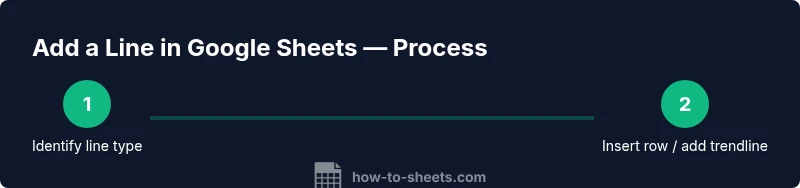
Identify the line type
Decide whether you need a data line (row) or a chart line (trendline or reference line). This influences whether you insert a row or adjust the chart settings.
Tip: Clarify your goal (trend, target, or threshold) before editing to choose the correct approach. - 2
Insert a new row in the dataset
Select the row where you want the new line, right-click, and choose Insert 1 above (or below). Enter values for each column, ensuring data types match existing rows.
Tip: If formulas reference entire columns, verify that the new row is included in calculations. - 3
Enter values for the new line
Fill in the new row with the appropriate data. Use the same number and date formats as existing rows to avoid errors.
Tip: Use the fill handle to propagate formulas if the new row should inherit existing calculations. - 4
Update the chart range (if needed)
Click the chart, open the Chart Editor, and ensure the Data Range includes the newly inserted row or column.
Tip: If charts don’t update automatically, manually adjust the range to maintain visibility of the new line. - 5
Add a trendline to a chart
In the Chart Editor, go to Series, enable Trendline, and choose a type (Linear, Exponential, etc.).
Tip: Display the equation or R-squared if you need precise interpretation of the trend. - 6
Customize line appearance
Adjust color, thickness, and style to distinguish data lines from reference lines or thresholds.
Tip: Use dashed styles for reference lines to avoid visual confusion. - 7
Verify alignment and readability
Check that the line aligns with the correct axis and that the chart remains legible with the added elements.
Tip: Hide unnecessary gridlines or labels if the chart becomes cluttered. - 8
Save and document
Save your changes and add a brief note in the sheet header describing why the line exists.
Tip: Periodic reviews help keep charts meaningful as data grows.
FAQ
What is the difference between a data line and a trendline?
A data line represents actual data as a new row or column in your sheet, while a trendline is a chart element that models a pattern in existing data. Trendlines help visualize direction, not actual data values.
A data line is real data, added to the sheet. A trendline is a chart element that shows the data trend. They serve different purposes.
Can I add multiple lines to the same chart?
Yes. You can add several data series and, if needed, multiple reference or trend lines. Each series can have its own style and axis, if supported by the chart.
Absolutely. You can plot several lines in one chart, each representing different data or references.
How do I remove a line from a chart or sheet?
To remove a data line, delete the corresponding row or column. To remove a trendline or reference line, edit the chart and turn off the trendline or delete the reference series.
Delete the row or column for data lines, or disable the trendline for chart lines.
Will lines update automatically when data changes?
Data lines update automatically as long as the chart range includes the changed cells. Trendlines recalculate when the underlying data changes.
Yes, if the data is within the chart’s range, it updates automatically.
Is there a quick way to format a reference line as dashed?
Yes. After adding the reference series, edit the line style in the chart editor to dashed (and adjust color and thickness) to distinguish it from data lines.
You can set the reference line to dashed in the chart style options.
Watch Video
The Essentials
- Decide between a data line and a chart line before edits.
- Insert or add line data carefully to preserve formulas.
- Trendlines extend insights; customize for clarity.
- Reference lines require consistent formatting and labeling.
- Document intent to keep future readers on the same page.