How to Make a Line Graph in Google Sheets: Step-by-Step
Learn how to create a clear line graph in Google Sheets with a practical, step-by-step approach. Perfect for students, professionals, and small business owners seeking actionable visuals.


According to How To Sheets, you can create a clean line graph in Google Sheets by organizing data in two columns (time and values) and inserting a Line chart. Start with clear headers and consistent date formats, then adjust the axis scale and colors for readability. The How To Sheets team recommends keeping the layout simple to reveal trends clearly.
Why line graphs matter in data visualization
Line graphs are powerful for illustrating trends, patterns, and changes over time. They provide a straightforward way to compare multiple data series side by side, making it easier to spot rising or declining trends, seasonality, and turning points. In Google Sheets, line graphs are accessible to students and professionals alike, enabling rapid storytelling with your data. According to How To Sheets, a well-designed line graph communicates the right message when the x-axis represents time or an ordered category, and each series is clearly distinguished. A clean chart with consistent scaling, legible axis labels, and distinct colors minimizes cognitive load for readers. When presenting multiple series, align the data so the lines don’t overlap ambiguously, and keep gridlines subtle enough not to compete with the data. The goal is to let your data tell the story without forcing the viewer to hunt for the meaning behind the lines.
What data you need to make a line graph
To make a line graph, you need a clear x-axis column and one or more numeric data columns. The first column should contain time points (dates, months, quarters) or ordered categories. Each subsequent column represents a data series you want to compare. Ensure headers are descriptive so the chart editor automatically labels each line. If you plan to plot more than one series, keep the number of columns reasonable to avoid a cluttered legend. Using consistent units (e.g., sales in USD, temperature in Celsius) helps readers interpret the chart accurately. If your data includes missing values, decide whether to interpolate or leave gaps, and apply the same rule across all series for consistency. How To Sheets analysis shows that well-labeled data improves comprehension and trust in the final visualization.
Setting up your data in Google Sheets
Begin by organizing your sheet with a header row and clean columns. In the first column, place your x-axis entries: dates, months, quarters, or categories. In the following columns, add the corresponding numeric values for each series. Keep dates in a true date format, not text, to ensure Google Sheets can interpret them correctly. Avoid merging cells in the data range and freeze the header row for easy navigation. Double-check that each row aligns across all series and that the data range you plan to chart contains every relevant data point. A tidy data table translates into a cleaner chart and fewer surprises when you generate the graph.
Inserting the chart: line chart basics
Select the full data range, including headers, then go to Insert > Chart. Google Sheets will propose a chart, often a column chart by default. In the Chart editor, change the Chart type to Line chart. If you’re plotting multiple series, verify that each series appears as a separate line and that the legend reflects the correct colors. Use the chart’s placement options to position it within your sheet for easy reference. When the chart is created, click on it to reveal the Chart editor where you can fine-tune data ranges, series, and axes. This initial setup establishes the foundation for a readable, informative line graph.
Customize titles and axes for clarity
Titles and axis labels are critical for reader comprehension. Edit the chart title to reflect the data’s story, and label the x-axis and y-axis with units when applicable (e.g., Months, Revenue in USD). Adjust the y-axis minimum and maximum to avoid misleading visual gaps or squeezed lines. If your data spans a wide range, consider using a logarithmic or standard scale as appropriate for readability. Small formatting touches—like increasing font size on the axis labels or adding gridlines sparingly—make the chart easier to scan at a glance. Keep consistency across your charts so audiences learn to read them quickly.
Working with multiple series and legends
When you add more than one data series, color contrast is essential. Assign distinct colors and, if necessary, different line styles (solid, dashed) to differentiate lines without relying solely on color. Position the legend where it won’t obscure data points; right-side legends commonly work well for short-to-moderate numbers of series. If the chart becomes crowded, consider splitting into multiple charts or using a secondary axis for a clearer comparison. Always verify that the legend accurately maps each color to the correct data series to prevent misinterpretation.
Interpreting your line graph and avoiding misinterpretation
A line graph’s power lies in its ability to reveal trends, not just numbers. Look for direction, rate of change, and moments when lines converge or diverge. Be cautious about over-interpreting short-term fluctuations; consider smoothing or aggregating data if necessary. Ensure the axis scale doesn’t exaggerate or minimize movement. Providing a short interpretation alongside the chart—such as noting a rising trend or a seasonal pattern—helps readers understand the takeaway without guessing.
Sharing, exporting, and integrating with reports
Once your chart communicates the intended message, you can share it directly in Google Sheets, embed it into Google Docs or Slides, or export it as PNG, PDF, or SVG if needed for reports. If you routinely update data, link the chart to a dynamic range or named range so it refreshes automatically. For teams, exporting a clean, labeled chart helps maintain consistency across documents and presentations. Remember to review the chart in context with your report, ensuring it aligns with surrounding text and data tables.
Common formatting options in Google Sheets
Google Sheets offers a Chart Editor with two tabs: Setup and Customize. In Setup, you can switch chart types, adjust the data range, and select which series to display. In Customize, you’ll refine chart & axis titles, legend placement, gridlines, and series colors. You can also enable data labels for precise values, adjust the point size, or add a trendline if it helps convey the data’s trajectory. Experiment with subtle changes to improve readability without overwhelming the viewer.
A practical example: monthly sales trend
Suppose you track sales over 12 months for two products. Create a sheet with a Month column (Jan–Dec) and two series for Product A and Product B. Create a Line chart, assign distinct colors to each product, and add a descriptive title like “Monthly Sales Trend: Product A vs Product B.” Include axis labels such as “Month” and “Sales (USD)” and a short caption if you present the chart in a report. This example demonstrates how a simple line graph can reveal which product outperformed the other and when the sales spike occurred.
Tools & Materials
- A computer or tablet with internet access(Any modern browser; Google Sheets works best in Chrome, Firefox, or Edge)
- Google account(Needed to access Google Sheets and save charts)
- Data prepared in Google Sheets(Include headers and a clean x-axis column)
- Color palette or theme for readability(Optional but helpful for distinguishing lines)
Steps
Estimated time: 15-25 minutes
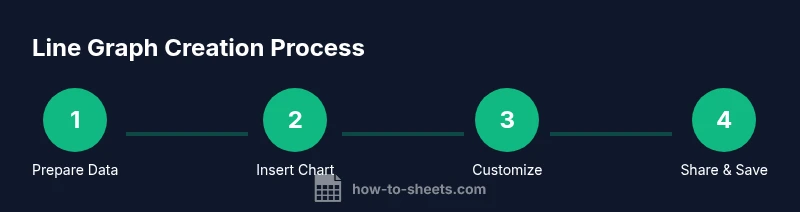
- 1
Prepare your data
Create two or more columns: the first for the x-axis (time periods or categories) and subsequent columns for each data series. Add a header row with clear labels. This structure lets Google Sheets infer series names automatically when you insert a chart.
Tip: Ensure dates are true date values (not text) to enable proper time-based scaling. - 2
Select the data range
Highlight the header row and all data cells you want included in the chart. Include all series you plan to compare so the chart can reflect changes across lines.
Tip: Use Ctrl/Cmd to extend the range without breaking existing selections. - 3
Insert the chart
Go to Insert > Chart. The Chart editor will open; switch the Chart type to Line chart. If the data contains multiple series, confirm that each series is shown as a separate line.
Tip: If you don’t see the Chart editor, click the chart and then the three dots to access more options. - 4
Customize titles and axes
Edit the chart title and axis labels. Set the y-axis range for readability and ensure the x-axis displays time points or categories clearly.
Tip: Use descriptive titles and include units on the axes when applicable. - 5
Format series and legend
Assign distinct colors or line styles to each series. Position the legend where it won’t obscure data, typically on the right.
Tip: Turn on data labels only if the chart remains readable. - 6
Save, share, and export
Place the chart on a sheet or copy it into documents. Export as PNG or PDF for reports. Consider using named ranges to keep the chart linked to live data.
Tip: Link the chart to a dynamic range to auto-update as data changes.
FAQ
What data format is best for line graphs in Google Sheets?
Line graphs work best when you have a clear x-axis column (dates or categories) and one or more numeric series. Ensure headers describe each column and that rows align across all series.
Line graphs are best with a clear x-axis and numeric series, with aligned rows and descriptive headers.
Can I create a line graph with non-date x-axis values?
Yes. Use categories like quarters or product names and ensure the order is meaningful. The chart will reflect changes across these categories.
You can use non-date categories as long as the order is meaningful.
How do I add a second line to show another dataset?
Place the second dataset in another column and ensure the Chart editor includes it as a separate series. The legend will update to show each line.
Add another column for the second dataset and the chart will show two lines.
Why are my Y-axis numbers not showing correctly?
Check the chart axis options to set appropriate min and max values. If the scale is off, adjust the range to improve readability.
Adjust the axis range to fit your data for better readability.
How do I update the chart when the data changes?
If the chart is linked to a dynamic range, it will update automatically as you add data. You can also refresh the chart manually.
Charts update automatically with dynamic ranges.
The Essentials
- Organize data with clear headers and a proper x-axis.
- Insert a Line chart and switch to the Line chart type.
- Customize axes, titles, and colors for readability.
- Ensure the legend and colors clearly map to each series.
- Save and share/export the final chart for reporting.