How to Protect Google Sheets with Password
Learn practical, step-by-step methods to secure Google Sheets without a built-in password, using sharing controls, protected ranges, and best security practices for individuals and teams.


There is no native password feature for securing an entire Google Sheet. To protect data, use Google Drive sharing settings, Protect sheets and ranges, and enforce access controls. For stronger protection, enable two-factor authentication, audit access, and avoid broad link sharing. This guide shows practical alternatives to a password that still keep sensitive information safe. how to protect google sheets with password
Why password protection matters for Google Sheets
If you work with sensitive data in Google Sheets, you may wonder how to protect google sheets with password. While Google does not provide a single-file password lock, you can achieve strong protection through layered controls. The How To Sheets team emphasizes that security is a multi-layered practice, not a single password. By combining precise sharing settings, protected ranges, and administrative controls, you can reduce the risk of unauthorized access while keeping collaboration smooth. In practical terms, you limit who can edit, view, or comment, and you compartmentalize sheets containing sensitive data. This approach mirrors real-world data governance: you grant the minimum necessary access and regularly review who has it. How To Sheets analysis shows that organizations that enforce strict access policies experience fewer data exposure incidents and faster recovery after misconfigurations.
Key takeaway: password alone is not enough; layered protections are essential.
Native protections in Google Sheets
Google Sheets offers several built-in protections that are often misunderstood as a password alternative. The most important features are Protect sheets and ranges, and granular sharing settings. Protect sheets and ranges allows you to lock specific tabs or cells so only designated people can edit them. You can set permissions for editors, viewers, and commenters, ensuring that even if someone opens the file, they cannot modify protected areas unless explicitly allowed. Sharing settings let you switch from “anyone with the link” to “restricted” and add specific people by email, which is a practical substitute for a password. In addition, administrators can enforce enforced two-factor authentication and device management through Google Workspace, further reducing risk. In short, use Protect sheets and ranges in combination with careful sharing to keep data safe.
Pro tip: pair protected ranges with named editors so you know who can modify sensitive sections. This minimizes confusion during audits.
How to implement access controls (step-by-step) in Google Sheets
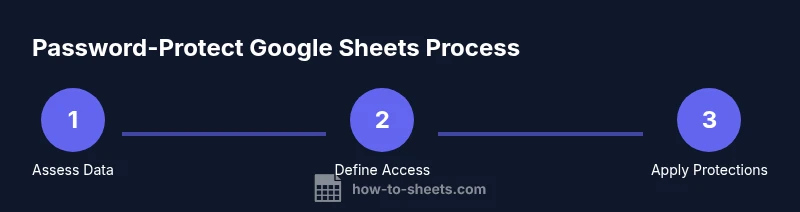
To emulate password protection, start by mapping who truly needs access. Then apply layered protections:
- Share the sheet with specific people only, not via a public link.
- Use Protect sheets and ranges to lock sensitive tabs or cells.
- Limit editors to essential personnel; set others to viewer or commenter when possible.
- Disable download, print, and copy options for viewers if your plan supports it.
- Regularly audit access and update permissions when roles change.
This approach aligns with best practices for data governance and reduces the risk of accidental exposure. Remember, access control is dynamic; review permissions quarterly or after personnel changes.
Note: If you are in a Google Workspace environment, admins can enforce stronger policies that complement your sheet-level protections.
Additional strategies for stronger security
Beyond in-file protections, consider these practices to fortify security:
- Enable two-factor authentication (2FA) for all collaborators. This is one of the most effective protections against credential theft.
- Use device management to ensure that devices accessing sensitive sheets are compliant with your security policy.
- Limit external sharing and require re-authentication for sensitive data.
- Regularly back up critical sheets to a secure location in Drive.
- Educate teammates on safe sharing practices and phishing awareness to prevent credential theft.
These strategies reduce the likelihood of data leakage even if a password is not used.
Note: The combination of technical controls and user education yields the strongest protection.
Limitations and common pitfalls
Relying on a password-like protection in Google Sheets is a misconception; you should not equate a password to proper security. The main limitations include the lack of a native file-level password, the potential for misconfiguration in sharing settings, and the possibility of insiders bypassing protections if they have editing rights. A common pitfall is sharing with too many people or leaving a link accessible to anyone in the organization. To mitigate this, adopt a strict access policy, document ownership, and use protected ranges to confine edits. Regularly validate that only the intended audience has access and consider combining sheet protections with broader security practices in your organization.
Important: Auditing and governance are ongoing processes, not one-time fixes.
How verification and audits support password-like security
Periodic audits verify that permissions align with policy and that there are no stray links or overly permissive settings. Use the Google Workspace Admin console or Drive's activity panel to track who accessed the file and when. Build an accountability trail by recording who has edit rights and rotate access as needed. While these measures cannot replace a password, they provide a robust, auditable defense that is essential for teams handling sensitive information. By integrating access controls with activity logs, you gain visibility and control that password-based systems often lack.
Tools & Materials
- Google account with sheet access(Use a verified account; avoid shared logins.)
- Web browser (Chrome recommended)(Ensure it’s up to date for security features.)
- Google Workspace Admin access (optional)(Useful for enforcing org-wide security policies.)
- Strong, unique recovery options for your Google account(Enable 2FA and recovery emails/phone.)
- Backups of critical sheets(Keep copies in a separate Drive location.)
Steps
Estimated time: Estimated total time: 15-25 minutes
- 1
Identify sensitive data
Review the sheet to determine which data requires higher protection. Categorize content by confidentiality level (public, internal, confidential) and flag sections that should not be broadly shared. Document the classification to guide protection settings.
Tip: Tip: Map data sensitivity to access levels and assign owners for each section. - 2
Define who needs access
List essential collaborators and verify their roles. Aim for the minimum viable access: editors only where necessary, readers for others, and avoid anyone with unnecessary editing rights. Prepare a short access policy to reference during sharing.
Tip: Tip: Use email-based sharing instead of sharing a link unless the link is restricted. - 3
Set sharing to restricted
Open the sheet’s sharing settings and switch from “anyone with the link” to “restricted.” Add only the required individuals by email and remove unused accounts. Save changes and confirm the list of editors.
Tip: Tip: Periodically re-check access lists for stale entries. - 4
Apply Protect sheets and ranges
Select tabs or specific ranges containing sensitive data, then choose Protect sheets and ranges. Define who can edit those areas and ensure that changes require you or designated editors to unlock.
Tip: Tip: Use descriptive names for protected ranges to simplify future audits. - 5
Limit actions for viewers
If your plan supports it, disable download, print, and copy for viewers. This reduces the chance of data leaving the file via casual actions. Note that this is not a foolproof barrier but adds a layer of defense.
Tip: Tip: Combine with restricted sharing to prevent easy data extraction. - 6
Document and audit access
Record who has access and when it changes. Use the Drive/Activity log to monitor modifications. Schedule quarterly reviews to adjust permissions as roles shift or projects end.
Tip: Tip: Create a short checklist for quarterly access reviews.
FAQ
Can you password protect a Google Sheet file?
Google Sheets does not offer a built-in password for the entire file. Instead, use restricted sharing, Protect sheets and ranges, and organizational controls to limit who can access or modify data.
No, Google Sheets doesn't support a file password. Use sharing controls and protected ranges to guard sensitive data.
Is Protect Sheets and Ranges enough to secure sensitive data?
Protect Sheets and Ranges is a powerful feature, but it should be combined with careful sharing policies. It prevents edits by unauthorized users, while sharing settings control who can access the file at all.
Protect ranges helps, but combine it with strict sharing to truly secure data.
How do I revoke access quickly?
Open the sheet’s sharing settings and remove individuals or switch the link to restricted. You can also revoke access summaries from Drive’s activity logs to track changes.
Remove users from the share list and switch links to restricted to revoke access fast.
Can I password protect individual cells or ranges?
You cannot password-protect individual cells. You can lock cells or ranges with editing permissions, which requires editors to unlock for changes.
There’s no password per cell; use protected ranges to control edits.
Do third-party add-ons provide password protection?
Some add-ons claim password-like protection, but rely primarily on in-file protections and share settings. Always verify security claims and prefer built-in controls when possible.
Some add-ons claim passwords, but stick with built-in protections and verify security.
What about offline access and mobile apps?
Security controls apply across platforms, but you should ensure devices are secure and that access policies extend to mobile and offline use where applicable.
Security carries over to mobile and offline use; manage device security too.
Watch Video
The Essentials
- Limit access to only essential collaborators
- Use Protect sheets and ranges to lock sensitive areas
- Restrict link sharing and disable downloads when possible
- Regularly audit permissions and update them as needed