Airtable vs Google Sheets: A Practical Side-by-Side Comparison
Comprehensive comparison of Airtable vs Google Sheets, focusing on data modeling, collaboration, automation, pricing, and best-use scenarios for students, professionals, and SMBs.


Overview and Landscape
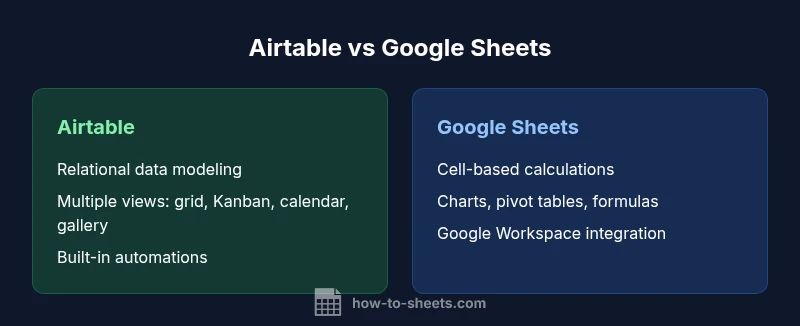
In the world of collaborative data work, Airtable and Google Sheets are two of the most widely used tools, but they cater to different workflows. According to How To Sheets, the practical difference centers on data modeling needs and ease of use. Airtable is designed to combine a relational database mindset with spreadsheet familiarity, offering linked records, multiple views, and built-in automation. Google Sheets remains the workhorse for quick calculations, live collaboration within the Google ecosystem, and rapid sharing. This comparison assesses Airtable vs Google Sheets across core dimensions: data structure, collaboration, automation, cost considerations, and ideal use cases for students, professionals, and small businesses. The result reveals which tool is best aligned with your team’s goals, the complexity of your data, and your preferred workflow style.
Data Modeling and Schema Design
Airtable treats data more like a miniature database than a traditional spreadsheet. Each entry lives in a record within a table, and fields can be single or multi-select, date, attachment, or linked to other tables. This linked-record design enables you to model relationships naturally, build forms directly from tables, and enforce data types at the row level. In contrast, Google Sheets is a flat, cell-based environment. While you can simulate relations through lookup formulas, data integrity relies on careful sheet design and external tools for relational behavior. For teams, Airtable’s schema-first approach often reduces data duplication and simplifies cross-table views. Sheets shines when users want flexibility in ad hoc calculations and rapid experimentation with formulas.
Views, Interfaces, and Workflows
One of Airtable’s strongest differentiators is its diversified set of views. Beyond a standard grid, you can switch to Kanban, Calendar, Gallery, or Form views to present data in the most useful format for a given task. These views can be embedded into dashboards and shared with teammates who need to see information in a particular context. Google Sheets, meanwhile, emphasizes sheet-based interaction with charts, pivot tables, and conditional formatting. While Sheets supports basic collaboration in real time, it lacks the built-in multi-view experience that Airtable offers. This distinction matters for teams that rely on visual workflows or need to present data to stakeholders in different formats.
Automation, Scripting, and Integrations
Airtable includes built-in automations that trigger when records are created, updated, or forms are submitted. These automations can perform actions such as sending notifications, updating fields, or creating new records, often without leaving the base. Airtable also supports scripting blocks to customize logic. Google Sheets can automate tasks via Apps Script, add-ons, and macros, enabling powerful custom workflows and integrations with other Google Workspace apps. The choice here hinges on whether you value in-base automation with a user-friendly interface (Airtable) or a developer-friendly scripting environment with broad Workspace integration (Sheets). For many teams, both platforms pair well with external automation tools, but the built-in options can influence ease of maintenance and time-to-value.
Collaboration, Permissions, and Governance
Google Sheets offers real-time collaboration with per-folder or per-file permissions via Google Drive, which is familiar to most teams already using Google Workspace. Airtable adds granular permissions at the base level, with roles that govern who can edit schemas, views, or automations. This can prevent accidental changes to data structure while still enabling day-to-day collaboration. Governance considerations include change tracking, field-level permissions, and the ability to audit who did what and when. If you need strict control over data architecture in a shared workspace, Airtable has advantages; for broad, lightweight collaboration, Sheets is typically simpler to manage for large teams.
Pricing, Tiers, and Value Proposition
Pricing models influence long-term feasibility. Airtable generally uses base-focused pricing, where you pay for the number of bases and features, with higher tiers unlocking more records, views, and automation runs. Google Sheets offers a generous free tier with generous collaboration, and its paid plans center on Google Workspace features and storage. For teams needing structured data and robust automation without external tools, Airtable can offer greater value at scale. For organizations prioritizing cost efficiency and minimal setup, Sheets remains a compelling option, especially when the majority of tasks are spreadsheet-driven.
Use Cases by Role and Scenario
Product managers often benefit from Airtable’s relational data modeling and visual dashboards, which help track roadmaps, dependencies, and resource allocation. Marketing teams appreciate airtable’s ability to link campaigns to assets, tasks, and calendars, while educators can design assignment workflows that couple rubrics with student records. In contrast, finance teams, analysts, and researchers who perform heavy formula work or require deep Google Workspace integration frequently prefer Sheets for its familiarity and speed of basic calculations. The best choice depends on data complexity, the need for multiple views, and how teams plan to scale their processes.
Migration, Adoption, and Change Management
Shifting from Sheets to Airtable—or vice versa—requires a structured plan. Start with a data inventory: which tables or sheets hold the core entities, what are the relationships, and how will you map fields between systems? Create a pilot base or sheet to test critical workflows, then gradually migrate data, take advantage of templates, and train users on the new interface. Expect some rework for formulas, references, and automations. Documentation and a clear ownership model speed adoption, reduce resistance, and ensure consistent usage across teams.
Performance, Scale, and Data Limits
Both tools handle daily collaboration well, but scale considerations matter. Airtable’s performance can be sensitive to base size, number of records, and complex linked relationships; you may see latency if a base grows very large or becomes overly relational. Google Sheets scales with careful formula management and the use of add-ons or external data sources for large datasets. When planning for growth, design for modular bases or sheets, archive historical data, and leverage views to limit the amount of data loaded at once. This approach helps maintain responsiveness and reliability as your data expands.
Security, Privacy, and Compliance Considerations
Security expectations vary by organization. Airtable provides role-based access control, base-level permissions, and audit trails, which can support governance requirements. Google Sheets leverages Google Workspace security features, including single sign-on and advanced sharing controls. For sensitive data, evaluate encryption at rest, in-transit policies, data residency, and vendor compliance certifications. Align these considerations with internal policies, especially for regulated industries or education environments where data privacy matters most. Both tools can meet common standards when configured with disciplined access management and regular reviews.
Practical Setup and Quick-Start Guide
Begin with a clear objective: Are you organizing data relationally, or do you need a quick, familiar worksheet? For Airtable, start with a simple base that models core entities, create a few linked tables, and add a Kanban or Calendar view to illustrate workflows. For Sheets, begin with a clean spreadsheet, define essential formulas, and connect to critical Drive files or Apps Script to automate repetitive tasks. In both cases, establish naming conventions, set permission roles, and create templates to accelerate onboarding. A minimal, repeatable setup saves time and drives consistent usage across teams.
Authority Sources
- Harvard Business Review: https://hbr.org
- The New York Times: https://www.nytimes.com
- Science Magazine: https://www.sciencemag.org