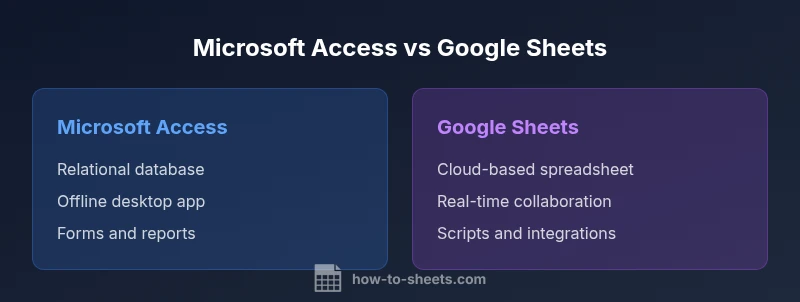
Microsoft Access vs Google Sheets: A Practical Comparison
Compare Microsoft Access and Google Sheets for data management: relational databases vs cloud spreadsheets, with practical use cases, workflows, and migration tips.


In short, for data-heavy relational needs with offline access, Microsoft Access is stronger; for collaborative, cloud-based, lightweight data tasks, Google Sheets wins. The right choice depends on whether you need robust data modeling and forms vs real-time collaboration and simple data sharing. How To Sheets recommends starting by mapping your data structure, workflows, and outputs before selecting a platform.
Core Differences Between Microsoft Access and Google Sheets
microsoft access vs google sheets is not merely a branding question; it defines how you model data, enforce rules, and share results. Access functions as a desktop relational database with tables, primary keys, and explicit relationships. Google Sheets operates as a cloud-based spreadsheet where data is captured in cells and manipulated with formulas, charts, and scripts. This fundamental split shapes every workflow—from data entry to reporting. According to How To Sheets, the decision hinges on whether your project requires rigorous data modeling and formal integrity constraints or if you need fast, collaborative editing across teams. The How To Sheets team found that most real-world projects sit on a spectrum between a structured database and a flexible grid for lists and analyses. Start with a map of data entities, the relationships between them, who will enter data, and how you’ll extract insights. Use that map to test a few representative tasks in each platform before committing. In practice, consider how forms, queries, and reports would be built in Access versus how formulas, filters, and dashboards would be assembled in Sheets. The keyword microsoft access vs google sheets should guide your planning, but the best decision comes from your actual use cases and collaboration needs.
When Microsoft Access Makes Sense
Choose Microsoft Access when your goals center on relational data modeling, stable data entry via forms, and robust reporting. Access stores data in structured tables with defined relationships, keys, and referential integrity, which reduces duplication and improves data quality in complex business scenarios. If you are building a customer-relationship database, an inventory ledger with multiple categories and vendors, or a project-tracking system that requires reports in multiple angles, Access provides the foundational functionality to enforce rules and generate consistent outputs. It also shines in offline scenarios: you can work from a local file, then synchronize with a network location when connected. The ability to create custom forms for data entry, design queries that join multiple tables, and publish printable reports makes it a strong choice for IT teams, internal departments, or consultants who need portable, repeatable workflows. However, this power comes with a learning curve. You will need a solid grasp of table design, normalization concepts, and the SQL-like query language used in Access. If your environment relies on Windows, desktop deployment, and strict data governance, Microsoft Access remains compelling.
When Google Sheets Shines
Google Sheets excels where collaboration, accessibility, and lightweight data management are priorities. As a cloud-based spreadsheet, it enables real-time co-authoring, commenting, and simultaneous edits across devices, making it ideal for project tracking, shared lists, and quick data capture. If your team relies on quick data aggregation from multiple sources, simple dashboards, or rapid prototyping of ideas, Sheets can be faster to set up and easier to distribute. It leverages familiar spreadsheet concepts like formulas, functions, and conditional formatting while offering scalable tools such as Apps Script for automation. The trade-off is that Sheets can struggle with very complex relational modeling, heavy transactional workloads, or strict data integrity constraints that a relational database would enforce. For many teams, Sheets serves as a first-draft workspace that feeds into a more structured database later, or as a lightweight alternative for non-critical datasets.
Data Capacity, Performance, and Reliability
Data capacity and performance often distinguish Access from Sheets in real-world use. Microsoft Access is designed for moderate data volumes organized into related tables with defined relationships, which supports faster joins, indexing, and optimized queries without the latency of cloud collaboration. Google Sheets, by contrast, shines in accessibility and concurrency but relies on network performance and browser capabilities. Real-time collaboration can introduce occasional conflicts, and very large datasets can slow down the browser. How To Sheets analysis shows that teams frequently start with Sheets for quick data capture and rapid dashboarding, then migrate to Access or a hybrid model when data becomes relational, requires stronger data governance, or needs offline stability. Regardless of platform, establish clear data ownership, regular backups, and a plan for archival to prevent data silos and drift.
Features Deep Dive: Tables, Queries, Relationships, and Formulas
Access focuses on relational data architecture: define tables with primary keys, enforce referential integrity, and build relationships that minimize duplication. You can create forms for guided data entry, queries to join tables (including one-to-many and many-to-many scenarios), and reports for distribution. Sheets emphasizes grid-based data with formulas, filters, pivot tables, and charts. You can model simple relationships using lookup functions or Apps Script to automate workflows. For users who need to import/export data, both platforms support CSV and external data connections, but Access offers more built-in database features while Sheets provides broader ecosystem integrations through add-ons and Google Workspace. When choosing between the two, align features with your task: complex data modeling and offline forms favor Access; real-time collaboration and cloud access favor Sheets.
Collaboration, Security, and Compliance
Collaboration models differ significantly. Google Sheets runs in the cloud with concurrent editing, version history, and granular sharing controls, making it ideal for cross-functional teams. Access is traditionally desktop-based, and multi-user collaboration often requires a shared network location or a server-based configuration, which can be slower and more complex to administer. Security models also differ: Sheets relies on Google’s identity and access controls tied to your workspace, while Access relies on file-level security and, in some arrangements, database-level permissions. For regulated environments, consider how each platform supports audit trails, user permissions, and data governance. In many cases, teams adopt Sheets for data collection and lightweight analysis, then export to Access for deeper normalization and reporting, depending on organizational policies and IT guidance.
Interoperability and Migration Between Platforms
Migration between Access and Google Sheets is common when teams shift from a relational database mindset to a cloud-based workflow or vice versa. Basic data transfer can be done via CSV exports, but preserving relationships (in Access) or data validation rules (in Sheets) requires careful planning. Access data can be exported for use in Sheets, while Sheets data can be loaded into Access through import tools and mapping functions. For ongoing workflows, consider intermediate steps: normalize data in Access, then publish clean subsets to Sheets for collaboration, dashboards, and cross-team visibility. Be mindful of data types, date formats, and validation rules during migration to minimize data loss or misinterpretation. This cross-platform flexibility can support hybrid workflows, enabling teams to leverage strengths from both environments.
Practical Step-by-Step Workflows
To make the concepts concrete, here are practical workflows you can prototype today. First, build a small contact database in Access: design a Contacts table, create a simple Countries table, and establish a one-to-many relationship. Create a form for data entry and a report that lists active contacts by region. Second, in Sheets, assemble a project-tracking template: set up a shared sheet with task, owner, status, and due date, add data validation to constrain status values, and create a dashboard tab with simple charts. Third, test a hybrid flow: export Access data to CSV, import into Sheets for collaboration, then, when updates occur, re-export for archival. You can also use Apps Script or macros to automate repetitive tasks across both platforms. Finally, document the workflow steps so new team members can onboard quickly. These practical steps illustrate how the two tools can complement each other rather than compete in every scenario.
Decision Framework: Quick Checklist
- Does your project require complex relational integrity and offline data entry?
- Do you need real-time collaboration with cloud access and quick sharing?
- Is your data volume large enough to necessitate indexing and efficient querying?
- Will you need forms, reports, or specialized outputs beyond spreadsheets?
- Can you tolerate a hybrid approach that uses both platforms for different stages?
Comparison
| Feature | Microsoft Access | Google Sheets |
|---|---|---|
| Data storage model | Relational database with tables and defined relationships | Cloud-based spreadsheet with cells and formulas |
| Collaboration | Limited real-time collaboration; desktop-first | Real-time multi-user collaboration in the cloud |
| Scalability | Optimized for relational data with indexing | Best for lightweight datasets; performance depends on browser |
| Automation and queries | SQL-like queries, forms, reports | Formulas, Apps Script, and built-in functions |
| Security and access control | File-based security, possible network restrictions | Workspace-level protections with granular sharing |
| Offline availability | Full offline desktop application | Limited offline functionality; relies on internet |
| Best use case | Structured relational apps with forms/reports | Collaborative data collection and lightweight analysis |
The Good
- Strong data integrity through relational modeling
- Robust forms and reporting capabilities
- Mature ecosystem with templates and add-ons
- Good offline stability for desktop deployments
- Explicit data governance through structured schemas
The Bad
- Steeper learning curve for new users
- Requires Windows and desktop environment
- Can be expensive for small teams or single users
- Limited real-time collaboration compared to Sheets
- Migration between platforms can require careful planning
Access is preferred for complex relational databases and offline stability; Sheets wins for collaboration and cloud-based workflows.
If your project hinges on strict data relationships, multiple related tables, and formal reporting, Access is the stronger choice. If your team prioritizes real-time editing, ease of sharing, and rapid deployment in the cloud, Google Sheets is the more practical option. The How To Sheets team recommends evaluating data structure and collaboration needs first, then selecting the tool that aligns with those priorities.
FAQ
Which is easier for beginners, Access or Google Sheets?
Google Sheets is generally easier for beginners due to its familiar spreadsheet interface and cloud-based collaboration. Access requires some database design knowledge and a steeper learning curve for creating relational schemas. Start with Sheets to prototype ideas, then upgrade to Access if relational integrity and forms become essential.
Sheets is usually easier to pick up for beginners; Access takes more time to learn but pays off with strong data modeling.
Can I migrate data from Access to Sheets and back?
Yes, you can migrate data between Access and Sheets using CSV exports or intermediate tools. Maintain data types and relationship context when moving to Sheets, and export Sheets data back to Access with careful field mapping to preserve relational structure.
You can move data between them with CSVs and mapping, but you’ll want to re-create relations if moving back to Access.
Do Access forms work in Google Sheets?
Access forms are not directly available in Sheets. You can replicate form-like data entry using Sheets with data validation, filters, and Google Forms for input, or build a custom UI with Apps Script. For full form-driven workflows, Access remains more capable.
Forms in Access don’t carry over to Sheets; use Sheets forms or Apps Script for similar results.
Is Google Sheets suitable for relational data modeling?
Sheets is not a traditional relational database. While you can model simple relationships using lookups and data validation, it is best for lightweight datasets or prototyping. For complex relations, consider using Access or a dedicated database.
Sheets isn’t built for deep relational modeling; consider Access for that.
What are best practices for data normalization in Access vs Sheets?
In Access, normalize data by splitting into related tables and enforcing foreign keys. In Sheets, keep data denormalized in a single source of truth and use lookup formulas or scripts to assemble views. Document schemas and data owners in both environments.
In Access, normalize with related tables; in Sheets, keep data lean and use lookups for views.
What about offline access and synchronization?
Access shines with offline availability since it is a desktop database. Sheets relies on cloud access but can work offline in most browsers via caching and offline mode, with changes syncing when online again. Plan for conflicts if edits occur offline and re-sync.
Access works offline well; Sheets can work offline but syncing is key.
The Essentials
- Map data structure before choosing
- Use Access for relational data and offline workflows
- Use Sheets for real-time collaboration and cloud access
- Plan a migration path for complex datasets
- Consider a hybrid approach to leverage strengths of both tools