Google Sheets vs Microsoft 365: A Practical Comparison
An objective, in-depth comparison of Google Sheets and Microsoft 365 Excel, focusing on collaboration, offline access, analytics, automation, pricing, and security to help teams decide.


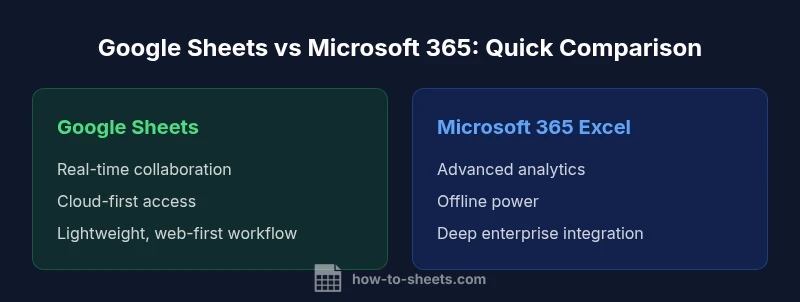
Google Sheets vs Microsoft 365: the choice hinges on collaboration needs versus advanced data analysis. Google Sheets excels at real-time collaboration, cloud-first access, and simple pricing, while Microsoft 365 (Excel) delivers deeper data modeling, offline capability, and a richer feature set for complex spreadsheets. For teams prioritizing collaboration or universal access, Sheets shines; for heavy analysts and enterprise environments, Excel within 365 is typically superior.
Cloud-first collaboration: ecosystem and accessibility
In the ongoing discussion of google sheets vs microsoft 365, teams increasingly weigh collaboration speed against analytical depth. The cloud-first approach of Google Sheets makes real-time editing and universal access straightforward, while Microsoft 365 Excel emphasizes enterprise-grade tools and formal IT governance. According to How To Sheets, for many small teams and classrooms the lightweight, browser-based workflow is enough to meet day-to-day needs, while larger organizations may require the scripting power and offline reliability of Excel. This section lays out how the two platforms differ in their core ecosystems, including document storage, cross-device experience, and the way teams structure workflows. Expect Sheets to shine in environments where quick sharing and rapid iteration matter most, and Excel to excel where structured data models and governance are the priority. As you read, keep in mind that your organization’s IT policy, device diversity, and user skill levels will shape the final choice.
Key takeaway: The choice often maps to collaboration needs versus analytical depth, with the best option aligning to your team’s workflow and IT stance.
Core features: spreadsheets, formulas, and automation
Both Google Sheets and Microsoft 365 Excel offer robust formula ecosystems, but their strengths diverge. Google Sheets provides a lean, fast set of functions ideal for lightweight data tasks, including array-enabled operations, query-like capabilities, and easy data import from other Google services. Microsoft 365 Excel, by contrast, builds extensive data modeling capabilities with Power Pivot, Power Query, and rich pivot table options, plus VBA and Office Scripts for automation. For google sheets vs microsoft 365 decisions, consider how your team will model, transform, and automate data at scale. If your work revolves around ad-hoc analyses, dashboards integrated with Google Workspace, and rapid prototyping, Sheets is often sufficient and refreshing in its simplicity. If your needs include large datasets, complex joins, and enterprise-grade automation, Excel generally provides deeper capabilities.
Practical tip: Start with a small pilot in Sheets to capture collaboration gains, then run a parallel pilot in Excel to validate performance on heavier datasets.
Offline access and data integrity
Offline access is a critical factor in environments with intermittent connectivity or strict data governance requirements. Google Sheets offers offline editing through its apps, with changes syncing when connectivity returns, which makes it suitable for users who travel or work remotely. Microsoft 365 Excel supplies strong offline power via its desktop application, with seamless syncing to OneDrive or SharePoint once online. In the google sheets vs microsoft 365 comparison, the edge goes to Excel for teams that require full offline functionality and robust local processing, including large workbooks and macros. Sheets remains highly functional offline for many common tasks, but its offline experience is designed around a browser-first paradigm and mobile apps. When offline reliability is a must, Excel often provides a smoother, more predictable workflow.
Operational tip: If you need offline work across devices, ensure you enable the appropriate offline settings and test synchronization timing during peak usage windows.
Data analysis capabilities: advanced functions & power queries
Data analysis capabilities distinguish the two platforms in meaningful ways. Google Sheets offers powerful functions such as QUERY, FILTER, and ARRAYFORMULA that enable flexible data extraction and transformation within a collaborative context. However, Excel within Microsoft 365 extends analytics with Power Pivot, Power Query, and advanced pivoting, delivering deeper data modeling, forecasting, and large-scale analysis. When comparing google sheets vs microsoft 365 for analytics, you should consider: data volume, update frequency, and the need for reproducible, auditable models. For teams emphasizing quick insight sharing in a live doc, Sheets can be enough. For analysts who rely on repeatable data pipelines, complex joins, and integration with BI tools, Excel’s advanced features are typically superior.
Guidance for teams: Map your most common analytics tasks to the tool you use, and reserve Excel for datasets that require rigorous modeling and repeatable ETL workflows.
Collaboration and workflow: real-time editing and permissions
Real-time collaboration is one of the strongest differentiators in the google sheets vs microsoft 365 debate. Google Sheets supports live co-authoring across devices with immediate visibility of others’ edits, simplified sharing, and granular access controls. Excel Online within the 365 suite also supports simultaneous editing, but its collaboration is often perceived as more integrated with other Office apps, such as Outlook and Teams. If your workflow depends on rapid feedback, transparent ownership, and quick iteration, Sheets frequently delivers a smoother experience. If your team needs deeper project governance, detailed change tracking across large teams, and tighter integration with enterprise identity systems, Excel’s approach can be more consistent with IT policies.
Best practice: Establish a clear ownership model and use version history in both tools to track changes. For sensitive data, define who can edit, comment, or view and apply domain-based sharing rules.
Pricing, licensing, and total cost of ownership
Pricing and licensing shape the long-term viability of a Google Sheets vs Microsoft 365 decision. Google Sheets commonly comes bundled with Google Workspace, presenting a straightforward, predictable per-user cost for teams of various sizes. Microsoft 365 licenses are typically bundled with other Office apps and services, with pricing that scales by plan, features, and enterprise requirements. In practice, many small teams find Sheets to be a lower upfront cost due to its web-first approach, while larger organizations consider the broader Microsoft ecosystem and the value of integrated security, compliance, and automation platforms. When calculating TCO, account for storage, security features, admin time, and the potential need for third-party add-ons or integrations. A careful comparison will weigh both ongoing subscription costs and the opportunity costs of switching or migrating data.
Bottom line: The pricing conversation should reflect not only monthly or annual fees but also the total value delivered by ecosystem lock-in, governance capabilities, and cross-application workflows.
Compatibility and import/export: interoperability with other tools
Interoperability sits at the heart of the google sheets vs microsoft 365 decision. Google Sheets excels at importing data from various web services and exporting to common formats like CSV and Excel-compatible files, maintaining links when possible. Excel in Microsoft 365 offers robust import/export options, broad support for .xlsx and legacy formats, and strong compatibility with Windows-based tools and data pipelines. In many teams, the choice hinges on how often data moves between platforms and the need to preserve formulas, formatting, and macros during migration. Sheets supports quick inter-application data flows with Google Apps Script triggers, while Excel integrates well with Power Automate and BI ecosystems. For cross-tool workflows, consider establishing standardized data schemas and regular audit checks to minimize drift.
Practical note: Before committing, run a two-way migration test for a representative workbook to identify formula compatibility and formatting nuances.
Security, governance, and admin controls
Security and governance are essential considerations in the google sheets vs microsoft 365 comparison. Google Sheets benefits from the Google Workspace admin console, which provides centralized control over sharing, data loss prevention, and access policies across domains. Microsoft 365 delivers a mature security model with Azure Active Directory integration, conditional access, data loss prevention, retention policies, and comprehensive auditing across the Microsoft ecosystem. The choice often aligns with existing IT infrastructure and compliance requirements: organizations already using Google Workspace tend to favor Sheets, while those standardized on Microsoft 365 find Excel and the broader security suite a better fit. Evaluate your data residency needs, user provisioning processes, and the IT team’s familiarity with security tooling when deciding which path to take.
Recommendation: If enterprise governance is a priority, map to the platform that already aligns with your security policies and incident response workflows.
Migration, adoption, and implementation tips for teams
Migrating between google sheets vs microsoft 365 environments requires careful planning, stakeholder buy-in, and a clear transition roadmap. Start with a requirements audit: identify the most common workbook types, the macro and script landscape, and the data sources you rely on. Build a pilot group to test data migration, formulas, and automation, and document the gaps between the two ecosystems. Invest in training focused on the platform’s core strengths—Sheets for collaboration and rapid sharing, Excel for advanced analytics and governance. Create governance guidelines, establish a versioning protocol, and set expectations for change notifications. Finally, design a phased rollout that minimizes disruption by migrating one department at a time and leveraging cross-tool export/import pipelines. With thoughtful planning, teams can unlock the best of both platforms while maintaining data integrity and user satisfaction.
Comparison
| Feature | Google Sheets | Microsoft 365 (Excel) |
|---|---|---|
| Collaboration model | Real-time co-authoring in a cloud-first interface | Desktop-first with cloud sync in Excel |
| Offline access | Offline editing via apps, online-first sync | Full offline capability with desktop apps |
| Advanced analytics & formulas | QUERY, FILTER, ARRAYFORMULA; strong for lightweight analyses | Power Pivot, Power Query, PivotTables, VBA for advanced modeling |
| Automation & scripting | Apps Script and add-ons | Office Scripts, VBA, Power Automate integration |
| Data visualization | Charts, conditional formatting, basic pivot charts | Advanced charts, PivotChart, Power BI integration |
| Ecosystem & integrations | Google Workspace and Drive ecosystem | Microsoft 365 ecosystem (Teams, OneDrive, Power Platform) |
| Import/export & interoperability | Easy CSV/Excel imports; links with Google services | Native Excel formats; robust import/export and BI tools |
| Pricing & licensing | Typically bundled with Google Workspace; predictable per-user costs | Part of Microsoft 365; plan-dependent pricing and enterprise options |
The Good
- Real-time collaboration across devices and platforms
- Accessible from any device with an internet connection
- Lower upfront cost for small teams and schools
- Seamless integration with Google Workspace and third-party add-ons
- Simple sharing and permission controls
The Bad
- Fewer advanced analytics features and macros than Excel
- Offline capability is weaker on Sheets than Excel desktop
- Enterprise IT governance may be more mature in Microsoft 365
Sheets for collaboration; Excel for analytics
If your team relies on real-time co-authoring and cloud-first workflows, Google Sheets is often the better fit. For teams needing deep data modeling, offline work, and strong governance, Microsoft 365 Excel typically provides more robust capabilities. The How To Sheets team recommends assessing collaboration needs and analytics requirements to guide the decision.
FAQ
What is the main difference between Google Sheets and Excel in Microsoft 365?
Google Sheets focuses on real-time collaboration and cloud access, while Excel emphasizes advanced data modeling and offline power. Your choice should reflect whether collaboration speed or analytics depth is more critical for your team.
Sheets is best for real-time teamwork. Excel shines for deep data modeling and offline work.
Can I use Google Sheets offline?
Yes, Google Sheets supports offline editing through its apps, with changes syncing when online. Plan for offline scenarios and verify syncing behavior before critical projects.
Yes, you can work offline in Sheets if offline mode is enabled.
Which is better for complex data modeling?
Excel generally offers more advanced data modeling features such as Power Pivot and Power Query, plus VBA for automation. Sheets provides capable analytics but is lighter for very large or complex models.
Excel usually wins for complex data modeling; Sheets is strong for everyday analyses.
How do pricing and licensing compare?
Both are subscription-based. Google Sheets tends to be bundled with Google Workspace, while Microsoft 365 pricing varies by plan and enterprise needs. Consider total cost of ownership and IT requirements.
Sheets is usually cheaper for small teams; Excel's cost scales with your Microsoft 365 plan.
Which should teams choose for collaboration and cross-platform access?
Sheets excels in real-time collaboration across browsers and devices. Excel Online offers collaboration too, but the broader ecosystem favors Sheets for cross-platform teamwork.
Sheets is typically the better pick for real-time teamwork across platforms.
What about security and admin controls?
Both platforms offer enterprise-grade controls. Microsoft 365 provides deeper integration with Azure AD and DLP, while Google Workspace emphasizes centralized admin and data controls. Match to your IT policies.
Microsoft's security suite is very strong; Google has solid admin controls too.
The Essentials
- Prioritize collaboration or analytics when choosing platforms
- Assess offline needs before committing to a single solution
- Test data migration and formula compatibility early
- Leverage admin controls to align with IT governance