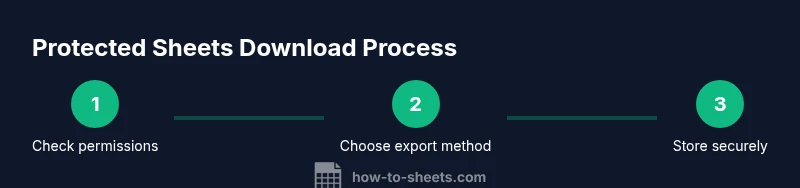
Protected Google Sheets Downloader: A Practical How-To Guide
Learn how to securely export data from protected Google Sheets with privacy-focused, compliant methods. This How To Sheets guide covers permissions, safe download options, encryption basics, and auditing to prevent data leaks.


You will learn how to securely export data from protected Google Sheets by following compliant, permission-based methods that respect access controls and privacy. This guide covers safe download options, encryption basics, and auditing to prevent data leaks. By using auditable, low-risk workflows, you protect sensitive information while extracting required data.
What is a Protected Google Sheets Downloader?
A protected google sheets downloader is any method that retrieves data from a Google Sheets file without bypassing protections. It relies on the owner's permissions and Google Workspace settings. The key is to operate within the boundaries set by the file's sharing model—whether the sheet is accessible only to specific users, or readers, or requires domain-based restrictions. How To Sheets emphasizes that the most reliable approaches combine explicit access, auditable export paths, and encryption for local storage. In practice, you should download only the data you are authorized to access and use methods that leave an auditable trail, preserve data integrity, and minimize exposure risk. When used correctly, protected downloads support collaboration while reducing the chance of accidental data leaks.
Core Principles: Access, Permissions, and Compliance
Downloading data from protected sheets hinges on three core principles: explicit permission, least privilege, and auditable processes. Start by confirming you have permission to access and export the data. The owner or admin should document approved export scopes. Next, apply the principle of least privilege: grant only the minimum access needed for the task. Finally, implement an auditable workflow that logs who exported what data, when, and to where. According to How To Sheets, always verify you have permission and use role-based access controls to minimize risk. When you embed these principles into your workflow, you reduce the likelihood of accidental disclosures and strengthen compliance with internal policies and external regulations such as data-protection standards.
Safe Export Methods for Protected Sheets
There are several safe, compliant ways to export data from protected Sheets without compromising security:
- UI export: Use File > Download and pick CSV or Excel only for data you are allowed to export. This method preserves formatting and reduces the surface area for accidental data leaks.
- API export: If your workflow requires automation, use the Google Sheets API with restricted scopes (e.g., spreadsheets.readonly) and a properly scoped OAuth 2.0 flow. This keeps access traceable and auditable.
- Apps Script export: For recurring needs, deploy a small Apps Script that exports the target ranges to a secure Drive location or to encrypted storage. Scripts should run under an account with minimal privileges.
- Data masking: When possible, export only non-sensitive subsets or apply masking to sensitive fields before sharing.
Each method has trade-offs between speed, audibility, and control; choose the one that aligns with your data policy and the user's role.
Data Handling: Encryption, Storage, and Auditing
After exporting data, protect it at rest and in transit. Store local copies in an encrypted container or password-protected archive and restrict access to authorized teammates. For shared drives, enable access controls and avoid leaving data in personal folders. Maintain an export log that records who downloaded which file, the timestamp, and the export method used. Regularly review permissions on the source sheet to ensure that only current team members retain download rights. These practices help you meet privacy requirements and reduce risk of leakage or misuse.
Real-World Scenarios and Tips
Consider a small team that collaborates on quarterly budgets stored in a protected Google Sheet. They use UI export to obtain a copy for offline review, then archive the file in an encrypted cloud folder with access limited to the finance group. For automation, they run a guarded API export that only retrieves non-sensitive columns, storing the result in a restricted workspace. In every case, document the export and ensure data handling complies with your organization's policy.
Tools & Materials
- Google account with appropriate permissions(Editor or owner access to the target Google Sheet.)
- Target Google Sheets file(Ensure you are authorized to view and export the data.)
- Web browser with secure session(Use an updated browser and avoid public computers.)
- Stable internet connection(Essential for API calls or cloud storage transfers.)
- OAuth credentials (for API exports)(Needed if you automate exports via Google Sheets API.)
- Encryption tool or encrypted storage(Use AES-256 or a trusted vault for local copies.)
Steps
Estimated time: 25-45 minutes
- 1
Verify access and authorization
Confirm you have explicit permission to access and export the data. Check with the sheet owner or admin for approval and confirm export scope before proceeding.
Tip: If in doubt, request written authorization and keep a copy for audit trails. - 2
Identify the export scope
Map which sheets, ranges, and columns are allowed to export. Create a data map and decide if masking is required for sensitive fields.
Tip: Limit export to the minimum dataset needed for the task. - 3
Choose the export method
Select a method that balances speed, audibility, and policy compliance—UI download, API, or Apps Script.
Tip: For repeatable workflows, API-based exports with restricted scopes are preferred. - 4
Execute the export
Run the chosen export method and verify that the output matches the defined scope. Check for errors and integrity.
Tip: Test on a non-production copy first to validate results. - 5
Secure the downloaded data
Store the exported file in an encrypted container or password-protected archive with restricted access.
Tip: Use a dedicated secure storage location with limited permissions. - 6
Document and audit
Log who exported data, when, and where it was saved. Review permissions and plan periodic audits.
Tip: Schedule quarterly reviews and update access lists as team roles change.
FAQ
What is a protected google sheets downloader?
A protected google sheets downloader refers to methods that export data from protected Sheets while respecting protections, permissions, and compliance requirements.
It's a safe, authorized method to export data from protected sheets.
Do I always need permission to export data?
Yes. You should obtain explicit permission from the sheet owner or admin before exporting. This prevents policy violations and data misuse.
Yes, you must have explicit permission.
Can I use the Google Sheets API to download data from protected sheets?
You can use the Google Sheets API, but only with proper OAuth scopes and the necessary permissions. This ensures auditable access.
Yes, but only with proper access and scopes.
What if exporting is blocked by protections?
Request access or collaborate with the sheet owner to obtain a compliant, safe export path.
Request access or a safe export path.
Are there best practices for auditing downloads?
Keep an export log with user, timestamp, and destination. Regularly review and update access permissions.
Yes—log writings and review access regularly.
Watch Video
The Essentials
- Verify you have explicit file permission.
- Use secure, auditable export methods.
- Encrypt local copies and limit data distribution.
- Maintain an export activity log for accountability.