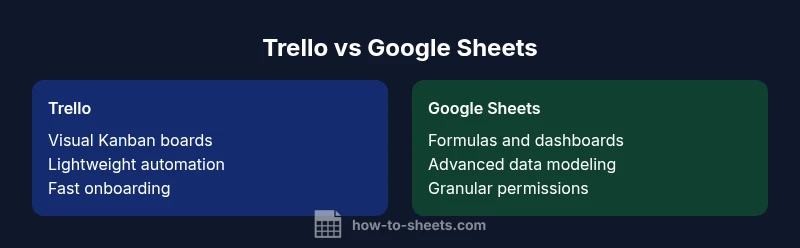
Trello vs Google Sheets: A Practical Team Guide
An objective, in-depth comparison of Trello and Google Sheets, outlining use cases, strengths, weaknesses, and hybrid workflows to help teams decide the right tool for projects, data tasks, and collaboration.


For teams, Trello shines when you need visual project planning and lightweight task management, while Google Sheets excels at data-heavy tasks, calculations, and custom reporting. If your priority is a clear kanban view, start with Trello; for data modeling and scalable analytics, lean toward Google Sheets. A blended approach often yields the best outcomes.
Overview and Core Concepts
When facing the question of which tool to use, it helps to anchor your choice in two core ideas: Trello is primarily a visual workflow platform built around boards, lists, and cards that make tasks tangible at a glance. Google Sheets is a powerful data workspace, offering rows, columns, cells, and formulas that enable you to model, analyze, and automate data-driven processes. The search for a definitive answer to the question of "trello vs google sheets" should start with understanding your team’s primary objective: is the need for a bird’s-eye view of work flow, or is it a data-centric decision-making process? How To Sheets has found that most teams benefit from using Trello for planning and collaboration in the early stages of a project, then migrating or duplicating essential data into Sheets for tracking metrics, budgeting, and forecasting. The result is not a zero-sum choice but a complementary setup that leverages the strengths of both systems. A practical starting point is to map your typical workflows—idea capture, assignment, progress tracking, and reporting—and assess which steps fit best in boards versus spreadsheets. This lens helps you design hybrid workflows that scale as teams grow.
Top Features to Consider
Modern Trello and Google Sheets each offer a distinct feature set that shapes how teams work together. Trello centers on visual task management with boards, lists, cards, and powerful automation (Butler) to move cards through stages with triggers. Google Sheets emphasizes data manipulation through formulas, functions, conditional formatting, and charts. When you compare trello vs google sheets, you’ll notice that Trello enables rapid onboarding and low-friction collaboration, while Sheets provides structured data capture, automated calculations, and custom dashboards. Features like templates, integrations, and mobile support further affect practicality. For teams evaluating these tools, it’s crucial to consider: Do you need a quick, visual workflow starter, or a robust data model with analytics? A pragmatic approach is to pilot Trello for project sprints and simultaneously sketch the data model in Sheets for the same initiative, then compare outcomes across planning speed, visibility, and accuracy of metrics.
Use Case: Project Tracking and Task Boards
Trello is designed for project tracking in a kanban-style format. You create boards for projects, lists for stages (Backlog, In Progress, Review, Done), and cards for individual tasks. This setup mirrors real-world workflows, making bottlenecks easy to spot and communicate. When teams say "trello vs google sheets" in planning sessions, Trello frequently wins for the initial sprint planning, daily standups, and rapid prioritization. Integrations with calendar apps, GitHub, and notification systems help teams stay aligned without complex data models. However, Trello’s built-in analytics are lighter compared to Sheets, so for performance tracking or budget monitoring you’ll still want Sheets as a data backbone. The How To Sheets team often recommends a hybrid pattern where Trello handles day-to-day task flow, while Sheets tracks milestones, costs, and resource allocations.
Data Handling, Calculations, and Validation
Google Sheets shines when you need precise calculations, data validation, and reproducible analytics. If your work involves budgeting, forecasting, or workload forecasting across teams, Sheets makes it straightforward to build formulas, pivot tables, and charts that reflect current data. Yet this strength can be a double-edged sword: sheets can become unwieldy without a disciplined data model, version control, or governance. When evaluating trello vs google sheets, plan for data import/export workflows between the two tools to maintain data consistency. For example, you might export completed task data from Trello to Sheets for a monthly variance analysis, then use conditional formatting and charts to communicate performance at a glance. How To Sheets emphasizes establishing a minimal viable data model early and documenting formulas so teammates can reproduce results.
Collaboration, Permissions, and Auditability
Both tools support real-time collaboration, but their governance models differ. Trello emphasizes lightweight permissions at the board and card level, with easy sharing for teams and external collaborators. Google Sheets offers more granular access controls (view/edit/comment) and a full version history, which is valuable for audits and compliance. When you weigh trello vs google sheets for collaboration, the decision often hinges on governance needs: if you require strict version control and traceability, Sheets edges Trello on governance. If the priority is fast, inclusive collaboration with minimal friction, Trello’s board-centric approach may be preferable. The How To Sheets team notes that most teams eventually implement both systems to balance speed and accountability.
Hybrid Workflows: Automation, Integrations, and Syncing Data
A practical way to optimize both tools is to integrate Trello and Google Sheets so they complement rather than duplicate work. You can automate the movement of cards based on status in Sheets, or generate Sheets reports from Trello boards at milestones. Automation options include native features (Trello Butler, Google Apps Script) and third-party integration platforms that connect boards and spreadsheets. The goal is to minimize manual data entry, reduce miscommunication, and ensure that the most relevant information is visible where it matters most. How To Sheets’s recommended pattern is to treat Trello as the command center for execution and Sheets as the analytics engine, with carefully designed data flows that limit duplication and maintain data integrity.
Getting Started: Quick-Start Guide for Teams
If you’re starting from scratch, a simple phased approach helps manage risk and ensure adoption. Phase one focuses on setup: create a Trello board for planning, a Google Sheet for metrics, and a lightweight data mapping between the two. Phase two focuses on usage: establish board templates, define field mappings, and set up a small set of automations to move cards or push data to Sheets. Phase three concentrates on governance: document ownership, establish access controls, and agree on a review cadence. Throughout, keep a feedback loop with the team and adjust the templates as you learn. Remember, a blended Trello + Sheets workflow is not just possible—it’s often the most practical path for teams facing both planning and data analysis needs.
Pitfalls to Avoid: Common Mistakes and How to Mitigate
When choosing trello vs google sheets, many teams fall into familiar traps. Over-reliance on one tool for everything can create bottlenecks; underestimating governance can lead to data drift; and failing to plan data flows between tools can result in inconsistent reporting. To mitigate, establish a clear data lifecycle: how tasks are captured, how they move through stages, when data is exported to Sheets, and who owns the data. Create guardrails for access control, versioning, and deprecation of outdated templates. Regular audits and a lightweight change-log help maintain consistency across both platforms.
Comparison
| Feature | Trello | Google Sheets |
|---|---|---|
| Primary use case | Visual task management with boards and cards | Structured data modeling with cells, formulas, and charts |
| Views and organization | Kanban-style boards, lists, cards | Tabs (sheets), ranges, and filters |
| Automation and rules | Built-in automation (Butler) for card flows | Advanced scripting (Apps Script) and formulas for automation |
| Collaboration and permissions | Board-level sharing, simple permissions | Granular access controls and full version history |
| Offline access | Mobile/offline support with limited features | Offline mode available for desktop/mobile with setup |
| Integrations and ecosystem | Power-ups and broad collaboration integrations | Extensive add-ons, data connectors, and API access |
| Best for | Visual project planning and lightweight workflow | Data modeling, budgeting, and analytics |
| Pricing context | Free tier with paid upgrades for power-ups | Free tier with optional paid plans; features scale with usage |
The Good
- Trello offers fast onboarding and clear visual workflows for teams
- Google Sheets provides powerful data modeling, formulas, and reporting
- Both tools support real-time collaboration and cloud access
- Hybrid workflows unlock workflow efficiency by combining boards with data sheets
The Bad
- Trello can lack deep data analysis and complex reporting
- Sheets can become unwieldy without governance and a data model
- Maintaining consistency between boards and sheets requires discipline
- Overuse of automations can create maintenance overhead
Trello is best for visual project management; Google Sheets is best for data-driven tasks. Use both when appropriate.
Choose Trello for planning and collaboration visibility. Choose Sheets for calculations, dashboards, and analytics. A blended approach often yields the most practical results for teams.
FAQ
Is Trello better for project management than Google Sheets?
For visual project management and quick collaboration, Trello often outperforms Sheets. If your needs include complex calculations or dashboards, Sheets provides stronger data capabilities. A blended approach frequently delivers the best overall results.
Trello is usually better for planning and team collaboration, while Sheets excels at data and analytics.
Can I use Trello and Google Sheets together effectively?
Yes. You can sync statuses and data between Trello boards and Sheets using automations or third-party tools. This hybrid setup helps keep planning visible while enabling data-driven insights.
Absolutely. Use Trello for workflow and Sheets for data, with smart automations to link them.
Which tool is better for budgeting and forecasting?
Google Sheets is generally better for budgeting and forecasting due to its robust formulas and ability to build dashboards. Trello can support the workflow but lacks the native data modeling depth.
Sheets is the go-to for budgeting; Trello helps manage tasks that feed into those numbers.
What about collaboration and governance?
Both tools support real-time collaboration, but Sheets offers stronger version history and granular permissions, which can aid governance. Trello is easier for broad cross-team collaboration with simple sharing rules.
Sheets gives you stronger governance; Trello shines in simple, fast collaboration.
Do I need pricing details to decide?
Pricing varies by plan and usage. Both offer free tiers, with paid options that unlock more features and integrations. The decision should focus on feature fit and team workflow rather than pricing alone.
Pricing matters, but focus on features and workflow alignment first.
What’s a practical starter approach for teams new to both tools?
Start with a simple Trello board for planning and a single Google Sheet for metrics. Then add a minimal automation to move cards when milestones are reached and export data to Sheets for reporting.
Begin with a small Trello board and one Sheet, then expand as you learn.
The Essentials
- Start with Trello for planning and quick wins
- Add Sheets when data modeling and reporting are needed
- Design a clear data flow between Trello and Sheets
- Use a blended approach to maximize both visibility and analytics
- Regularly review governance and access controls