ArrayFormula in Google Sheets vs Excel: A Practical Comparison
A thorough, analytical comparison of ArrayFormula in Google Sheets vs Excel, covering syntax, behavior, performance, and when to use each across cross‑platform workbooks.


ArrayFormula behavior differs notably between Google Sheets and Excel. Google Sheets expands results automatically across adjacent cells, while Excel historically relied on CSE (Ctrl+Shift+Enter) for multi-cell results and now uses dynamic arrays with functions like FILTER and SEQUENCE. This comparison shows where each platform shines, when they diverge, and practical tips for cross‑platform workbooks.
arrayformula google sheets vs excel: Why cross-platform formulas differ
Understanding array formulas is essential when you work across Google Sheets and Excel. The term arrayformula google sheets vs excel captures a core distinction: Sheets tends to auto-expand results across neighboring cells, while Excel’s modern Dynamic Arrays require explicit functions or the dynamic array entry point. This section lays the groundwork for why the two ecosystems diverge in formula construction, expansion behavior, and error handling. In practice, teams that rely on shared data models must anticipate differences in how results spill, how blank cells propagate, and how cross‑sheet references behave between the two platforms.
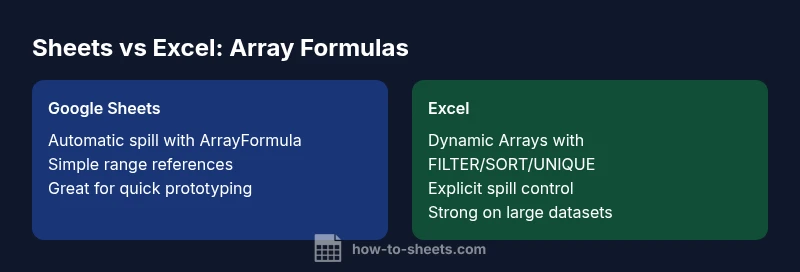
To begin, note that Google Sheets’ ArrayFormula and Excel’s dynamic array features both aim to return multiple results from a single formula. However, they implement spill semantics differently. Sheets often returns results across a block of cells without special entry, whereas Excel’s dynamic arrays create spill ranges that can be controlled with functions like UNIQUE, SORT, and FILTER. This fundamental distinction affects how you structure inputs, test formulas, and manage updates when the source data changes.
A practical takeaway is to design with cross‑platform compatibility in mind: minimize hard‑coded ranges, prefer relative references, and document the intended spill behavior so teammates understand how the formula should propagate. How you organize your data—tables, named ranges, and helper columns—will influence how easily a single formula can function in both environments.
-paragraph3-handling-duplicate-content: null
Comparison
| Feature | Google Sheets ArrayFormula | Excel Dynamic Arrays |
|---|---|---|
| Expansion behavior | Automatic spill in adjacent cells across a defined range | Explicit dynamic spill ranges via functions like FILTER/SORT |
| Entry method | Enter formula normally; ArrayFormula expands as needed | Dynamic arrays require native spill or explicit array-enabled entry |
| Reference style | A1 notation with sheet-level references | R1C1 or A1 with advanced dynamic array calls |
| Error handling | Propagates errors to spill area; requires careful range control | Dynamic arrays often isolate errors within spill ranges via functions like IFERROR |
| Best for | Interdependent datasets with loose structure; quick cross‑sheet calculations | Structured datasets needing robust, repeatable spill results |
The Good
- Clear, automatic expansion reduces helper columns
- Facilitates quick prototyping and data exploration
- Supports concise, readable formulas when used with ranges
The Bad
- Portability issues when porting between Sheets and Excel
- Potential for unintended spills if sources change
- Debugging spills can be challenging without helper cells
Google Sheets generally offers more flexible automatic spilling for ArrayFormula workloads, while Excel’s dynamic arrays provide stronger control and compatibility for larger, structured datasets.
If your team primarily uses Google Sheets, lean into Sheets’ spill behavior for rapid prototyping. If you need cross‑platform stability, adopt explicit dynamic array patterns in Excel and avoid relying on auto-spill in Sheets without testing.
FAQ
Does ArrayFormula exist in Excel like in Google Sheets?
Excel does not have a single ArrayFormula function named the same as Sheets. Instead, Excel uses Dynamic Arrays (introduced in recent versions) with functions such as FILTER, SORT, and UNIQUE that spill results automatically. Legacy array formulas used Ctrl+Shift+Enter (CSE).
Excel uses Dynamic Arrays for spill results and still supports legacy CSE arrays. In Sheets the ArrayFormula does spill automatically.
How do I port a formula from Google Sheets to Excel?
Seek equivalent dynamic array functions in Excel (FILTER, SORT, UNIQUE) and replace ArrayFormula usage with these constructs. Test the portability by verifying range references and ensuring the source data behaves similarly after changes.
Porting often means mapping Sheets functions to Excel equivalents and validating spill behavior.
Can I rely on ArrayFormula for large datasets in both platforms?
Both platforms can handle large datasets, but performance depends on sheet structure, volatile functions, and the number of cells in the spill range. Avoid nested volatile calls and optimize with range-based references rather than entire columns where feasible.
Performance depends on data size and formula complexity; plan for tests with representative datasets.
What are common pitfalls when using array formulas across Sheets and Excel?
Mismatched function equivalents, incorrect spill expectations, and differences in named ranges can cause errors. Always test with representative inputs and document intended spill behavior for collaborators.
Be mindful of function equivalents and spill behavior when sharing workbooks.
Is there a best practice for documenting array formulas for teams?
Yes—document the intended spill range, data sources, and any cross‑sheet references. Use comments or a dedicated sheet with formula maps so others can trace logic easily.
Document spill rules and references so teammates understand the setup.
The Essentials
- Design formulas with cross‑platform testing in mind
- Prefer dynamic array functions in Excel for scalable results
- Document spill behavior to prevent surprises in shared workbooks
- Minimize hard-coded ranges to improve portability
- Use helper columns to isolate complex logic
- Test edge cases where source data changes