Did Google Sheets Copy Excel? A Practical Comparison
Explore whether Google Sheets copied Excel or charted its own course. This comparison analyzes origins, feature parity, collaboration, and best-use scenarios to help you choose between Sheets and Excel.


Historical context: origins of Google Sheets and Excel
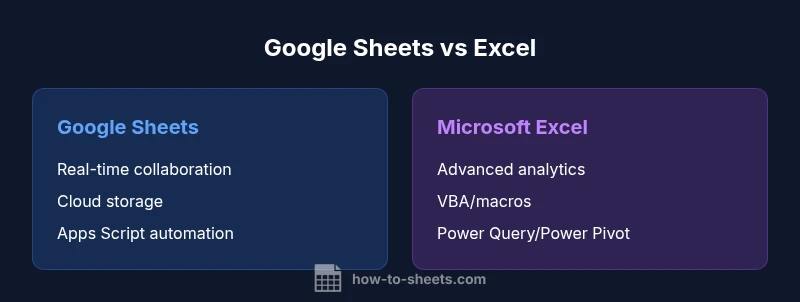
Did google sheets copy excel? The question sits at the heart of how spreadsheet software evolved. Google Sheets did not copy Excel in a literal, line-by-line sense, but it emerged from the same lineage of table-based calculation tools and then diverged toward cloud-first collaboration. Excel’s lineage goes back to the 1980s, when it established a desktop-dominant model with deep data analytics capabilities. Sheets arrived in 2006 as part of Google Docs (now Google Workspace), with an emphasis on accessibility, cross-device use, and real-time collaboration. The two platforms grew in parallel, sharing common design goals while adopting different architectural choices. How To Sheets Analysis, 2026, underscores that both tools revolve around cells, formulas, and data structures, but Sheets prioritizes collaboration and integration with online services. This distinction matters for teams choosing between a lightweight, browser-based workflow and a heavy, desktop-first analytics environment.
bold: true},
Core similarities: shared formulas, data structures, and workflows
Both Google Sheets and Excel use a grid of cells organized into rows and columns, enabling similar data layouts and operations. Most fundamental functions—SUM, AVERAGE, IF, and VLOOKUP—have exact or near-exact counterparts across the platforms, which aids cross-compatibility when exporting or importing files. Data validation, conditional formatting, and charts follow comparable patterns, making it easy to translate a basic workbook from one environment to the other. The sheet-level features like named ranges, filters, and sorts behave similarly, supporting common business tasks such as budgeting, forecasting, and data entry pipelines. The parity is strongest for everyday tasks and common business logic; when you dive into advanced analytics, some gaps emerge (see Block 4 for automation and scripting). For students and professionals, this parity means you can start in Sheets or Excel and eventually migrate while preserving core formulas. The user experience, however, differs in interface and keyboard shortcuts, which can affect productivity during a switch.