Excel vs Google Sheets for Personal Use: A Practical Comparison
A practical, analytical comparison of Excel and Google Sheets for personal use, covering offline access, collaboration, formulas, data capacity, and everyday workflows.


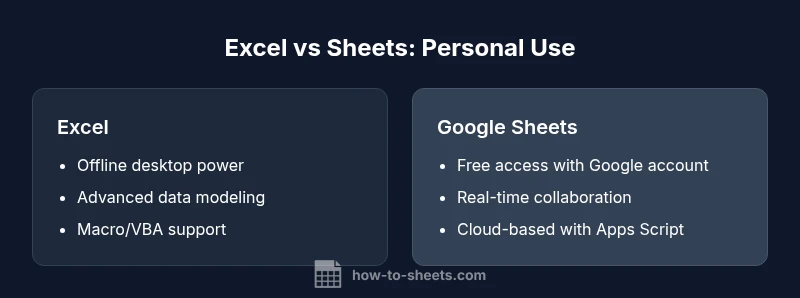
For personal use, Google Sheets is often the easier starting point due to its free access and strong online collaboration, while Excel offers deeper data tools and offline reliability. If you value zero-install setup and cross-device access, Sheets shines; if you need advanced formulas, large datasets, or offline power, Excel is typically a better fit.
What excel vs google sheets for personal use means in practice
Choosing between Excel and Google Sheets for personal tasks hinges on how you work, where you work, and what kinds of data you manage. The phrase excel vs google sheets for personal use captures a core decision: will your day-to-day chores, budgets, inventories, and lists live in a cloud-first, collaboration-friendly environment, or in a powerful, offline-capable desktop tool? In practice, most individuals start by evaluating the ease of access, the learning curve, and the ease of sharing. The How To Sheets team notes that this decision is not merely about features; it’s about habits. If your needs are simple—monthly budgeting, to-do lists, and basic data tracking—Sheets often offers a fast, cost-effective entry path. For more complex modeling, offline work, or heavy data manipulation, Excel provides deeper capabilities. This guide uses the exact phrase excel vs google sheets for personal use to frame practical comparisons that apply to students, professionals, and small business owners alike, with a focus on 2026 capabilities and common workflows.
Core differences at a glance
- Accessibility and cost: Google Sheets is free with a Google account and cloud-based, while Excel is typically accessed through a Microsoft 365 subscription or a one-time purchase. This difference drives whether you can work offline and on which devices.
- Offline work: Excel shines offline with the desktop application; Google Sheets offers offline mode via browser extensions and settings, with seamless online sync when you reconnect.
- Collaboration: Google Sheets excels at real-time collaboration and sharing; Excel Online provides collaboration within the Office ecosystem but can feel less fluid than Sheets for simultaneous editing.
- Formulas and automation: Both support strong formulas; Excel offers extensive data modeling options and VBA/macros, while Sheets relies on Apps Script for automation and integration with other Google services.
- Data capacity and performance: Excel has long been the go-to for large datasets and complex calculations; Sheets handles typical personal-use datasets well but may slow with very large files.
- Ecosystem and templates: Sheets integrates tightly with Google services; Excel integrates with Microsoft apps and a wide array of professional templates.
- Cross-platform experience: Sheets is consistently updated online and on mobile; Excel provides feature parity across desktop, web, and mobile, but the desktop app remains the most comprehensive.
Accessibility, pricing, and offline access
Accessibility and cost are often the first practical crossroads. Google Sheets is freely available to anyone with a Google account, making it a popular choice for students, freelancers, and households exploring basic to moderately complex data tasks. Its cloud-based environment means your work is accessible from any device with internet access, and sharing is as simple as sending a link. However, offline access is optional and depends on enabling specific settings or extensions, which can be a small barrier for users who travel without reliable connectivity.
Excel, by contrast, is commonly accessed via Microsoft 365 subscriptions or standalone licenses. This arrangement creates a more predictable offline workflow through the desktop application, which many power users prefer when working with large datasets, heavy pivot tables, or advanced modeling. The trade-off is that initial and ongoing costs are higher, and the online collaboration experience, while strong, sits within the larger Office ecosystem rather than a free, universally accessible platform.
For personal use, a practical rule of thumb is: Sheets if you value zero-setup access, universal sharing, and seamless cloud use; Excel if you anticipate frequent offline work, need advanced data capabilities, and benefit from a mature macro environment.
Cloud-first vs. desktop-first workflows can influence which is more cost-effective or efficient for you, particularly if you also use other productivity tools (docs, slides, or emails) in a single ecosystem.
Data compatibility and import/export
Data compatibility is central when moving between tools or collaborating with others who use different software. Excel uses .xlsx/.xls formats that are widely supported by other desktop spreadsheet programs, and it remains highly compatible with traditional data workflows, including pivot tables, macros, and advanced charting. Google Sheets can import and export .xlsx files, but some advanced formatting or macros may not translate perfectly. For users who receive Excel workbooks from colleagues, Sheets can often open those files with minimal adjustment, but expectations should be set for potential formatting and formula differences.
When starting new projects, consider sticking to widely supported formats (CSV for simple data, XLSX for complex Excel workbooks) to minimize friction. If your intent is strong cross-platform collaboration, Sheets offers a smoother, more consistent experience across devices, while Excel emphasizes deeper control within a professional desktop environment.
For personal budgeting, lists, and light databases, either format will work; if you rely on sophisticated macros or external data connections, Excel’s native environment reduces the need for workarounds during import/export tasks.
Collaboration, sharing, and version history
Collaboration is a core strength of Google Sheets. Real-time editing, comments, and easy sharing through links suit households, roommates, or cross-functional teams working on a single file. Version history is granular in Sheets, helping you revert changes or track contributions without needing a separate tool. This collaborative paradigm can drastically reduce back-and-forth email chains for simple projects.
Excel has improved its collaboration story with Office 365 and Excel Online, enabling simultaneous editing and sharing within the Office ecosystem. While it mirrors the collaborative benefits of Sheets, the experience can feel more “Office-native” and may require users to be set up in the Microsoft environment. For personal use, Sheets tends to offer a quicker, frictionless collaboration experience, whereas Excel is preferable when collaboration happens inside a broader Microsoft workflow.
In both tools, enabling offline work and version control is essential for safeguarding data during connectivity interruptions.
Formulas, functions, and automation features
Both Excel and Google Sheets offer robust formula libraries. Excel is historically strong in data modeling, statistical functions, and complex array calculations. Its support for VBA/macros enables sophisticated automation and customization beyond typical use. Google Sheets adopts a modern approach with a function-rich set, plus Apps Script for automation and integration with Google Workspace services. If your projects rely on intricate calculations, advanced analytics, or macros, Excel generally provides deeper capabilities out of the box. If you prefer quick, cloud-native automation tied to Google services (like Sheets + Google Forms + Google Apps Script), Sheets has a very natural workflow.
A practical approach for personal use is to begin with the built-in functions you know in Sheets or Excel, then evaluate whether you hit limits in data size, speed, or automation complexity. When your needs outgrow one tool, you can often migrate gradually to the other without losing core logic.
Practical scenarios: budgeting, personal inventory, and lists
Real-world use cases illuminate the choice between these tools. For personal budgeting, Sheets offers simple templates, shared access with a partner, and easy integration with bank data via CSV imports or connected services. It excels for ongoing collaboration on household finances and flexible budgeting experiments. Excel shines in more complex personal finance scenarios—such as multi-criteria what-if analysis, scenario planning, and heavy data manipulation—where the desktop environment and advanced functions can provide speed and precision.
Personal inventory lists, task trackers, and contact databases benefit from the quick data-entry and sharing capabilities of Sheets, especially if you want to work from multiple devices or on the go. For richer items with large image libraries, custom views, or heavy reporting needs, Excel’s pivot tables and charts can be more effective. In practice, many users maintain a hybrid approach: a lightweight budget in Sheets and a more detailed dataset in Excel when needed.
Migration and hybrid workflows
Migrating between Sheets and Excel is feasible with careful planning. Start by exporting or importing data in common formats (CSV, XLSX), then verify formulas translate correctly and adjust for any function differences. If you rely on macros, you’ll need to recreate them in Excel (VBA) or Apps Script in Sheets, depending on the destination. A practical hybrid workflow is to maintain daily, collaboratively shared sheets in Sheets, while archiving highly detailed, calculation-heavy reports in Excel.
Establish a clear data governance approach to avoid duplication and drift: designate which files live in which tool, set naming conventions, and document critical automations. For students and small teams, this disciplined approach keeps your personal projects organized and reduces friction when collaborating across devices or with peers who prefer one platform over the other.
How to choose and best practices
When deciding between Excel and Google Sheets for personal use, start with a simple needs assessment: list your typical tasks, file sizes, and collaboration requirements. If you value immediate sharing and cloud access, choose Sheets and pair it with basic templates for budgets, checklists, and trackers. If your work involves complex calculations, offline work, or data modeling with macros, start with Excel and consider integrating it into a broader productivity setup when needed. A practical best practice is to test both tools on a minor project (a monthly budget or a small inventory list) for 1–2 weeks to observe differences in speed, reliability, and user experience. Maintain a small, shared, cloud-based folder for ongoing projects and keep a local backup of critical Excel workbooks to protect against data loss.
Finally, establish a light automation layer that suits your workflow: for Sheets, Apps Script can automate repetitive tasks; for Excel, VBA can simplify common calculations. The goal is to minimize friction and maximize consistency across personal tasks.
Special considerations for students and small businesses
Students typically benefit from Sheets’ zero-cost access, easy collaboration on group projects, and the ability to work from any device. For coursework, simple budgets, or project worksheets, Sheets often provides everything needed without a licensing hassle. Small businesses that rely on frequent data sharing and cross-team collaboration may still use Excel for its advanced capabilities, but they should plan for training and standardization to avoid dependency on a single platform. The choice should be guided by the kind of data you handle, the level of analysis required, and how often you need to work offline or offline-like. Across both tools, adopting consistent templates and version-control practices will improve long-term productivity.
Where to start today: a quick setup checklist
- List your top three personal tasks (budget, lists, inventory) and decide which tool best fits each task.
- Enable offline access for the tool you choose if you anticipate travel or unstable connectivity.
- Create a small, shared sample file to test collaboration with a family member or friend.
- Identify any macro or automation needs and verify whether the chosen tool supports them.
- Save a simple backup copy of critical files in a neutral format (CSV or XLSX) to prevent lock-in.
- Establish naming conventions and a basic governance plan to keep files organized over time.
Conclusion: a practical takeaway for 2026
The choice between Excel and Google Sheets for personal use hinges on offline requirements, collaboration needs, data complexity, and the comfort level with automation. Sheets shines for free access, real-time collaboration, and cloud-based workflows, while Excel excels in offline power, complex data modeling, and macro-driven automation. For many individuals, a hybrid approach yields the best balance: use Sheets for daily tasks and sharing, and keep Excel for deep-dive analyses or when offline capability is essential. The key is to start small, test with real tasks, and evolve your setup as needs change. The How To Sheets team emphasizes a practical, phased approach that prioritizes your workflow efficiency over platform loyalty.
Comparison
| Feature | Excel | Google Sheets |
|---|---|---|
| Accessibility & Pricing | Desktop/Office suite purchase or 365 subscription | Free with Google account; cloud-based |
| Offline Capability | Strong offline desktop app | Offline mode available with setup; cloud-first when online |
| Collaboration | Office-centric, multi-user via OneDrive/SharePoint | Real-time collaboration with sharing and comments |
| Formulas & Automation | Extensive formulas, VBA/macros | Rich functions; Apps Script for automation |
| Data Capacity & Modeling | Excellent for large data; advanced modeling | Good for typical personal use; simpler data modeling |
| File Compatibility | Wide industry standard; XLSX is common | Excel-compatible imports/exports with some formatting caveats |
The Good
- Fast offline performance with the desktop app
- Powerful data analysis tools and macro support in Excel
- Free-to-use and highly accessible for personal tasks with Sheets
- Excellent real-time collaboration and cloud access in Sheets
- Broad ecosystem integration (Google Workspace vs Microsoft 365)
The Bad
- Higher upfront or ongoing cost for Excel when offline power is needed
- Some formula parity gaps between Excel and Sheets
- Internet dependency for Sheets to realize full collaboration features
- Complex data models can become unwieldy in Sheets without advanced scripting
Sheets is the better everyday choice for personal use; Excel is preferred when offline power and advanced data work are essential.
If your daily tasks revolve around budgeting, lists, and light data analysis with easy sharing, Sheets delivers simplicity and cost efficiency. If you routinely build complex models, rely on macros, or must work offline with heavy datasets, Excel remains the stronger tool. A practical approach is to start with Sheets for its accessibility and then add Excel for specific high-demand scenarios.
FAQ
Is Google Sheets enough for basic personal budgeting and task lists?
Yes. For most personal budgeting, shopping lists, and basic tracking, Sheets offers sufficient functions, templates, and sharing capabilities. It’s an accessible entry point that also scales with simple automation as you grow.
Yes. For budgeting and lists, Sheets usually has everything you need and is easy to share.
Can I import an Excel file into Google Sheets without losing data or formatting?
You can import Excel files into Sheets, with most formulas and basic formatting preserved. Some complex features or macros may require adjustments after import.
You can import, but some advanced features may need tweaks after moving over.
Does Excel support real-time collaboration like Google Sheets?
Excel supports collaboration through the Office 365 suite and Excel Online, enabling simultaneous editing, comments, and version history within the Microsoft ecosystem. The experience is solid but can feel less fluid than Sheets for some users.
Yes, Excel supports real-time collaboration, especially in the online version, though it may feel different from Sheets.
Is offline access a deal-breaker when choosing between the two?
If you need consistent offline work, Excel’s desktop app offers a robust offline experience. Sheets can work offline too, but it requires setup and depends on internet connectivity for syncing.
Offline work is strong in Excel; Sheets can be offline with setup, but syncing later matters.
Which is cheaper for personal use?
Google Sheets is free with a Google account. Excel costs depend on whether you buy a standalone license or subscribe to Microsoft 365. For long-term, office-staple users, Excel can be cost-effective if you need advanced features.
Sheets is free, Excel has ongoing costs depending on the plan.
The Essentials
- Start with Sheets for cloud-based, collaborative personal tasks
- Choose Excel when offline work and advanced data modeling are priorities
- Test both tools on a small project to gauge comfort and performance
- Plan a hybrid workflow if your needs span shared tasks and advanced analysis
- Keep templates and data governance simple to avoid platform lock-in