Why Use Google Sheets Over Excel: A Practical Comparison
A balanced, data-driven comparison of Google Sheets vs Excel focused on collaboration, cloud access, automation, and workflows for students, professionals, and small businesses.


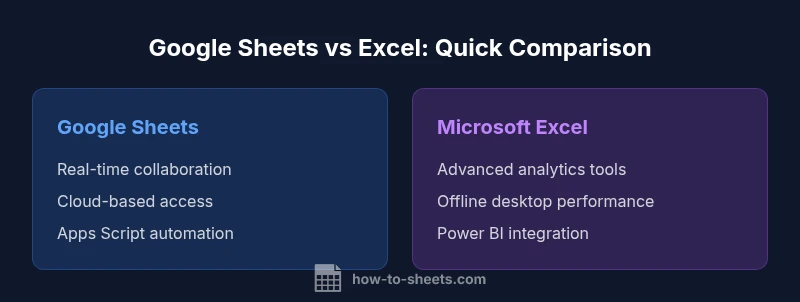
For teams that prioritize real-time collaboration, cloud access, and easy sharing, Google Sheets often outperforms Excel in day-to-day workflows. It shines in online multi-user editing, seamless integration with Google Workspace, and flexible sharing controls. If you value quick setup and broad accessibility over highly specialized analytics, why use google sheets instead of excel? Sheets provides strong collaborative features while Excel remains powerful for advanced modeling.
Why use google sheets instead of excel: a practical overview
If you are evaluating how to allocate your spreadsheet work between Google Sheets and Microsoft Excel, the question often boils down to collaboration, accessibility, and workflow integration. If you ask why use google sheets instead of excel, the answer commonly emphasizes cloud-based collaboration and simple sharing, not just raw speed or formula depth. According to How To Sheets, teams that rely on cross-functional input from remote workers find that Sheets reduces bottlenecks because multiple people can edit simultaneously without file version chaos. In this article, we compare the two tools across key dimensions that matter to students, professionals, and small business owners: real-time collaboration, offline access, automation options, data analysis capabilities, and ecosystem fit. The goal is to provide practical guidance you can apply today, rather than a dry feature list. By focusing on your actual use cases and workflows, you can decide which tool aligns with your goals and processes.
Real-time collaboration and cloud-first workflows
Google Sheets is designed around live collaboration. Multiple users can edit, comment, and track changes in real time, with you seeing others' cursors and edits as they happen. This capability is central to many modern teams, especially in education, consulting, and startup environments where people work from different devices. Sheets automatically saves changes in the cloud, so there’s less risk of data loss and fewer back-and-forth emails over file versions. In practice, this leads to faster decision cycles and more inclusive participation, because contributors don’t need to wait for a single author to finish a revision. Excel supports co-authoring too, but it often requires the desktop app or OneDrive synchronization, which can introduce synchronization delays. For teams using Google Workspace, the integration is even tighter, enabling calendar events, meeting notes, and data collection forms to feed directly into your spreadsheets.
Accessibility, cross-device use, and offline capabilities
One of Sheets' core strengths is accessibility. Accessible from any modern browser and via mobile apps, teams can view and edit spreadsheets on laptops, tablets, or smartphones. This is a particular advantage for field teams, sales, and service staff who need up-to-date data on the go. Google Sheets also provides an offline mode that allows you to view and edit a spreadsheet without an internet connection; changes sync automatically when you reconnect. However, offline performance and availability can vary based on device, browser, and authentication status. Excel's offline desktop experience is often faster for extremely large datasets and sometimes offers snappier recalculation times in high-intensity data modeling scenarios. The decision hinges on where your users live and how reliable their connectivity is in daily operations.
Integration with Google Workspace and APIs
Sheets integrates deeply with Google Workspace apps like Drive, Docs, Slides, Forms, and Gmail. You can import form responses directly into a sheet, automate workflows with Apps Script, and publish data to the web with minimal friction. For teams already using Gmail and Drive, Sheets becomes the central hub for lightweight dashboards, data collection, and lightweight BI tasks. The API access enables custom integrations with internal systems or third-party services, helping you automate repetitive tasks and synchronize data across tools. Excel offers strong integration with other Microsoft apps and the Power Platform, but Sheets' cloud-first approach often reduces the total effort required to set up cross-application workflows. In practice, the choice may come down to your organization's primary productivity suite and whether you value cross-app scripting simplicity over deep native analytics inside Excel.
Formulas, functions, and analytics depth
Google Sheets supports a broad set of functions and array formulas, with ongoing additions to broaden analytic capabilities. For many common tasks, Sheets provides reliable formula coverage, dynamic arrays, and built-in data validation, making it capable of handling typical budgeting, inventory, and planning tasks. However, Excel remains unmatched for certain advanced analytics, including complex pivot tables, Power Pivot modeling, and deep data transformations via Power Query. Sheets draws strength from its simplicity, live data connections through the internet, and straightforward collaboration on shared datasets. For teams that need heavy multi-table joins, advanced statistical modeling, or extensive macro automation in VBA, Excel can offer deeper capabilities out of the box. In practice, you’ll often see Sheets handle a broad majority of day-to-day tasks, while Excel anchors larger, more complex projects.
Scripting and automation: Apps Script vs Office Scripts
Automation is an essential driver of efficiency. Google Apps Script offers a JavaScript-based environment to automate tasks, create custom functions, and connect Sheets with external services. The learning curve is friendly for developers familiar with modern web development, and deployment is straightforward within the Google Cloud ecosystem. Excel relies on VBA for older automation and Office Scripts for newer, cloud-based automation in Excel for the web. Office Scripts uses a TypeScript-based approach, which can be appealing to teams already investing in web technologies. Apps Script tends to have a broader community and faster iteration for Google Workspace workflows, while Office Scripts may integrate more tightly with existing Microsoft-centric pipelines. For teams aiming to automate data collection, scheduling, and lightweight analytics, both platforms offer viable paths—choose the one that aligns with your team’s programming skills and toolchain.
Security, permissions, and governance
Security and governance prompts are central to many organizational decisions. Sheets relies on Google’s access controls, sharing settings, and audit logs through Google Workspace, which can simplify policy enforcement for many organizations. Because data is stored in Google Drive, you can leverage Drive’s version history, two-factor authentication, and granular sharing permissions to limit who can view or edit content. Excel’s security model benefits from Enterprise-grade controls via Microsoft 365, including retention policies, data loss prevention, and robust role-based access. The trade-off often lies in the ease of policy enforcement: Google’s model is generally easier for distributed teams, while Microsoft’s suite provides deeper administrative granularity for larger enterprises. For teams with strict governance requirements, aligning with their existing security posture is crucial.
Migration considerations: moving from Excel to Sheets
A migration from Excel to Sheets is feasible for most standard workbooks, but plan for potential friction. Files with heavy VBA macros may require rewriting them in Apps Script, or using alternative automation strategies. Complex pivot tables or Power Query steps may not map 1:1 and could require redesign. Data validation rules, custom number formats, and complex conditional formatting often translate well, but you should test critical workflows to confirm behavior. Data integrity during migration is essential, so start with a pilot workbook to identify edge cases and build a transition plan that includes training for users who are comfortable with Excel shortcuts but new to Sheets. The payoff is a more collaborative, cloud-accessible workbook environment, but migration work can take time depending on the size and complexity of your existing spreadsheets.
Cost, licensing, and team considerations
Cost considerations separate Sheets from Excel for many teams. Google Sheets is free at the consumer level and included in Google Workspace plans, which can reduce upfront expenditures for small teams and startups. Excel is often licensed as part of the Microsoft 365 ecosystem, which can increase ongoing costs for larger teams, especially when additional services like Power BI or advanced analytics are required. When deciding, evaluate not only per-user licensing but also the total cost of ownership, including training, support, and potential migration expenses. If your organization already relies on Google Workspace for email and collaboration, Sheets often offers a lower total cost of ownership. Conversely, if you require deep native analytics and a Microsoft-centric workflow, Excel may be more cost-effective in the right licensing scenario.
Migration patterns: templates, training, and governance
To maximize your impact with Sheets, start with templates that mirror your Excel workflows and gradually replace hard-coded processes with Apps Script automation and data validation rules. Create a simple governance plan that includes access controls, version history, and training resources. Encourage teams to document assumptions, naming conventions, and data lineage to preserve clarity through the transition. How To Sheets provides practical templates and step-by-step guidance that you can adapt; the more you codify your practices, the smoother the transition will be and the faster you’ll realize gains in collaboration and efficiency.
Best practices and templates for getting started
As you begin, focus on a small set of high-leverage tasks that demonstrate the strengths of Sheets: real-time collaboration, form-to-sheet data capture, and lightweight automations. Use named ranges for clarity, data validation to prevent errors, and protected ranges to guard critical data. Leverage add-ons and connectors to pull data from your CRM, finance tools, or project trackers. Keep a living document of decisions about data structure and sharing rules so new teammates can ramp quickly. How To Sheets’s guides and templates can accelerate your initial wins and set you on a scalable path.
When Excel remains essential for certain tasks
Despite Sheets’ many strengths, Excel still matters for specific workloads. Very large datasets, advanced statistical modeling, and highly specialized analytics often perform better in Excel due to mature features like Power Pivot and Power Query. If your IT environment is heavily Microsoft-centric, Excel’s desktop experience may be preferred for performance and compatibility. In many organizations, the best approach is a hybrid workflow: Sheets for collaboration and data collection, Excel for heavy analysis, with a clear migration or integration plan to keep data synchronized across both tools.
Comparison
| Feature | Google Sheets | Microsoft Excel |
|---|---|---|
| Collaboration & Sharing | Excellent real-time collaboration in Sheets | Co-authoring possible but often requires OneDrive and web access; latency can occur |
| Offline Accessibility | Offline editing via Chrome/desktop app with syncing later | Robust offline desktop experience with full feature set |
| Automation & Scripting | Apps Script for web-based automation | VBA/Office Scripts with stronger Microsoft ecosystem integration |
| Formulas & Data Analysis | Broad, cloud-friendly functions and dynamic arrays | Advanced analytics with Power Pivot, Power Query, and extensive Pivot capabilities |
| Visualization & Charts | Wide range of charts, dashboards friendly for teams | Extensive chart types and pivot charts with deep customization |
| Cost & Licensing | Free tier and Workspace-based pricing options | License-based, potentially higher total cost for large teams |
| Cross-Platform Access | Web-first access across devices, strong mobile apps | Desktop-first with cross-platform availability via Office 365 |
The Good
- Strong real-time collaboration and easy sharing
- Tightly integrated with Google Workspace for streamlined workflows
- No local installation required; accessible from anywhere
The Bad
- Advanced analytics and large-scale data modeling can be weaker than Excel
- Macro and scripting maturity lags behind Excel for some use cases
- Reliance on internet connectivity for full capability in some scenarios
Google Sheets is the better choice for collaborative, cloud-based work, while Excel remains preferred for deep analytics and offline modeling.
If your team relies on real-time collaboration and Google Workspace integration, Sheets wins. For intricate data modeling and VBA-heavy workflows, Excel might be necessary.
FAQ
Is Google Sheets free for individuals and teams?
Yes. Google Sheets offers a robust free tier for individuals and basic team use, with paid Google Workspace plans unlocking additional storage and admin controls. For many small teams, the free tier is sufficient for day-to-day spreadsheet work.
Yes, Google Sheets has a strong free option suitable for individuals and many teams.
Can Excel files be opened and edited in Google Sheets?
Yes, Google Sheets can import and edit Excel files; some features may not translate exactly, and macros may require conversion or replacement with Apps Script.
Yes, you can open Excel files in Sheets, but some features may change.
Does Google Sheets support advanced analytics like Power Pivot?
Sheets supports many formulas and analytics capabilities, but Excel’s Power Pivot and Power Query provide deeper analytics and data modeling opportunities.
Sheets covers many tasks, but Excel is better for advanced analytics.
Is real-time collaboration on Sheets secure?
Sheets relies on Google Workspace security controls, governance features, and admin policies. Data protection depends on how you configure sharing and access.
Yes, with Workspace controls and admin policies.
How easy is it to migrate from Excel to Sheets?
Migration is generally straightforward for standard workbooks; macros and some features may need rewrite in Apps Script. Test critical workflows with a pilot.
Migration is usually doable, but some features may require rewrites.
What is the cost difference between Sheets and Excel for a small team?
Sheets offers a free tier and is often bundled with Google Workspace; Excel licensing depends on Microsoft 365 plans. For small teams, Sheets can be cheaper if Workspace is already in use.
Sheets can be cheaper, especially for small teams using Workspace.
The Essentials
- Choose Sheets for real-time collaboration and cloud-based workflows.
- Excel excels at offline power and advanced analytics.
- Plan for licensing, migration, and hybrid workflows.
- Start with templates and gradual automation to maximize impact.
- Assess your organization's ecosystem before deciding.