Google Sheets vs Excel: A Practical, Analytical Comparison for 2026
An analytical side-by-side look at Google Sheets and Excel, focusing on collaboration, data work, cost, and real-world use cases for students, professionals, and small businesses.


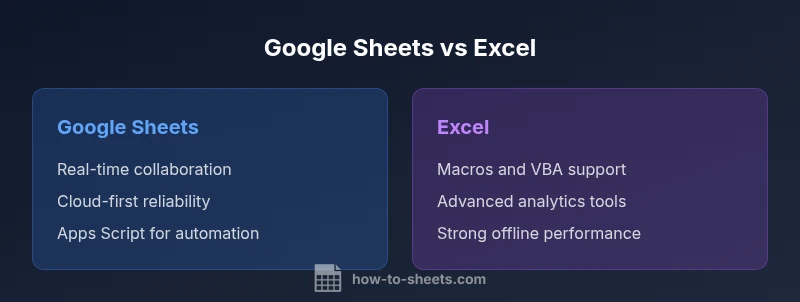
This quick comparison helps decide between Google Sheets and Excel for teams weighing cloud collaboration vs. desktop power. Specifically, google sheets instead of excel often wins on real-time collaboration, easy sharing, and browser-based access, while Excel excels at offline work, large datasets, and advanced analytics. The full analysis below expands on the trade-offs and practical scenarios.
Why google sheets instead of excel matters in modern workflows
google sheets instead of excel is a frequent debate for organizations pursuing cloud-first collaboration without sacrificing essential data work. In the field, teams want immediate access from anywhere, robust sharing controls, and predictable costs. According to How To Sheets, the cloud-first approach often reduces IT overhead and speeds onboarding, which is especially valuable for student teams, freelancers, and small businesses juggling multiple projects. The goal is not to pick a winner in a vacuum but to understand where each tool shines and where trade-offs arise when moving from a desktop-centric model to a collaborative, browser-based workflow.
In practice, the decision hinges on how you structure work: how often you need to work offline, how complex your data models are, and whether regulatory requirements demand strict control over versions and permissions. This section frames the decision through practical lenses—collaboration speed, data scale, and the kinds of tasks teams perform most often. The discussion is grounded in real-world scenarios, not abstract features alone, so you can map the comparison to your daily routines.
There is a notable tendency for teams to underestimate migration friction when switching tools. How To Sheets Analysis, 2026, indicates that organizations that plan migration in stages—starting with lightweight spreadsheets and gradually moving to more complex workbooks—tend to experience smoother transitions and fewer workflow interruptions. This insight reinforces the need to balance the allure of cloud collaboration with the realities of your data needs and compliance requirements.
For students and small businesses, the cost and access model can be a decisive factor. Google Sheets offers generous free usage under a personal Google account and straightforward workspace options for teams; Excel remains deeply entrenched in enterprise environments with Microsoft 365. The choice is often not binary; many teams run hybrid solutions that combine Sheets for lightweight, collaborative tasks and Excel for heavy-duty analytics or offline workloads.
In short, the decision to adopt google sheets instead of excel should be guided by collaboration requirements, data complexity, offline needs, and total cost of ownership. The following sections dissect these dimensions in more detail to help you identify the best fit for your context.
Core feature differences you should know
The feature sets of Google Sheets and Excel have converged in several areas, yet they retain distinct strengths. A practical comparison highlights where Sheets delivers speed and simplicity, and where Excel offers depth and control. Key areas to evaluate include formulas and scripting, data handling, offline accessibility, and integration with broader ecosystems. Sheets emphasizes cloud-native workflows and easy sharing, while Excel emphasizes offline power, advanced analytics, and macro capabilities. Understanding these distinctions helps teams map their processes to the right tool.
In this section, we’ll contrast core capabilities such as real-time collaboration, version history, formula compatibility, data validation, conditional formatting, charting, and automation. Rather than listing features in isolation, we’ll pull them into concrete decision criteria: how your team works, the typical size of datasets, and the governance requirements that apply to your projects. The goal is to move beyond “which has more features” to “which features matter for my workflow.”
A practical takeaway: even when features overlap, the way you work—cloud-first vs. desktop-first—often dictates the better fit. Where spreadsheets live matters; a cloud-based tool shines when you need fast, shared access across devices, while a desktop-first approach can still dominate when you’re handling very large datasets or performing heavy, repeatable analyses offline. In the next sections, we’ll quantify these differences in a structured, side-by-side format for easy reference.
Collaboration and remote work implications
Collaboration is a central differentiator between Google Sheets and Excel. Sheets was designed from the ground up for simultaneous editing, comment threads, and live updates across users. Teams that operate in distributed environments—educational cohorts, freelance groups, or cross-functional project teams—tend to experience faster decision cycles because everyone can see changes in real time, leave comments, and share access with minimal friction. This cloud-native collaborative model also simplifies auditing and tracking contributions, especially when paired with basic version history.
Excel has improved collaboration through Office 365, including co-authoring and cloud storage, but many users still perceive Sheets as more responsive for concurrent edits in fast-moving projects. For governance-focused organizations, Excel’s more mature enterprise controls—while powerful—often require deployment through IT-managed channels, which can slow distributed collaboration unless properly configured.
From a practical lens, if your primary objective is to enable quick team discussions and live edits across devices, Google Sheets tends to be the more straightforward choice. If your workflows demand formal change control with strict role-based permissions, Excel’s integrated governance features may be worth the extra setup time. In either case, an explicit plan for access management, data ownership, and backup reduces risk during adoption.
Data modeling, formulas, and Excel compatibility
Formula compatibility and data modeling capabilities are central to deciding between Google Sheets and Excel. Google Sheets offers a broad set of functions and supports array formulas, lookup features, and many modern capabilities designed for simplicity and readability. However, Excel’s formula language—especially with its VBA macros and the newer Office Scripts—often provides deeper analytical power, more mature data modeling functions, and richer statistical toolsets. Teams transitioning from Excel to Sheets should expect to adjust certain macros and advanced formulas, while those migrating from Sheets to Excel may need to preserve logic using supported equivalents.
Import/export between formats is generally reliable: you can exchange .xlsx and .csv files across platforms, but some complex formatting, macros, or specialized features may not transfer 1:1. When planning a switch, map critical formulas and macros to equivalent functions in Sheets or Excel ahead of migration. A structured test workbook—covering core formulas, pivot tables, and data validation rules—helps identify gaps early and informs whether a hybrid model (Sheets for day-to-day work and Excel for specialized analytics) might be the best path.
In practice, teams with moderate data modeling needs may find Sheets perfectly adequate for most tasks, while heavy financial modeling or advanced analytics projects often rely on Excel’s more extensive toolset. How To Sheets’s guidance emphasizes testing and staged rollouts to minimize disruption, a principle that remains relevant whether you are staying with Google Sheets or moving to Excel.
Security, governance, and policy considerations
Security and governance considerations often shape the selection between Google Sheets and Excel in regulated environments. Sheets relies on Google’s cloud infrastructure and admin controls within Google Workspace, which can simplify policy enforcement for teams that already use Google services. Centralized permission management, monitored access, and audit trails are built into the platform, which reduces the overhead for distributed teams to maintain consistent security posture. For many organizations, this cloud-based approach aligns with governance requirements and reduces on-premises maintenance burdens.
Excel, especially in enterprise deployments, offers strong governance capabilities through Microsoft 365, including robust identity management, granular sharing controls, and compliance features. In some cases, Microsoft’s ecosystem integrates with existing security tooling like data loss prevention and information protection policies. The trade-off is that administering these controls can be more complex, particularly when organizations operate in hybrid environments that span on-premises and cloud services.
A practical approach is to articulate your policy requirements early—data residency, access controls, and retention rules—and choose the platform that aligns with your security posture. In some cases, a hybrid strategy (Sheets for collaboration in the cloud and Excel for controlled, offline analysis) can balance agility with governance needs. How To Sheets Team cautions that mapping your data governance framework to your platform of choice reduces risk during scaling.
Cost and licensing: total cost of ownership
Cost considerations often drive platform decisions for students, startups, and small businesses. Google Sheets offers a no-cost starting point when used with a consumer Google account, with tiered pricing for Google Workspace that scales with team size and features such as advanced security and analytics. The low barrier to entry makes Sheets attractive for early-stage projects and teams with rapid onboarding needs. For many teams, the ongoing costs of Sheets are predictable and lightweight compared with traditional software licenses.
Excel’s cost structure is more tied to Microsoft 365 subscriptions, which bundle Excel with other Office apps, cloud storage, and enterprise-grade services. The pricing varies by plan and user, and larger teams may benefit from bundled services that simplify procurement and license management. The total cost of ownership also includes potential IT overhead for deployment, governance policies, and data integration work when Excel is the preferred platform for complex analytics.
From a practical perspective, a hybrid approach can balance costs: use Sheets for day-to-day collaborative work and Excel for high-value, offline analysis. Scenario-based budgeting, forecast modeling, and governance requirements can all influence which licensing path is most economical for your specific context. How To Sheets’s analysis suggests starting with a cost-of-ownership assessment that weighs license fees, IT time, and training needs before committing to a single platform.
Extensions, templates, and automation capabilities
Automation and extensibility are significant drivers of productivity in both ecosystems. Google Sheets thrives with Google Apps Script, a lightweight scripting platform that enables custom functions, triggers, and automation across Google Workspace apps. The platform also benefits from a vibrant add-on marketplace that can extend Sheets with templates, data connectors, and workflow automation. For teams seeking rapid deployment and easy customization, Apps Script provides a friendly, browser-based development environment.
Excel complements automation with a well-established macro ecosystem (VBA) and, more recently, Office Scripts for the web. VBA remains a powerful tool for legacy automation and complex model automation, especially in enterprise settings where large, formula-heavy workbooks are common. Office Scripts offers a modern alternative for automating tasks in the online environment, enabling cross-platform workflows when paired with Excel Online. The trade-off is that macro-heavy workbooks can be harder to manage across platforms without adaptation.
Templates play a crucial role in speeding up onboarding and standardizing processes. Sheets offers templates and add-ons that tailor workflows for budgeting, project planning, and data collection. Excel templates, pivot-driven dashboards, and advanced charting capabilities can deliver more polished analytics out of the box. When deciding, consider which automation approach aligns with your team’s technical comfort, maintenance capacity, and long-term platform strategy.
Use-case scenarios: students, professionals, small business owners
Different user groups tend to favor different tools. Students often value accessibility, shareability, and the ability to collaborate on group projects in real time, which makes Sheets an appealing option for coursework, club management, and research data collection. Professionals in knowledge-driven or customer-facing roles benefit from Sheets’ lightweight analytics, easy sharing, and rapid iteration for brainstorming and content planning. Small business owners often require a balance of collaboration, cost efficiency, and integration with other tools; Sheets can cover day-to-day operations with templates and add-ons, while Excel may be reserved for highly specialized analytics or regulatory-compliant reporting.
When choosing, map your typical tasks to platform strengths. If you routinely work offline, manage very large datasets, or rely on macros, Excel makes sense. If your work emphasizes real-time collaboration, quick setup, and cloud-based access from multiple devices, Google Sheets is a strong default. A practical plan might involve piloting Sheets for a few weeks, with a parallel Excel workflow for critical analysis, and then evaluating which setup better supports your workflow at scale.
Practical migration considerations and best practices
Migration between Sheets and Excel benefits from a structured, staged approach. Start with non-critical workbooks to test cross-platform compatibility, identify mapping gaps in formulas, and validate data integrity after imports. Establish a translation map for complex formulas and macros, and run side-by-side comparisons to confirm results. Develop a lightweight governance model during migration, including version control, access management, and clear data ownership.
Plan for training and support to reduce adoption friction. Provide quick reference guides for common formulas and workflows, and designate an internal champion who can troubleshoot cross-platform issues. Consider hybrid workflows during transition: keep core dashboards in the platform that best serves each task, and use file import/export routines to reflect updates across environments. By documenting issues and maintaining a backlog of migration tasks, teams can steadily close gaps and minimize business disruption.
Finally, align migration with your security and governance policies. Ensure that data residency, sharing controls, and access audits are preserved or improved during the transition. With a deliberate, phased approach, teams can maximize the benefits of either platform while minimizing disruption.
Comparison
| Feature | Google Sheets | Excel |
|---|---|---|
| Collaboration & real-time editing | Real-time cloud-based collaboration with simultaneous editing | Co-authoring with Office 365; robust but often slower for very large teams |
| Offline access | Offline access via browser or mobile apps; automatic sync when online | Desktop-first offline editing with optional cloud sync |
| Automation & scripting | Google Apps Script and add-ons for automation | Office Scripts and VBA/macros for advanced automation |
| Data capacity & performance | Cloud-based with practical limits; excellent for mid-size datasets | Desktop-based with strong performance for very large datasets (hardware dependent) |
| Formula compatibility | Broad function set with Google-specific functions; good mapping for common tasks | Extensive formula library and advanced analytics; VBA offers deep customization |
| File formats & interoperability | Native support for Excel imports/exports with some feature gaps | Best in class for Excel formats; macros supported in Excel environment |
| Security & governance | Cloud-based access controls with Workspace administration | Granular enterprise governance via Microsoft 365 and AD integration |
| Cost & licensing | Free tier with Google Workspace upgrades for teams | Licensing tied to Microsoft 365 plans and enterprise agreements |
| Best use case | Lightweight, collaborative workflows and rapid sharing | Complex analytics, offline work, and macro-heavy projects |
The Good
- Low upfront cost and quick access for new teams
- Strong real-time collaboration across devices
- Automatic cloud backups and easy sharing controls
- Simple onboarding for students and small teams
The Bad
- Advanced analytics and offline power lean toward Excel
- Macro and VBA support is more mature in Excel
- Complex governance and data residency can be harder in a cloud-only model
Google Sheets excels at collaboration; Excel excels at depth and offline power
Choose Sheets for cloud-based teamwork and rapid onboarding. Choose Excel for heavy analytics, offline workloads, and macro-driven workflows. The best choice depends on your team's priorities and work style.
FAQ
Is Google Sheets suitable for large datasets?
Google Sheets handles many everyday datasets well, but extremely large datasets or complex analytics may perform better in Excel. For mission-critical, large-scale workloads, consider partitioning data or using dedicated analytics tools alongside Sheets.
Sheets works well for typical business data, but very large datasets may benefit from Excel or hybrid approaches.
Can I migrate from Excel to Google Sheets easily?
Migration is usually straightforward for standard workbooks, but formulas, macros, and advanced features may require adjustments. Plan a staged migration with testing and mapping of macros to Apps Script equivalents where possible.
Migrate in stages and test core workflows to avoid surprises.
Do Google Sheets formulas map to Excel formulas?
Most common formulas map across both platforms, but some functions differ or lack direct equivalents. Review critical models to identify gaps and adapt formulas or scripts as needed.
Cross-platform formulas exist, but check when you rely on advanced functions.
Is Google Sheets secure for enterprise use?
Google Sheets can be secured with workspace-level policies, access controls, and data loss prevention practices. For highly regulated environments, align with your governance framework and consider data residency needs.
Sheets offers strong policy controls within Workspace, but verify regulatory needs.
Can I use macros in Google Sheets?
Google Sheets supports automation via Apps Script, which covers many macro-like tasks. VBA macros are not natively supported in Sheets; you would reimplement logic in Apps Script or migrate those macros to Excel.
Apps Script handles automation in Sheets; VBA isn’t native there.
Are there offline limitations with Google Sheets?
Offline mode is available, but its capabilities depend on the device and browser. Complex dashboards or large offline datasets may perform better in Excel’s desktop environment.
Offline works, but for heavy offline use Excel may be preferable.
The Essentials
- Assess collaboration needs before choosing a platform
- Match offline requirements to data size and tooling
- Plan migration with a staged, test-first approach
- Leverage automation to maximize efficiency on the chosen platform
- Account for governance and security early in planning