Google Sheets or Excel: A Side-by-Side Comparison (2026)
Analytical side-by-side comparison of Google Sheets and Excel, focusing on collaboration, formulas, automation, offline use, pricing, and data management to help students, professionals, and small business owners decide which tool fits their workflows.


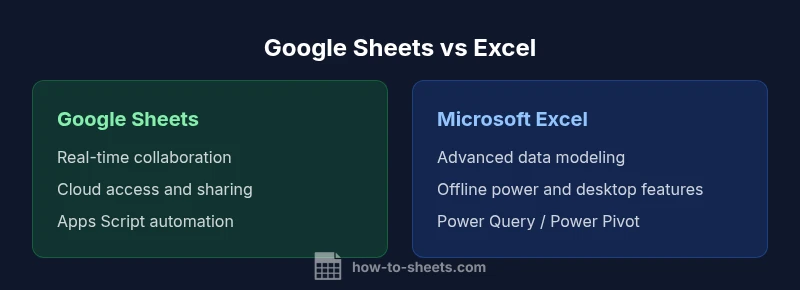
Google Sheets and Excel each excel in different areas. For teams that prioritize collaboration and cloud access, Google Sheets often wins; for advanced data modeling and offline power, Excel tends to outperform. This quick comparison highlights where the two diverge, helping you decide whether to favor 'google sheets or Excel' for your daily workflows.
Why google sheets or Excel matters for modern teams
Deciding between google sheets or Excel in 2026 hinges on how teams collaborate, analyze, and scale their data workloads. For students, professionals, and small business owners, the choice can influence project velocity, data governance, and the ease with which insights translate into action. According to How To Sheets, the decision often hinges on whether your work emphasizes real-time collaboration and cloud accessibility, or requires advanced data modeling and robust offline capabilities. This section sets the stage by describing typical use cases, then links them to practical outcomes you can measure in your own environment. By understanding your primary workflows—data collection, modeling, reporting, and automation—you can map your needs to the right tool and reduce friction across teams.
Core criteria to evaluate
To compare google sheets or Excel effectively, anchor your evaluation to consistent criteria. Look at collaboration capabilities and access controls, breadth of built-in functions, automation options, data handling capacity, interoperability with other tools, pricing and licensing, offline access, and security governance. By standardizing on these criteria, you reduce bias and gain a reproducible decision framework. The goal is not to declare a universal winner, but to identify which tool best aligns with your team's workflow, data complexity, and budget constraints.
Real-time collaboration and sharing differences
Real-time collaboration is a defining factor for many teams. Google Sheets is designed around cloud-first collaboration, offering instant co-editing, presence indicators, and seamless sharing across devices. Inline comments and suggested edits help teams stay aligned without version chaos. Excel’s co-authoring is strong in its own right, particularly when integrated with SharePoint or OneDrive, but the experience can depend on licensing and organizational setup. For lightweight projects, Sheets delivers near-instant collaboration with simple permissions. For governance-heavy environments and larger teams, Excel’s enterprise sharing paths offer mature auditing and role-based access control.
Formulas, functions, and data modeling
Formulas are at the heart of spreadsheet work. Google Sheets provides a broad function library with live collaboration benefits, especially when pulling data from Google services or public APIs. Excel shines with a deeper, more expansive formula ecosystem, advanced statistical and engineering functions, and powerful data modeling features like PivotTables and Power Pivot. If your work requires quick computations and easy sharing, Sheets is often more approachable. If your objectives include complex data transformations, scenario analyses, or multi-table data modeling, Excel generally provides greater depth and flexibility.
Automation and scripting capabilities
Automation turns repetitive tasks into reliable workflows. Google Sheets offers Apps Script, a JavaScript-based environment that enables custom scripts, Google service integrations, and easily shareable automation points. Excel provides VBA as a long-standing automation tool and Office Scripts for the web, complemented by the broader Microsoft automation ecosystem (Power Automate, connectors, and BI tools). For teams seeking rapid customization with minimal infrastructure, Apps Script makes automation approachable. For organizations pursuing enterprise-grade automation pipelines, Excel with Power Platform often delivers a more robust integration landscape.
Data volume, performance, and reliability
Performance and reliability are central to choosing a tool for serious data work. Google Sheets performs well for typical, cloud-based spreadsheets with moderate formulas and light data connections; as workloads grow or formulas become more complex, performance can wane if not structured carefully. Excel is traditionally favored for larger, more complex workbooks, especially when deployed on robust hardware or via server-based experiences. In practice, the best approach is to model your typical data tasks and test both platforms against those patterns to evaluate responsiveness, stability, and ease of use.
Interoperability and file formats
Interoperability matters when exchanging files with teammates who use different tools. Google Sheets saves natively to Google Drive and can import or export Excel formats, CSV, and other common file types, with minor formatting caveats. Excel offers broader native support for legacy formats and stronger integration with enterprise data services, BI pipelines, and the broader Microsoft ecosystem. If your collaborators rely heavily on Google services, Sheets provides a streamlined workflow; if your organization centers on Windows-based systems and legacy data, Excel’s interoperability remains stronger.
Pricing, licensing, and support considerations
Pricing is a practical factor that shapes adoption. Google Sheets provides free access with a Google account and enhanced features in Google Workspace plans, with pricing typically aligned to tiered business needs. Excel’s licensing varies by plan (per-user subscriptions for Microsoft 365 or on-premises options for traditional Office), which can influence total cost of ownership in larger organizations. For individual or small teams with a tight budget, Sheets often offers an attractive entry point; for enterprises requiring governance, advanced analytics, and deep BI integration, Excel licenses may be a worthwhile investment.
Offline access, mobile experience, and accessibility
Offline access is essential for travel or environments with unreliable connectivity. Google Sheets supports offline editing through a browser or mobile app, requiring initial setup to cache data and enable syncing. Excel provides strong offline capabilities through desktop installations and mobile apps, with a consistent experience across platforms. Accessibility features such as screen reader support, keyboard navigation, and high-contrast modes are solid in both tools, but exact behaviors can vary by device and version. Teams should validate offline flows for critical deadlines to avoid surprises.
Ecosystem, add-ons, and integrations
A thriving ecosystem amplifies the value of a spreadsheet tool. Google Sheets integrates tightly with Google Workspace apps and a broad marketplace of add-ons, enabling automation, data import, and workflow enhancements. Excel’s ecosystem shines with Power Automate, Power Query, Power Pivot, and extensive third‑party connectors, supporting complex data pipelines and enterprise integration. If you rely on cloud-native collaboration and lightweight automation, Sheets is highly extensible. If you need deep BI integration, data modeling, and enterprise-scale automation, Excel’s ecosystem offers broader capabilities.
Migration tips and common pitfalls
Migrating between Google Sheets and Excel is common in modern workflows. Start with small, representative workbooks to test formulas, data validation, and formatting. Expect occasional differences in function naming, date handling, and reference behavior; plan for manual adjustments where needed. Create a mapping guide to translate core formulas and features from one platform to the other, and maintain a versioned backup before large-scale moves. Validate results against trusted data and document any discrepancies to prevent downstream errors.
Security, privacy, and compliance basics
Security and privacy considerations influence long-term viability. Google Sheets emphasizes cloud-based data management, with granular sharing controls and auditing within Google Workspace. Excel-based workflows rely on Windows/AD governance and enterprise-grade governance within Microsoft 365, including DLP capabilities and information protection policies. Regardless of platform, implement least-privilege sharing, enable version history, and document ownership for critical workbooks to reduce risk during collaboration or migration.
Practical decision framework: match your use case
To make a practical choice, translate your real-world requirements into a framework. List top use cases—real-time collaboration, advanced analytics, offline work, or enterprise governance—and rate each criterion by importance. Test both tools against those priorities with representative spreadsheets, then collect feedback from stakeholders. Use pilot projects to uncover gaps, and document lessons learned. This approach aligns with How To Sheets' practical templates and helps you select the tool that best matches your organizational needs.
Starter templates and next steps
If you’re ready to act, start with starter templates that reflect your most common tasks: a budget tracker, a project plan, or a data-cleaning worksheet. Tweak these templates to reflect your data flows, validation rules, and reporting needs, then compare behavior across Google Sheets and Excel side by side. Set up a small cross-functional pilot to evaluate collaboration, automation, and reporting in realistic conditions. The goal is to establish repeatable, auditable workflows that you can scale, migrate, or split as needed.
Comparison
| Feature | Google Sheets | Microsoft Excel |
|---|---|---|
| Collaboration & Sharing | Real-time collaboration and cloud access across devices | Desktop-first co-authoring with cloud-enabled sharing and governance |
| Cost & Licensing | Low upfront costs with free access; Workspace adds features | Licensing varies by plan; per-user subscriptions common |
| Scripting & Automation | Apps Script (JavaScript-based) and broad add-ons | Office Scripts and VBA with Power Platform ecosystem |
| Data Modeling & Formulas | Broad function library with live collaboration | Advanced data modeling with PivotTables and Power Query |
| Data Capacity & Performance | Strong for typical use with straightforward formulas | Better performance for large, complex workbooks |
| File Formats & Interoperability | Seamless Drive integration; easy Excel import/export | Strong Excel format support and enterprise data connections |
| Offline Access | Offline mode available with setup in mobile/desktop | Full offline work with installed Office apps |
| Mobile Experience | Consistent mobile editing and viewing in Sheets app | Mature mobile apps with robust feature parity |
| Ecosystem & Add-Ins | Rich add-ons and Google Workspace integrations | Power Platform integration and extensive third-party add-ins |
The Good
- Low upfront cost and easy access via browser
- Excellent real-time collaboration and cloud-based workflows
- Wide ecosystem of add-ons and Google Workspace integrations
- Strong scripting options with Apps Script and automation potential
The Bad
- Excel often offers deeper data modeling and analytics capabilities
- Cross-platform migrations can require manual adjustments
- Offline functionality in Sheets can be more setup-intensive
Google Sheets for collaboration-first environments; Excel for advanced analytics and offline power
If teams prioritize real-time collaboration and cloud access, Sheets is typically the better fit. If the requirement is advanced data modeling and offline work, Excel generally delivers more depth. In many organizations, a blended approach—using each tool for its strengths—offers the best overall outcome.
FAQ
What is the main difference between Google Sheets and Excel?
Google Sheets emphasizes real-time collaboration and cloud access, with easy sharing and integration to Google services. Excel offers deeper data modeling, advanced analytics, and extensive enterprise features, especially in on-premises or Power Platform-enabled environments.
Google Sheets is great for collaboration in the cloud, while Excel excels at deep analytics and offline work.
Is Google Sheets suitable for advanced data modeling?
For highly complex data modeling, Excel generally provides more depth with PivotTables, Power Pivot, and Power Query. Sheets can handle substantial models, but may require workarounds for very large or intricate datasets.
Excel tends to be better for advanced data modeling; Sheets works well for standard models and quick analyses.
Can I work offline with Google Sheets?
Yes, Google Sheets supports offline editing, but it requires enabling offline mode and syncing when reconnecting. Excel offers robust offline capabilities by default through desktop installations and mobile apps.
Sheets can work offline after setup; Excel works offline without extra setup on desktop.
Which tool is cheaper for a small team?
Google Sheets provides a free tier with Google accounts and affordable Workspace plans, while Excel licensing varies by Microsoft 365 plan. For very tight budgets, Sheets often wins, but long-term needs may shift the balance toward Excel in larger teams.
Sheets is usually cheaper upfront; Excel can be more costly over time for larger teams.
How easy is it to migrate spreadsheets between Sheets and Excel?
Migration is generally feasible in both directions, but expect small differences in function naming and behavior. Start with representative workbooks, test formulas, and maintain backups to catch discrepancies early.
Migration is possible, but test with real data to catch quirks early.
What are best practices for cross-platform compatibility?
Document core formulas, use simple references, and where possible, separate data and calculations from presentation. Maintain a mapping guide for formula equivalents and validate results after any migration.
Keep formulas simple and document equivalents to avoid surprises when switching tools.
The Essentials
- Define your top priorities: collaboration, analytics, or governance
- Test both tools with real workflows before deciding
- Consider licensing, offline needs, and ecosystem fit
- Plan for migration risks and data integrity checks
- Leverage starter templates to validate workflows quickly