google sheets vs excel for business: a practical comparison
A practical analysis of google sheets vs excel for business, focusing on collaboration, data modeling, automation, pricing, and integration to guide tool selection for teams.


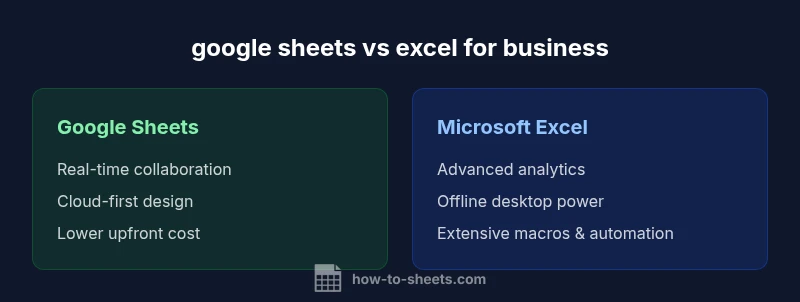
For many business tasks, Google Sheets offers cloud-based collaboration and easy sharing, while Excel provides deeper data modeling and offline power. The best choice depends on your team size, data complexity, and automation needs. In this quick comparison, you’ll see where Google Sheets shines and where Excel leads, helping you decide quickly which path fits your workflow.
google sheets vs excel for business: overview
In the modern office, the decision between google sheets vs excel for business is less about one tool being universally better and more about how well each aligns with your processes. Google Sheets excels in cloud-first collaboration, real-time editing, and easy sharing across departments. Excel, by contrast, remains the powerhouse for heavy data modeling, offline work, and advanced analytics. According to How To Sheets, the crux of the choice often rests on team size, data complexity, and the need for cross-application automation. For teams that rely on rapid iteration and cross-functional input, Google Sheets often satisfies the demand for speed and accessibility. For departments handling large datasets, complex models, or offline scenarios, Excel tends to be the sharper instrument. The goal is to map your organization’s workflows to the strengths of each tool and avoid a one-size-fits-all approach.
google sheets vs excel for business: collaboration and real-time editing
Collaboration is where Google Sheets frequently outperforms traditional Excel workflows. Google Sheets runs in the browser, with simultaneous edits visible in real time, granular sharing options, and lightweight comment threads. This makes it ideal for cross-functional teams, ad hoc reporting, and rapid prototyping. How To Sheets analysis shows that the collaborative edge of Sheets can translate into faster decision cycles and fewer version-control headaches, especially in distributed teams. Excel Online narrows this gap with collaborative features, but many users still report that Sheets feels more fluid for day-to-day teamwork. If your organization depends on cloud access and fast, multi-user edits, Sheets is typically the stronger fit. If you’re embedded in an Office ecosystem with disciplined desktop workflows, Excel’s collaboration remains robust when used through Microsoft 365.
google sheets vs excel for business: data modeling, formulas, and performance
Excel’s long-standing strength is data modeling at scale. Pivot tables, complex array formulas, and advanced analytics suit heavy numeric workloads and financial modeling. Google Sheets has caught up in many areas with powerful functions, improved array handling, and partnerships with data connectors, but it still trails Excel on very large datasets and advanced modeling scenarios. The keyword google sheets vs excel for business recurs here: Sheets offers fast, accessible modeling for teams that need to iterate quickly in the cloud; Excel offers depth and resilience when datasets exceed Sheets’ practical limits. For mixed environments, a hybrid approach—Sheets for lightweight dashboards and Excel for heavy models—often works well.
google sheets vs excel for business: automation and scripting
Automation is a growing battleground. Google Apps Script provides a straightforward path to automate across Google Workspace apps and external services, enabling lightweight workflows and custom add-ons. Excel leverages VBA and, more recently, Office Scripts in Excel Online, offering mature macro capabilities and deeper integration within the Office ecosystem. For teams prioritizing cross-application automation or rapid prototyping, Apps Script can be more approachable; for organizations with established Excel-based automation or enterprise-scale routines, Excel’s scripting offers robust control and performance. How To Sheets Team notes that choosing automation tooling should align with existing skill sets and long-term governance strategies.
google sheets vs excel for business: offline access and platform coverage
Offline access is a critical differentiator. Excel Desktop remains the benchmark for full offline power and offline data integrity, especially on Windows and macOS. Google Sheets supports offline mode, but it requires setup in advance and can feel slower for large workbooks. Web and mobile availability also diverge: Sheets shines across platforms with a consistent web experience, while Excel offers strong desktop apps and mobile apps that tie deeply into Windows and Office ecosystems. For organizations with limited internet reliability or a heavy emphasis on offline work, Excel’s desktop-first model can be advantageous; for teams that value ubiquitous access and cross-device collaboration, Sheets is often the better option.
google sheets vs excel for business: pricing, licensing, and total cost of ownership
Pricing models influence total cost. Google Sheets is free for basic use, with paid Google Workspace plans that scale with organization size and feature needs. Excel’s cost is typically tied to Microsoft 365 subscriptions, which bundle desktop applications, cloud storage, and business services. The total cost of ownership depends on deployment, user count, and IT overhead: Sheets can be cheaper for small teams or education-focused scenarios, while Excel may be more cost-effective for data-heavy enterprises leveraging existing Microsoft licenses. In both cases, consider training, governance, and data migration as part of the ongoing cost.
google sheets vs excel for business: security, governance, and compliance considerations
Security and governance shape how you deploy either platform. Google Sheets relies on cloud-based security controls, identity management, and shared responsibility with Google Cloud, while Excel/Office 365 emphasizes enterprise-grade security, data loss prevention, and on-premises or hybrid deployment options. Organizations that require strict data residency or advanced encryption controls should map out who administers access, how changes are audited, and how backups are managed. How To Sheets analysis shows that both platforms can meet many regulatory requirements when configured with proper policies, but the decision hinges on your IT maturity and governance framework.
google sheets vs excel for business: integration and ecosystem compatibility
Integration depth matters for workflow consistency. Sheets integrates seamlessly with Google Workspace apps and many third-party tools, supporting real-time data flows and quick sharing. Excel integrates deeply with the Microsoft ecosystem (Power BI, Power Query, Power Automate), enabling powerful end-to-end analytics and automation. If your organization already uses Google Workspace or Microsoft 365, leveraging native integrations can reduce friction and improve governance. A pragmatic approach is to catalog critical workflows, assess data transfer needs, and plan pilots that validate performance and user experience before a broad rollout.
google sheets vs excel for business: practical decision guide
To decide effectively, map your use case to a few decision criteria: data scale, collaboration needs, offline requirements, and IT governance. For lightweight, cloud-based work with frequent cross-team collaboration, start with Google Sheets. For complex modeling, offline access, and strong Office ecosystem alignment, lean toward Excel. In many organizations, a hybrid approach—Google Sheets for quick dashboards and lightweight data collection, Excel for heavy analytics and formal reporting—provides the best balance. The How To Sheets Team suggests piloting both tools with a small cross-functional group to gauge real-world performance before a full commitment.
Authority sources
- https://hbr.org
- https://mitsloan.mit.edu
- https://www.gartner.com
- https://www.nist.gov
google sheets vs excel for business: quick-start templates and templates ecosystem
If you’re new to either tool, start with simple templates that demonstrate key workflows: a shared project tracker in Sheets, a financial model in Excel, and a cross-linking dashboard that uses both tools in a controlled test. Practical templates help teams compare performance, ease of use, and data accuracy. Consistent templates also simplify training and governance, reducing friction as you scale.
Comparison
| Feature | Google Sheets | Microsoft Excel |
|---|---|---|
| Collaboration & real-time editing | Strong real-time collaboration with live updates | Robust collaboration via Office 365 Online; real-time features improving |
| Data capacity & performance | Excellent for moderate datasets in the cloud | Best for large datasets and complex modeling on desktop |
| Formulas & functions | Broad function set with IMPORTRANGE and array formulas | Advanced analytics, PivotTables, and Power Query/M functions |
| Automation & scripting | Apps Script for cross-app automation | VBA and Office Scripts for robust automation in Office ecosystem |
| Add-ins & extensibility | Workspace add-ons and Google Workspace integrations | Office Add-ins and Power Platform integrations |
| Offline access | Offline mode available with limitations | Desktop app offers full offline capability |
| Pricing & licensing | Free tier plus Google Workspace plans | Microsoft 365 subscriptions with desktop licenses |
| Security & governance | Cloud-native controls and admin console | Enterprise-grade security with on-prem/hybrid options |
| Platform availability | Web, iOS, Android; strong cross-device support | Desktop Windows/macOS; Online across devices |
| File compatibility & interoperability | Strong compatibility with XLSX exports and imports | Excel excels at interoperability within Office ecosystem |
The Good
- Real-time collaboration and cloud access streamline teamwork
- Excel offers deep data modeling and offline power
- Automation options with Apps Script and VBA provide flexible workflows
- Both platforms integrate with popular business tools and templates
- Flexible pricing options for different organization sizes
The Bad
- Sheets can hit performance limits with very large datasets
- Excel requires licenses and can be desktop-centric for some workflows
- Migration between tools may require data transformation
- Security governance can be complex across multi-tool environments
Excel is stronger for large, complex datasets; Google Sheets excels in collaboration and cloud-based workflows.
Choose Excel when data volume and advanced analytics are critical. Choose Sheets for teams that need real-time collaboration and easy sharing across devices. For many organizations, a hybrid approach offers the best balance.
FAQ
Can Google Sheets replace Excel for most business tasks?
Google Sheets can replace Excel for many day-to-day tasks that prioritize collaboration, lightweight analysis, and cloud access. However, for heavy data modeling, offline work, or advanced analytics, Excel often remains the better choice.
Sheets works well for day-to-day teamwork, but Excel is often superior for heavy analysis and offline work.
Are there significant offline differences between the two?
Excel Desktop provides robust offline capabilities by default, while Google Sheets offers offline mode that requires setup and syncing when back online. Your internet reliability will influence which is more convenient for you.
Excel offline is built-in; Sheets offline needs a setup but works online later.
Which is cheaper for a small business?
Google Sheets can be cheaper for small teams due to a free tier and lower per-user costs in Workspace plans. Excel costs depend on Microsoft 365 licensing and feature needs, which can be more or less expensive depending on organization size and existing licenses.
Sheets often costs less upfront; Excel costs depend on your existing Microsoft setup.
Can I collaborate in real-time across devices?
Yes. Google Sheets provides robust real-time collaboration across devices and platforms. Excel Online also supports real-time collaboration but in many teams Sheets remains the more seamless option for rapid multi-user editing.
Both support real-time collaboration, with Sheets usually smoother for quick edits.
Is importing Excel files into Sheets straightforward?
Importing .xlsx files into Google Sheets is supported, but some complex Excel formulas or macros may not translate perfectly. Always validate formulas and adjust scripts after migration.
You can import Excel files into Sheets, but formulas and macros may need tweaking.
What about compatibility when moving from Sheets to Excel?
Moving from Sheets to Excel is generally straightforward for most data and formulas, though some Apps Script features don’t transfer, and certain functions may have equivalents that behave differently. Plan a validation phase after migration.
Moving from Sheets to Excel usually works, but check for script and formula differences.
The Essentials
- Assess collaboration needs before tool choice
- Match data complexity to the appropriate platform
- Plan for offline work and mobile access
- Factor automation capabilities into governance
- Pilot both tools to quantify real-world impact