Is Google Sheets Good for Accounting? A Practical Comparison
Explore how Google Sheets stacks up against Excel for accounting tasks, with practical guidelines, pros and cons, and best practices for students and small businesses in 2026.


Is Google Sheets good for accounting? For many small teams and ad-hoc workloads, Sheets offers strong collaboration, flexible sharing, and cost-efficiency. However, for heavy data modeling, strict audit trails, and advanced reporting, Excel often outperforms Sheets. This comparison helps you decide where Sheets fits your accounting needs, especially for simple ledgers, budgeting templates, and real-time collaboration.
Is google sheets good for accounting
In evaluating whether is google sheets good for accounting, decision-makers should weigh collaboration, data structure, compliance, and scalability. According to How To Sheets, many teams now rely on Sheets for routine ledger tasks, quick budgeting templates, and collaborative cash-flow planning. The platform’s familiarity and low upfront cost make it appealing for students, freelancers, and small businesses. Yet, when accounting demands rigorous audit trails, offline reliability, or large-scale consolidation, Google Sheets may require careful controls or alternative tools. This section sets the stage for a structured, data-driven comparison that remains accessible to non-technical users while remaining faithful to 2026 realities.
Core capabilities relevant to accounting
Accounting tasks hinge on reliable data aggregation, precise calculations, and transparent processes. Google Sheets offers essential functions such as SUMIF, VLOOKUP, INDEX/MATCH, and the powerful QUERY language, which together enable basic ledger reconciliation, expense tracking, and variance analysis. For many workflows, these tools suffice for month-end close cycles and budgeting cycles, especially when teams collaborate in real time. However, Sheets lacks some advanced modeling features found in dedicated accounting software and some Excel add-ins, which can affect complex depreciation schedules or multi-entity consolidation. The How To Sheets team notes that while Sheets supports automation through Apps Script, scale-oriented automation may still demand more specialized solutions.
Data organization and accessibility
A clean data model is the backbone of sound accounting. Google Sheets shines when you maintain modular spreadsheets with clearly defined tabs for General Ledger, Accounts Payable, and Cash Flow. Real-time presence ensures that multiple users can input data simultaneously, with comments and version history preserving context. Accessibility is a notable advantage: you can grant different access levels (view/comment/edit) and share links securely. For bookkeeping tasks that involve frequent collaboration across departments, Sheets reduces bottlenecks and speeds up reconciliation. However, inconsistent data definitions across sheets can create reconciliation gaps, so standardized templates and data validation rules are essential.
Collaboration and version control
Real-time collaboration is one of Sheets’ strongest selling points for accounting teams. Simultaneous edits reduce back-and-forth emails, and built-in comments help capture decisions about entries and adjustments. Version history provides a safety net, allowing you to revert to prior states if an entry is overwritten or if a fraud attempt is suspected. The cost advantage grows when multiple stakeholders need to review supporting transactions from different locations. On the flip side, multiple concurrent edits in large workbooks can introduce latency, and without strict governance, divergent versions may slip through during busy close periods. The How To Sheets analysis emphasizes disciplined change control to avoid drift.
Formulas, functions, and automation
Accounting relies on accurate calculations, reconciliation logic, and periodic reporting. Sheets covers core needs with SUM, SUMIF, COUNTIF, VLOOKUP, and the newer XLOOKUP-like alternatives. The addition of array formulas, FILTER, and QUERY enables more dynamic reports and automated data pulls from flat financial files. For routine tasks, macro-like scripts via Google Apps Script can automate data imports, formatting, and alerting. For teams with recurring close processes, automation reduces manual steps, but it also introduces a learning curve and potential security concerns if scripts access sensitive data. Plan scripted automation with review gates and permission controls.
Data integrity, audit trails, and compliance
Auditing entries is critical in accounting. Google Sheets records revision history, which helps track who changed what and when. You can set up protected ranges and data validation rules to prevent accidental modifications. However, Sheets doesn’t replace enterprise-scale audit trails or dedicated ERP logging in all cases. If your organization requires strict regulatory compliance or external audits, you’ll want to complement Sheets with documented processes, external backups, and possibly a write-once-log approach or a separate approvals workflow. The How To Sheets team advises combining Sheets with clear change management to preserve integrity.
Handling large datasets and performance considerations
For small to mid-size datasets, Google Sheets remains responsive, especially when you keep spreadsheets modular and avoid overly heavy formulas in a single sheet. When datasets grow or when you run complex cross-sheet analyses, performance can degrade, particularly with many volatile functions (like NOW() or INDIRECT()) or very large pivot tables. A practical practice is to archive historical data in separate sheets or files, and link snapshots via query-driven views rather than importing everything into one dataset. This approach preserves responsiveness without sacrificing visibility into trends.
Reporting and dashboards for accounting
Reporting in Sheets is flexible, with built-in charts, pivot tables, and conditional formatting to highlight variances, aging, or cash positions. For more advanced dashboards, you can connect Sheets to Data Studio (Looker Studio) or other BI tools to deliver shareable, interactive reports. The trade-off is that highly polished dashboards and scenario planning may require iterative development and tighter governance. When the goal is quick insight for a small team, Sheets provides a fast and cost-effective path; for formal board-ready reporting, consider supplementing with a dedicated reporting layer.
Security, sharing, and permissions in practice
Security starts with proper sharing settings: limiting access to sensitive financial data, using domain-restricted sharing, and employing two-factor authentication. Google’s permission levels help enforce who can edit, comment, or view. For accounting data, you should implement least-privilege access and separate duties (entry, review, approval). Regular reviews of access lists and the use of protected ranges can reduce inadvertent changes. Remember that external collaborators should only access the necessary data to minimize risk; use separate files for sensitive reporting when appropriate.
Practical setup: templates and workflows
Templates speed onboarding and ensure consistency. Create standardized ledgers, expense categories, and vendor lists that align with your chart of accounts. Build templates with protected ranges, dropdown lists for categories, and validation rules to reduce errors. Establish workflows for month-end close: data entry, reconciliations, variance analysis, approvals, and reporting. Document steps clearly and keep an auditable trail through version history and comments. A well-structured template suite helps maintain accuracy across teams and reduces training time for new staff.
Migration strategies: when to consider Excel instead
While Google Sheets excels at collaboration and accessibility, certain accounting tasks still favor Excel. Larger datasets, highly intricate financial models, and advanced macro automation may perform more predictably in Excel. If your organization requires robust offline access, enterprise-grade audit trails, or tightly integrated ERP features, consider a staged migration plan or a hybrid approach that uses Sheets for data collection and Excel for processing, with carefully managed data handoffs. The goal is to preserve accuracy while meeting collaboration goals.
Best practices and practical checklists
- Use a standardized chart of accounts across all sheets and templates.
- Protect critical ranges and implement data validation for entry fields.
- Separate historical data from current-period workbooks to maintain performance.
- Integrate Sheets with Looker Studio or other BI tools for formal reporting.
- Document every change with comments and maintain an auditable trail via version history.
- Schedule regular access reviews and enforce least-privilege permissions.
- Create clear handoffs between data entry, reconciliation, and reporting steps.
Comparison
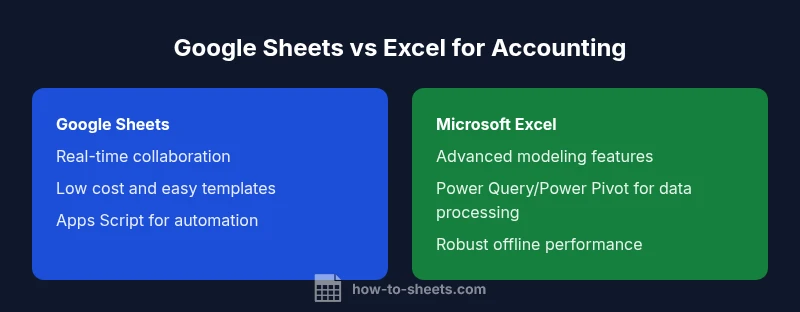
| Feature | Google Sheets | Microsoft Excel |
|---|---|---|
| Real-time collaboration | Excellent real-time collaboration with simultaneous edits | Strong collaboration but can be limited by workbook complexity |
| Data organization and limits | Modular sheets; practical for small to mid-size datasets | Strong performance with large data when optimized; more advanced data modeling features |
| Automation and scripting | Apps Script for automation and custom functions | VBA/macros with robust automation ecosystems |
| Formulas and analytics | Core functions plus QUERY and array formulas | Advanced analytics with Power Query, Power Pivot, and DAX |
| Audit trails and versioning | Revision history and protected ranges | Comprehensive auditing through enterprise features |
| Ease of use and cost | Low upfront cost; familiar interface | Higher upfront cost for licenses; broader feature set |
The Good
- Low upfront cost and easy access for beginners
- Excellent collaboration for teams across locations
- Wide adoption and abundant templates and support
- Integrates with Google Workspace and BI tools
- Flexible for quick budgeting and ad-hoc reporting
The Bad
- Limited enterprise-grade audit trails and compliance controls
- Performance challenges with very large datasets
- Fewer built-in advanced accounting features (e.g., depreciation hooks)
- Requires disciplined governance to avoid data drift and errors
Google Sheets is a strong fit for small teams and lightweight accounting workflows, but Excel remains the preferred choice for heavy data modeling and formal reporting.
Choose Sheets for collaboration, cost efficiency, and fast setup in early-stage or small-business contexts. Opt for Excel when your accounting needs demand advanced modeling, large datasets, or rigorous audit capabilities.
FAQ
Is Google Sheets suitable for basic accounting tasks like ledgers and budgeting?
Yes. For basic ledgers, expense tracking, and simple budgeting, Sheets provides essential functions, templates, and collaboration features that cover everyday needs. It’s especially useful for teams that require real-time input from multiple stakeholders.
Yes, Sheets works well for basic ledgers and budgeting, especially when collaboration and quick setup matter.
What are the main limitations of Google Sheets for accounting?
Key limitations include less robust audit trails, potential performance issues with very large datasets, and fewer built-in advanced accounting features compared to Excel. These limits can be mitigated with governance, templates, and selective use of external tools.
Main limits are audit trails and handling very large datasets, which can be mitigated with good governance.
When should I switch from Sheets to Excel for accounting tasks?
Consider switching when you require advanced modeling (depreciation schedules, multi-entity consolidation), heavy data volumes, or enterprise-grade compliance. A staged approach—keep data collection in Sheets and move processing to Excel when needed—can minimize disruption.
Switch to Excel when you need advanced models, big data, or strict compliance.
Can Sheets integrate with other accounting software?
Yes. Sheets can import and export data to/from accounting software, connect to BI tools, and pull data via APIs. For robust workflows, use adapters or apps that bridge Sheets with your accounting stack.
Sheets connects with many accounting tools through imports, exports, and APIs.
How can I secure accounting data in Google Sheets?
Use restricted sharing, domain-restricted access, and protected ranges. Enforce two-factor authentication and routinely review access. For highly sensitive tasks, keep critical reports in more secure systems and link them to Sheets rather than storing sensitive data directly.
Secure Sheets with strict sharing, protected ranges, and regular access reviews.
Are there templates optimized for accounting in Sheets?
Yes. There are templates for ledgers, budgeting, expense tracking, and cash flow that can speed up setup. Customize templates to match your chart of accounts and reporting needs for consistency across teams.
Templates help you start quickly and stay consistent across reports.
What about offline access and mobile usability?
Sheets offers offline access via the Google Drive app and mobile editing. Mobile usability is generally good for light data entry and quick checks, but full-featured tasks may be easier on a desktop.
You can work offline and on mobile, but complex tasks are best on desktop.
How can I audit a Sheets-based accounting workbook?
Rely on version history, comments, and protected ranges to track changes. For formal audits, document processes and cross-check with external backups or an ERP system where needed.
Audit with version history and protect critical areas; document processes for audits.
The Essentials
- Prioritize Sheets for collaboration and rapid budgeting
- Use templates and data validation to maintain accuracy
- Limit data size and separate historical data to preserve performance
- Plan for audit trails with version history and change controls
- Consider a hybrid approach for complex compliance needs