Troubleshooting #error google sheets: A Practical Guide
Master #error google sheets with a practical, step-by-step troubleshooting guide. Learn common causes, hands-on fixes, and prevention tips to keep formulas accurate and workflows uninterrupted in Google Sheets.


Most #error google sheets issues stem from a few common culprits: a typo in a formula, an invalid cell reference, or a protected range blocking computation. The quickest fix is to verify the exact formula, check all references, and test with a simplified version. If the error persists, use a structured debugging approach to isolate the root cause and apply targeted corrections.
Understanding #error google sheets: what it signals and when it appears
In Google Sheets, the error message #error google sheets appears when a formula cannot be evaluated. This generic signal hides a variety of root causes, from typos to broken references, data mismatches, or protected ranges. The symbol appears in a single cell or can propagate if the error is in a shared calculation. Recognizing the pattern—whether the error shows up with a specific function, after a data input change, or when collaborating with others—helps you narrow down the cause quickly. For students and professionals using Google Sheets daily, addressing #error google sheets promptly minimizes workflow disruption. In this guide, we’ll outline a practical diagnostic sequence, with concrete examples and checklists, so you can move from confusion to a reliable fix in minutes rather than hours.
This issue is particularly frustrating when you’re working on deadlines or collaborative projects. By adopting a methodical approach, you can shorten the time to resolution and reduce the risk of introducing new errors during the fix. Throughout this article, we reference common error types and show how they map to the symptoms you see on your screen. The goal is to give you a repeatable path you can apply to future Google Sheets problems, not just a one-off workaround. The How To Sheets team emphasizes practical, actionable steps over theoretical explanations to empower you to work more confidently with spreadsheets.
Common causes of #error google sheets and how to recognize them
The most frequent culprits behind #error google sheets are syntax mistakes, incorrect or missing references, and incompatible data types. A stray bracket, extra comma, or unmatched parentheses can trigger the error even if the rest of the formula is correct. Broken or renamed named ranges, references to empty cells, or ranges that include text in numeric calculations also cause the error to appear. Protected ranges or sheet permissions can block a calculation, producing an error state in dependent cells. External data connections (like Import or VLOOKUP across sheets) can fail due to permission issues or data availability. By mapping these categories to concrete symptoms—e.g., a #NAME? vs a #REF! vs a #VALUE!—you can route your debugging efforts to the right area. Remember: #error google sheets is not a single fault; it’s a banner that there’s something wrong with your formula or data flow.
Beyond the obvious formula issues, consider the context: are you pulling data from other sheets or workbooks? Are you editing ranges in a shared document? Is the error triggered after a recent rename or move? When you connect the dots between symptoms and likely causes, you’ll identify the most efficient path to a fix and prevent future occurrences by documenting the changes you make.
Quick checks you can do in seconds (no advanced formulas required)
Before diving into deeper debugging, run a few fast checks to rule out obvious, easily-fixed problems. Confirm the cell contains a valid formula starting with =, and ensure there are no stray characters after the equation. Check for mismatched parentheses, quotes, or brackets that can derail evaluation. Verify that all referenced cells contain compatible data types for the operation (for example, numbers in numeric calculations, not text). If you’re using named ranges, confirm they exist and point to the intended ranges. Look for protection: is the range or sheet locked? If so, request access or temporarily disable protection. Finally, test with a minimal formula in a clean cell to see whether the error persists. If the #error google sheets persists, you’ve confirmed that the issue lies deeper in your data flow or references.
Diagnostic flow: symptom → diagnosis → solutions
A calm, repeatable diagnostic flow reduces guesswork and speeds up resolution. Start with a clear symptom: where does the error appear (single cell or multiple cells)? Then move to a diagnosis: is it syntax, a bad reference, or a data-type mismatch? Finally, apply a solution: fix the formula, correct the reference, or adjust data types. Write down the symptom, list likely causes with rough likelihoods, and tackle each cause with a targeted fix. Maintain a changelog so you can revert any step if something else breaks. This disciplined approach minimizes backtracking and makes it easier to identify systemic issues that require broader changes in your sheet design or data architecture.
Step-by-step: fixes for the most common cause
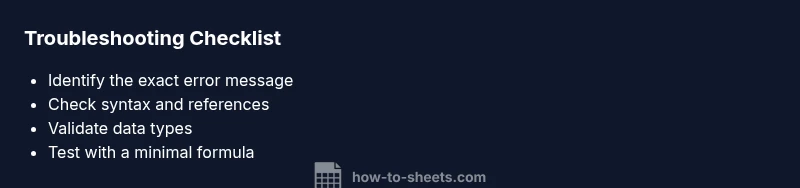
- Identify the exact cell and error message. Look for patterns (e.g., #NAME?, #REF!, or #VALUE!) and note the surrounding cells involved in the calculation. 2) Verify the formula syntax. Check for missing parentheses, mismatched quotes, or stray operators. 3) Check references and named ranges. Ensure that every reference points to a valid cell or range; confirm that named ranges exist and aren’t deleted or moved. 4) Inspect data types. If a function expects numbers, ensure cells contain numeric values and not text that looks like numbers. 5) Assess sheet protections and permissions. If the range is protected, request access or temporarily lift restrictions. 6) Test with a simplified version. Create a new cell with a minimal formula that replicates the issue to confirm the root cause. If the error remains, proceed to advanced checks or seek help. Estimated total time: 60-90 minutes.
Safety, best practices, and prevention tips
Be mindful of data governance when troubleshooting. Do not bypass protections without authorization. Always back up critical sheets before making sweeping changes. Use named ranges carefully to avoid broken references after edits, and document any changes to formulas or data flows for future audits. When collaborating, communicate findings to teammates to prevent repeat issues and ensure that everyone follows the same best practices. A common mistake is overcorrecting one cell without recognizing how the change affects downstream calculations. Create isolated test cases when possible to avoid impacting live data. Finally, set up alerts or validation rules to catch errors early, reducing the time you spend chasing #error google sheets.
Prevention and long-term strategies
Prevention is cheaper than cure. Implement structured review for formulas before sharing sheets, use consistent naming conventions, and leverage Google Sheets’ built-in error-checking features. Create a small library of tested, reusable formulas and document their intended inputs and expected outputs. Establish data validation rules to prevent bad data from entering your sheets, and consider separating raw data from calculated results to minimize ripple effects when edits occur. Regularly audit references and ranges, and sunset old formulas that rely on moved data sources. By embedding these practices into your workflow, you’ll reduce the frequency of #error google sheets and improve overall reliability of your spreadsheets.
Steps
Estimated time: 60-90 minutes
- 1
Identify the error message and affected cells
Open the cell with the error and note the exact message (e.g., #NAME?, #REF!, or #VALUE!). Trace dependent cells to understand impact and determine if the issue is isolated or widespread.
Tip: Use the formula bar to inspect the syntax and parts of the formula line by line. - 2
Validate formula syntax
Check for balanced parentheses, correct operators, and proper function names. Remove any stray characters that don’t belong to the formula and ensure proper use of quotes.
Tip: If a function is unfamiliar, test it with a known-good example to confirm syntax. - 3
Check references and named ranges
Click each cell reference to verify it points to the intended cell or range. If a named range is used, confirm it exists and resolves to the correct area.
Tip: Replace ambiguous references with explicit ranges during testing to isolate the issue. - 4
Review data types and inputs
Ensure inputs match function expectations (numbers vs. text, date formats, etc.). Convert data types if necessary using VALUE or TEXT functions.
Tip: When uncertain, temporarily remove one input to see if the error clears. - 5
Check protections and permissions
Confirm the involved ranges aren’t protected and that you have edit rights. If needed, request temporary access or adjust protections with the owner.
Tip: Never bypass protections without authorization; maintain an audit trail of changes. - 6
Test with a minimal formula
Create a simple version of the formula in a fresh cell using a small data sample to verify the core logic works. If it fails, the problem is likely data-related; if it passes, build back up step by step.
Tip: Incrementally reintroduce complexity to locate the failure point.
Diagnosis: Cell displays #error google sheets instead of a calculated result
Possible Causes
- highFormula syntax error (e.g., unmatched parentheses, extra comma)
- highInvalid or missing references (to cells, named ranges, or external sheets)
- mediumProtected range or sheet permissions blocking calculation
- mediumData type mismatch in function arguments (text in numeric operation)
- lowExternal data connection failures (Import/External lookup errors)
Fixes
- easyReview and correct formula syntax; fix parentheses, quotes, and separators
- easyValidate every cell reference and named range used by the formula
- easyCheck and adjust sheet protections or permissions on involved ranges
- mediumEnsure arguments match expected data types (convert text to numbers if needed)
- mediumVerify external data connections are active and accessible
FAQ
What does #error google sheets mean and why does it appear?
The error indicates the formula cannot be evaluated due to a problem in syntax, references, or data types. It’s a generic signal that you should inspect formula structure and inputs to identify the root cause.
It means the formula can’t be evaluated and you should check syntax, references, and data types.
How can I quickly fix a #error google sheets issue?
Start with quick checks: verify the formula, ensure references exist, and test a simplified version. If the error persists, move through the diagnostic flow to locate the precise cause.
First, check the formula and references, then test with a simple version to locate the issue.
Why is my error different from another person’s #error google sheets?
Different users may see different error types depending on their data and access. Common causes include syntax mistakes, missing references, or protections. Align your debugging steps with the exact error shown on your screen.
Errors can differ because each sheet’s data and protections are unique; follow the exact error you see to diagnose.
Can I prevent #error google sheets from appearing in future work?
Yes. Use data validation, consistent naming, and modular formulas. Maintain a testing workflow for new calculations, and document dependencies to prevent cascading errors.
Absolutely—use validation, naming, and a testing process to prevent future errors.
Does external data cause #error google sheets, and how do I fix it?
External data connections can fail due to permissions or data unavailability. Check access, reauthorize connections, or use alternative local data sources for resilience.
External data can fail due to access issues; verify permissions or switch to local data to fix it.
Watch Video
The Essentials
- Diagnose with a clear symptom before guessing.
- Verify syntax, references, and protections in order.
- Test with a minimal formula to isolate the issue.
- Document fixes to prevent recurrence.
- Know when to seek help for complex data connections.