Google Sheets Formula Parse Error: Fixes That Work Fast
Urgent guide to diagnose and fix Google Sheets formula parse errors, with step-by-step troubleshooting, practical tips, and real-world examples for students, professionals, and small businesses.


A google sheets formula parse error typically indicates a syntax problem in your formula—mismatched parentheses, wrong separators, or misnamed functions. Start with the simplest checks: confirm every opening parenthesis has a closing one, verify comma or semicolon separators according to your locale, and ensure function names and ranges are correct. If the error persists, break the formula into smaller parts and test each segment individually.
What is a google sheets formula parse error?
A google sheets formula parse error appears when Google Sheets cannot interpret the syntax of your formula. This often shows up as #PARSE! or #VALUE! with a message hinting at the location of the issue. For many users, these errors are caused by basic typing mistakes, inadvertently inserted characters, or misused punctuation. According to How To Sheets, a large share of parse errors stem from simple syntax mistakes around parentheses and delimiters. The How To Sheets team emphasizes a methodical approach: verify structure first, then test components in isolation. By understanding the root cause, you can quickly reduce frustration and restore productivity.
This article uses the keyword google sheets formula parse error to center our guidance and ensure the steps you take directly address the most common culprits. With a calm, systematic approach, you’ll cut debugging time dramatically and prevent repeat issues. The goal is not just to fix the current formula but to establish a reliable workflow for future sheets tasks.
Common causes of parse errors
Parse errors in Google Sheets arise from a mix of syntax oversights and locale-specific settings. The most frequent culprits include missing or mismatched parentheses, incorrect argument separators (commas vs. semicolons), misnamed functions, or mixing text and numbers without proper quotation marks. Other causes include unbalanced quotation marks inside strings, stray characters after a closing parenthesis, and referencing ranges with incompatible dimensions. Nested functions and array formulas raise the risk of subtle mismatches as complexity grows.
Based on How To Sheets Analysis, the majority of parse errors trace back to three high-frequency issues: missing closing parentheses, incorrect argument separators due to locale, and misnamed functions or arguments. If you feel stuck, focus on these first, as addressing them resolves a large share of common errors quickly.
Quick checks you can perform in 2 minutes
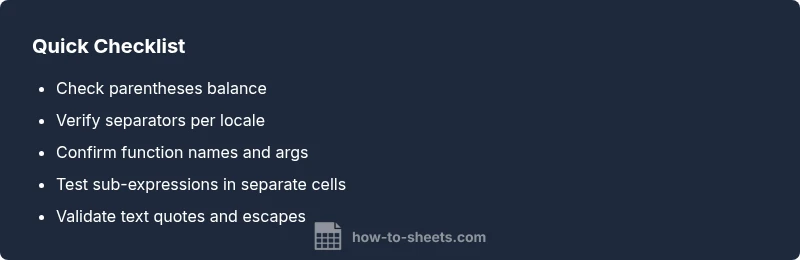
- Validate parentheses: ensure each opening ( has a matching closing ).
- Confirm separators: if your locale uses semicolons, switch separators accordingly.
- Check function names and argument order: verify you’re using the right number of arguments.
- Inspect quotes: make sure all strings are enclosed in quotes and there are no stray quotes inside.
- Look for stray characters after a closing parenthesis or around operators.
- Break the formula into pieces: test simple parts separately to narrow down the issue.
If the error persists, move to the diagnostic flow and begin isolating components in smaller chunks for a deeper check.
Step-by-step diagnostic approach (test in chunks)
Use a top-down approach: start with a simple calculation, then add references and conditions one by one while rechecking results. Copy sub-expressions to separate cells to verify their outcomes. This incremental method helps reveal exactly which segment triggers the parse error. If you encounter a mismatch, backtrack to the last known good configuration and reintroduce elements gradually.
Leverage the formula bar’s highlighting to identify mismatched parentheses. When needed, replace hard-coded values with named ranges to reduce error surface. This method aligns with best practices urged by How To Sheets and keeps your formulas maintainable as you scale your workbook.
Handling nested functions and array formulas
Nested functions amplify the chance of syntax mistakes, especially when combined with array formulas. Start by validating each nested function individually before combining them. Confirm that array formulas are entered correctly (Ctrl+Shift+Enter is not required in Google Sheets, but correct syntax is). If a spill error arises, ensure the destination range is clear and that the array dimensions align with your data.
Consider breaking complex nests into helper cells. This not only makes debugging easier but also improves readability and future maintenance. When you simplify, you reduce the cognitive load and the chance of hidden parse errors sneaking back into your sheet.
Regional settings, separators, and quotes
Locale settings dramatically influence how Google Sheets interprets separators and numeric formats. If your sheet uses a locale that expects semicolons instead of commas, a comma-delimited argument list will trigger a parse error. Likewise, quoted text must be properly closed, and internal quotes should be escaped or concatenated correctly. For text within formulas, prefer explicit strings rather than relying on implicit type coercion.
A practical rule: if you see a sudden parse error after a locale change or a transfer from another workbook, revisit the separators and quote usage. Adjusting these can eliminate many parse errors without reworking the entire formula.
Rebuilding formulas with a clean approach
When a formula feels stubborn, rebuild it from scratch using a stepwise approach. Start with the core calculation, then add references and conditional logic one component at a time. Use named ranges to simplify references and reduce errors. Test with small, clearly labeled inputs before applying to large data ranges. This disciplined rebuild minimizes stray mistakes and yields more robust formulas that are easier to audit.
Document each change so you can backtrack if something breaks again. This habit pays off during audits or when handing off work to teammates. A deliberate rebuild aligns with the troubleshooting philosophy recommended by How To Sheets and helps you maintain clarity under pressure.
Best practices to prevent parse errors in the future
- Draft formulas in a scratch area and implement changes incrementally.
- Use named ranges and helper cells to keep formulas compact and readable.
- Validate inputs and avoid mixing data types within a single range.
- Regularly audit complex sheets for broken references or misused functions.
- Document the logic and intent of formulas to facilitate future edits.
By integrating these practices into your workflow, you reduce recurring parse errors and improve overall workbook reliability, saving time across projects.
Tools and helpers in Google Sheets for parse errors
- Use formula bar hints and color-coded parentheses highlights to spot mismatches quickly.
- Break long formulas into shorter components across multiple cells and then combine the results.
- Apply IFERROR to manage errors gracefully, revealing more about the underlying issue when needed.
- Explore add-ons or built-in audit features to surface common syntax mistakes and cross-check references.
These tools empower you to detect parse errors early and resolve them with confidence.
Real-world examples and fixes
Example A: =IF(A2>0, SUM(B2:B10), "No data") triggers a parse issue if the closing parentheses are misplaced or the quotes are mismatched. Example B: =INDEX(C2:C20, MATCH("Apple", A2:A20, 0)) requires that the lookup array and result array have compatible dimensions. Example C: =SUM(IF({1,2,3}, 1, 0)) tests array literal handling and correct nesting. When errors persist, revert to the diagnostic flow and rebuild from clean, tested blocks to isolate the problem.
Steps
Estimated time: 30-45 minutes
- 1
Isolate the error by breaking down the formula
Start with a minimal version of the formula that returns a simple result. Gradually reintroduce components while testing after each addition. This makes it easier to identify the exact fragment triggering the parse error.
Tip: Test small, replaceable chunks first to localize the issue. - 2
Check parentheses and separators
Count opening and closing parentheses; ensure proper separators (comma vs semicolon) per locale. Incorrect grouping or wrong delimiters are the most common parse culprits.
Tip: If in doubt, rewrite the segment using clearer, shorter sub-expressions. - 3
Validate function names and argument order
Confirm the function names exist in Sheets and that you pass the correct number of arguments in the right order. Misplaced arguments often produce parse errors.
Tip: Use function autocomplete to avoid typos. - 4
Test with explicit references
Replace complex range expressions with explicit cell references to verify that each part computes as expected. This helps reveal hidden issues in ranges or mixed data types.
Tip: Prefer named ranges to simplify long references. - 5
Address locale and text handling
If your locale requires semicolons, switch accordingly. Ensure all text literals are properly quoted, and escape internal quotes if needed.
Tip: Check regional settings in File > Settings for accuracy. - 6
Use helper cells for complex logic
Create intermediate cells that compute sub-results, then combine them in the final formula. This reduces complexity and makes debugging easier.
Tip: Keep helper cells clearly labeled for future edits. - 7
Audit data types and ranges
Verify that referenced cells contain expected data types (numbers, dates, text) and that ranges align in size. Mismatches can cause parsing or evaluation errors.
Tip: Sort or filter inputs to ensure consistency. - 8
Document changes and review
Maintain a small changelog of fixes and rationale. Documenting changes helps prevent recurrence and aids future maintenance.
Tip: Create a template for recurring formulas to standardize fixes.
Diagnosis: User sees a parse error in a Google Sheets formula.
Possible Causes
- highMissing or mismatched parentheses
- mediumIncorrect argument separators due to locale
- mediumMisnamed function or wrong number of arguments
- lowUnquoted text or stray characters inside the formula
Fixes
- easyCheck that every opening parenthesis has a corresponding closing one.
- easyVerify whether your locale uses comma or semicolon separators and adjust accordingly.
- mediumTest the formula in parts by breaking it into smaller expressions and validating each piece.
- mediumCorrect function names and argument order; rewrite problematic sections with explicit references.
- hardIf all else fails, rebuild the formula step-by-step and consult a helper sheet to verify each stage.
FAQ
What is a Google Sheets formula parse error and why does it occur?
A parse error means Sheets can’t interpret the formula syntax. It usually happens due to missing or extra parentheses, wrong separators, or misnamed functions. Breaking the formula into parts and testing each segment helps identify the exact cause.
A parse error happens when the formula’s syntax isn’t valid. Break it into parts and test each piece to find the issue.
Why do I see a parse error even when my formula looks correct?
Often it’s a hidden syntax issue—missing closing parentheses, incorrect argument separators for your locale, or a misnamed function. Double-check the structure, then test smaller parts to locate the fault.
Often it’s a small syntax issue hiding in plain sight; break the formula into parts and test each section.
How can locale settings affect formula syntax in Sheets?
Locale settings determine whether Sheets uses commas or semicolons as separators and how numbers are formatted. If your locale expects semicolons, a comma-delimited formula will parse incorrectly. Adjust separators or change the sheet’s locale if needed.
Locale settings decide your separators; if in doubt, adjust to the proper locale or switch separators accordingly.
Can I use IFERROR to hide or manage parse errors?
IFERROR can mask errors by returning a chosen value when a formula evaluates to an error. It doesn’t fix the underlying parse issue, but it can improve the user experience while you troubleshoot.
IFERROR hides errors, but you still need to fix the root parse issue for correct results.
What should I do if the error is in a complex array formula?
Array formulas increase complexity and the chance of syntax mistakes. Validate each component, ensure correct array notation, and consider breaking the formula into helper cells before recombining results.
Array formulas are trickier; break them into parts and verify each piece.
When should I seek professional help for formula errors?
If you’re managing critical data or lengthy, intricate sheets, external review can save time and prevent costly mistakes. Ask a teammate or a specialist with experience in complex Sheets formulas.
If it’s critical work, get a second pair of eyes on the formula.
Watch Video
The Essentials
- Identify the exact syntax issue quickly
- Test formulas in chunks to isolate errors
- Check locale-based separators and quotes
- Break complex logic into simple components
- Document changes for future maintenance