Bug Tracker in Google Sheets: A Practical How-To
Learn how to build a practical bug tracker in Google Sheets with templates, data models, and lightweight automation. This step-by-step guide helps students, professionals, and small teams track defects efficiently using Google Sheets.


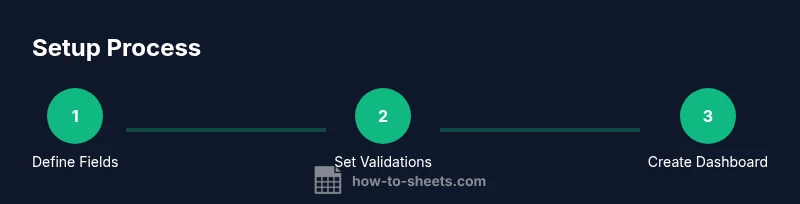
Build a lightweight bug tracker in Google Sheets to organize defects, assign owners, and track status. This guide walks you through defining fields, setting up data validation, creating views, and adding lightweight automation. Whether you’re a student, a developer, or a project manager, you’ll end with a reusable bug tracker google sheets template you can customize for any project.
Why a Bug Tracker in Google Sheets Matters\n\nFor many teams, a lightweight bug tracker built in Google Sheets can save time and reduce context switching. It gives you a centralized view of defects, owners, priorities, and progress without requiring specialized software. This approach scales from small projects to larger initiatives, as you can extend the sheet with simple templates and scripts as needed. According to How To Sheets, a lightweight, sheet-based tracker can be enough to keep everyone aligned while you validate workflows before investing in more complex systems. In this guide, we’ll explore the practical steps to build a robust bug tracker google sheets that fits your team’s processes. You’ll learn how to model data, apply validations, design dashboards, and manage collaboration without leaving Google Workspace. The goal is a reusable template that reduces friction and improves accountability.
Core design principles for a bug tracker\n\nA good bug tracker in Google Sheets should be simple to set up, easy to read, and flexible enough to support different workflows. Start with a minimal data model and grow as your needs become clearer. Emphasize consistency with structured fields, predictable statuses, and time-aware columns (dates for creation and due dates). Use color to communicate state, but avoid over-styling that slows down editing. Keep a single source of truth by locking essential columns, and provide clear guidance for how team members should interact with the sheet. These principles help ensure that the bug tracker google sheets remains a reliable, low-friction tool rather than a brittle placeholder.
Data model: fields and relationships\n\nDesign a core table (sometimes called a ‘bugs’ sheet) with columns like ID, Title, Description, Priority, Status, Assignee, Created, Due, Tags, and History. Use a unique ID generator (simple numeric or date-based) to uniquely identify each bug. Normalize repeated values by using dropdown lists for Priority and Status instead of free text. Establish a lightweight history trail by recording status changes and comments in a separate ‘Comments’ or ‘Audit’ column. If you need cross-reference data (e.g., projects or components), consider an auxiliary sheet that stores reference data and use VLOOKUP/HLOOKUP or XLOOKUP to pull values. This data model keeps the tracker scalable and easy to audit.
Creating the template: layout and validation\n\nSet up a clean two-tab structure: the main Bugs sheet and a reference data sheet. On the Bugs tab, create headers and apply data validation: Priority (Low, Medium, High) and Status (New, In Progress, Resolved, Closed). Use conditional formatting to color-code statuses: New in blue, In Progress in amber, and Resolved/Closed in green. Add a created date column with a default = today() formula and lock the critical columns (ID, Created, Status) to prevent accidental edits. Add a simple search row at the top and optional filters to let users focus on open bugs or items assigned to a specific person. This approach makes the tracker approachable for non-technical teammates while maintaining data integrity.
Visuals and dashboards: quick insights at a glance\n\nTo help managers and developers, create a lightweight dashboard sheet that aggregates key metrics. Use COUNTIF and FILTER functions to surface open bugs by priority, assignee workload, and due-date risks. Add sparklines to show trends over time and a compact ‘Top 5’ list of most frequent bug categories. Keep the dashboard separate from the data entry zone to avoid accidental edits. A simple dashboard is often enough for weekly standups and status reports, and it scales with your workflow as new fields get added.
Collaboration and governance: permissions and audit trails\n\nGoogle Sheets makes it easy to share with teammates, but permissions matter. Give editors access only to the areas they need and protect critical columns like ID and Created. Use comment threads to discuss bugs rather than modifying descriptions directly. Establish a lightweight audit trail by storing change notes in a dedicated column or a separate sheet that logs timestamped actions. For teams using Google Workspace, leverage email notifications and smart chips to keep stakeholders informed when an assignment changes. This discipline helps prevent accidental data loss and keeps everyone aligned on ownership and deadlines.
Real-world example: starter bug tracker for a small project\n\nImagine a small software project with three developers and one product owner. The starter template includes a Bugs sheet with 6 rows to illustrate creation flow: ID, Title, Priority, Status, Assignee, Created, Due, and a simple Comments column. In this scenario, you’d filter open items, assign two items to Alice and one to Ben, and set a due date for a week from now. The example demonstrates how a compact, well-structured sheet can visualize work in progress while remaining easy to share with stakeholders who don’t use spreadsheets every day. Adjust fields to reflect your team’s terminology and project cadence. This practical demo aligns with the 2026 How To Sheets guidance on practical, step-by-step templates.
Common pitfalls and how to avoid them\n\nOver-complication is the enemy of a lightweight tracker. Avoid too many tabs, ambiguous statuses, or free-text fields that fracture reporting. Make sure to use data validation and dropdowns for consistent entries. Don’t forget to back up your sheet and to review the dashboard regularly to ensure it reflects current reality. Finally, keep an eye on permission settings; overly broad access can lead to unintended edits and a drift from the agreed workflow.
Next steps: turning it into a reusable template\n\nOnce you’re happy with the setup, convert the sheet into a reusable template and document the fields and rules. Create a dedicated template sheet, share a brief usage guide with teammates, and link it to a central Google Drive folder. Over time, you can add automation via simple Apps Script triggers or add-ons to streamline assignment or due-date reminders. The How To Sheets team recommends treating this as a living document that evolves with your project needs. With this foundation, your bug tracker google sheets becomes a dependable backbone for team coordination.
Tools & Materials
- Google account with Sheets access(Any Google account; ensure you can access Google Drive.)
- Baseline team list(Names or emails for Assignee dropdowns.)
- Draft workflow decisions(Define Priority and Status lists before building the sheet.)
- Sample project data(Optional data to populate the starter template.)
- Conditional formatting rules(Color codes for Statuses and Priorities.)
- Optional Apps Script(For automation like reminders or auto-assign.)
Steps
Estimated time: 60-90 minutes
- 1
Create the core sheet and headers
Open a new Google Sheet named 'Bug Tracker'. Add headers for ID, Title, Description, Priority, Status, Assignee, Created, Due, Tags, and History. Establish a simple ID scheme and a Created date. This gives you a stable foundation for data entry.
Tip: Define a clear header order and freeze the header row for easy scrolling. - 2
Set up dropdowns for consistent data
Apply data validation to Priority and Status columns using predefined lists (e.g., Low/Medium/High and New/In Progress/Resolved/Closed). This minimizes free-text entries and makes reporting reliable.
Tip: Use named ranges for validation lists to simplify updates later. - 3
Enable visual cues with conditional formatting
Add color rules to highlight statuses (e.g., Blue for New, Amber for In Progress, Green for Resolved/Closed). This makes the dashboard instantly scannable.
Tip: Keep color usage consistent with your organization’s accessibility standards. - 4
Add an ID generator and Created date
Implement a simple ID pattern (e.g., BUG-0001) and ensure the Created date auto-populates with today(). This preserves traceability.
Tip: Consider a separate hidden sheet to store the last used ID when you scale. - 5
Create a basic open-bugs dashboard
In a separate Dashboard tab, use COUNTIF, FILTER, and SUMIF to show open bugs by priority and assignee. This gives quick insight without opening the data sheet.
Tip: Test filters with edge cases like no open bugs to ensure the dashboard remains stable. - 6
Set sharing and protection rules
Limit who can edit core fields and protect critical columns (ID, Created). Enable comments for collaboration instead of editing descriptions directly.
Tip: Use “Protect range” to lock sensitive columns and reduce accidental edits.
FAQ
What is the best way to structure a bug tracker in Google Sheets?
A simple, two-tab approach with a main Bugs sheet and a Reference sheet works well. Use consistent data validation and a clear status flow to keep reporting accurate.
Start with a two-tab structure and consistent data validation to keep reports reliable.
Can I automate reminders in Google Sheets for due dates?
Yes. You can implement simple reminders using formulas or Apps Script triggers to notify assignees about approaching due dates.
Yes, you can set up reminders using built-in formulas or lightweight scripts.
How do I protect essential columns from edits?
Lock critical columns (like ID and Created) and set appropriate sharing permissions to prevent accidental edits.
Lock key columns and manage access levels.
Is this approach scalable for larger teams?
This sheet serves as a starting point; as needs grow, you can migrate to more robust tools or expand the template with additional tabs and automation.
It’s a good starting point, but expect to upgrade as your team grows.
What are common pitfalls to avoid with sheet-based trackers?
Avoid overcomplication, inconsistent data, and lax validation. Regularly review dashboards and preserve data integrity through disciplined editing.
Avoid overcomplication and inconsistent data; keep dashboards up to date.
Watch Video
The Essentials
- Define a minimal data model first
- Validate inputs with dropdowns
- Create a simple dashboard for quick insights
- Protect critical fields to prevent errors
- Share responsibly and use comments for collaboration