How to Build a Calorie Tracker in Google Sheets
Learn how to build a calorie tracker in Google Sheets from scratch, with essential fields, formulas, templates, and charts to stay on target. Practical for students, professionals, and small business owners.


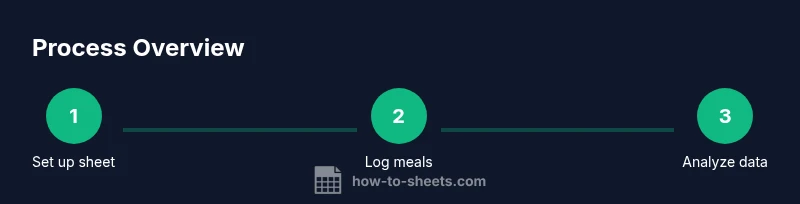
You will learn how to build a calorie tracker in Google Sheets from scratch, including essential columns, formulas, and a basic weekly layout. You’ll also discover how to extend it with charts, data validation, and sharing options while keeping data secure. Prerequisites: a Google account and access to Google Sheets.
Why calorie tracker google sheets matters
For students, professionals, and small business owners, a calorie tracker in Google Sheets helps convert dietary awareness into actionable data. By recording meals, calories, and macros in a centralized sheet, you create a living log you can review weekly to identify patterns, control intake, and align food choices with goals. Using Google Sheets keeps this tool accessible across devices and teams, so you can log meals on a phone after a gym session or share the sheet with a nutritionist. The keyword here is consistency: a small daily entry beats a blank notebook and poor memory. How To Sheets emphasizes that a well-structured spreadsheet reduces friction and makes insights repeatable. When set up correctly, you can track calories alongside other metrics such as protein grams, fiber, or water intake, turning raw numbers into meaningful decisions.
Core design principles for a calorie tracker
A good calorie tracker in Google Sheets starts with clear structure and predictable workflows. Use a simple data layer for raw entries and a separate calculation layer for totals and insights. Keep dates in a standard format (YYYY-MM-DD) and store meal descriptions in a single column to avoid fragmentation. Build your sheet with named ranges for key cells, so formulas remain readable and portable. Plan a weekly view next to the daily log, so you can see trends at a glance. Finally, make the shared version simple to use but secure, with appropriate permissions for teammates or a nutritionist. How To Sheets highlights that clean organization reduces errors and accelerates learning for new users.
Essential fields and templates you need
Start with a lean template that includes Date, Meal, Calories, Protein (g), Carbs (g), Fat (g), and Notes. Optional fields include Meal Type (Breakfast/Lunch/Dinner/Snack) and a QuickScore to rate fullness. A separate Summary section should show daily totals, averages, and a weekly total. Use a consistent numeric format for calories and macros. Prebuilt templates from How To Sheets or community-contributed sheets can be a fast start, but customize fields to match your goals—whether weight loss, maintenance, or performance.
Practical example: a week of entries in a ready-made template
Below is a compact excerpt showing how data might look in a starter sheet. You can extend this to a full week by duplicating rows.
| Date | Meal | Calories | Protein (g) | Carbs (g) | Fat (g) | Notes | |------------|----------|----------|-------------|-----------|---------|-----------------------| | 2026-03-01 | Breakfast| 320 | 18 | 38 | 9 | Oats with fruit | | 2026-03-01 | Lunch | 520 | 28 | 60 | 14 | Chicken salad | | 2026-03-01 | Dinner | 650 | 32 | 55 | 22 | Grilled salmon | | 2026-03-01 | Snack | 180 | 6 | 22 | 6 | Yogurt and almonds |
A weekly perspective is available by summing calories per day and plotting daily totals.
Automating calculations with formulas and charts
Formulas are your friend in a calorie tracker. Use SUM to total calories for a day, and SUMIF to aggregate by date for daily totals. Example: dailyCaloriesCell = SUMIF(A:A, A2, C:C) where A is Date and C is Calories. Use AVERAGE to get the average daily intake over a week. Create a simple bar chart to visualize daily totals and a line chart for weekly trends. Keep formulas in a dedicated Calculation block to avoid accidental edits.
Data validation, templates, and sharing for consistency
Add data validation to date fields to enforce proper formats (e.g., date picker). Lock the Calculation block to protect formulas, and share only the data entry areas with teammates. Use a consistent template and save weekly copies to track progress over time. Templates ensure that new weeks start with the same fields and formulas, minimizing setup time and mistakes. This approach keeps your calorie tracking reliable and easy to review with collaborators.
Integrating with other tools: import/export, apps script basics
If you want to reduce manual logging, import data from apps or devices using Google Sheets' built-in Import functions or Apps Script. You can pull data from connected fitness apps or export CSVs into your sheet. Apps Script can automate daily entries, trigger reminders, or update charts at the end of the day. Start small—an automated daily entry from a CSV—and expand as you gain comfort with the scripting environment.
Troubleshooting and common mistakes
Common issues include inconsistent date formats, duplicate entries, and forgetting to update the totals after editing a row. Regularly audit formulas and consider adding a simple error-check cell that flags if dailyTotals do not align with the sum of entries that day. Avoid overcomplicating the sheet early; a clean, minimal template you can scale later is often more effective than a feature-heavy prototype that becomes unwieldy.
Real-world use cases and optimization tips
Teams use calorie trackers in Google Sheets to support weight management programs, sports nutrition plans, and wellness initiatives. Optimize by linking the sheet to a central nutrition database, using data validation for common foods, and creating a weekly digest email that highlights trends. Over time, add dashboards and conditional formatting to highlight days that meet or miss targets, helping users stay engaged and accountable.
Tools & Materials
- Google account(Required to access Google Sheets and save templates)
- Google Sheets access(Ensure you have permission to create and edit sheets)
- Calorie database reference (optional)(For meals and nutrition data; can use online databases or built-in approximate values)
- Prebuilt template (optional)(A starter template helps speed up setup)
- Food logging app or scanner (optional)(If you want to import data automatically)
- Smartphone with Google Sheets app (optional)(For on-the-go data entry)
Steps
Estimated time: 45-60 minutes
- 1
Create and name your sheet
Open Google Sheets, create a new blank sheet, and give it a descriptive name like 'Weekly Calorie Tracker'. Set the locale and date format to ensure consistency. Rename the default tab to 'Log' for clarity.
Tip: Use a consistent naming pattern to track multiple weeks. - 2
Define core columns
Create columns for Date, Meal, Calories, Protein (g), Carbs (g), Fat (g), and Notes. Consider a separate 'Daily Total' column. Add a 'Daily Goal' cell that you can reference from formulas.
Tip: Use data validation for Date to ensure proper entry. - 3
Log meals daily
Enter each meal with the date, a short description, and the calories/macros. Keep entries consistent (e.g., one row per meal). Use a separate row for snacks if needed.
Tip: Keep a running habit by logging at the same time each day. - 4
Add totals and daily goal
Create a daily total cell that sums calories for the day. Use a formula like =SUMIF(A:A, A2, C:C) to aggregate. Place a visual indicator if the daily goal is met or missed.
Tip: Copy the formula down for each date row so totals update automatically. - 5
Create a weekly summary chart
Insert a bar or line chart that shows daily totals or weekly averages. Label axes clearly and keep the chart type simple for readability.
Tip: Use a separate 'Dashboard' tab for charts to keep the log uncluttered. - 6
Share and protect data
Set appropriate sharing permissions. If collaboration is needed, give editors only to those who need them and restrict formula editing where possible.
Tip: Avoid making the entire sheet publicly editable to protect data integrity.
FAQ
What is a calorie tracker in Google Sheets?
A calorie tracker in Google Sheets is a structured spreadsheet where you log foods and their calories, plus optional macros. It converts daily entries into totals and charts so you can monitor intake over time.
A calorie tracker in Google Sheets is a simple log you fill with foods and calories, which then shows totals and charts to help you monitor intake.
How do I customize my calorie goals in Sheets?
Create a daily goal cell and reference it in your daily total formulas. You can adjust the goal per week and compare actual intake against targets with conditional formatting.
Set a daily goal in a dedicated cell and reference it in formulas; adjust as needed and watch how you compare against targets.
Can I share this tracker with teammates securely?
Yes. Use Google Sheets sharing settings to grant view or edit access only to people who need it, and avoid publishing the sheet publicly. Consider protecting formulas in a separate calculation area.
You can share it securely by using Google Sheets permissions and protecting the calculation areas from edits.
Which formulas are essential for tallying calories and macros?
Some essentials include SUM for totals, SUMIF to aggregate by date, and AVERAGE for daily averages. Use IF or conditional formatting to flag days that hit targets.
Key formulas are SUM, SUMIF, and AVERAGE, plus conditional formatting to highlight target days.
Is there a ready-made template I can start with?
Yes. Start with a minimal template and customize columns to suit your goals. You can adapt a basic meal-tracking layout into a weekly calorie tracker template.
There are ready-made templates available; start with a simple one and customize it to your needs.
How can I import data from other apps or devices?
Use Google Sheets' built-in import features or Apps Script to pull data from connected apps. Start with a small, regular import task and expand as needed.
You can import data via built-in features or Apps Script, starting small and growing over time.
Watch Video
The Essentials
- Define clear fields for meals, calories, and macros.
- Use SUM and SUMIF to automate totals and daily goals.
- Visualize trends with uncomplicated charts.
- Protect data with proper sharing and permissions.
- Iterate on templates to fit your goals and routines.