Google Sheets Weight Loss Tracker: A Step-by-Step Guide
Learn how to build a practical Google Sheets weight loss tracker with daily logs, goals, and charts. This step-by-step guide covers layout, formulas, data validation, and visual progress to help you stay accountable.


Create a Google Sheets weight loss tracker to log daily weight, calories, and activity, then compute weekly changes and visualize progress. Start with a simple sheet: Date, Weight, Calories, Exercise, Water, and Notes. Add formulas to calculate weight change, average weekly loss, and a progress chart. This template keeps you accountable and data-driven.
Why track weight loss with Google Sheets
Tracking your weight loss journey in Google Sheets provides a flexible, low-cost, and highly customizable solution that you can access from any device. A weight loss tracker built in Sheets helps you see patterns over time, identify what works, and stay consistent with your routine. The How To Sheets team highlights that a lightweight, browser-based tracker lowers barriers to entry and makes data-driven decisions easier for students, professionals, and small business owners alike. By logging daily inputs—weight, calories, activity, water intake, and sleep—you create a personal dataset you can analyze without specialized software. A well-structured tracker also supports setting realistic goals, monitoring adherence, and spotting plateaus before they derail motivation. Over weeks and months, the accumulated data reveals meaningful trends you can act on.
In short, a Google Sheets weight loss tracker combines accessibility with powerful analytics, enabling you to stay accountable and progress toward your goals.
Designing the tracker layout
A clean layout is essential for quick data entry and reliable insights. Start with a single data entry sheet containing columns for: Date, Weight, Calories, Exercise, Water (cups), Sleep (hours), and Notes. Add a separate sheet for summaries and charts. Use a consistent date format, and consider freezing the header row for easy navigation. Implement drop-downs for Exercise type and a simple status field (e.g., On Track, Off Track) to standardize inputs. Use color-coding to draw attention to important cells (e.g., weight increases in red, healthy days in green). A thoughtful layout reduces entry friction and improves data quality over time.
Pro tip: keep the sheet lean at the start; you can expand with additional metrics like macros, steps, or goal weights as you gain comfort with the template.
Essential formulas and data validation
Core formulas turn raw logs into actionable insights. Compute daily or weekly weight change as Weight_today minus Weight_yesterday, and create a running weekly average to smooth daily fluctuations. Use AVERAGE or AVERAGEIFS to summarize data over the last 7 days or the last 14 days. Validate entries to avoid gaps (e.g., require a value for Date and Weight) and ensure Calories and Water stay within reasonable ranges. Create a simple goal tracker by comparing current Weight to a Target Weight cell and calculating percent progress.
Note: For reliability, lock critical cells with protection and document any custom formulas so others can understand your template.
Visualizing progress with charts
Visual charts are powerful motivators. Create a line chart to display Weight over time and a bar chart for daily calories or water intake. A secondary chart can show weekly weight change, helping you spot trends more clearly. Use chart titles and axis labels to keep data interpretation intuitive. Sparkline mini-charts inside the data table can provide at-a-glance trends for individual rows. Keep charts updated automatically by including dynamic date ranges and named ranges where appropriate.
Tip: color-code lines (e.g., weight in blue, calories in orange) to make quick comparisons easier.
Automation and templates for ongoing tracking
Automate repetitive tasks to reduce friction and improve consistency. Create data validation rules to limit inputs to sensible ranges, and set up conditional formatting to highlight milestones (e.g., a 1 lb weekly loss). Build a reusable template by duplicating the sheet for each month or week, then keep a master summary that aggregates all copies. Add a simple form-like data entry page if you frequently log from mobile. Finally, protect essential formulas to prevent accidental edits.
Bonus: link the tracker to a Google Form for hands-free data capture from multiple devices.
Tools & Materials
- Google account with Sheets access(Needed to create and save your tracker in Google Drive)
- Computer or mobile device with internet(Ensure you can access Google Sheets anywhere)
- Template starter file or blank sheet(Use a fresh sheet to avoid conflicts or data loss)
- Optional: external data sources or forms(If you collect data outside Sheets, e.g., from a fitness app)
Steps
Estimated time: 45-90 minutes (initial setup), plus ongoing daily logging
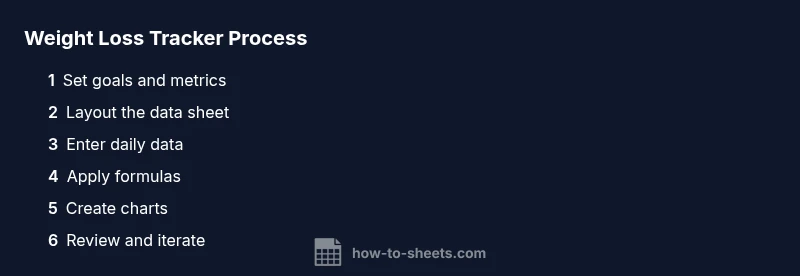
- 1
Define goals and metrics
Outline your weight loss goals (target weight, timeframe) and list metrics to track (weight, calories, activity, water, sleep). This step sets expectations and guides the rest of the template.
Tip: Write concrete, measurable goals (e.g., lose 0.5 kg per week). - 2
Create the data sheet
Set up a sheet with headers: Date, Weight, Calories, Exercise, Water, Sleep, Notes. Freeze the header row and format Date consistently. Include data validation where relevant to keep inputs clean.
Tip: Use data validation to force dates in a single format. - 3
Add core formulas
Implement daily weight change, weekly averaging, and a progress comparison to a target. Document formulas in a separate 'Doc' tab for future reference.
Tip: Label each formula cell clearly so you can audit later. - 4
Build visualizations
Create a line chart for weight over time and a bar/line combo for calories or water. Ensure the charts reference named ranges for easy updates.
Tip: Use contrasting colors to keep charts readable at a glance. - 5
Add validations and protections
Protect key formulas, set required fields, and include a simple error-check to flag missing data. This ensures data integrity as you scale usage.
Tip: Lock formula cells to prevent accidental edits. - 6
Create a reusable template
Convert the sheet into a template or duplicate the structure for new periods (e.g., monthly). Keep a master summary that consolidates all copies.
Tip: Add a 'Copy Template' button or script to speed duplication. - 7
Review and iterate
Regularly review trends and adjust goals or metrics. Add or remove tracked data based on what drives motivation and results.
Tip: Schedule a weekly review to stay accountable.
FAQ
Can I import data from a fitness app into Google Sheets?
Yes. You can export data as CSV or connect via Google Sheets imports to bring daily metrics into your tracker. If you automate imports, ensure the data layout remains consistent.
Yes. You can import data from a fitness app into Google Sheets by exporting CSV or setting up a data connection. Just keep the fields aligned.
What formulas are essential for a weight tracker?
Key formulas include daily weight change (today minus yesterday), a 7-day moving average for weight, and a progress vs. goal comparison. Document them so the sheet remains understandable.
Essential formulas are weight change, weekly average, and goal progress, all clearly documented.
How can I keep this tracker private when sharing a file?
Use Google Drive permissions to restrict access, set view/edit rights carefully, and avoid including sensitive personal notes in shared sections. Consider a separate private copy for sensitive data.
Limit access with Google Drive permissions and keep sensitive notes in a private copy.
Is Google Sheets enough, or should I use a specialized app?
Google Sheets is excellent for a customizable tracker and data ownership, but for advanced nutrition analysis or habit tracking, you might supplement with a dedicated app. Start with Sheets and expand if needed.
Sheets is great for customization; use apps only if you need advanced features.
How often should I update the tracker?
Log daily inputs for weight, calories, and activity. Do a weekly review to assess trends and adjust goals.
Log daily inputs and review weekly to track progress.
Watch Video
The Essentials
- Define clear goals and metrics before building.
- Keep the initial sheet simple and scalable.
- Use formulas and charts to turn data into insights.
- Protect critical cells to maintain data integrity.