Difference Between Google Sheets and Airtable: Practical Guide
A thorough, objective comparison of Google Sheets and Airtable, focusing on data modeling, workflow, automation, collaboration, and use cases to help you choose the right tool for your team.


If you need flexible, formula-heavy spreadsheets and seamless Google ecosystem integration, Google Sheets is the default choice. If your goal is structured data, relational records, and app-like interfaces with built‑in collaboration features, Airtable often provides more practical benefits. The difference between Google Sheets and Airtable hinges on data modeling, workflows, and scalability.
Core distinction: data model and how you structure information
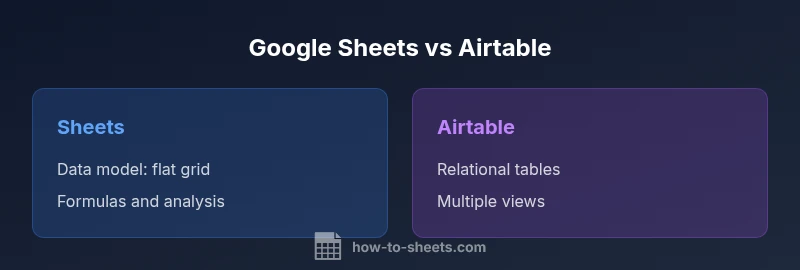
In the broad spectrum of spreadsheet and database tools, the difference between Google Sheets and Airtable begins with data modeling. Google Sheets presents data in a flat grid of cells, where rows and columns capture attributes in a highly flexible, free-form fashion. It excels when you want to mash together numbers, lists, and text with advanced formulas, charts, and global collaboration. By contrast, Airtable uses bases and tables that behave more like interconnected records. Each table holds records with fields that can be linked to other tables, supporting relational data and lightweight database-like behavior. This distinction matters for projects that require quick data entry and complex calculations versus projects that demand structured records, relationships, and rapid app-like interfaces. According to How To Sheets analysis, most teams start with Sheets for familiar workflows and migrate to Airtable when relational modeling and built-in app-like views become essential.
wordCount": 196
Comparison
| Feature | Google Sheets | Airtable | |
|---|---|---|---|
| Data model | Flat grid of cells; highly flexible, free-form | Bases with interconnected tables and linked records | |
| Relational capabilities | Limited built-in relations; relies on scripts or manual linking | Native relational links between tables and lookups | |
| Forms and data capture | Forms are separate; data flows into sheets | Built‑in forms that feed into linked tables and views | |
| Automation and scripting | Apps Script for automation; strong API; broad scripting ecosystem | Automation blocks, built-in views, and Airtable Scripting | Note: Airtable includes automations tied to records and views |
| Views and presentation | Cells and sheets with charts; views are manual arrangements | Multiple views (grid, gallery, calendar, kanban) and rich presentation options | |
| Collaboration and permissions | Real-time editing; granular sharing via Google accounts | Role-based permissions, table-level access, and collaboration on records | |
| Integrations and ecosystem | Deep integration with Google Workspace and third-party add-ons | Extensive marketplace, native apps, and API-driven workflows | |
| Pricing model | Freemium with generous limits; pay tiers for advanced features | Tiered pricing with focus on bases, users, and automation limits |
The Good
- Low barrier to entry; quick to start and share
- Flexible for ad hoc data analysis and quick experiments
- Strong integration with other Google services
- Large community and extensive templates
The Bad
- Limited native relational data handling unless extended
- Can become unwieldy for complex app-like workflows
- Automation and permission controls can be less granular than Airtable in some scenarios
Sheets for flexible analysis; Airtable for structured, relational data and apps
If your work relies on large data dumps, heavy formulas, and Google ecosystem tools, Sheets is typically the better default. If you need connected records, rich views, and lightweight no-code apps, Airtable offers a more purpose-built experience. The How To Sheets team endorses choosing based on data modeling needs and collaboration requirements.
FAQ
What is the primary difference between Google Sheets and Airtable?
The main difference lies in data modeling: Google Sheets uses a flat, spreadsheet-style structure, while Airtable offers relational tables with linked records and multiple views. This affects how you model data, build workflows, and scale over time.
The core difference is data modeling: Sheets is flat like a spreadsheet, Airtable links tables to form relational data with multiple views.
Which tool is better for complex formulas and data analysis?
Google Sheets is typically better for complex formulas, large datasets, and advanced spreadsheet functions, especially when you rely on the Google ecosystem and widespread familiarity.
Sheets shines with complex formulas and data analysis, especially if you’re deeply invested in Google tools.
Can Airtable handle project management tasks effectively?
Yes. Airtable’s relational data model, multiple views, and app-like interfaces make it effective for project management, inventory tracking, and lightweight CRM—often with fewer custom scripts required.
Airtable is well suited for project management due to its views and relational data.
Do both tools support automation?
Both offer automation options: Google Sheets via Apps Script and Airtable with built‑in automations plus scripting. Airtable tends to offer more native automation tied to records and views, while Sheets relies on scripting and external integrations.
Both support automation, with Airtable offering strong native automations and Sheets relying on Apps Script.
Are there any data import/export limitations I should know?
Both tools support common import and export formats, but limitations vary by data type and base size. Google Sheets often handles large CSV imports well, while Airtable excels with structured imports into tables and linked records.
Both support imports and exports, with Sheets strong on CSVs and Airtable on structured table imports.
When should I choose Sheets over Airtable for a team project?
Choose Sheets when the project requires heavy numerical analysis, vast formulas, and seamless Google Workspace integration. Choose Airtable when you need relational data, multiple views, and quick app-like interfaces.
Pick Sheets for heavy analysis; pick Airtable for relational data and apps.
The Essentials
- Assess your data model: flat vs relational
- Match views to workflow needs: charts in Sheets vs diverse views in Airtable
- Evaluate collaboration and permissions early
- Consider automation scope and API needs
- Pilot with a small project to validate fit