Free Google Sheets Calendar Template: Step-by-Step Guide
Learn how to find, customize, and use a free google sheets calendar template to organize events, deadlines, and team schedules. Step-by-step setup, tips, and real-world use cases.


You’ll learn how to locate and customize a free google sheets calendar template, duplicate it into Google Drive, set date ranges, and tailor colors and reminders for personal, academic, or team use. This quick guide covers finding a template, creating a copy, adjusting views, and making it ready to track events and deadlines immediately.
Why a free google sheets calendar template matters\n\nUsing a free google sheets calendar template can dramatically reduce setup time, increase reliability, and ensure consistency across projects. Whether you’re a student juggling classes, a professional managing deadlines, or a small business owner coordinating client meetings, a ready-made calendar gives you a solid starting point. In this article, we explore practical steps you can follow with minimal friction to download, duplicate, and maintain a calendar that actually works. According to How To Sheets, templates that fit your workflow tend to save time, reduce manual entry, and simplify collaboration. The phrase free google sheets calendar template appears frequently in reputable guides because it’s the most accessible entry point for teams of any size. By starting with a template, you avoid reinventing the wheel and you gain an immediately usable structure for dates, events, and milestones. In the coming sections, you’ll see how to select a template that matches your needs, duplicate it into your Drive, and tailor it to your specific workflow. This approach keeps you focused on outcomes rather than formatting chores.\n
How to choose the right template for your needs\n\nNot all templates are created equal. Start by listing your calendar goals: event tracking, due dates, team availability, or project sprints. Then compare templates on three core axes: scope (monthly, weekly, or quarterly views), data structure (columns for date, title, category, assignee), and customization options (color coding, conditional formatting, reminders). Opt for a free google sheets calendar template that includes a clean monthly view, a simple method to add events, and clearly labeled columns so you can extend it later. If you collaborate with others, look for templates designed for sharing and protection of key cells. Practical notes: choose templates that use standard date formats (YYYY-MM-DD) to avoid regional issues; ensure formulas won’t break when you copy the template to a new file. In short, pick a template that minimizes manual edits and maximizes clarity, so you can start adding events within minutes rather than hours.\n
Duplicating templates and organizing in Google Drive\n\nBegin by locating a template you like, then duplicate it to your Google Drive so you have a personal working copy. Give the file a clear, consistent name (e.g., My Team Schedule – 2026) and place it in a dedicated folder for calendars. Create a subfolder structure for different timelines (e.g., Academic, Q1 Projects, Marketing Campaigns) to keep versions separate and easy to audit. If you have multiple calendars, consider a master spreadsheet that links to individual calendars via IMPORTRANGE or reference formulas. Keeping a tidy Drive structure helps prevent accidental edits to master sheets and makes it simple to share only the right files with teammates.\n
Customizing dates, views, and events\n\nOnce you have a working copy, set the initial date range to cover the upcoming three to six months, and choose a preferred view (monthly is the most common starting point). Add essential columns such as Date, Event, Category, Owner, and Status. Where possible, standardize date formatting to reduce confusion across time zones. Populate a few sample events to verify column alignment and readability, then adjust column widths and row heights for a cleaner look. If you need multiple calendars, consider adding separate sheets for each calendar within the same file to simplify navigation.\n
Building reminders and color-coding in Sheets\n\nColor-coding helps users scan calendars quickly. Create a color palette for categories (e.g., red for deadlines, blue for meetings, green for milestones). Use conditional formatting rules to automatically color events based on the Category column. Add a Reminder column with simple checkboxes or data validation to track completed items. You can also insert formulas that flag overdue tasks or upcoming deadlines, turning cells bold or flashing when thresholds are met. Document the rules in a legend at the top of the sheet so collaborators understand the color conventions.\n
Sharing, collaboration, and permissions\n\nGoogle Sheets makes collaboration straightforward. Decide who can view or edit the calendar, and set permissions before data entry begins. For transparency, keep sensitive data in protected sections or separate sheets, and use comment threads to discuss events rather than editing notes directly in cells. Share links with colleagues and set expiration dates when needed. If you work with external partners, consider creating a view-only version for guests to prevent accidental changes while still providing visibility into upcoming events.\n
Automating updates with simple formulas\n\nA few robust formulas can keep your calendar fresh with minimal effort. Use TODAY() to highlight current dates, and EOMONTH() or MONTH() to extend date ranges automatically. Create a helper column that computes the next three weeks of events with dynamic references, so you don’t need to edit the template weekly. Use VLOOKUP or INDEX/MATCH to pull event details from a master schedule if you’re coordinating across teams. Keep formulas simple and document their intent to prevent future confusion.\n
Common pitfalls and how to avoid them\n\nCommon pitfalls include overloading a single calendar with too many events, neglecting to update formulas, and inconsistent date formats. Avoid these by establishing a clear data dictionary, enforcing consistent data entry, and scheduling a recurring calendar maintenance slot. Back up the file regularly, especially before major changes, and test any automation with a small dataset first. Finally, don’t rely on a single calendar for everything; use multiple calendars or sheets for different contexts to reduce clutter and errors.\n
Real-world use cases: students, professionals, and small business owners\n\nStudents use a free google sheets calendar template to track assignments, exam dates, and study sessions; professionals map deadlines, client meetings, and project milestones; small business owners coordinate marketing campaigns, product launches, and team availability. Each use case benefits from a consistent structure, clear ownership, and visual cues like color codes. By starting with a solid template, you can customize to your real-world workflow while preserving a shareable, easy-to-update foundation.\n
Ongoing maintenance: keeping your calendar up to date\n\nRegular maintenance is essential. Review upcoming dates weekly, prune past events, and refresh color coding as teams shift priorities. When templates evolve, migrate existing data incrementally, test formulas, and update documentation so new collaborators understand the setup. A well-maintained calendar reduces miscommunications and keeps everyone aligned, from students to CEOs.\n
Tools & Materials
- Stable internet connection(A reliable connection to access Google Sheets online.)
- Google account(Needed to access Google Drive and Sheets.)
- Access to Google Drive(Where you’ll store and reuse the calendar template.)
- Free google sheets calendar template (found online)(Choose a template with monthly view and editable fields.)
- Web browser (Chrome or Edge)(Recommended for best compatibility.)
Steps
Estimated time: 30-60 minutes
- 1
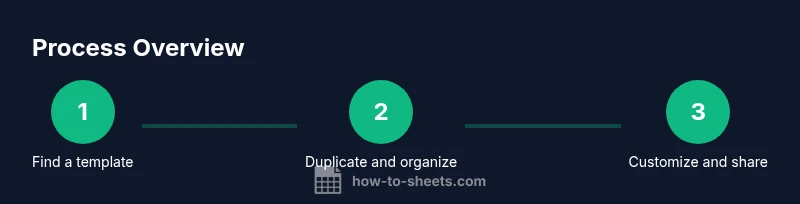
Find a free google sheets calendar template
Search reputable sources for a calendar template that fits your needs. Prioritize templates with a clear monthly view and editable fields for dates, events, owners, and status. Save a few options for side-by-side comparison in your browser.
Tip: Compare at least two templates to identify which layout minimizes edits in future weeks. - 2
Create a secure copy in Google Drive
Open the chosen template and use File > Make a copy to create your own working version. Name it clearly and place it in a dedicated folder to simplify future updates and sharing.
Tip: Use a naming convention like Calendar-ProjectName-YYYY to stay organized. - 3
Set a usable date range and calendar view
Adjust the default date range to cover the upcoming quarter or semester. Choose a view (monthly is common) that offers enough context without clutter. Confirm that date cells align with the header row for readability.
Tip: If you plan long projects, add extra sheets for quarterly calendars to keep navigation clean. - 4
Add essential fields and organize
Create columns for Date, Event, Category, Owner, and Status. Align data types (dates as date, text as text) and keep headers visible. This setup supports reliable sorting and filtering later.
Tip: Use frozen headers so you can scroll without losing column context. - 5
Apply color-coding for categories
Assign colors to categories (e.g., deadlines, meetings, milestones). Implement conditional formatting to auto-apply colors when you enter a category. This makes scanning the calendar faster.
Tip: Document color meanings in a legend at the top of the sheet. - 6
Enter a few sample events
Populate several events to test layout and readability. Check that the date format remains consistent and that long event titles wrap cleanly within cells.
Tip: Use sample data that mirrors real work or study scenarios. - 7
Share and set permissions
Use the Share dialog to grant view or edit access, depending on role. Protect essential cells if needed and enable comments for discussions about events.
Tip: Limit edits on formulas or structure to prevent accidental breakage. - 8
Save as a reusable template
Convert your working calendar into a reusable template or copy it into a template folder so future projects can start from the same foundation. Validate all formulas after migration.
Tip: Keep a short README with instructions for future users.
FAQ
What is a free Google Sheets calendar template and where can I get one?
A calendar template in Google Sheets is a pre-formatted sheet you can fill with dates and events. It saves time by providing a ready structure to track appointments, deadlines, and milestones. You can find free templates from reputable sources and adapt them to your needs.
A calendar template is a ready-made sheet you can customize for dates and events, and you can find free versions to start quickly.
How do I customize dates in the calendar template?
You adjust the date cells to match your project timeline, either by changing the start date or by dragging formulas to extend the range. Validate that the date format remains consistent across all entries.
Adjust the date cells to fit your timeline and keep the date format consistent.
Can I share the calendar with others?
Yes, Google Sheets calendars support sharing with view or edit permissions. Use the Share button, set access levels, and consider protecting sensitive columns.
Yes—you can share with teammates and set permissions.
What are common mistakes when using templates?
Common mistakes include overloading a single calendar with too many events, neglecting to update formulas, and failing to color-code categories. Plan ahead with a data dictionary and enforce consistent data entry.
Common mistakes include cluttered calendars and inconsistent data entry.
Is it safe to use a free template in Google Drive?
Free templates from reputable sources are generally safe; always review permissions and avoid including sensitive data until you verify the source.
Free templates are usually safe if you verify the source and manage sharing carefully.
Watch Video
The Essentials
- Choose a template that matches your view needs.
- Duplicate and organize in a structured Drive folder.
- Customize fields and color codes for clarity.
- Share with permission controls before data entry begins.
- Maintain the calendar with regular updates and backups.