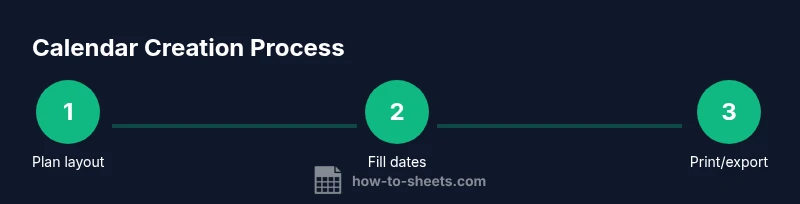
Google Sheets Printable Calendar: A Step-by-Step Template Guide
Learn to design a reusable Google Sheets printable calendar with templates, clear formatting, and print-ready settings. This educational guide covers layout, formulas, holidays, and printing so you can produce a professional calendar for any year.


By the end, you’ll have a reusable Google Sheets printable calendar that you can print or export as PDF. You’ll learn a clean monthly grid, how to fill dates automatically, how to add holidays and events, and how to configure print settings so everything fits neatly on a single page. This guide provides step-by-step actions you can reuse for any year.
Core concepts: The goals of a Google Sheets printable calendar
A Google Sheets printable calendar is more than a list of dates; it’s a planning tool designed for practical, print-ready use. When designed with readability in mind, you can print it on a single page, share it as a PDF, or reuse the template year after year. Core goals include a clear grid, consistent typography, adequate white space, and the ability to highlight holidays and events. By starting with a simple, scalable layout, you ensure the calendar remains useful for students, professionals, and small business owners. This section explains the philosophy behind a practical calendar: keep it legible, flexible, and easy to update.
Layout patterns: monthly grid vs compact annual calendars
There are two common layouts for printable calendars in Google Sheets. The monthly grid uses a 7-column, 5–6-row grid where each cell corresponds to a day. This pattern is intuitive for month-by-month planning and prints cleanly on standard page sizes. The compact annual layout stacks all 12 months in a grid, enabling quick year-over-year comparisons and space efficiency. Each approach has trade-offs: monthly grids excel at daily detail, while annual layouts support broad planning. Your choice should hinge on print size, audience, and whether you value daily granularity or yearly rhythm.
Step-by-step: Set up a monthly calendar skeleton
Begin with a fresh Google Sheets file named Calendar_Template_YYYY. Create a header area with the month and year, then add a row of weekday headers (Sun–Sat). Below that, reserve a 6-by-7 grid for dates. Apply borders to create crisp cells, set a readable font size (11–12 pt), and choose a high-contrast color scheme for printing. If you plan to add notes or events, leave an extra column or row for that purpose. This skeleton becomes your master calendar for any month or year, and you’ll reuse it by updating month/year data and date logic in later steps.
Step-by-step: Fill dates automatically and align weekdays
Place the year and month in dedicated cells, then calculate the first day of the month and the weekday it falls on. Fill the 6x7 grid with sequential dates, leaving blank cells before the 1st and after the last day. Use simple relative references to copy dates across the grid, ensuring weekends are distinguishable if desired. This automatic fill minimizes manual entry and reduces errors when generating multiple months.
Step-by-step: Add holidays and recurring events
Create a separate Events tab with columns for Date, Event, and Category. Use data validation to enforce proper dates and consistent categories. Pull events into the calendar using a lookup or filter so holidays appear in the correct month automatically. For recurring events, set a pattern (e.g., the same date every year) and ensure your data source reflects the right year. A clean Events tab keeps the main calendar uncluttered while staying informative.
Step-by-step: Print-ready formatting and print area setup
Before printing, select the date grid and set a defined print area. Choose orientation (usually landscape) to maximize horizontal space, and set margins to Narrow or Custom depending on your printer. Use the 'Fit to page' option if needed, but prefer exact scaling (e.g., 100% or 90%) to preserve cell integrity. Always preview the print to confirm that borders and headings remain visible and legible on the final page.
Step-by-step: Visual enhancements for readability
Improve legibility with thoughtful formatting: bold month titles, distinct header backgrounds, and subtle border colors. Use alternating cell shading to separate weeks, and color-code events by category for quick scanning. Maintain consistent font choices and avoid overly small text. If you plan to print in color, choose a palette with strong contrast that remains clear on black-and-white printers as well.
Step-by-step: Create a reusable template for all years
Save the completed month as a template and duplicate it for other months or years. Use a dedicated template sheet that remains untouched while you generate new calendars from it. Replace year and month values with drop-downs or simple input fields to automate updates. A single master template reduces duplication and ensures consistency across all generated calendars.
Step-by-step: Advanced features for dynamic calendars
Add a year selector with data validation to let users switch year with ease. Use simple formulas to automatically adjust all month headers and date filling when the year changes. Enhance with conditional formatting to highlight current month or upcoming events. This dynamic setup makes the calendar instantly useful for future planning without rebuilds.
Step-by-step: Common pitfalls and how to avoid them
Avoid cramping dates by ensuring the grid has enough rows for the longest month. Check print margins and page setup to prevent cut-off dates. Keep holidays and events in a separate tab to minimize clutter on the main calendar. Regularly test printing on a single page to verify alignment and readability before producing multiple copies.
Authority sources and further reading
For foundational printing and formatting guidelines, consult established sources such as official documentation and recognized design references. These sources provide best practices for legibility, margins, and color contrast when preparing documents for print. The following links offer guidance on general document design and print readiness (see the Authority Sources section for details).
Tools & Materials
- Google account with Google Sheets access(Needed to create, edit, and share templates)
- A blank calendar template (Google Sheets)(Use a clean, simple layout as the base)
- Printer (color recommended)(For color-coded events; at least 300 dpi print quality)
- Printer paper (A4 or Letter)(Choose good-quality paper for clarity)
- Ruler or grid paper (optional)(Helpful when aligning manual notes)
- PDF export capability(Optional for shareable printouts)
- A second screen or tablet (optional)(For reference while printing or editing)
Steps
Estimated time: 60-90 minutes
- 1
Open a fresh Google Sheets file
Create a new file and name it Calendar_Template_YYYY. Set up a clean header with Month and Year, then prepare a 6x7 grid for days. Add weekday headers (Sun–Sat) and apply borders for a crisp layout. Keep a clearly labeled data area for events to avoid clutter on the calendar itself.
Tip: Use a consistent naming convention to locate your template later. - 2
Create a monthly calendar skeleton
In the grid area, reserve 6 rows by 7 columns to accommodate any month. Apply bold borders and a light background for headers. Place the month title in a dedicated row above the grid and ensure enough margin around the grid for printing.
Tip: Leave a small margin above the grid for the month label to prevent clipping. - 3
Enter year and month controls
Put the year and month in separate, clearly labeled cells. This setup enables quick updates when switching years or months. You can use a drop-down list (Data Validation) to reduce input errors.
Tip: Using data validation helps maintain consistency across multiple copies. - 4
Fill dates automatically
Enter the first date with a simple formula or reference, then copy it across the grid so every cell contains the correct date or remains blank before/after the month. Keep weekends distinct if desired by applying a separate format.
Tip: Test a single month first to ensure the date progression is correct. - 5
Add weekday headers and alignment
Create a single row with weekday initials. Align date cells under each header, and ensure consistent column widths so the calendar prints evenly. This step establishes the visual rhythm for the entire calendar.
Tip: Lock header row for easier referencing when you copy the template. - 6
Link holidays and events from a data tab
Create a separate Events tab with Date, Event, and Category columns. Use a lookup or filter to pull events into your calendar by month. This keeps the main calendar uncluttered while remaining fully informative.
Tip: Standardize date formats in the Events tab to prevent mismatches. - 7
Configure print area and scaling
Select the calendar grid and set the print area. Choose landscape orientation for wider calendars and test print to ensure borders and headings stay legible. Adjust margins and scale so the entire grid fits on one page when possible.
Tip: Always preview in Print View before printing multiple copies. - 8
Apply readability enhancements
Use color-coding for event categories, bold month titles, and subtle shading to distinguish weeks. Keep fonts readable (11–12 pt) and ensure color choices work in grayscale printing.
Tip: Avoid overly bright colors that blur in monochrome prints. - 9
Create a reusable template for all years
Save the current month as a template and duplicate for other months or years. Keep the master template free of data, and use simple year/month inputs to drive the calendar generation.
Tip: Document the steps in a short README sheet within the file for future users. - 10
Add dynamic year switching and validations
Introduce a year dropdown and update related date logic so that changing the year automatically refreshes all months. Use data validation to ensure valid year ranges and prevent accidental errors.
Tip: Test year changes with all months to confirm correct date alignment. - 11
Export, share, or print your calendar
When the calendar is ready, export as PDF or print directly from Google Sheets. Share the template with teammates or classmates so they can generate their own month calendars.
Tip: Save a PDF copy as a permanent reference and to prevent accidental changes. - 12
Maintain the master template
Periodically update the template with feedback, ensure the date logic remains valid for new years, and keep a changelog so you know what settings changed over time.
Tip: Version control helps track improvements and avoids regressions.
FAQ
Can I print two months on one page?
Yes. You can fit two months on one page by adjusting the print scaling and orientation, or by using a landscape layout with smaller font size if necessary. Test the print preview to ensure readability remains acceptable.
You can print two months on one page by adjusting scaling and orientation; test the print preview to keep it readable.
How do I auto-fill dates for a year?
Enter the year and month in dedicated cells and use a simple date progression approach to fill the grid. Copy dates across rows and columns so that each cell contains either a date or remains blank outside the month.
Use year and month inputs, then copy dates across the grid so each cell shows the correct date or stays blank outside the month.
Can I protect the calendar to prevent edits?
Yes. You can protect the calendar grid while leaving the Events tab editable for users who need to add entries. Use Google Sheets’ protected ranges to control what others can modify.
Protect the calendar grid and leave the events tab editable for entries.
What’s the best way to handle holidays?
Maintain a separate Holidays/Events data table and pull those dates into the calendar with a lookup. This keeps holidays consistent and easy to update without changing the main grid.
Keep holidays in a separate table and pull them into the calendar with a lookup.
Can I export the calendar as a PDF or share it?
Yes. Google Sheets supports exporting to PDF and sharing links. Configure print settings first to ensure the PDF or shared copy looks correct.
You can export to PDF or share the sheet; set print options to ensure it looks right.
Watch Video
The Essentials
- Create a reusable Google Sheets calendar template
- Auto-fill dates with simple, robust formulas
- Separate events in a dedicated tab to avoid clutter
- Print-ready layouts require deliberate margins and orientation
- Preserve years with a master template for easy reuse