Google Sheets Monthly Calendar Template: Build and Customize
Learn to create a reusable google sheets monthly calendar template. Step-by-step guidance for students, professionals, and small businesses to track events, holidays, and deadlines in Sheets.


By the end, you’ll have a reusable google sheets monthly calendar template that tracks dates, events, and reminders. Key prerequisites are a Google account and access to Google Sheets; no add-ons required. This guide walks you through creating the calendar layout, linking dates to a monthly grid, and adding simple conditional formatting to highlight weekends and important days.
What is a google sheets monthly calendar template?
A google sheets monthly calendar template is a reusable layout that maps each day of a month to a dedicated cell, with optional rows for events, reminders, and notes. The goal is to provide a clean, printable calendar you can customize for school, work, or personal planning, all inside Google Sheets without needing extra software. With the How To Sheets approach, you’ll learn practical steps to design a practical calendar that stays consistent month after month. The template keeps your dates aligned, makes it easy to add events, and supports simple formulas to auto-fill days and highlight important days.
Benefits of using a calendar template in Google Sheets
Using a dedicated calendar template in Google Sheets offers several advantages:
- Consistency: a single layout you reuse every month reduces confusion and speeds up planning.
- Collaboration: shareable sheets let teammates see deadlines, events, and commitments in real time.
- Customization: you can tailor columns for due dates, priorities, or contact info without reinventing the wheel.
- Automation: simple formulas keep dates in sequence, auto-fill weekends, and flag today or upcoming events.
- Accessibility: since it runs in the cloud, you can access your calendar from any device with an internet connection.
For students, professionals, and small business owners, a template saves time and reduces errors. In the context of Google Sheets, it integrates with other data like task lists, budgets, and timelines, all in one familiar interface. The How To Sheets team has found that templates dramatically increase consistency and reduce repetitive setup work, especially when you scale across multiple projects.
Core features to look for in a monthly calendar template
When choosing or designing a google sheets monthly calendar template, prioritize features that keep you organized:
- Month-specific grid: a seven-column layout for days of the week and six rows for dates, accommodating any month.
- Clear headers: a bold month-year header and a row with weekday abbreviations for quick scanning.
- Event space: dedicated cells or adjacent columns for notes, reminders, and links.
- Automatic date handling: formulas that place the first date correctly and fill the rest without manual input.
- Weekend and today highlighting: conditional formatting to draw attention to weekends and the current day.
- Print-friendly formatting: margins, font sizes, and grid lines that translate well to paper.
- Data separation: an events area or separate sheet to avoid clutter while keeping the calendar readable.
If you expect to share calendars with others, ensure you can lock cells or protect formulas to prevent accidental edits. How To Sheets recommends starting with a simple version and layering in advanced features as you validate your workflow.
Step-by-step: Create a basic calendar layout
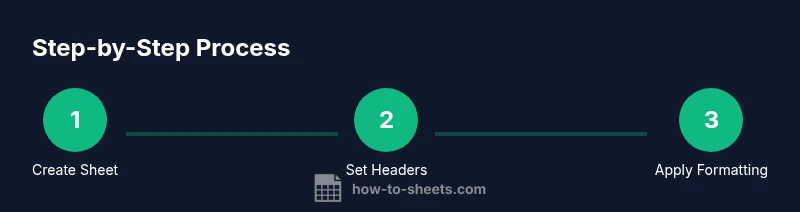
- Create a new Google Sheet and name it with the target month. This starts your template on a clean canvas and reduces the risk of overwriting existing data.
- Set up a header row that prominently displays the month and year. This context helps you switch months while preserving the structure.
- Create a row for the days of the week (Sun–Sat). A clear header helps you scan dates at a glance.
- Build the 7-column by 6-row grid that will hold the dates. This layout covers all possible month configurations, including months starting on different days.
- Enter the first date of the month into the correct cell and use a simple formula to auto-fill the remaining dates across the grid. This eliminates manual typing and reduces errors.
- Add a small “Events” column or section beside the calendar where you can jot quick notes, deadlines, or links. Keeping events separate from dates makes the sheet cleaner.
- Apply a basic conditional format to highlight today and weekends. A simple color cue improves readability without distracting from the grid.
- Save your work as a template: File > Make a copy, so you can reuse it for future months.
Why this order? Each step builds on the previous one, minimizing mistakes and preserving the template’s flexibility for future months.
Enhancing with dynamic date matching and formulas
To make the calendar truly resilient, add dynamic date handling that adapts to any month:
- First date logic: use a function to determine the weekday of the first day of the month, so dates always align correctly. For example, you can derive the start position from a date cell that holds the first day.
- Auto-fill dates: write a small grid formula that increments dates across the six rows, stopping when the last day of the month is reached. This keeps your calendar accurate even as February or leap months roll in.
- Weekends flag: create a conditional rule that colors Saturdays and Sundays distinctly. This helps you see at a glance which days fall on weekends.
- Today badge: compare each date to TODAY() and apply a bright accent when there is a match. This keeps the calendar context fresh during busy periods.
- Event linkage: add a separate column where you import or paste event details; you can use VLOOKUP or FILTER to pull related data from a task list if needed.
- Templates and copies: use a named range to refer to the month, which makes it easy to copy the calendar to the next month without breaking formulas.
Styling and accessibility considerations
Good design improves readability and reduces errors. Consider these styling tips:
- Typography: choose a legible font size and weight for the header and dates; maintain consistent padding.
- Color contrast: ensure high contrast between text and background for readability, especially on mobile.
- Grid lines: enable light grid lines for structure, but remove excess lines for a clean look when printing.
- Borders and freezing: freeze the top header row to keep month and days visible as you scroll, especially on larger calendars.
- Alt text and documentation: add a short description to the sheet and any embedded instructions so teammates understand how to use the template.
- Accessibility: ensure keyboard navigation paths are logical and that color alone isn’t the only cue for status (use bold or icons as backups).
A well-styled calendar not only looks professional but also reduces cognitive load for you and anyone who collaborates on the file. How To Sheets emphasizes clean, consistent design because templates that are easy to read get used more often.
Common pitfalls and how to avoid them
- Mistimed start date: double-check the first day alignment; a wrong start shifts all dates and ruins the grid.
- Overwriting formulas: avoid editing core calendar formulas in the first month; unlock or protect cells if multiple people edit the sheet.
- Inconsistent month lengths: ensure the end-of-month logic handles months with 28, 29, 30, or 31 days correctly.
- Poor print setup: test print a page to verify margins and alignment; a calendar may look different on paper.
- Missing events: keep the events section in a dedicated area and link it to the calendar so you don’t forget important dates.
- Data duplication: avoid duplicating dates when copying to a new month; use formulas that reference a month-specified date.
With attention to detail and a small validation step, your calendar template will stay reliable month after month.
Real-world use cases: students, professionals, and teams
- Students: schedule exams, assignments, and study sessions; color-code by course to quickly see workload.
- Professionals: track project milestones, deadlines, and client meetings; integrate with task lists and budget sheets.
- Teams: share a single calendar that displays due dates for sprints, release windows, and retros; use comments or notes for collaboration.
- Personal planning: map personal milestones, birthdays, and travel plans; keep a compact view for quick daily checks.
- Maintenance and operations: schedule recurring tasks like monthly reviews or audits; include links to related documents.
In each case, the calendar serves as a single source of truth for time-bound activities. How To Sheets has observed that templates scale well when teams standardize layouts and naming conventions, reducing onboarding time for new members and ensuring consistency across projects.
How to extend this into a printable or shareable template
- Printing: adjust print area, margins, and orientation; test print to ensure dates align correctly on paper.
- Sharing: set appropriate permissions and consider protecting core calendar cells so collaborators can add events without altering formulas.
- Exporting: save as PDF for a clean distribution or copy the sheet into a master workbook to consolidate multiple calendars.
- Updates: maintain a change log inside the sheet for version control and easier collaboration with others.
- Advanced upgrades: integrate with Google Drive reminders or Google Calendar by publishing events to a calendar feed, if your workflow requires a more automated solution.
With these enhancements, your google sheets monthly calendar template becomes a robust planning tool that saves time and aligns teams around deadlines and milestones.
Tools & Materials
- Google account(Needed to access Google Sheets and save templates)
- Device with internet access(For editing and saving the calendar in the cloud)
- Blank Google Sheet (new document)(Starting point for the calendar layout)
- Optional reference calendar printout(Helpful to verify date alignment when printing)
Steps
Estimated time: 30-45 minutes
- 1
Create a new Google Sheet and name it for the target month
Open Google Sheets and create a new blank document. Rename it to the month you’re planning (for example, “April 2026 Calendar”). This keeps templates organized and prevents accidental edits to other data.
Tip: Tip: Use a consistent naming convention (Month Year Calendar) to easily archive past months. - 2
Set up the calendar header with month and year
Merge cells across the top row to display the month and year prominently. This header provides immediate context when switching between months.
Tip: Tip: Use a bold font and a slightly larger size for the header to improve scan-ability. - 3
Create the 7-column by 6-row grid
Reserve seven columns for Sun–Sat and six rows for the maximum number of weeks that can appear in a month. This guarantees all possible month layouts fit in the grid.
Tip: Tip: Freeze the header rows so you can scroll the calendar while keeping the month label visible. - 4
Label the days of the week
Add a row with weekday abbreviations (Sun, Mon, Tue, etc.). Clear headers help users quickly locate dates during planning.
Tip: Tip: Align day headers to match your locale (e.g., Sun as the first day if your week starts on Sunday). - 5
Enter the first day and auto-fill dates
Enter the first date of the month in the correct cell and use a simple formula to fill the rest of the grid. This avoids manual entry and keeps the calendar accurate when months change.
Tip: Tip: Use a named cell for the month’s first date to easily copy the calendar to other months. - 6
Add an events column or section
Create a parallel area to store events, reminders, or links. Keeping events separate from dates makes the sheet cleaner and easier to update.
Tip: Tip: Use data validation to constrain event type (meeting, deadline, exam) for consistency. - 7
Apply conditional formatting for weekends and today
Set rules to color weekends differently and highlight the current day, so the calendar reads at a glance without extra effort.
Tip: Tip: Test formatting rules on a sample month to ensure colors print correctly. - 8
Save as a reusable template
Save a copy of the sheet as a template that you can reuse each month, updating only the month name and dates as needed.
Tip: Tip: Keep a master template in a dedicated folder to streamline monthly rollovers.
FAQ
How do I adjust the calendar for different months?
Change the month reference and dates, and then refresh the date grid using the existing formulas. The structure remains the same, so you only update the month token.
Change the month reference and refresh the date grid; the structure stays the same.
Can I auto-fill dates for any month?
Yes. Use a formula that calculates the first day of the month and fills the remaining cells in sequence until the month ends. This keeps February and leap months accurate without manual edits.
Yes—use a first-day formula and fill dates until the month ends.
How do I highlight weekends and today?
Apply conditional formatting rules to color weekend cells differently and compare each date to TODAY() to highlight the current day.
Use conditional formatting to color weekends and today.
Can I share the calendar with collaborators?
Yes. Use Google Sheets sharing options and consider protecting core cells or formulas to prevent accidental edits while allowing comment access or edits to the events area.
Yes—use sharing options and protect key cells if needed.
What if I want holidays and notes integrated?
Add a dedicated holidays/notes column or sheet and link it to the calendar with simple lookups so events appear alongside dates without clutter.
Use a dedicated notes area linked to the calendar.
Is it possible to export this calendar to Excel?
Google Sheets calendars can be exported to Excel-compatible formats, but you may lose some Sheets-specific features. Always test the export for formatting.
You can export, but verify formatting in Excel afterwards.
Watch Video
The Essentials
- Create a reusable calendar grid for any month.
- Use formulas to auto-fill dates and highlight key days.
- Separate events from dates for clarity and easier updating.
- Protect formulas and standardize the layout for team collaboration.