Google Sheets 3-Month Calendar Template: A Practical Guide
Learn to build a reusable google sheets 3 month calendar template to track dates, events, and deadlines with formulas, formatting, and practical customization tips.


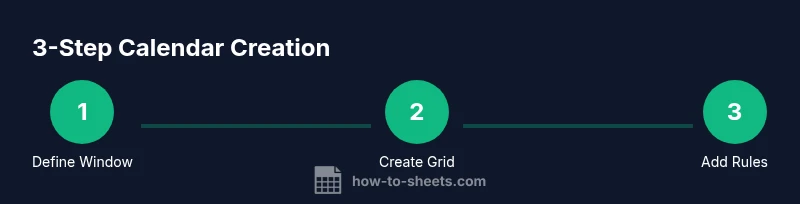
Goal: Build a reusable Google Sheets 3 month calendar template that tracks dates, events, and deadlines. Start by defining the three-month window, create a date grid, headers, and category codes, then add formulas for auto-filling dates, conditional formatting, and reminders. This guide provides step-by-step instructions, ready-to-copy formulas, and practical tips to customize for any project.
What is a Google Sheets 3 Month Calendar Template?
A Google Sheets 3 month calendar template is a ready-to-use worksheet that presents a three-month horizon in a single view, with date cells, day headers, and dedicated fields for events, deadlines, and notes. The format is flexible and ideal for students, professionals, and small businesses aiming to plan quarterly tasks without juggling multiple apps. According to How To Sheets, templates like this reduce repeated setup and promote consistent layouts across projects. The How To Sheets team found that users benefit from a single source of truth for dates and events, which simplifies reporting and collaboration. You can choose a horizontal layout (three consecutive months side by side) or a vertical stack (months in rows) depending on your screen size and preferred workflow. The key is to keep data separate from presentation so you can reuse the same sheet for different date ranges, months, and teams, and export clean PDFs for meetings or term reports.
Why a 3-Month Window Works for Planning
Three months is a practical horizon for many planning cycles—academic terms, fiscal quarters, and project sprints. It strikes a balance between detail (week-by-week) and scope (not overwhelming a single sheet). A well-crafted 3-month calendar acts as a single source of truth, reducing context-switching and helping teams align milestones, events, and deadlines. When designed with consistent categories and date formats, it also becomes easy to copy the structure for future quarters. The template can be used standalone or linked to a dashboard that aggregates upcoming items, overdue tasks, and completion rates for quick reporting. As you adopt it, you’ll notice smoother collaboration and fewer miscommunications across teammates.
Design Principles You’ll Follow
Emphasize clarity over complexity. Use a clean grid, readable fonts, and restrained color coding. Keep headers bold and consistent, and separate data entry (dates, events, categories) from the calendar view. Provide a dedicated sheet for data validation lists (categories, locations, people) so every entry uses the same taxonomy. Finally, build in a small summary section that highlights upcoming events within the next 7–14 days. This separation makes it easy to reuse the template for other months or teams without rebuilding from scratch.
The Role of Templates in Modern Workflows
Templates like the Google Sheets 3 month calendar template standardize how teams capture time-related information. They reduce setup time, minimize errors from manual entry, and support rapid sharing. The How To Sheets team emphasizes that templates are especially valuable for students juggling coursework, professionals coordinating cross-functional tasks, and small business owners tracking client deadlines. By modularizing the data (dates, events, categories) and keeping presentation separate, you can adapt the calendar for different contexts—switch month ranges, adjust categories, or export a monthly report with a single click.
Real-World Scenarios and Customization Options
Education: track assignment due dates, exam weeks, and study sessions across a term. Marketing: align content calendars with campaign milestones and launch dates. Operations: oversee maintenance windows, project milestones, and team availability. Common customizations include adding a status column (Planned, In Progress, Completed), a Notes field for context, and a separate sheet that aggregates monthly totals. The result is a flexible tool you can reuse for future quarters without starting from zero.
Accessibility and Collaboration Considerations
Ensure high-contrast text and accessible color combinations to support all users. Freeze header rows for easier navigation, especially on smaller screens. Use data validation to limit inputs and prevent inconsistent categories. When sharing, set permissions so teammates can view or edit only what they need. With a robust template, you can easily onboard new collaborators and maintain a consistent planning process across your organization.
Authority Sources and Further Reading
For readers who want to deepen their understanding of structured templates and calendar design, consult reliable references like government and education resources. The National Institute of Standards and Technology (nist.gov) offers guidelines on data integrity; the U.S. Department of Education (ed.gov) provides frameworks for planning terms and academic calendars; and Harvard University (harvard.edu) demonstrates best practices in institutional planning. These sources can inform your approach to organizing dates, events, and reporting in templates.
Tools & Materials
- Computer with internet access(Modern browser and a Google account)
- Google Sheets access(Ensure you have edit permissions)
- Start date for the three-month window(Define the first day of the window)
- Color codes and category list(Keep a consistent palette)
- Template file or blank sheet(Use for reuse or sharing)
- Data validation lists(Optional but recommended for consistency)
- Instruction sheet or quick reference(Helpful for teammates)
Steps
Estimated time: 60-90 minutes
- 1
Define the three-month window
Choose a start date and set the three-month horizon. Create a plan for how you want months displayed (side-by-side or stacked) and decide which days will be highlighted for weekends or holidays. This framing ensures all subsequent steps align to the same time period.
Tip: Document the start date in a clearly labeled cell (e.g., B2) to enable quick changes for future quarters. - 2
Create the date grid and headers
Build a 7-column grid for days of the week with enough rows to cover all days in the window. Add bold month headers and freeze the header area so navigation remains easy while scrolling.
Tip: Use the TEXT and WEEKDAY functions to automatically label day headers and months based on the start date. - 3
Add events, categories, and reminders
Create fields for Event, Date, and Category. Use data validation to enforce a fixed list of categories (e.g., Meeting, Deadline, Task, Personal) and set conditional formatting to color-code by category or urgency.
Tip: Link category choices to a named range to simplify updates across the sheet. - 4
Automate with formulas and filters
Leverage FILTER or QUERY to pull events for a chosen month into a summary area. Use SEQUENCE and EDATE to auto-fill the date range and COUNTIF to track upcoming tasks.
Tip: Test formulas on a small sample first to verify results before applying to the full three-month window. - 5
Improve visuals and readability
Apply a consistent font, bold month headings, and subtle alternating row colors. Freeze headers and ensure adequate contrast. Consider exporting to PDF for sharing with stakeholders.
Tip: Avoid overusing color; assign a single color for each category and reserve red for overdue items. - 6
Configure sharing and templating
Save as a template, protect cells that should not be edited, and share with teammates via link or Drive permissions. To reuse for the next quarter, adjust the start date and refresh date-range formulas.
Tip: Create a short guide sheet within the template to help new users understand the workflow.
FAQ
Can I customize the calendar to display fiscal quarters?
Yes. Set the start month to align with your fiscal quarters and adjust the three-month window accordingly. Use date-shifting formulas like EDATE to move the window in a single click.
Yes. You can align the start month with your fiscal quarters and shift the window with date formulas.
Is this template suitable for team collaboration?
Absolutely. The template can be shared with teammates with appropriate permissions. Use comments and protected ranges to coordinate edits without overwriting core structure.
Yes, it works well for teams with proper sharing settings.
How do I export the calendar as PDF?
Fit the calendar to page dimensions, adjust print settings, and choose 'Save as PDF' from the browser or Google Sheets print dialog. Exporting preserves the layout for distribution.
You can export it by adjusting print settings and saving as PDF from the print dialog.
How can I duplicate this template for the next quarter?
Create a copy of the template and update the start date. Ensure date-related formulas reference the new start cell so the entire window shifts correctly.
Just copy and update the start date so everything shifts to the next quarter.
What are common pitfalls to avoid?
Avoid mixing date formats, overloading with too many categories, and hard-coding values in formulas. Keep data entry consistent and validate inputs.
Watch for date format mismatches, too many categories, and hard-coded values.
Watch Video
The Essentials
- Define the three-month window clearly.
- Use a 7-column date grid with consistent headers.
- Leverage data validation and conditional formatting for consistency.
- Save as a reusable template and share with teammates.