Google Sheets Calendar Template: A Practical Step-by-Step Guide
Learn to create and customize a Google Sheets calendar template for events, deadlines, and schedules. This guide covers templates, features, step-by-step setup, best practices, and troubleshooting for students, professionals, and small businesses.


Definition: A google sheets calendar template helps you plan events, track deadlines, and visualize monthly timelines using built-in date logic, color-coding, and reusable layouts. This guide shows how to choose a ready-made template or build a custom calendar from scratch, with practical steps, essential features, and best practices for clarity and data validation.
What is a Google Sheets calendar template?
A Google Sheets calendar template is a pre-formatted sheet designed to help you plan events, track deadlines, and visualize dates across a monthly or weekly view. Templates typically include a date grid, an events table, and optional features like color-coding and data validation. As How To Sheets emphasizes, templates save time and reduce errors by standardizing structure and calculations across months.
Why use a calendar template in Google Sheets?
A calendar template in Google Sheets offers flexibility, collaboration, and long-term value for students managing coursework, professionals coordinating projects, and small business owners tracking milestones. You get a reusable layout, consistent date logic, and the ability to tailor views (monthly, weekly, or daily) without learning complex software. With Google Sheets templates, you can quickly copy the structure for new periods and share updates instantly with teammates.
Built-in templates vs. custom templates
Google Sheets includes basic templates, but a custom calendar template provides full control over layout, formulas, and visuals. Built-in templates are quick to start, yet may require adaptation to your workflow. A custom template lets you embed date calculations, event inputs, and category filters that match your use case, whether academic planning, event scheduling, or project tracking.
Core features to include in a Google Sheets calendar template
When designing a calendar template, prioritize features that save time and reduce errors:
- A month or week grid that auto-fills dates
- An events table with Date, Event, Category, and Status columns
- Data validation for consistent categories and statuses
- Conditional formatting to highlight weekends, due dates, or categories
- A month selector to navigate quickly
- A summary area for quick insights
- Simple sharing and protection options to control edits
Practical example: Monthly calendar layout
A solid monthly calendar layout combines a standard 7-column grid for days and a 6-row grid to cover all possible dates in a month. An adjacent events panel lists upcoming items by date, with color-coded categories. This layout supports quick scanning and easy filtering for busy periods. As you prototype, consider starting with a single month and then duplicating the sheet for other months or years.
Step-by-step customization highlights
Beyond the basics, you can enhance functionality with dynamic filters, automatic year rollover, and lightweight automation. For example, a category filter lets you view only meetings or deadlines, while a summary panel shows counts of events by category. These enhancements improve usability without adding significant maintenance overhead.
Data integrity: validation, formulas, and automation
Keep data consistent by using named ranges and data validation rules for categories and statuses. Use formulas like EOMONTH, DAY, and IF to populate dates and drive conditional formatting. Small automations (like copying the next month’s template) reduce repetitive edits and ensure consistency across periods.
Sharing, permissions, and collaboration
Google Sheets makes sharing easy—set view or edit permissions for teammates, instructors, or clients. Consider locking certain ranges (e.g., formulas or headers) to prevent accidental changes. Regularly review access, especially if the calendar contains sensitive deadlines or personal data.
Common pitfalls and troubleshooting tips
Common issues include broken date filling after year changes, misaligned headers, and broken conditional formatting rules. Test the template with several months, verify date logic across year boundaries, and keep a simple changelog for updates. If dates drift, re-check the date-start cell and ensure formulas refer to the correct month selection.
Tools & Materials
- Computer with internet access(Device capable of running Google Sheets.)
- Google account(Needed to access Google Sheets and share templates.)
- Google Sheets template file(Start from a clean sheet or a copied template.)
- Color palette and font choices(Optional but helps readability.)
- Data validation lists(For categories, statuses, and priorities.)
- Documentation or notes(To guide users on how to use the template.)
Steps
Estimated time: 60-120 minutes
- 1
Create a monthly calendar grid
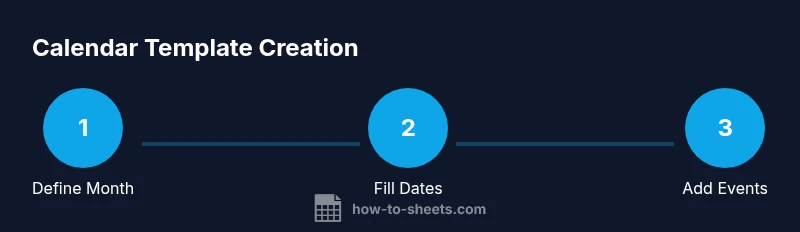
Set up a 7-column grid representing days of the week and a 6-row grid to accommodate all dates. Label headers clearly (Sun–Sat) and format header cells for visibility. This establishes the visual backbone of the template.
Tip: Tip: Use freeze panes to keep headers visible while scrolling. - 2
Populate auto-fillable dates
Enter the first day of the month using a date cell, then fill the grid with a formula that cascades across the 7x6 area to generate consecutive dates. Ensure dates roll over correctly at month ends.
Tip: Tip: Anchor the start date to a named cell like MonthStart for easy month switching. - 3
Add an events input table
Create columns for Date, Event, Category, and Status. Use data validation on Category and Status to enforce consistency. Link the events to the grid by a simple date lookup.
Tip: Tip: Use FILTER to view events for the selected month only. - 4
Apply conditional formatting
Highlight weekends, today’s date, or upcoming deadlines using conditional formatting rules. Color-code categories to improve scanning speed.
Tip: Tip: Create a style sheet for colors and apply it via a named range to keep formatting consistent. - 5
Add a month selector
Create a dropdown (data validation) to choose the month and year. Tie the date grid to this selector so the calendar updates automatically.
Tip: Tip: Use the EOMONTH function to keep the month boundary logic robust year-to-year. - 6
Build a quick summary panel
Display counts of events by category and a quick glance at upcoming deadlines. This saves time when assessing workload at a glance.
Tip: Tip: Use pivot-like formulas (QUERY or SUMIF) to aggregate data quickly. - 7
Protect essential ranges
Lock headers and formulas to prevent accidental edits. Share with appropriate permissions to maintain integrity while enabling collaboration.
Tip: Tip: Create a separate copy for editing and keep a master template unchanged. - 8
Test, refine, and duplicate
Test the template with multiple months, verify year transitions, and duplicate for new years or teams. Document changes for future users.
Tip: Tip: Maintain a changelog within a hidden sheet for traceability.
FAQ
What is a Google Sheets calendar template?
A Google Sheets calendar template is a pre-formatted sheet designed to organize dates and events with built-in date logic, color-coding, and reusable layouts. It helps you plan across months and collaborate with others.
A Google Sheets calendar template is a ready-made calendar in Sheets with dates and events, designed for easy updating and sharing.
How do I customize the calendar to fit my schedule?
Start with a month selector, adjust the event columns, and modify colors or categories to match your workflow. Save changes as a new template for reuse.
Customize by selecting a month, editing events, and tweaking the visuals; then save as a new template.
Can I share the calendar with teammates?
Yes. Use Google Drive sharing settings to grant view or edit permissions. For sensitive data, limit access to trusted collaborators.
Yes—share with teammates and set the right permissions in Google Drive.
Is it possible to sync with Google Calendar?
You can import/export events and set up simple scripts or integrations for one-way sync. Two-way real-time sync typically requires custom automation.
You can import or export events, but full two-way sync usually needs automation.
What should I watch for when maintaining templates?
Keep a changelog, test after major edits, and duplicate templates for new teams or periods to avoid overwriting the master file.
Keep notes on changes and test regularly to avoid issues.
Watch Video
The Essentials
- Define a clear calendar layout and monthly view.
- Automate date filling and event logging.
- Use data validation to keep data clean.
- Color-code categories for quick scanning.
- Share with appropriate permissions and protect critical cells.