Mastering the Google Sheets Printable Area
A comprehensive guide to defining and printing the exact area in Google Sheets. Learn how to select ranges, adjust print settings, and export clean PDFs with confidence.


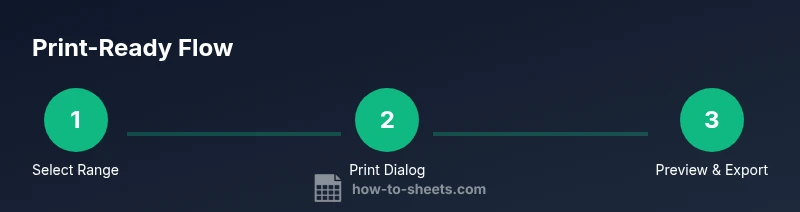
You will learn how to define and print the exact area you need in Google Sheets. Start by selecting the range you want to print, then open the Print dialog and choose 'Selected cells'. Adjust scaling, margins, and headers as needed, and preview the result before printing or exporting to PDF. This guide covers practical steps, tips, and common pitfalls.
What is the google sheets printable area and why it matters
In Google Sheets, the printable area refers to the specific cells that will appear on the physical printout or PDF after you send the sheet to print. Sheets treats print area as a combination of the selected range and the print settings chosen in the Print dialog. Mastering this area matters because it helps you avoid wasted paper, missing header rows, or data truncation in reports, budgets, and schedules. According to How To Sheets, most users underestimate how much control they have over printouts: selecting the right range, applying appropriate scaling, and enabling repeat headers can turn a messy print into a clean, professional document. The How To Sheets team found that a well-defined printable area reduces the need for post-print adjustments and improves clarity for teammates or clients. In practice, your printable area should reflect the document’s purpose: a budget sheet with only the relevant lines, a project tracker that fits on a page, or a summary report tailored to your audience. Designing the area once lets you reuse it for future reports, saving time each cycle.
Understanding print area vs. print settings in Sheets
The printable area is not a fixed page boundary; it’s the combination of cells you select and how you configure the Print dialog. You decide whether to print the current sheet, the entire workbook, or just a subset of cells. Print settings govern how that data is laid out, including orientation, margins, scale, and whether headers repeats on each page. In practice, the two concepts work together: your chosen range defines what prints, while the settings control how that content fits on pages. This distinction is essential when preparing reports or expense summaries that must align with a specific page count or column width. By understanding both, you can craft printouts that look intentional rather than accidental.
How Google Sheets handles printing: steps to define the printable area
To stamp a precise printable area, you’ll typically select a range, then invoke the Print dialog. From there, choose 'Selected cells' (or a similar option) to limit printing to your chosen area. You can then adjust scale (fit to width/height or custom percentage), margins (normal, narrow, or custom), and whether to include row/column headers. If your sheet has multiple sections, consider repeating header rows to keep context on every page. Finally, use the print preview to confirm that the area aligns with your expectations before printing or exporting to PDF. This workflow helps ensure consistency across reports and handouts.
Practical workflows: budgets, schedules, reports
People use Google Sheets for a range of printable outputs, from monthly budgets to project schedules and executive reports. For budgets, printing only the relevant rows and columns helps stakeholders focus on totals and variance without distraction. For schedules, you may want a compact view that fits on a single page or prints across two pages with time labels legible on every page. For reports, ensure the key metrics appear in the header area and that the page breaks are predictable. In all cases, the printable area should be driven by the document’s purpose, not by the default sheet size. Use Print Preview to verify that titles, dates, and totals align with the audience’s expectations, and adjust the range if necessary.
Common pitfalls and troubleshooting
Common issues include data spilling onto additional pages, headers that don’t repeat, and scaling that cuts off column labels. To fix these, first reselect the exact range you intend to print and revisit the Print dialog. If headers don’t repeat, enable the option to print row headers on each page and ensure your header rows are clearly identified at the top of the selection. For large sheets, consider printing in stages (e.g., first a summary page, then detailed pages) to keep printouts readable. If the on-screen view differs from the printout, check the page breaks and try different scaling options or orientation. Finally, export to PDF to confirm the final appearance before distributing physical copies.
Advanced tips for precise printing in Google Sheets
Advanced users can enhance print accuracy by using named ranges to standardize print areas across reports. Define a named range for each common printable area (e.g., “Q2_Budget_Print”) and reuse it in the Print dialog. Keeping a consistent page setup—orientation, margins, and header repetition—ensures uniform outputs. If you work across multiple sheets, consider printing each sheet individually with its own named range to maintain clarity. For teams that rely on PDF handouts, test print a sample file on different devices to ensure fonts and margins render consistently. Lastly, leverage the 'Set print area' concept by selectively printing only the segments essential for stakeholders.
Quick preflight check before printing
Before final printing, perform a quick preflight. Confirm the range contains all required data (totals, dates, identifiers), check that headers repeat as needed, and ensure the final page count matches expectations. Run a final Print Preview with both single-page and multi-page views to catch any misalignments. If you’ll share the output as a PDF, verify that hyperlinks and embedded charts render correctly. A final glance at the margins and scale can save you from wasting paper and reprinting.
Final quick reference: ensuring reliability across print tasks
To consistently deliver clean prints from Google Sheets, build a small routine around the printable area: define a named range for your standard print area, set fixed margins and header rows, use the Print dialog’s 'Selected cells' option, and always preview before printing or exporting. Keeping these steps in a short checklist will help you produce professional handouts with minimal effort.
Final checklist before printing
- Confirm the exact range is selected (no extra rows or columns).
- Enable repeat headers if needed.
- Choose 'Selected cells' in the Print dialog.
- Apply consistent scaling and margins.
- Preview the output and export to PDF if required.
- Save the print area as a named range for future use.
Tools & Materials
- Computer or mobile device with internet access(Access Google Sheets and the Print dialog)
- Google account(Needed to access and edit Google Sheets)
- Target Google Sheets file(The document from which you will print a specific area)
- Printer or PDF export capability(Print physically or save as PDF for distribution)
- Optional: print layout plan(Sketch a rough layout of headers, columns, and totals to guide setup)
Steps
Estimated time: 15-25 minutes
- 1
Open the Google Sheets file
Navigate to Google Sheets and open the document that contains the data you plan to print. This step ensures you’re working with the most up-to-date information. If you’re collaborating, confirm the latest edits have been saved.
Tip: Tip: Use a named range for the printable area to simplify future prints. - 2
Select the printable range
Click and drag to highlight the exact cells you want included in the print. Include any necessary headers, totals, or captions that must appear on the printout. The selected range determines the core content of the output.
Tip: Tip: Double-check that no extra hidden columns are selected accidentally. - 3
Open the Print dialog
Go to File > Print or press Ctrl/Cmd + P to open the print settings. The dialog provides a live preview so you can confirm how the range will appear on paper or in PDF.
Tip: Tip: Use the Print Preview to compare different options side-by-side. - 4
Choose 'Selected cells' in the Print settings
In the Print settings, select 'Selected cells' to ensure only your range prints. This eliminates extraneous data from the output. You can switch to 'Current sheet' later if needed.
Tip: Tip: If the option isn’t visible, ensure your range is still highlighted when you open Print. - 5
Adjust scale, margins, and headers
Experiment with scale (fit to width/height or custom percentage) and margins to achieve a clean layout. If headers need to display on every page, enable header repetition and adjust the rows accordingly.
Tip: Tip: Use narrow margins sparingly to maintain readability. - 6
Preview and print or export to PDF
Review the final preview to ensure alignment, spacing, and readability. Print directly or export as PDF for digital sharing. If the result isn’t perfect, go back to the range and settings and iterate.
Tip: Tip: Save the output as a named range for quick reuse in future reports.
FAQ
What exactly is the printable area in Google Sheets?
The printable area is the set of cells you choose to print, combined with the Print dialog settings that control how those cells appear on pages. You decide which cells to include and how they fit on the page, including headers and margins.
The printable area is simply the cells you pick plus the print settings that shape the final pages.
Can I print only a portion of a sheet without printing the whole page?
Yes. Select the exact range you want, then in the Print dialog choose 'Selected cells' to print only that portion. Preview first to ensure headers and context are preserved.
Yes. Select the range, pick 'Selected cells' in Print, and preview before printing.
How do I print multiple sheets with the same printable area?
You can print each sheet separately with its own selected range, or create a named range that spans relevant ranges if supported, then print each range accordingly. Ensure consistent margins and header settings across sheets for uniformity.
Print each sheet with its own range, keeping margins and headers consistent.
How can I include headers, footers, or repeating rows in the printout?
In the Print dialog, enable options to repeat header rows on every page and set any desired headers or footers. This helps maintain context when pages split across multiple sheets.
Enable header repetition in Print settings to keep headers visible on every page.
What should I do if the printout looks different from the on-screen view?
Adjust the scaling, margins, and page orientation in the Print dialog, then re-preview. If discrepancies persist, try exporting to PDF first to verify layout consistency across devices.
Tweak scale and margins, preview again, and export to PDF to verify the final layout.
Watch Video
The Essentials
- Select the exact range you want to print.
- Use 'Selected cells' in the Print dialog for precision.
- Adjust scaling and margins to optimize readability.
- Repeat headers on every page for multi-page outputs.
- Save print areas as named ranges for quick reuse.