Google Sheets Review Changes: A Practical Guide
Learn how to review, compare, and audit changes in Google Sheets using version history, comments, notifications, and audit-ready workflows. A step-by-step guide for students, professionals, and small teams in 2026.


You will learn how to review changes in Google Sheets by using version history, named versions, and comments to audit edits. You’ll enable notifications and set up an audit-friendly workflow so your team can track, compare, and restore edits confidently.
What reviewing changes in Google Sheets means
Reviewing changes in Google Sheets means inspecting who edited what, when, and where, then deciding whether to keep, revert, or annotate edits. The goal is to create an auditable trail so collaborators can understand the evolution of a dataset. According to How To Sheets, implementing clear versioning practices and using integrated tools reduces confusion and speeds up collaborative work. By mastering the built-in history and comment features, you can maintain data integrity while supporting teamwork in classrooms, startups, and small businesses. The term google sheets review changes encompasses version history, named versions, comments, notifications, and lightweight change logs. This guide focuses on practical, repeatable steps you can apply today to gain clarity over edits and decisions.
Why this matters for teams and students
When multiple people edit a Google Sheet, it’s easy for changes to get lost in the noise. A disciplined change-review process helps you answer questions like: Who changed a value, when did they do it, and why? By having a transparent record, you also improve accountability and reduce the risk of errors in reports, dashboards, and budgets. This is especially useful for project trackers, grade sheets, and budget templates where audits are part of the workflow. The How To Sheets approach emphasizes forming simple, repeatable habits that scale with your team size.
Core tools at a glance
- Version history (File > Version history > See version history)
- Named versions (name a version for quick reference)
- Comments and notes on cells or ranges
- Notification rules (Tools > Notification rules) to receive email alerts
- Optional: a dedicated Change Log sheet for explicit edits
How to approach an audit-ready sheet
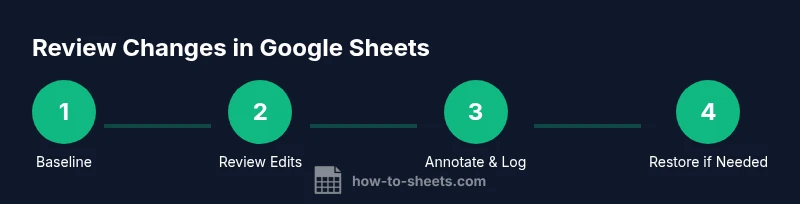
Treat the sheet like a living document with an intentional change log, clear version pins, and proactive notifications. Start with a baseline version, name it, and record major milestones. Use comments to justify edits and keep a separate Change Log for non-numeric changes (like formatting). This approach makes it easier to reconstruct events during reviews or audits.
Practical scenarios you’ll handle
- Approvals: A manager reviews edits before publishing a budget forecast.
- Compliance: An analyst tracks changes to a regulatory worksheet.
- Education: A teacher reviews student submissions and edits to a grading rubric.
Getting the team aligned
Share a short Change Review SOP (Standard Operating Procedure) and pin the current version. Encourage contributors to name versions for major milestones. Use comments to explain unexpected edits and avoid deleting historical data without documenting why.
Quick-start checklist
- Turn on Version history and name key versions.
- Enable Notification rules for critical sheets.
- Create a Change Log tab and document major edits.
- Use Comments for rationale behind edits.
- Periodically review the Change Log with your team.
Security and governance
Limit access to sensitive sheets, review sharing settings, and ensure only authorized users can restore versions. Regularly audit who has edit rights and who can comment to preserve the integrity of the review process.
Next steps for you
Apply the steps in this guide to a live sheet. Start with a baseline version, then name and document a few edits. Use the audit mindset to keep your sheets reliable and collaborative.
Authority sources
- https://support.google.com/docs/answer/190843?hl=en (Google Docs Version history)
- https://hbr.org (Harvard Business Review on collaboration and accountability)
- https://sloanreview.mit.edu/ (MIT Sloan Management Review on team workflows)
Tools & Materials
- Google account with access to the target Google Sheet(Essential for viewing version history and editing the sheet.)
- Web browser with internet connection(Chromium-based or Google Chrome recommended for best compatibility.)
- Audit checklist or Change Log template in Google Sheets(Optional but highly recommended for structured reviews.)
- Second device or screen (optional)(Helpful for cross-checking edits during reviews.)
Steps
Estimated time: 60-90 minutes
- 1
Prepare baseline and enable history
Open the target sheet, go to File > Version history > See version history, and ensure you can name a baseline version. This creates a reference point for future edits and helps you anchor the audit trail.
Tip: Name the baseline version with a clear label like “Baseline-YYYYMMDD.” This makes future comparisons straightforward. - 2
Review edits in the version history
Browse the version history pane to identify who edited which cells and when. Note significant changes and use cell-level highlights to locate edits quickly. If needed, open multiple versions to compare changes.
Tip: Use the time slider to jump to key moments in the sheet’s evolution. - 3
Annotate with comments
Add comments on edited cells to capture the rationale behind changes. Use @mentions to assign accountability to teammates. This creates a narrative that supports future reviews.
Tip: Keep comments concise and aligned with your change log entries. - 4
Document changes in a Change Log
Record key edits in a dedicated Change Log tab, including date, author, changed range, and reason. Link the log to the corresponding version names when possible.
Tip: A centralized log makes audits faster and more reproducible. - 5
Set up change notifications
Create Notification rules under Tools to receive emails when edits occur. This keeps your team informed without manual checking.
Tip: Limit notifications to critical sheets to avoid inbox fatigue. - 6
Optionally log edits with Apps Script
For deeper auditing, implement a lightweight Apps Script that appends edits to a separate log sheet. This provides an automated, query-friendly trail.
Tip: Test scripts on a copy of the sheet before enabling in production. - 7
Review and restore as needed
If an edit is undesired, restore the appropriate version from Version history with care. Document the restoration in the Change Log to preserve the audit trail.
Tip: Restoring a version does not remove the historical edits—record the action. - 8
Regular governance review
Schedule periodic audits of sheets that require traceability. Update naming conventions and SOPs to reflect team growth.
Tip: Treat governance as an ongoing practice, not a one-off task.
FAQ
How do I view version history in Google Sheets?
Open the sheet, then go to File > Version history > See version history. You’ll see a list of named versions and edits by user with timestamps. You can select a version to inspect changes and restore if needed.
Open the sheet, choose Version history to see past edits and restore if necessary.
Can I compare two versions side-by-side?
Google Sheets shows a chronological list of changes, and you can view edits per version. For a side-by-side diff, you may need to manually compare or export versions for offline review.
There isn’t a built-in side-by-side diff in Sheets; compare by opening multiple versions and noting changes.
How can I name a version for easy reference?
In Version history, click on the current version name (or a timestamp) and choose 'Name this version' to assign a memorable label such as 'Q2 Budget - Final'.
Name versions to make it easy to find key points in the future.
Who can see version history and edits?
Version history shows edits by users who have access to the sheet. Ownership and sharing settings control visibility, so coordinate access if needed.
Access to edits depends on who can view the sheet; manage permissions accordingly.
What if I accidentally revert to the wrong version?
If you revert accidentally, simply restore another earlier version and note the mistake in the Change Log. Version history remains a complete record of all edits.
If you revert the wrong version, restore the correct one and document what happened.
How can I get email alerts for edits?
Use Tools > Notification rules to set up email alerts when edits are made. Customize rules to target critical sheets and avoid notification fatigue.
Set up email alerts in Tools > Notification rules for important sheets.
Can I review edits made by a specific person?
Version history shows edits by user if the sheet is shared. You can filter or skim entries to see changes by a particular collaborator.
You can track edits by who made them, as shown in version history.
Watch Video
The Essentials
- Review changes with version history and named versions
- Annotate edits with comments for accountability
- Document edits in a Change Log for audit readiness
- Use notification rules to stay informed about edits
- Optionally log edits with Apps Script for advanced auditing