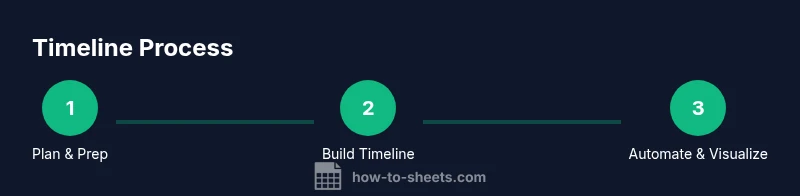
Mastering a Google Sheets Timeline: Step-by-Step Guide
Learn to build a flexible timeline in Google Sheets with date layouts, milestones, and dynamic updates. This practical guide covers templates, formulas, formatting, and automation for students, professionals, and small businesses.


Learn how to build a functional timeline in Google Sheets with date-based layouts, milestone markers, and simple automation to keep your schedule visible and up to date. This quick guide shows you a practical template you can reuse for projects, campaigns, or coursework, plus tips for ongoing updates and collaboration.
Understanding the Google Sheets Timeline: Definition and Use Cases
A Google Sheets timeline is a date-driven layout that visualizes a sequence of tasks, milestones, or events over time. It combines dates, durations, and statuses to present a clear view of project progress, coursework deadlines, or event schedules. A good timeline helps you answer: What happens when? Who is responsible? What is the critical path? The beauty of Google Sheets is you can tailor the timeline without specialized software. A simple timeline often uses columns for Task, Start Date, End Date, Duration, and Status, plus a visual cue for each item. When you search for “google sheets timeline,” you’ll see two common approaches: a bar-based Gantt-like visualization built with conditional formatting, and a chart-based timeline that uses a duration column to drive bar length. In both cases, consistent date formats, clear milestones, and easy filtering are essential. This approach scales from a one-page project plan to a multi-project dashboard for teams.
Remember to keep your data clean: dates stored as actual dates (not text), consistent units for duration, and a stable taxonomy for task categories. Regular updates keep the timeline trustworthy and actionable.
Data Requirements and Prep: Getting Your Timeline Ready
To create a reliable google sheets timeline, start with clean data. Define a compact data model with at least these columns: Task name, Owner or assignee, Start date, End date, Duration (in days), Status, and Category. Normalize dates to a yyyy-mm-dd format and use data validation for Start Date and End Date to prevent typos. If you plan a bar chart timeline, you’ll calculate duration as End Date minus Start Date plus one. Consider adding a Milestone flag (True/False) to highlight important dates. A well-prepared sheet reduces the need for rework when scope changes. It also makes automation easier, such as automatically adjusting downstream dates when a dependent task shifts. Finally, create a named range for the data range used in formulas or charts so you can reuse the model across multiple sheets without breaking references.
Designing a Timeline in Google Sheets: Layouts and Templates
Two common layouts suit different needs. The first is a Gantt-like timeline: a left-hand task list with a horizontal timeline across the top and colored bars representing duration. The second uses a stacked bar or bar-as-text approach, where a helper column produces a visual bar with characters. For templates, start with a master timeline sheet and a dashboard view that filters by Status or Category. Use conditional formatting to color-code bars by Category or Status; this makes the sheet readable at a glance. Templates save time—copy a ready-made timeline for new projects, tweaking only the data. If your project becomes complex, you can split data into multiple related sheets and use IMPORTRANGE to pull data into a single timeline view.
Step-by-Step: Build a Simple Date-based Timeline
To build a basic timeline, create a new Google Sheet with headers: Task, Start Date, End Date, Duration, Status. Enter a few sample tasks with dates. Create a duration column using =IF(EndDate>=StartDate, EndDate-StartDate+1, 0). On a separate row, add a top-row date scale (e.g., one column per day or per week). For a simple bar, use an adjacent cell with a formula like =REPT("█", ROUND(Duration)) and format the font as a fixed-width font. Then color-code bars by category using conditional formatting. This basic model proves the concept; you can expand it with dependent dates, milestones, and filters later.
Automating Updates: Importing Data and Keeping Timelines Fresh
Automation helps keep timelines current without manual edits. Use IMPORTRANGE to pull data from a central master sheet, or use IMPORTDATA/IMPORTXML if you fetch data from the web. For ongoing projects, set up a Google Apps Script to refresh the data every night or when a trigger fires. Another option is to connect to Google Calendar dates using the Calendar API or a built-in calendar view in Sheets for up-to-date milestones. If you attach a form for team members to submit updates, your sheet will grow organically with real-time input. Just ensure you validate incoming data to avoid breaking the timeline formulas.
Visualize Timeline: Bars, Milestones, and Conditional Formatting
Visualization is what makes a timeline immediately useful. In a Gantt-like layout, create a header row with dates and use conditional formatting to color bars from Start to End. A popular technique is to compute a bar length with Duration and display it as a character bar in an adjacent cell; you can then apply a gradient color scheme based on Status. For milestones, use a separate column with a distinct color or a diamond emoji to stand out. Add tiny trend indicators, like a daily progress column or a milestone flag, to show critical deadlines at a glance. If you prefer charts, you can create a stacked bar chart where the first series is a spacer (Start offset) and the second is the duration to depict the actual work.
Advanced Timeline Techniques: Dependencies, Milestones, and Dynamic Filters
As timelines scale, dependencies matter. Use formulas like =IF(DependentStart>=(ReferenceEnd+1), StartDate + Offset, StartDate) to model a task that cannot start until another finishes. Milestones can be flagged with a separate badge column and visual markers in the bar. Dynamic filters let you focus on overdue items or a specific category. Use FILTER to show only tasks with Status = "In Progress" or a date window. A drop-down data validation control to filter the timeline reduces clutter and helps shared viewers understand priorities. For larger teams, consider a separate data model sheet for tasks and a read-only timeline sheet that uses QUERY or VLOOKUP to keep the viewer from accidentally editing data.
Common Pitfalls and Troubleshooting
Date handling is the most common source of problems. Make sure dates aren’t stored as text; use DATEVALUE if needed. Inconsistent date formats across imported data can break calculations. When sharing, check permissions—edit rights can accidentally shift dates or formulas. If bars disappear, inspect the duration formula and ensure End Date is not blank. If performance lags with large timelines, switch to a dashboard with a subset of data or use query-based views rather than loading every row in a single sheet. Finally, keep a backup template of your timeline so you can start fresh after a data corruption incident.
Real-world Scenarios: Students, Professionals, Small Businesses
For students, a google sheets timeline helps manage coursework, labs, and deadlines in one place, supporting group projects with shared views. Professionals use timelines to plan releases, sprints, and milestones with stakeholders. Small businesses track campaigns, launches, and client milestones. In each case, adapt the template to your workflow: adjust the categories, add milestones, integrate with calendar data, and share with collaborators. The key is consistency of data, clear visual cues, and lightweight automation that saves time rather than adding maintenance overhead.
Tools & Materials
- Google Sheets access (Google account)(Ensure you have permission to edit a sheet; use a new sheet for templates.)
- Sample dataset (CSV or Sheets file) with dates(Include at least 6 tasks with Start Date, End Date, and Status.)
- Date formatting guide(ISO format (YYYY-MM-DD) is recommended for consistency.)
- Color palette for timeline bars(Optional but helps with readability and branding.)
- Google Calendar or external data sources (optional)(To cross-link dates or visualize calendars.)
Steps
Estimated time: 45-60 minutes
- 1
Create a new timeline sheet
Open a new Google Sheet and set up headers: Task, Start Date, End Date, Duration, Status, Category. Enter at least three sample tasks with dates to establish your baseline. This initial setup defines the data model for the entire timeline.
Tip: Use a consistent date format from the start to prevent future conversion errors. - 2
Compute duration and validate dates
Add a Duration column with a formula like EndDate-StartDate+1. Use data validation on Start Date and End Date to reject non-dates. This ensures your timeline calculations stay accurate as data changes.
Tip: Also add a Milestone column (TRUE/FALSE) to flag key dates. - 3
Create a date scale
Set up a row (or column) with dates spanning the project window. Align the scale with your desired granularity (daily or weekly). This scale is what the bars will map onto.
Tip: If your project spans many days, consider grouping by week to reduce clutter. - 4
Build a bar visualization
In a separate column, generate a visual bar using a character block like REPT("█", ROUND(Duration/scale))). Apply conditional formatting to color bars by Category or Status.
Tip: Choose a fixed-width font for bars to render evenly. - 5
Add color-coding and milestones
Use conditional formatting rules to color each row by Category. Add a milestone marker (e.g., a diamond emoji or special color) for critical deadlines.
Tip: Keep color choices accessible; check contrast and color-blind friendly palettes. - 6
Filter and summarize
Create a dashboard-style view with FILTER or QUERY to show only In-Progress tasks or a date window. Include summary metrics like total tasks, overdue items, and upcoming milestones.
Tip: Leverage named ranges to simplify formulas and future updates. - 7
Automate updates
Set up data imports (IMPORTRANGE) or a small Apps Script to refresh data nightly. If you pull data from forms or calendars, ensure your data flow handles edits gracefully.
Tip: Test triggers on a cold start to ensure reliability.
FAQ
What is a Google Sheets timeline and when should I use it?
A Google Sheets timeline is a date-driven view that displays tasks and milestones over time. Use it for project planning, coursework calendars, or event schedules to visualize deadlines and dependencies.
A Google Sheets timeline is a date-based view for planning tasks and milestones. It helps you see deadlines and dependencies at a glance.
Which layout works best for beginners, bar charts or text bars?
For beginners, a simple text-bar timeline with duration and a basic date scale is easiest to set up. As you gain comfort, you can switch to a bar chart or Gantt-like layout for more visual impact.
Beginners should start with a simple text-bar timeline and then upgrade to a bar chart for more visuals.
How can I automate data imports into my timeline?
Use IMPORTRANGE to pull data from a master sheet or external sources, and consider Apps Script triggers to refresh data on a schedule. Always validate imported data to keep timelines accurate.
Use IMPORTRANGE and optional scripts to refresh data on a schedule, with data validation to ensure accuracy.
Can I share the timeline with teammates without letting them edit formulas?
Yes. Create a separate view sheet that references the data ranges and lock the source sheet. Use protected ranges and view-only sharing for collaborators who only need to see the timeline.
You can share a view-only version by creating a separate view sheet and protecting the source data.
What are common date pitfalls in Google Sheets timelines?
Common issues include dates stored as text, inconsistent date formats on import, and time zone differences. Normalize dates, use DATEVALUE when needed, and test across devices.
Watch out for dates saved as text and format inconsistencies; normalize dates and test across devices.
Is a timeline in Sheets suitable for complex project management?
For very complex projects, Sheets can handle many timelines but may require more advanced formulas or scripts. Consider complementary tools for high-complexity projects, while keeping a robust Sheets timeline for core planning.
Sheets works for many timelines, but extremely complex projects might benefit from specialized tools.
Watch Video
The Essentials
- Plan data first, then visualize
- Use consistent dates and clear milestones
- Employ filters to focus on relevant tasks
- Automate data updates to keep timelines current