Google Sheets Trading Journal: A Practical Step-by-Step Guide
Learn to build a robust google sheets trading journal that tracks trades, computes P/L, and visualizes performance. A practical, template-driven guide for students and professionals.


Goal: set up a Google Sheets trading journal to log every trade, calculate realized and unrealized P/L, and measure performance over time. You’ll need a Google account and a blank sheet or template. This how-to covers data fields, formulas, validation, and a ready-to-use template that keeps your trading activity organized, precise, and easy to review. According to How To Sheets, consistency matters most.
Why a Google Sheets trading journal matters
A google sheets trading journal is more than a log of past trades. It’s a practical framework that turns raw data into actionable insights. By recording every entry, exit, size, and fee, you create a living dataset you can filter, sort, and analyze. The How To Sheets team emphasizes that consistency builds trust in your numbers and helps you spot recurring mistakes, costly slippage, or missed opportunities. When you track trades in a central, accessible format, you gain a clear view of risk-reward dynamics, win rate, and overall performance across markets. This is essential for students learning finance concepts and professionals who need reliable data for performance reviews. A well-maintained google sheets trading journal also supports compliance and audit trails, making it easier to reference decisions during reviews or client conversations.
Core data fields you must track
At minimum, a robust journal should capture key attributes for every trade. Date, ticker symbol, side (long/short), entry and exit prices, quantity, and commissions are foundational. You’ll want to note trade rationale or setup in a dedicated notes column to correlate outcomes with breaking news or strategy changes. Calculated fields such as realized P/L, unrealized P/L, and total cost basis help you evaluate performance instantly. Keeping units consistent (e.g., shares vs. contracts) prevents faulty totals and misinterpretations. In practice, most traders also track slippage, duration, and market session to identify patterns tied to liquidity or volatility. For the google sheets trading journal, structure the data so you can easily extend it (more columns or new sheets) as your trading plan evolves.
Designing a journal template in Sheets
Start with a clean template that defines every column’s purpose and data type. Use a fixed header row, then freeze panes so headers stay visible while you scroll. Set validation rules for fields like Date, Symbol, and Side to minimize incorrect entries. Create a separate summary or dashboard sheet that pulls data from the raw trades sheet using functions like SUMIF, COUNTIF, and VLOOKUP. A well-structured template includes a data-entry sheet, a formulas sheet for calculations, and a dashboard sheet for visuals. The template should be easy to duplicate and adapt as you refine your trading strategy. Remember, a consistent layout reduces cognitive load and speeds up daily maintenance.
Automating calculations with formulas
Formulas are the backbone of an effective google sheets trading journal. Realized P/L can be calculated as (Exit Price - Entry Price) * Quantity - Fees, while Unrealized P/L for open positions uses (Current Price - Entry Price) * Quantity. Use SUMIF to aggregate totals by symbol or by day, and AVERAGEIF to compute average entry prices for different setups. To prevent errors, anchor ranges with $ signs and name critical ranges like ColDates, ColPrices, or ColShares. A small group of well-chosen formulas can produce a powerful analytics surface without needing external tools. As you grow, consider using dynamic ranges and array formulas to keep calculations robust as rows expand.
Data validation and dropdowns to maintain consistency
Data validation ensures high-quality data that feeds reliable analytics. Create dropdowns for fields like Side (buy/sell), Trade Type (intraday/position), and Market (Forex/Equity/Options). Use custom data validation for symbols to maintain consistency with a master list. Implement time validations for entry dates to avoid future-dated trades. Validation reduces manual corrections and helps you maintain a clean dataset for long-term trend analysis. In a google sheets trading journal, clean data is the foundation of credible insights.
Visualizing performance with dashboards
A dashboard translates numbers into insights you can act on. Build a metrics panel that shows total trades, win rate, average risk-reward, and cumulative P/L. Create charts for equity curve, distribution of trade outcomes, and heatmaps of performance by symbol or timeframe. Use sparklines and conditional formatting to highlight milestones or warning signs. A well-crafted dashboard makes it easy to answer questions like: Are you overtrading in a losing streak? Which symbol tends to deliver the best risk-adjusted returns? The google sheets trading journal shines when you connect data with visuals that illuminate behavior.
Practical example: a ready-to-use setup
Imagine a template with a main trades sheet and a dashboard sheet. In trades, columns include Date, Symbol, Side, Entry Price, Exit Price, Size, Fees, EntryDate, ExitDate, and Notes. Implement formulas: RealizedP/L = (ExitPrice - EntryPrice) * Size - Fees; UnrealizedP/L = (CurrentPrice - EntryPrice) * Size for open trades. The dashboard pulls totals by Symbol and calculates a daily P/L chart. For students and professionals, this structure provides a repeatable process for every trading cycle and fosters disciplined review.
Common pitfalls and how to avoid them
A frequent mistake is inconsistent data entry, leading to skewed analytics. Always confirm dates and prices against your brokerage records. Another pitfall is failing to account for commissions and slippage, which can distort P/L. Avoid hard-coding values; prefer dynamic references so the sheet updates automatically as prices change. Finally, don’t overcomplicate the template at the start—start lean, then gradually add metrics and dashboards as your understanding grows. The most important habit is to review your journal weekly and adjust your process accordingly.
Next steps: maintenance and expansion
As you gain experience, expand the google sheets trading journal with additional sheets for notes, trade ideas, and a risk log. Add automated imports where possible (e.g., CSV exports from brokers) and schedule weekly backups. Periodically audit formulas to ensure they still reflect your current strategy and fee structure. A well-maintained journal scales with your learning, letting you compare phases of profitability, evaluate strategy changes, and refine positions over time. The goal is a living document that improves with every trade.
Tools & Materials
- Google account with Sheets access(Needed to create and save the journal)
- Stable internet connection(Keeps Sheets syncing and formulas updating)
- Google Sheets (web or mobile app)(Primary tool for entry, calculations, and dashboards)
- Trading data source(Manual entry or data feed for price, size, and fees)
- Ready-to-use journal template (optional)(Saves setup time but not mandatory)
- Backup/export routine(Weekly CSV or Excel backup recommended)
Steps
Estimated time: 60-90 minutes
- 1
Create a new Google Sheet
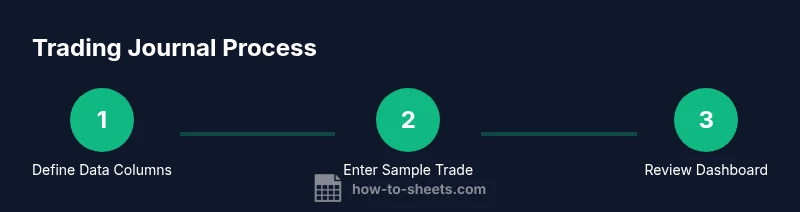
Open Google Sheets and start a new blank spreadsheet. Name it clearly (e.g., “Trading Journal 2026”). Freeze the header row to keep column labels visible as you scroll. This step establishes the structure that will support consistent data entry.
Tip: Keep a copy of your template; it makes replication across accounts quick. - 2
Define core columns
Add columns for Date, Symbol, Side, Entry Price, Exit Price, Size, Fees, Realized P/L, Unrealized P/L, and Notes. Use data validation for Date and Side to prevent entry errors. This creates a reliable data backbone for analysis.
Tip: Standardize currency formatting (e.g., USD) to avoid miscalculations. - 3
Add essential formulas
Insert formulas to calculate Realized and Unrealized P/L. Example: Realized P/L = (Exit Price - Entry Price) * Size - Fees. Use conditional logic to handle open trades for Unrealized P/L. Anchor ranges to keep formulas stable as you add rows.
Tip: Name key ranges (e.g., ColEntry, ColExit) to simplify formulas later. - 4
Create a basic dashboard
On a new sheet, summarize totals by symbol, daily P/L, and win rate. Insert charts for equity curve and distribution of outcomes. Dashboards should auto-refresh as you add entries.
Tip: Use SUMIFs and COUNTIFs to build quick, accurate aggregates. - 5
Set data validation and protections
Apply dropdown lists for fields like Side and Symbol. Protect critical cells to prevent accidental edits. Regularly back up the file to a safe location.
Tip: Protect formulas and references to avoid accidental overwrites. - 6
Review and iterate
Schedule a weekly review to check data quality, assess performance, and adjust the journal layout or metrics. Add new fields only when you need them for deeper insights.
Tip: Document changes so your workflow remains transparent.
FAQ
What should I track in a Google Sheets trading journal?
Track date, symbol, side (buy/sell), entry and exit prices, quantity, and fees. Add a Notes field for setup rationale. Include realized and unrealized P/L to measure performance over time.
Track date, symbol, side, prices, size, and fees. Include P/L to monitor performance.
How do I calculate realized vs unrealized P/L in Sheets?
Realized P/L uses exit minus entry times size minus fees. Unrealized P/L uses current price minus entry price times size for open trades. Use named ranges and absolute references to keep formulas stable.
Realized P/L is exit minus entry times size minus fees; unrealized P/L uses current price minus entry price for open trades.
Can I automate data import into Sheets for a trading journal?
Yes. You can import CSV exports or connect API feeds where possible. Use scripts or built-in import tools to push data into the trades sheet, then rely on formulas to update dashboards automatically.
Yes, import CSVs or use API feeds; then your sheets dashboards update automatically.
How often should I review my journal?
Aim for a weekly review to catch data errors, reassess strategies, and refine metrics. More frequent checks can help you spot issues early and keep your journal actionable.
Review weekly to keep data accurate and strategies aligned.
What if I trade across multiple markets?
Include a Market column (e.g., Equity, Forex, Crypto) and ensure your P/L calculations account for market-specific fees. Use dashboard filters to compare performance across markets.
Add a Market column and compare performance across markets with filters.
Is a template necessary, or can I build from scratch?
A template speeds setup and ensures consistency, but you can absolutely build from scratch. Start lean, then expand with dashboards and extra metrics as you learn.
You can start from scratch, but a template helps you begin quickly.
Watch Video
The Essentials
- Define a lean journal structure first.
- Automate P/L calculations to reduce errors.
- Build a dashboard for quick insights.
- Maintain data quality with validation.
- Review regularly to improve your strategy.