Google Sheets vs Google Docs: A Practical Comparison
Compare google sheets vs google docs to decide which tool fits data tasks, writing, and collaboration. Learn use cases, features, offline access, and cross-workflows. Practical tips.


According to How To Sheets, google sheets vs google docs serve distinct purposes: Sheets excels at structured data, calculations, and quick data workouts, while Docs shines for long-form writing, reporting, and collaborative editing. For most teams, use Sheets for spreadsheets and data tasks, and use Docs for drafting narratives, agreements, and summaries. When a project needs both data and text, leverage both tools and link content across the Workspace.
Core Differences and Philosophies
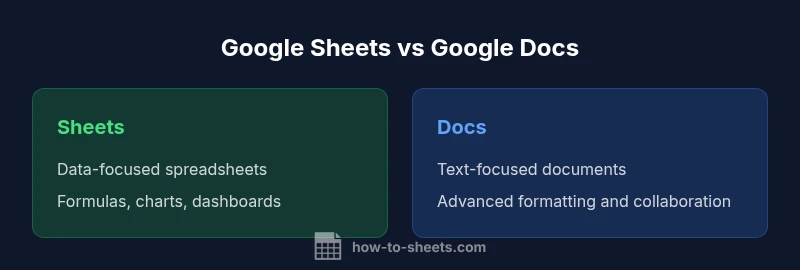
The simple phrase “google sheets vs google docs” encapsulates two core productivity paradigms within Google Workspace. Google Sheets is built around cells, data types, formulas, and structured organization, making it the natural home for numerical analysis, dashboards, and data inventories. Google Docs, by contrast, centers on long-form writing, consistent styling, headings, and document-wide formatting for reports, proposals, and collaborative drafting. According to How To Sheets, this distinction is not about which tool is better overall, but about aligning the task with the appropriate tool. When projects require both data and narrative context, teams often start in Sheets to structure data and then move to Docs to craft narrative explanations, conclusions, and recommendations. The result is a seamless, cross-tool workflow that preserves data integrity while enhancing readability.
Core Capabilities and Core Differences
Understanding the core capabilities helps teams avoid forcing one tool to do the job of the other. Google Sheets offers robust data handling: cell-level formulas, named ranges, charts, conditional formatting, and data validation that support dashboards and analytic tasks. It shines when you need fast calculations, scalable data organization, and repeatable data processing. Google Docs excels in writing and presentation: rich text formatting, styles, table of contents, track changes, and strong collaboration for drafting, editing, and summarizing content. The difference is not merely UI—it's the underlying data model: tabular, formula-driven data in Sheets vs. narrative, formatted text in Docs. When planning a project, map your requirements to these strengths to avoid friction and rework.
Data Handling, Formulas, and Automation
Sheets is designed for numbers, lists, and computation. You’ll find powerful functions, array formulas, pivot-like capabilities through data summarization, and built-in charting that updates in real time as data changes. Apps Script enables automation beyond built-in features, facilitating custom workflows, data imports, and scheduled tasks. Docs, while not a data engine, supports basic table structures and simple calculations embedded in tables, but its primary strength remains text manipulation and formatting. For data-heavy work, lean into Sheets’ formula language, data validation rules, and automation hooks; for narrative-heavy tasks, rely on Docs’ formatting, headings, and citation capabilities to maintain clarity and consistency.
Text Creation, Formatting, and Styles
Docs specializes in content creation. It offers extensive text formatting options, heading hierarchies, styles, and citation features, making it ideal for reports, proposals, and collaborative documents. The collaboration experience includes suggestions, comments, and real-time co-editing that specializes in language and structure. Sheets, although capable of inserting text, is not optimized for long-form writing; its text features are primarily about labels, headers, and simple notes. If your project requires both precise data labeling and narrative sections, structure your document in Docs while carrying data-driven appendices or tables from Sheets for reference.
Collaboration, Revisions, and Commenting
Both tools support real-time collaboration, comments, and version history, but the user experience differs. Sheets enables concurrent edits on cells, quick filters, and comment threads tied to data points. Docs offers more granular editorial controls—suggesting mode, track changes, and robust outline navigation. For teams, the recommended pattern is to co-edit data visuals in Sheets and use Docs to produce the final narrative report or proposal, then link the two through embedded charts, linked data ranges, or exported data snapshots. This approach preserves live data while enabling the team to work on text independently. How To Sheets’ analysis shows that documenting the interpretation of data in a companion Doc often improves stakeholder understanding.
Offline Access and Availability Across Devices
Offline access is a critical factor for fieldwork or travel. Sheets supports offline editing through the Google Drive offline feature, with changes syncing when connectivity returns. Docs also supports offline editing, preserving the ability to draft content without an internet connection. The key is to ensure offline sync is enabled for the relevant Google Drive settings and that your files are properly opened offline before you disconnect. In practice, offline workflows work best when you segment tasks: perform calculations in Sheets offline and complete drafting in Docs offline, then sync upon reconnection to maintain data integrity and document continuity.
File Formats, Exports, and Linking
Docs and Sheets both integrate with the broader Google Workspace ecosystem and support exporting to common formats. Sheets can export data as CSV, Excel, PDF, and Google formats, which is useful for sharing raw data with teams that use other tools. Docs can export to PDF, DOCX, RTF, and other text formats, which is ideal for reports and distribution where formatting matters. Linking across the two apps via embedded charts, linked data ranges, or copy-pasted tables helps preserve live data in narrative documents while preserving readability. When you need a polished, printable document, Docs remains the most natural choice; for data portability, Sheets is preferred.
Integrations, Add-ons, and API Access
Both apps support a wide range of add-ons and third-party integrations. Sheets benefits from data-connectivity add-ons, importing data from external sources, and Apps Script for custom automation. Docs supports extensions for templates, citations, and bibliographies, as well as API access for automated document creation and updates. For teams, building cross-app workflows—such as generating dashboard-ready PDFs from Sheets data embedded in Docs—often leverages both Apps Script and the Google Docs API to streamline publishing, reporting, and archival processes. The goal is to minimize manual steps while maximizing consistency across documents and datasets.
Practical Scenarios: When to Use Each
- Use Google Sheets when you need numeric analysis, dashboards, data validation, and fast calculations. It’s ideal for budgets, inventories, schedules, and project tracking where precision matters. - Use Google Docs when you need narrative content, proposals, meeting notes, or policy documents with strong formatting and citations. It excels at collaborative writing and distributing polished documents. - For projects that require both data and narrative, start with Sheets to structure data, then create a companion Doc to present insights. This keeps data clean while producing a readable story for stakeholders.
Common Pitfalls and How to Avoid Them
Common mistakes include using Sheets as a poor substitute for a narrative document and vice versa. Another pitfall is duplicating data between Sheets and Docs instead of linking or embedding charts, which leads to drift. To avoid these issues, define a clear workflow: maintain data in Sheets with limited text fields for labels, generate charts for dashboards, and draft the narrative in Docs with embedded references to Sheets data. Regularly review permissions to prevent accidental edits, and establish a naming convention that makes it obvious where data lives and where narratives reside.
Cross-Tool Workflows: Draft in Docs, Crunch in Sheets
A widely recommended workflow is to draft executive summaries and recommendations in Docs, then import or link the supporting data from Sheets. You can copy charts as linked objects, or use the Sheets data to generate charts in Docs via embedded links. For dashboards and reporting, maintain the data model in Sheets, then export a version for the Docs report. This separation of concerns helps teams keep data integrity intact while ensuring the narrative remains clear and compelling. Remember to audit links and permissions during handoffs to avoid stale or broken references.
Security, Sharing, and Permissions
Both Sheets and Docs inherit Google Workspace sharing mechanics. Treat Sheets as data-sensitive when sharing to ensure only trusted collaborators can edit formulas or data views, and grant view or comment rights for broader audiences. Docs should implement access controls for viewing vs editing to protect confidential text and notes. Audit trail, version history, and activity logs are essential features for maintaining accountability in multi-user environments. A disciplined approach to access management reduces the risk of unintended data leakage or unwanted edits while preserving collaboration benefits.
How to Choose and Implement a Workflow
The decision framework begins with task classification: if the job requires numerical analysis, computational logic, or data presentation, choose Sheets. If the task requires narrative clarity, formatting, and structured documents, choose Docs. For complex projects, create a lightweight cross-tool plan: a data-backed Doc can function as a narrative companion to a Sheets-driven data model. Establish templates, naming conventions, and a standard cross-linking method early in the project, and train team members to use the right tool for each phase. Over time, the organization will enjoy faster deliverables and higher-quality outputs.
Comparison
| Feature | Google Sheets | Google Docs |
|---|---|---|
| Primary purpose | Structured data, calculations, dashboards | Long-form writing, formatting, and reports |
| Best for | Spreadsheets, data inventories, and analytics | Reports, proposals, and collaborative drafting |
| Data handling | Formulas, charts, data validation, pivot-like summaries | Rich text, headings, tables, citations |
| Collaboration features | Real-time editing on cells, comments, version history | Real-time editing on text, suggestions, comments, version history |
| Offline access | Yes with offline mode | Yes with offline mode |
| Export options | CSV, XLSX, PDF, Google formats | PDF, DOCX, TXT, Google formats |
| Automation & scripting | Apps Script, built-in functions | Apps Script, text-focused automation |
| Cost & access | Free with Google account; part of Workspace | Free with Google account; part of Workspace |
| File compatibility | Great with CSV/Excel imports; strong data portability | Strong with DOCX/RTF; formatting fidelity |
| Typical usage | Dashboards, data analysis, KPI tracking | Reports, policy documents, proposals |
The Good
- Strong data handling and formulas in Sheets
- Rich formatting and long-form writing in Docs
- Seamless Google Workspace integration across apps
- Real-time collaboration in both tools
- Easy cross-tool linking and embedding of charts
The Bad
- Sheets isn’t designed for extended narrative writing
- Docs isn’t a data analysis engine or spreadsheet replacement
- Cross-app data linking can be fragile without careful workflow
- Over-reliance on linking can complicate version control
Use Sheets for data-heavy tasks and Docs for narrative-heavy tasks; combine them when your project needs both data and writing.
Sheets handles numbers and analytics best, while Docs excels in writing and formatting. For projects that need both, plan a cross-tool workflow to maintain data integrity and present well-structured narratives.
FAQ
What is the main difference between Google Sheets and Google Docs?
Google Sheets focuses on numerical data, formulas, and analytics, while Google Docs centers on writing, formatting, and document-level collaboration. The choice depends on whether your primary need is data processing or narrative content.
Sheets is for numbers and formulas; Docs is for writing and formatting. Pick based on the main task.
Can Google Docs display spreadsheet data?
Docs can display data by importing tables or embedding Sheets charts, but it does not perform real-time calculations. For dynamic data analysis, use Sheets and reference it in Docs.
Yes, you can show data from Sheets in Docs, but calculations live in Sheets.
Is Google Sheets suitable for complex reports?
Sheets can support data-driven reports, but long-form narration and polished formatting are better handled in Docs. Use Sheets for the data backbone and Docs for the narrative report.
Use Sheets for data, Docs for the finished report.
How do I collaborate on both apps at the same time?
Collaborate by sharing each file with appropriate permissions and linking data between Sheets and Docs when needed. Use comments and suggested edits to coordinate changes across teams.
Share the files, link data, and comment to stay synchronized.
Are there platform limitations I should consider?
Limitations include moving data between apps and formatting differences. Plan in advance how to transfer or embed data, and test cross-tool workflows before critical projects.
Plan your workflow to avoid surprises when moving data between Sheets and Docs.
The Essentials
- Start with the task type, not the tool, to decide where to begin
- Use Sheets for data, formulas, and dashboards
- Use Docs for drafting, formatting, and storytelling
- Link or embed Sheets charts in Docs for context-rich reports
- Plan data flow and permissions upfront to minimize drift