Google Sheets vs Spreadsheet: A Thorough Side-by-Side Comparison
An analytical comparison of Google Sheets and desktop spreadsheets, highlighting collaboration, features, offline access, performance, and best-use scenarios for students and professionals.


Google Sheets and desktop spreadsheets serve similar goals but excel in different ways. For collaborative, cloud-first work, Sheets wins due to real-time editing and easy sharing; for offline work, heavy data modeling, and deeper scripting, a traditional desktop spreadsheet generally remains stronger. This comparison helps you pick based on team needs, data workflows, and whether cloud access or offline reliability matters more.
Context and Definitions
In the realm of data work, the debate captured by the phrase google sheets vs spreadsheet centers on two paradigms: a cloud-first, collaborative tool (Google Sheets) and a traditional desktop application (a generic component often called a spreadsheet, exemplified by Excel). This article defines the scope clearly: Google Sheets is accessed via the web or mobile apps with live syncing, while desktop spreadsheets run on local machines and typically rely on file-based collaboration. According to How To Sheets, the decision hinges on collaboration needs, offline access, and the scale of data you routinely manage. The goal here is to equip students, professionals, and small business owners with a practical, step-by-step framework to determine which option best fits their workflow. We will explore capabilities, constraints, and value over time, so you can align the choice with your day-to-day tasks and long-term goals.
Core Differences at a Glance
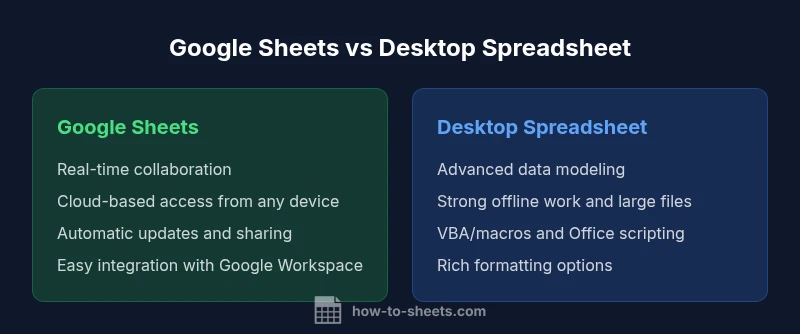
- Real-time collaboration vs file-based edits: Sheets shines when many users edit a single document simultaneously; desktop spreadsheets excel when edits are mostly sequential and offline.
- Cloud accessibility vs offline reliability: Sheets is accessible from any device with internet; desktop spreadsheets rely on local storage and may require syncing workflows for multi-user access.
- Scripting and automation: Sheets relies on Apps Script and Google Workspace integrations; desktop spreadsheets leverage VBA/macros and Office scripting for automation.
- Feature parity and data modeling: Core functions overlap, but advanced data-modeling, pivoting, and large-scale analytics often behave differently across platforms.
- Pricing and licensing: Sheets is free with a Google account or part of Workspace; desktop spreadsheets are typically licensed software with periodic updates.
Collaboration and Accessibility
One of the loudest differentiators in the google sheets vs spreadsheet discussion is collaboration. Google Sheets operates in a cloud environment, which means multiple people can view and edit a document in real time, with changes visible instantly. Comment threads, assignment of tasks, and integrated sharing controls simplify teamwork, especially for distributed teams, students collaborating on coursework, or small businesses coordinating budgets. The cloud-first model also means automatic version history, reducing the pain of lost edits. Desktop spreadsheets, by contrast, rely on file-based workflows. Collaboration often occurs through email attachments, shared network drives, or cloud-sync services. While modern desktop suites offer co-authoring and cloud options, the friction is generally higher than in Sheets. How To Sheets analysis shows that teams prioritizing fast, coordinated input tend to lean toward cloud-based tools, whereas groups with strict control over who can edit and when may favor desktop solutions with defined access policies.
Functions, Formulas, and Automation
Both platforms provide a broad set of functions for everyday analytics, but the scope and approach differ. Google Sheets emphasizes real-time data responsiveness, web-friendly functions, and features like FILTER, IMPORTRANGE, and array-enabled formulas that adapt to changing inputs quickly. Desktop spreadsheets often offer deeper, more mature data modeling capabilities, more robust pivot tables, and extensive macro capabilities (VBA) for automating repetitive tasks. Office scripting and add-ins can extend desktop spreadsheets, while Sheets leverages Apps Script and a growing ecosystem of add-ons. For users who rely on cross-application workflows (e.g., pushing data into a CRM, generating reports, or automating notifications), the integration style—cloud-native versus desktop-centric—drives the best-fit choice. In practice, many professionals maintain both, using Sheets for collaborative workflows and a desktop tool for offline data crunching and complex automation.
Data Capacity, Performance, and Reliability
Data capacity and performance shape long-term viability for either option. Google Sheets scales well for light-to-moderate datasets and collaborative tasks, but performance can be affected by very large spreadsheets or complex network conditions. Desktop spreadsheets are typically optimized for large, intricate datasets and advanced formatting, with performance closely tied to hardware resources. For mission-critical analytics where latency must be minimized, a desktop environment can offer predictable throughput, while Sheets provides resilience through cloud-based backups and multi-region data centers. How To Sheets notes that users should test performance with their typical workloads, especially when formulas reference many external ranges or when automation routines run frequently. The choice often hinges on data size, needed immediacy, and whether collaboration overhead is a factor.
Offline Access and Sync
Offline access is a practical consideration. Google Sheets supports offline editing when enabled, with changes syncing once connectivity returns. This capability is valuable for teams that travel or work in regions with intermittent internet access. Desktop spreadsheets inherently excel at offline work, since the entire environment runs locally and does not depend on internet connectivity for core functionality. The trade-off is that offline work in desktop apps requires explicit sharing or scheduled synchronization if multiple people must access the same data later. For users who require uninterrupted access to critical spreadsheets without relying on cloud services, desktop solutions often offer greater assurance. However, for users who prioritize automatic backups and global access, Sheets’ offline mode remains a compelling feature when configured properly.
Cost, Licensing, and Long-Term Value
Cost structures differ substantially. Google Sheets offers a no-cost option with a Google account and additional features in paid Workspace plans, making it highly attractive for teams on a budget or schools with limited IT resources. Desktop spreadsheets typically require a license or one-time purchase, with ongoing updates sometimes included and other times sold separately; the total cost of ownership can be higher upfront but predictable over time for organizations with established licensing agreements. Long-term value also hinges on the broader ecosystem: Sheets integrates seamlessly with Google Workspace apps and third-party cloud services, while desktop spreadsheets often connect with enterprise suites through interoperability features. How To Sheets emphasizes evaluating total cost of ownership, including training, deployment, and potential productivity gains from automation when choosing between these paths.
Security and Privacy Considerations
Security and privacy are central to the decision. Google Sheets stores data in Google’s cloud infrastructure, with security controls aligned to Google Workspace, including granular sharing settings, access audits, and centralized administration. Desktop spreadsheets typically emphasize local storage with optional encryption, enterprise-grade on-premise deployments, and policy-driven access controls when used inside corporate networks. The choice affects how you manage sensitive information, regulatory compliance, and user access. If your organization requires strict on-site data handling, a desktop solution may be preferable; if you prioritize centralized collaboration and easier governance across teams, cloud-based Sheets can deliver strong security through policy enforcement and cloud-based protections. How To Sheets suggests mapping your data sovereignty, access controls, and audit requirements to the chosen platform.
Decision Guide: When to Choose Each
- Choose Google Sheets when collaboration across teams, remote work, and rapid sharing are priorities. It’s especially effective for project tracking, joint budgeting, and classroom activities that involve multiple editors.
- Choose a Desktop Spreadsheet when data volume, offline reliability, and advanced data modeling are paramount. Power users who rely on complex macros, VBA, or heavy formatting may find desktop tools more efficient for day-to-day work. In practice, many organizations run a hybrid approach: Sheets for collaborative planning and desktop spreadsheets for in-depth analysis exportable to other formats. The decision should reflect your core workflows, the need for synchronization, and how much you value automation and integration with other tools.
Comparison
| Feature | Google Sheets | Desktop Spreadsheet |
|---|---|---|
| Accessibility & Collaboration | Real-time, cloud-based collaboration across devices | File-based collaboration with offline editing when enabled |
| Platform & Availability | Web + mobile apps; no install required | Desktop program with offline access; platform-specific |
| Data Capacity & Performance | Cloud scaling for teams; performance tied to network | Hardware-dependent performance; optimized for large datasets |
| Formulas & Automation | Modern web-oriented functions; Apps Script support | Mature data modeling; VBA/macros and Office scripting |
| Automation & Extensibility | Apps Script and Google Workspace integrations | Macros, add-ins, and Office scripting ecosystem |
| Offline Access | Limited offline editing with caching; sync when online | Robust offline mode; full functionality offline |
| Security & Privacy | Cloud security controls; cloud-based governance | Local or on-premise options with enterprise controls |
| Cost & Licensing | Free option; paid Workspace plans for advanced features | Licensing with periodic updates; upfront cost may apply |
| Best For | Teams needing real-time collaboration and sharing | Power users requiring offline reliability and advanced modeling |
The Good
- Excellent real-time collaboration and sharing
- Easy access from any device with internet
- Strong integration with other Google Workspace tools
- Low upfront cost for teams and individuals
- Automatic updates and centralized version history
The Bad
- Offline functionality can be limited for some workflows
- Performance can degrade with very large, complex sheets
- Advanced data modeling may be stronger in desktop apps
- Some features require paid Workspace plans
Google Sheets is best for collaboration and cloud-based workflows; Desktop spreadsheets excel for offline work and advanced data modeling.
If your team relies on real-time editing and universal access, Sheets is the clear choice. For power users who require offline reliability and deeper data tools, a desktop spreadsheet may be preferable. A hybrid approach often offers the best of both worlds.
FAQ
What is the main difference between Google Sheets and a desktop spreadsheet?
Google Sheets is cloud-based and excels at real-time collaboration, while a desktop spreadsheet is offline-first with powerful local data modeling. The choice depends on whether collaboration or offline capabilities matter more for your workflow.
Google Sheets is cloud-first and great for collaboration; desktop spreadsheets are best for offline work and complex data modeling.
Can I work offline with Google Sheets?
Yes. Google Sheets offers offline editing when enabled, and changes sync when you reconnect to the internet. This makes it viable for travel or areas with unreliable connectivity.
Yes—enable offline mode to edit without internet; changes sync later.
Which tool is better for complex data modeling?
Desktop spreadsheets typically provide deeper data modeling capabilities and mature scripting options. Google Sheets supports modern functions and cloud-based workflows but may require more workarounds for extremely complex models.
Desktop spreadsheets usually lead for complex data work; Sheets handles routine modeling well.
Are formulas compatible across Google Sheets and Excel?
Many core functions overlap, but there are differences in syntax and some advanced functions. Moving a sheet between platforms may require formula adjustments.
Some formulas work on both, but not all; expect adjustments when moving between.
What about cost and licensing?
Google Sheets has a free option with a Google account and paid Workspace plans. Desktop spreadsheets typically require a license or one-time purchase, with ongoing updates depending on the vendor.
Sheets can be free; desktop spreadsheets usually require a license.
Is there a recommended approach for teams deciding between the two?
Consider starting with Sheets for collaborative projects and piloting a desktop spreadsheet for teams with heavy offline needs or complex analytics. A hybrid workflow often provides flexibility and resilience.
Start with Sheets for collaboration; use desktop tools for offline-heavy tasks.
The Essentials
- Evaluate collaboration needs before choosing a tool
- Consider offline requirements for your data tasks
- Test automation capabilities with your typical workflows
- Assess total cost of ownership and long-term value