Habit Tracker in Google Sheets: A Complete Step-by-Step Guide
Learn to build a practical habit tracker in Google Sheets with a solid data model, dashboards, and templates. A step-by-step guide for students, professionals, and small businesses.


You can build a practical habit tracker in Google Sheets that tracks daily progress, shows trends with charts, and helps you stay accountable. Key requirements include a date column, per-habit columns, checkboxes or 0/1 entries, and a dashboard. This guide provides a full setup and a ready-to-use template.
Why a Habit Tracker in Google Sheets Matters
A habit tracker built in Google Sheets gives you a flexible, accessible, and low-cost way to monitor daily routines. For students and professionals juggling schedules, a single spreadsheet becomes a personal dashboard you can customize over time. The habit tracker google sheets concept captures the essence: track, review, and adjust habits using a familiar tool. According to How To Sheets, turning habit data into visual insights increases consistency and accountability. By centralizing dates, activities, and progress in one file, you reduce mental load and avoid bouncing between apps. This approach works offline and online, scales with your needs, and keeps your data under your control. Whether you’re building a morning routine, study habit, or client-delivery habit, a Google Sheets tracker lets you experiment with layouts, formulas, and charts until you find what motivates you most.
Core Features to Include in a Habit Tracker
A well-rounded habit tracker should be practical and scalable. Consider these core features:
- Date grid: A chronological spine to anchor daily entries.
- Habit columns: One column per habit with clear labels.
- Entry type: Checkboxes or 0/1 values to record completion.
- Data validation: Constrain inputs to prevent typos and ensure clean analytics.
- Streaks and totals: Simple formulas to show current streaks and total days completed.
- Dashboards: A summary page with charts and key metrics for quick reviews.
- Data separation: Raw data tab vs. dashboard tab for clarity and reliability.
For users of habit tracker google sheets, these elements create a solid foundation that you can grow over time. By keeping the data model simple at first, you can add more advanced features later without breaking existing sheets. The How To Sheets team recommends starting small and iterating as you learn what motivates you most.
Data Model: Tables, Dates, and Metrics
A clean data model makes it easy to scale and analyze your habits. Start with these table components:
- Raw data sheet: Columns for Date, and each habit (Habit A, Habit B, Habit C, ...).
- Entry cells: Use checkboxes or numeric 0/1 values to mark completed days.
- Metadata: Optional notes, priority, or category for each habit.
- Summary sheet: Aggregated metrics like total completions per habit, current streaks, and average completion rate.
Common formulas include:
- SUM for totals, COUNTIF for conditional counts, and AVERAGE for rates.
- IF with logical tests to translate checkbox states into 1s and 0s.
- Simple conditional formatting to highlight low performance or long streaks.
If you keep the columns consistent, you can reuse formulas across months and even across different habit trackers. The key is to keep dates in a single column and use absolute references where needed to copy formulas across rows.
How To Sheets emphasizes that a reliable data model reduces maintenance effort and makes dashboards much more readable. This approach also makes it easier to export data or adapt to new habits over time.
Design and Layout Principles for Clarity
Clarity is everything when you’re managing multiple habits. Apply these layout principles:
- Separate raw data from dashboards: Use a dedicated tab for data entry and a separate tab for visuals.
- Keep labels concise: Habit names should be short but descriptive to avoid clutter in charts.
- Use consistent formatting: Fonts, colors, and alignment should be uniform to reduce cognitive load.
- Color-code progress: Use a simple color scheme (green for done, red for not done) to convey status at a glance.
- Space for growth: Leave room to add more habits without restructuring the sheet.
Adopting these design principles helps you maintain motivation and reduces the chance of errors when you extend the tracker over weeks or months. As you scale, a clean layout will also make it easier to share with teammates or instructors who may review your progress.
Step-by-Step Overview: Building from Scratch (High-Level)
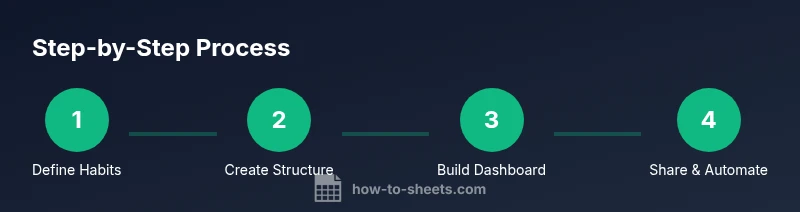
To avoid duplicating the full step-by-step guide, here is a high-level approach you can follow:
- Establish the spine: Create a date column and a row per habit, focusing on a 30-day window to start.
- Implement data capture: Add checkboxes or numeric 0/1 cells for each date-habit intersection.
- Compute essentials: Add totals and streak calculations to reveal patterns at a glance.
- Create a dashboard: Build charts that illustrate completion rate, trend lines, and streaks.
- Add automation later: If needed, connect a Google Form for data entry or script simple updates.
This approach keeps the initial setup approachable while leaving room to add enhancements as you get comfortable with Google Sheets.
Visualization and Dashboards: Turning Data into Insights
Visualizing progress is essential for sustained motivation. Consider a two-page approach: a data tab for raw entries and a dashboard tab for visuals. Key visuals include:
- Progress trend chart: A line chart showing daily completion rate.
- Streak indicators: A bar chart highlighting longest streaks and current streaks.
- Habit-level performance: Small multiples (mini charts) for each habit showing completion over time.
- Summary metrics: Cards that show total days tracked, average completion rate, and last updated date.
Using sparklines next to each habit row can give a quick inline sense of momentum, without creating overwhelming charts. If you share the sheet, ensure permissions are set so contributors can update data without altering formulas.
Sharing, Collaboration, and Privacy Considerations
Google Sheets makes collaboration straightforward. Plan your sharing strategy early:
- Determine access levels: Editor for collaborators who will update data, viewer for stakeholders who only review results.
- Protect sensitive formulas: Lock cells that contain critical calculations to prevent accidental edits.
- Use version history: Regularly name versions (e.g., Habit Tracker Jan 2026) so you can revert if needed.
- Establish data-entry protocols: Define who enters data and when to maintain consistency.
When you follow a clear sharing plan, your habit tracker becomes a trusted tool that supports accountability rather than causing friction. The How To Sheets approach recommends documenting conventions in a separate sheet to guide new users.
Templates, Automation, and Next Steps
Templates accelerate adoption by providing a proven starting point. You can begin with a simple, clean template and customize banners, colors, and habit lists to fit your routine. If you want to automate data entry or expand functionality, consider:
- Google Forms integration: A quick way to input data from a phone or computer without opening the sheet repeatedly.
- Conditional formatting rules: Visual cues that highlight incomplete days or low completion rates.
- Optional automation: Small Apps Script to reset a month, export data, or generate a monthly report.
How To Sheets’ analysis shows that practitioners benefit from templates and dashboards when adopting habit-tracking workflows. Start with a lean template, then iterate with your personal preferences and any feedback from teammates.
Common Pitfalls and Troubleshooting
Even well-planned trackers can hit snags. Watch for these common issues and how to fix them:
- Inconsistent habit naming: Use a fixed list and avoid renaming habits mid-track.
- Missing dates: Ensure the date column is continuous (no gaps) or implement a date generator with a simple formula.
- Overcomplicating the sheet: Start simple; add complexity gradually (streaks, weighted scores, etc.).
- Performance lag: If the sheet gets slow, reduce the number of formulas in each row or move heavy calculations to a separate tab.
By anticipating these pitfalls and keeping the structure straightforward, your habit tracker will stay reliable as you learn more advanced Google Sheets techniques.
Tools & Materials
- Google account with Google Sheets access(Needed to create and save files in Google Drive)
- Google Sheets (web or mobile app)(Ensure access to essential features like Data Validation and Conditional Formatting)
- Prebuilt habit-tracker template (optional)(Can accelerate setup; use if you want a ready-to-populated starting point)
- List of daily habits(If you already have a list, it speeds customization)
- Google Forms (optional for data entry)(Feeds into Sheets for quick data capture on mobile)
- Notebook or notes app for habit definitions(Helpful for planning habit descriptions and rules)
Steps
Estimated time: 60-90 minutes
- 1
Define your habits and time frame
List 5–8 core habits you want to track and decide whether you’ll monitor daily, weekly, or monthly. Clarify what constitutes “completed” for each habit (e.g., water bottle refilled, 10k steps).
Tip: Start small to avoid overwhelm; you can add more habits later as you gain confidence. - 2
Create your sheet structure
Set up a raw data tab with a Date column and one column per habit. Add a second dashboard tab for visuals and summaries.
Tip: Keep raw data separate from the dashboard to protect formulas and keep data clean. - 3
Enter dates and set data validation
Fill the date column with consecutive dates. Use data validation to allow only 0/1 or checked checkbox states for each habit cell.
Tip: Checkboxes are great for quick toggling and copy-pasting across rows. - 4
Set up completion checkboxes or 0/1 values
In each habit column, insert checkboxes or enter 1 for done and 0 for not done. Use simple IF statements to translate states into analytics-ready numbers.
Tip: Use absolute references when copying formulas to new rows to keep references stable. - 5
Compute streaks and totals
Add formulas to calculate total completions per habit and current or longest streaks. Consider a helper column for daily progress.
Tip: Array formulas can simplify repetitive calculations across multiple habits. - 6
Create charts and a dashboard
Add charts (line, bar, or sparkline) to visualize trends, completion rates, and streaks. Build a compact dashboard with key metrics.
Tip: Highlight recent progress with a prominent KPI card on the dashboard. - 7
Share, automate, and maintain
If needed, connect a form for data entry and adjust permissions for collaborators. Regularly review and refine the template.
Tip: Set up version history and document conventions to help teammates follow the system.
FAQ
What is the best way to define habits in Google Sheets?
Define each habit clearly and decide how you’ll measure completion. Use a simple scale (done/not done or 1/0) to keep calculations straightforward.
Clearly define each habit and choose a simple completion metric. This keeps your data clean and analytics meaningful.
Do I need to write scripts or use add-ons?
No scripts are required for a basic tracker. Add-ons or scripts are optional if you want more automation, like auto-resetting a month or sending reminders.
Scripts aren’t required for a basic tracker; you can start with core features and add automation later if needed.
How can I share the habit tracker with teammates?
Share the sheet via Google Drive with appropriate permissions. Use editors for data entry and viewers for review; protect critical formulas.
Share via Google Drive, set permissions carefully, and protect key formulas to keep the tracker reliable.
Can I track streaks across days?
Yes. Use formulas to compute consecutive days of completion for each habit. Highlight current streaks to stay motivated.
You can track streaks with simple formulas and highlight current streaks to stay motivated.
How do I reset the tracker at the start of a new period?
Create a new month tab or duplicate the template, then copy the header and date range. Keep a master raw data sheet for continuity.
To reset, create a new period tab and copy over the structure while preserving your data history.
Watch Video
The Essentials
- Start with 5–8 core habits.
- Structure data with a separate dashboard tab.
- Visualize progress using charts and sparklines.
- Share templates to foster accountability.
- Iterate the template based on feedback.