How to Convert Google Sheets to PDF
Learn how to convert Google Sheets to PDF with precise print settings, layout options, and best practices. This step-by-step guide covers export methods, orientation, scaling, and how to verify your PDF for sharing or printing.


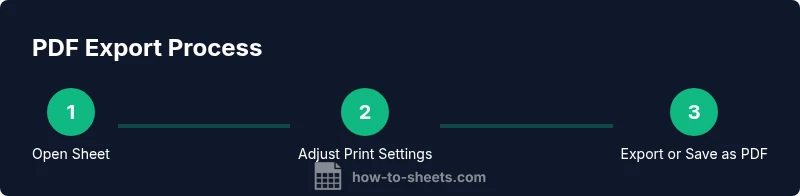
Goal: You will convert a Google Sheets file to a polished PDF for sharing or printing. Directly from Google Sheets, use File > Download > PDF Document (.pdf) or print to PDF via the Print dialog. This quick answer previews the essential steps and options to preserve formatting across devices. Whether you use a desktop browser or the mobile app, you can verify page breaks and scaling.
What you’ll accomplish when you convert Google Sheets to PDF
Converting a Google Sheets file to PDF creates a portable, non-editable version ideal for sharing with teammates, clients, or instructors. The resulting document preserves your layout, including columns, headers, charts, and conditional formatting, so recipients see exactly what you prepared. This section explains typical use cases and what to expect after export, including common formatting constraints and how to verify results across devices and printers. When done well, the PDF mirrors your on-screen sheet and remains readable when printed on standard letter or A4 paper.
Preparing your Google Sheet for a clean PDF export
Before exporting, spend a moment tuning the sheet so the PDF printout is clean and professional. Start by hiding or collapsing any columns that aren’t relevant to the PDF, and consider deleting hidden rows that might still affect layout. Set a clear print area or use the Repeat header rows option so the top row remains visible on each page. If your sheet contains conditional formatting or vibrant colors, test a quick preview to ensure they render consistently in PDF. Finally, decide whether to include gridlines and whether you prefer portrait or landscape orientation.
Export options: Download vs Print
Google Sheets gives you two primary routes to create a PDF: an explicit export and a browser-based print-to-PDF. The export path (File > Download > PDF Document) leverages Sheets’ built-in print engine, letting you adjust scale, margins, and which sheets to include. The print path (Print dialog) relies on your browser’s PDF printer and can be quicker for ad hoc exports. Depending on your device and browser, you may see slightly different controls or previews; choose the option that offers the most reliable layout for your data.
Essential print settings to preserve formatting
The heart of a good PDF export is the print settings. Choose the right orientation (portrait for long lists, landscape for wide spreadsheets), and decide whether to fit to width or use a custom scale. Margins matter: narrow margins save space but can clip data; standard margins improve readability. Decide if you want gridlines, row and column headers repeated on every page, and whether to print the entire workbook or only the active sheet. Use the preview panel to confirm how many pages your data will occupy and where page breaks occur.
Handling charts, multiple sheets, and hidden data
Charts add value but can complicate PDFs if they’re too large or crowded. If your workbook has multiple sheets, choose workbook export to include all sheets, or export a single sheet if that’s your intent. For sheets with hidden data, double-check that hidden columns aren’t still affecting the layout. If a chart is cropped, try resizing or moving it within the sheet before exporting. Finally, consider exporting in two passes: one PDF for charts and a separate one for tables if clarity suffers in a single document.
Final checks and best practices
After exporting, open the PDF on a different device or PDF viewer to confirm fonts, spacing, and page breaks remain consistent. Check that headers repeat correctly, that charts render, and that no important data is truncated at margins. Save a copy of the template you used for future exports and note which options gave the best balance of readability and file size. As you gain experience, you’ll identify quick defaults (orientation, scale, and whether to print gridlines) that consistently produce professional PDFs.
Tools & Materials
- Google Sheets account(Must be accessible and have the target sheet ready)
- Web browser (Chrome recommended)(Ensure you can access File menu and print dialog)
- PDF viewer or printer access(To verify the final PDF on screen or print)
- Printed output or worksheet data (optional)(Use for side-by-side comparison with the PDF)
Steps
Estimated time: 15-25 minutes
- 1
Open your Google Sheets file
Navigate to Google Sheets and open the exact workbook and sheet you want to export. Verify that all necessary data is visible and that any hidden rows you plan to include are unhidden. Confirm the correct print area by quickly scrolling through the relevant pages in Preview.
Tip: Double-check the data range before exporting to avoid missing information. - 2
Preview print settings
Open the Print preview from the File > Print (or use Ctrl/Cmd+P) to see how the sheet will render as a PDF. Inspect margins, orientation, and whether gridlines or header rows will appear in the final document.
Tip: Use the Turn on gridlines option if you rely on grid clarity for readability. - 3
Choose the export method
Decide between File > Download > PDF Document and the browser’s Print dialog. The former uses Sheets’ controls for consistent layout; the latter may be faster for quick exports but relies on the browser’s PDF rendering.
Tip: If you expect frequent exports, set a preferred method for consistency. - 4
Adjust layout options
In the export dialog, set orientation (portrait/landscape), scale (fit to page or custom), and margins. Decide whether to print the entire workbook or only the active sheet, and whether to repeat header rows across pages.
Tip: Use 100% scale to preserve legibility unless data requires compacting. - 5
Review charts and data visibility
If your sheet includes charts, ensure they are fully visible and not cropped. Check that hidden columns don’t affect the layout. Consider exporting in two passes if charts and tables require different emphasis.
Tip: Resize large charts to fit within page bounds before exporting. - 6
Export and verify
Export the PDF and open it in a viewer to verify fonts, spacing, and page breaks. Test on another device if possible to ensure readability and consistency.
Tip: Keep a copy of the export settings that produced the best result for future use.
FAQ
Can I export multiple sheets to a single PDF?
Yes, you can export all sheets by choosing the workbook option in the print settings or export dialog, depending on your browser. This yields a multi-sheet PDF.
Yes, choose workbook to include all sheets.
How can I preserve gridlines in the PDF?
Enable gridlines in the print settings before exporting. If you use the browser print dialog, ensure gridlines are selected there as well.
Enable gridlines in print settings.
What should I do if charts get cropped in the PDF?
Increase the page size, adjust orientation, or reduce scaling so charts fit within page boundaries.
Resize or adjust scaling to fit charts.
Is there a way to repeat header rows on every page?
Yes, set Print titles to repeat the header rows on each page to improve readability.
Repeat header rows on all pages.
Why does the PDF look different on another device?
Fonts and viewer rendering can vary. Use standard fonts and verify across devices to minimize differences.
Font differences across devices can cause variation.
Watch Video
The Essentials
- Plan print area before export
- Choose workbook vs current sheet to suit data
- Always test the PDF on multiple devices
- Review layout options (orientation, scale, margins)
- Verify charts render correctly