How to Insert a Page Break in Google Sheets: A Step-by-Step Guide
Learn how to insert a page break in Google Sheets with practical, step-by-step instructions for manual and print-area breaks, plus tips and troubleshooting.


In this guide you’ll learn how to insert a page break in Google Sheets to control printing and layout. You’ll discover when to use manual page breaks versus automatic breaks, what you’ll need, and the exact steps to place breaks accurately. By the end, you’ll be able to define where pages begin and end in print previews for clean, professional results. how to insert a page break in google sheets
Why page breaks matter in Google Sheets
When you prepare data for printing or exporting to PDF, page breaks control where one page ends and the next begins. For students, professionals, and small business owners, consistent page breaks help ensure headings appear on every page and avoid orphaned data. In Google Sheets, you influence page breaks during the Print preview, not in the standard grid view. By planning where pages start, you can prevent incomplete rows at the bottom of a page and reduce the need for reprints. According to How To Sheets, clear page breaks are a small, high-impact improvement for professional documents. This is especially useful when you publish monthly budgets, sales reports, or client rosters. You can either place manual breaks to fix a specific division or rely on automatic breaks that adapt to your chosen scale. If you want to know how to insert a page break in google sheets, this guide will walk you through the exact steps and best practices.
Page breaks vs print area vs scaling in Google Sheets
Understanding the distinction among page breaks, print areas, and scaling helps you predict how your sheet will look on paper or PDF. A page break is a hard boundary that starts a new page in print preview. A print area defines the cells that will be included in the print job. Scaling adjusts how content fits on each page (for example, Fit to width or Fit to page). How To Sheets emphasizes using page breaks when content is critical to stay with headings on each page, while using print area and scaling for general readability. In many cases you’ll combine these features: set a clean print area, then place manual breaks to keep key rows or columns together. You’ll often see the best results by balancing readability with the number of pages, so your readers don’t flip through too many sheets.
The printing workflow in Google Sheets
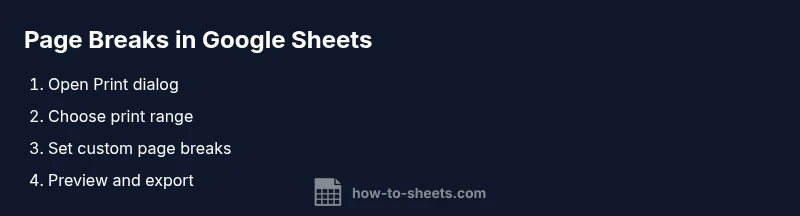
Printing from Google Sheets is a preview-driven process. To access it, open your spreadsheet and press File > Print, or use the keyboard shortcut for your device (Ctrl+P on Windows/Linux, Command+P on Mac). The Print Preview panel appears on the right, showing how your sheet will look on pages. From here you can choose the print range (current sheet, selected cells, or a custom range), orientation (portrait or landscape), and whether to include gridlines or notes. The critical option for page breaks is the ability to set custom page breaks during this preview. This is where you’ll decide how many rows and columns appear on each page and how many pages your print will require. If you’re unsure, start with a simple print area and refine as you go. How To Sheets notes that iteration is common: adjust the breaks, preview, then adjust again until you’re satisfied with the layout.
Inserting a manual page break in Google Sheets
A manual page break is created by dragging the blue lines in the Set custom page breaks view within the Print Preview. First, open Print (File > Print). Then, in the right-hand panel, select Set custom page breaks. You’ll see a grid with blue lines: drag a line to place a break between rows or between columns. You can add multiple breaks to shape the print layout precisely. If you move a break, the preview updates instantly so you can confirm the result. Remember to check both horizontal and vertical breaks if your data spans several pages. Tip: keep critical headings on the first row of each page, so readers always know what data they’re viewing as pages advance.
Using print area and scaling to control page breaks
Beyond manual breaks, you can influence page breaks by using a defined print area and scaling options. In Print Preview, choose the print area by selecting the cells you want printed, then set the breaks. You can also use the Scale settings (Fit to width, Fit to height, or custom scaling) to adjust how many pages your data will occupy. If content is dense, consider increasing margins slightly or switching to landscape orientation to fit more information on a single page. How To Sheets suggests testing different combinations to find the balance between readability and the number of pages. A well-chosen print area plus well-placed breaks reduces waste and improves readability for reports and client documents.
Practical examples of page breaks in common sheets
Example 1: A quarterly sales report using a wide table with headers. Place a horizontal page break after each region so that each region starts on a fresh page; keep the header row visible on every page. Example 2: A budget tracker with multiple summary sections. Use vertical breaks to separate sections (Header, Income, Expenses, Summary) so cross-references stay clean. Example 3: A roster or attendance sheet. Place breaks to ensure each page includes the header and a complete week’s worth of rows, preventing mid-page splits. The key is to align breaks with logical data groupings and keep critical information together on each page.
Troubleshooting common issues and tips
If page breaks don’t appear as expected in print preview, verify you’re in Print Preview mode and that you have the correct print range selected. Sometimes a wide sheet will require extra horizontal breaks or a switch to landscape orientation. If you accidentally delete a break, simply re-enter Set custom page breaks and reposition. Preview often, especially after making structural changes like adding new rows or columns. Finally, save your preferred layout as a template or note the break positions so you can reuse them in similar sheets. How To Sheets’s guidance emphasizes starting with a simple layout and iterating toward your ideal print setup.
Authority sources
For further reading on print layouts and official guidelines, see sources like Google Docs Editors Help and recognized educational publications. These references provide foundational guidance on printing, page setup, and layout best practices that complement the practical steps shown here.
Tools & Materials
- Google account with access to Google Sheets(Ensure you have editing rights to the target file.)
- Device with internet access(Laptop or desktop recommended for easier control of print preview.)
- Spreadsheet prepared for printing(Have data arranged in a printable format with desired rows/columns visible.)
- Printer or PDF printer(Optional if you plan to print or save as PDF.)
- Web browser with Google Sheets access(Chrome is recommended for best Print Preview experience.)
Steps
Estimated time: Estimated total time: 10-15 minutes
- 1
Open your spreadsheet
Open the Google Sheet you want to print and verify the data you intend to include in the printout. If necessary, adjust column widths and row heights to improve readability before printing.
Tip: Do a quick visual scan to confirm headers and totals appear where you expect. - 2
Access the Print dialog
Go to File > Print or press the platform-specific shortcut. This opens the Print Preview panel where you can configure print options and sheet layout.
Tip: If you’re working on a multi-sheet document, decide whether to print the current sheet or entire workbook. - 3
Choose the print range and layout
In the Print Preview, select the print range (current sheet, specific cells, or a custom range) and set orientation (portrait or landscape) as needed. This step defines the basic bounds before adding breaks.
Tip: Start with a simple range to avoid overcomplicating the first draft. - 4
Set custom page breaks
Click Set custom page breaks. Blue lines appear on the grid; drag these lines to insert horizontal or vertical breaks between rows or columns. Place breaks where data naturally concludes on a page.
Tip: Place breaks after complete sections, not in the middle of a header row. - 5
Adjust scale and margins
Use Scale to fit options or adjust margins to improve fit. If the data is too cramped, try Landscape orientation or reducing font size slightly, then re-check the preview.
Tip: Small adjustments can dramatically improve readability without adding pages. - 6
Preview and refine
Review the print preview carefully. Move breaks, tweak the print area, and re-preview until the pages present data cleanly and legibly.
Tip: Preview on a test print or Save as PDF to verify results outside the editing environment. - 7
Print or export
Once satisfied, click Next to print or Save as PDF. If you print often, note the page break setup to reuse in future sheets.
Tip: Consider saving the layout as a template for recurring reports. - 8
Document the layout
Document the break positions and settings in a brief note within the sheet or a separate document for future reference.
Tip: Maintaining a layout note saves time when data changes later.
FAQ
What is the difference between a page break and a print area in Google Sheets?
A page break defines where a new page starts in the printed output, while a print area specifies the exact cells to include in the print job. Using both together gives you precise control over what prints and where pages begin.
A page break marks the page boundary, and a print area controls which cells print.
Can page breaks be automatic in Google Sheets?
Yes. Google Sheets can create automatic page breaks based on your print settings and scaling. You can also add manual breaks for more precise control when needed.
Yes, automatic breaks can happen, and you can add manual ones if you want exact control.
Will page breaks persist if I share the sheet?
Print settings are local to your view. Others may have different page breaks unless they apply the same settings on their side.
Print layouts don’t automatically transfer with a share; each user sets their own.
How do I print to PDF with page breaks?
In the Print dialog, select the desired print range and choose Save as PDF as the destination. Page breaks defined in the preview will be preserved in the PDF.
Print to PDF by choosing Save as PDF in the dialog and keep your breaks.
Why don’t page breaks appear in print preview?
This can happen if no print area is defined or if scale settings compress content too much. Reopen Print Preview, define a print area, and adjust the breaks again.
If you don’t see breaks, recheck the print area and scaling.
Is there a keyboard shortcut to insert a page break?
There is no dedicated keyboard shortcut for inserting a page break. Use the Print dialog and Set custom page breaks to place them.
No direct shortcut; use the Print dialog to set breaks.
Watch Video
The Essentials
- Know when to use manual page breaks.
- Preview print layouts before finalizing.
- Use 'Set custom page breaks' for precise control.
- Keep headings visible on every page.