Print Area in Google Sheets: Practical Step-by-Step Guide
Learn how to print a specific area in Google Sheets by selecting cells, choosing "Selected cells" in Print, and adjusting layout. This step-by-step guide covers tips, examples, and troubleshooting.


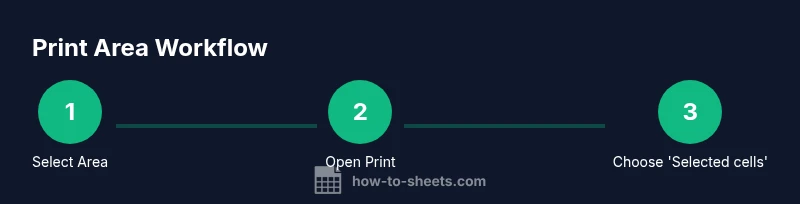
To print the print area in google sheets, start by selecting the cells you want, then go to File > Print and choose 'Selected cells' in the Print settings. This confines output to your chosen range. You can further tweak layout options like orientation, scale, and margins before you hit Print or Save as PDF.
What print area means in Google Sheets
In Google Sheets there isn't a fixed 'print area' name like in some desktop spreadsheets. Instead you control what prints by selecting the region you want and by choosing the appropriate print setting. The term print area here refers to the subset of your sheet that you'll send to the printer or to PDF. Being intentional about what you include helps keep pages clean, accurate, and focused on the data that matters. When you print a defined area, you avoid printing entire tables or hidden sections by accident. As you work with budgets, schedules, or analysis sheets, defining a print area becomes a powerful habit. According to How To Sheets, adopting precise print areas can save time and paper across teams. This is especially valuable for sharing data with stakeholders who don't need the full workbook.
How Google Sheets handles printing: options and limitations
Google Sheets provides a straightforward print workflow with a few knobs to tune: print scope (current sheet, selected cells, or entire workbook), orientation (portrait or landscape), scale, margins, and whether to print gridlines or notes. One key nuance is that Google Sheets determines the print area at print time based on your selection and the print option you choose. If you have multiple sheets containing related data, you can print them separately to keep outputs focused. As you gain experience, you’ll start predicting how much content fits on each page and adjust settings accordingly.
Practical approach: selecting your area and printing
The most reliable way to define a print area is to actively select the region you want before printing. This approach gives you full control over what makes it to the page. After selecting, open the Print dialog, switch the scope to 'Selected cells', and verify how many pages will print. If needed, adjust the scale or margins to ensure the data fits nicely. This technique is especially useful for sharing short data extracts from a larger dataset without exposing irrelevant rows or columns.
Best practices for clean printouts
To produce clean, professional prints in Google Sheets, apply a few best practices consistently. Maintain consistent fonts and font sizes across the selected area, enable gridlines only if they aid readability, and consider repeating header rows if your print spans multiple pages. Use the fit-to-page or custom scaling options to keep your data legible, and name your file with the sheet name and date for easy retrieval. Remember to check the preview before printing or exporting to PDF to catch misalignments early.
Troubleshooting common issues
If the printout looks off, it’s usually due to how the area is sized or how scaling is applied. Common fixes include adjusting orientation to better suit the data layout, toggling gridlines or notes, and tweaking margins to avoid clipping. If you’re exporting as PDF, verify that the page size matches your printer settings. For complex sheets, consider printing in chunks (one section per page) to preserve readability and avoid splitting important data awkwardly.
Real-world examples: budgeting and project trackers
In a budgeting sheet, define a narrow print area containing only the monthly rows and essential columns (category, amount, and total). For a project tracker, print a compact view that shows tasks, owners, due dates, and status, excluding backlog columns. These targeted printouts simplify stakeholder review and keep reports succinct. By consistently applying the same print-area discipline, you’ll reduce back-and-forth and ensure your printed reports align with your data visualizations.
Tools & Materials
- Computer with internet access(Any modern browser to access Google Sheets)
- Google account(To access Sheets and printing options)
- Open Google Sheets document(The file containing the data you want to print)
- Printer or PDF export option(Physical printer or Save as PDF for digital sharing)
- Sample data for practice(Optional data to test print area workflows)
- Print settings cheat sheet(Optional reference for layout options)
Steps
Estimated time: 5-12 minutes
- 1
Select the area to print
Open your Google Sheet and drag to highlight the exact cells you intend to print. This selection defines the print area. Ensure headers are included if needed for clarity.
Tip: Use Ctrl/Cmd-click to extend your selection non-contiguously. - 2
Open the Print dialog
Go to File > Print or press Ctrl/Cmd+P to open the print preview. This shows how your selection will appear on pages.
Tip: If the preview looks off, return to the sheet and adjust the area before proceeding. - 3
Choose 'Selected cells'
In the print settings panel, pick 'Selected cells' to apply your area. This locks the print scope to your current selection.
Tip: If 'Selected cells' isn’t visible, reselect the area and reopen Print. - 4
Adjust layout
Set orientation, scale, and margins to fit your area on pages. Use 'Fit to width' or a custom scale to optimize readability.
Tip: Preview frequently; a small adjustment can save another page. - 5
Preview and fine-tune
Check how many pages will print and tweak settings accordingly. Toggle gridlines or notes if they help or hinder readability.
Tip: Enable 'Repeat frozen rows' if your sheet contains headers spanning multiple pages. - 6
Print or export
Click Print to send to a printer or select 'Save as PDF' for digital sharing. Name the file clearly and save in a logical folder.
Tip: For frequent reports, save the print settings as a template if your browser supports it.
FAQ
How do I print only part of a sheet in Google Sheets?
Select the specific cells you want to print, open the Print dialog, and choose 'Selected cells' as the print scope. This keeps the output limited to your chosen area.
Select the area, open Print, and pick Selected cells to print only that portion.
Can I reuse a print area across multiple sheets?
Google Sheets prints based on the current selection and settings. Save a consistent area by repeating the same selection, or use a template workflow before each print.
Set the same selection each time and reuse the same print settings for consistency.
Will formulas in the selected area print as formulas or values?
Printed output shows the results as displayed in the sheet; formulas print as their resultant values, not the underlying formulas.
You’ll see the results, not the formulas, in the printed output.
How do I print gridlines?
Toggle the gridlines option in the print preview depending on whether you want the cell borders shown on paper or PDF.
Turn gridlines on or off in the print preview to suit your layout.
Can I print multiple ranges at once?
Google Sheets prints a single area per print job. To print multiple ranges, perform separate print jobs for each area or combine them into a single area if feasible.
You’ll need separate prints for separate areas, unless you merge them into one range.
Is there a way to save my print settings?
You can reuse the same steps for future prints and, depending on your browser, you may be able to bookmark the print dialog state or create a template workflow.
Save or bookmark your steps to reuse the same print setup.
Watch Video
The Essentials
- Define print area by selecting cells
- Use 'Selected cells' in Print settings
- Adjust orientation and scale for fit
- Preview, then print or export