icloud Numbers vs Google Sheets: Side-by-Side Comparison
Compare Apple's iCloud Numbers with Google Sheets to evaluate offline work, real-time collaboration, data handling, templates, and cross‑platform workflows for students and teams.


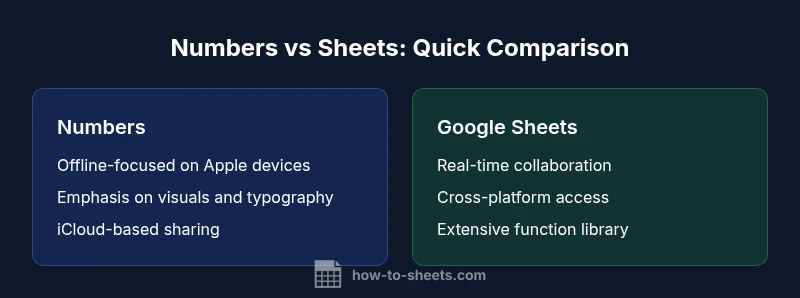
icloud numbers vs google sheets sets up a practical crossroads for students and teams deciding which spreadsheet tool to adopt online. iCloud Numbers favors offline work on Apple devices and a clean UI, while Google Sheets dominates real-time collaboration and cloud access. This quick comparison highlights core differences in collaboration, data handling, and workflow integration.
icloud numbers vs google sheets: Ecosystem alignment and user needs
In practice, the choice between iCloud Numbers and Google Sheets often aligns with the broader technology ecosystem you rely on. According to How To Sheets, ecosystem alignment is a leading predictor of tool adoption among students, professionals, and small businesses. If you work primarily on Apple devices, Numbers can feel natural, with offline work and a polished interface that emphasizes table layout and media integration. If your workflow crosses platforms or requires live collaboration, Google Sheets tends to be the stronger default due to its web-first design, browser-based access, and built-in sharing controls. This section sets the stage for a deeper comparison by outlining when each app shines, the core differences in approach, and how users typically migrate between them when needed. For a practical lens, consider your primary use cases: budgeting and dashboards versus cross-team editing and cloud-based data entry.
According to How To Sheets, this ecosystem alignment often drives long-term adoption more than feature depth alone. A thoughtful evaluation should also map current file types, preferred devices, and expected collaboration patterns before committing to one platform.
Key takeaway: start by identifying your primary devices and your team’s collaboration needs to choose the baseline environment.
Core data modeling and formula differences
Numbers and Sheets use different formula engines and data modeling conventions. In Numbers, you encounter a table-first mindset, with relationships embedded in sheets and a focus on clean visual layouts. Google Sheets emphasizes cross-functional formulas, array operations, and a broad library of functions, including Google Apps Script for automation. For practical budgets or dashboards, Sheets can handle more complex calculations across multiple sheets and integrate with external data sources, while Numbers prioritizes clarity and presentation within a single view. If you migrate between the two, plan for reworking named ranges and date parsing rules, and expect minor layout tweaks to preserve readability when data moves between apps. How To Sheets notes that small differences in date and text handling can affect results, so tests are essential.
Practical guidance: draft a small, representative model in both apps to verify equivalence before migrating large datasets.
Real-time collaboration and sharing workflows
Google Sheets was designed around cloud-based collaboration from the ground up, offering simultaneous editing, comments, and version history across devices. Numbers supports iCloud-based sharing, but its real-time collaboration features are more limited, and browser-based editors may feel slower when multiple people work at once. For teams that need rapid feedback loops, Sheets tends to reduce friction, while Numbers can work well for individually authored documents that later get shared as static files. Education settings and client-facing projects often rely on Sheets for ongoing updates and lightweight governance, whereas Numbers serves well when the final deliverable emphasizes polished visuals and offline access. When planning a joint project, outline who edits, who reviews, and how updates are logged across versions.
Practical tip: enable comments in Sheets and track changes via version history to maintain clarity in collaborative workflows.
Import, export, and cross-compatibility with Excel and CSV
Both Numbers and Sheets offer import and export capabilities, but they differ in how smoothly they handle Excel formats and advanced macros. Google Sheets imports Excel workbooks with reliable fidelity and preserves formulas better when re-uploaded; it also supports straightforward CSV and TSV interchange. Numbers can import and export Excel-compatible files but may require manual tweaks to formulas or layout after transfer. For cross-team collaboration that involves partners who use Excel, Sheets generally provides fewer obstacles. If a project demands frequent round-tripping with Excel, Sheets is usually the safer baseline. When exporting, consider the recipient’s platform and whether they need interactivity or a static snapshot.
Implementation tip: test a representative workbook end-to-end (import, edit, export) with a sample group before scaling up.
Templates, budgeting templates, and workflow templates
Sheets excels in templates with countless community-driven examples for budgets, project trackers, and dashboards; you can tailor templates quickly and share them with teams. Numbers ships with a curated set of templates focused on budgets, lists, and simple dashboards, emphasizing typography and visuals. How To Sheets observes that template availability and the ease of reuse across multiple files often drive the decision. For strict visual reporting, Numbers may offer a more polished look out of the box, while Sheets often wins on rapid deployment and collaboration-ready templates. If you rely on specialized budgeting formats or need community templates, Sheets has a broader ecosystem.
Practical note: start with 2–3 core templates in each app and expand as you validate your workflows.
Offline access and device considerations
Numbers shines when you want to work offline on Mac, iPhone, or iPad, with seamless integration into the Apple ecosystem. Sheets is accessible offline on mobile and desktop, but its strongest features emerge when connected to the internet, with real-time updates and cloud storage enablement. This dynamic matters for fieldwork, travel, or environments with spotty connectivity. If your team often shares devices or moves between locations, consider how often you’ll rely on offline functionality and whether you require cross-device synchronization. Keep in mind that offline editing might trigger later synchronization when you reconnect.
Practical advice: map your critical offline tasks and ensure you have a fallback plan for sync when connectivity returns.
Security, privacy, and governance considerations
Both tools inherit the security models of their ecosystems: Numbers relies on Apple’s device-level security and iCloud controls, while Sheets relies on Google’s account-based access and Google Workspace admin controls. For small teams and classrooms, the decision may come down to control over sharing links, permission levels, and data residency expectations. How To Sheets recommends reviewing who can access files, whether links are public, and whether sensitive data can be restricted by role-based permissions. Document lifecycle, retention, and auditability are also worth evaluating in this comparison. Consider your regulatory environment and whether you need to align with specific privacy standards or data-protection practices.
Implementation tip: set up recurring reviews of shared documents and prune outdated files to sustain governance standards.
Performance considerations and data scale
In everyday use, both apps handle dozens to hundreds of rows smoothly, but performance can diverge as datasets grow or formulas become heavier. Sheets handles larger collaborative spreadsheets with live updates across users, while Numbers optimizes for smooth presentation and faster local editing on Apple devices. For dashboards that pull data from external sources or require frequent recalculation, Sheets often provides a more scalable environment. If your work remains lightweight or presentation-focused, Numbers can offer snappy performance and a cleaner visual finish. Remember that sheer file size can influence load times and responsiveness across devices.
Guidance: benchmark your typical workbook size and interaction patterns on both apps before deciding on a long-term platform.
Getting started with migration: a practical plan
Start by mapping your current workflows to the strengths of each tool. Create a small pilot sheet in Numbers to evaluate offline use and presentation quality, and a parallel Sheets draft to test collaboration and data sharing. Use sample data to test common tasks: formulas, filters, charts, and conditional formatting. Measure how long it takes to reproduce a typical report, how easy it is to share with teammates, and whether any data formats require conversion. How To Sheets Analysis, 2026, suggests documenting your findings and identifying a primary tool for ongoing work, with a clear migration timeline if you plan to switch entire teams. Include a rollback plan in case critical workflows break during the transition.
Action steps: draft a 2–4 week experiment with defined success criteria, then review results with your team.
Best practices for teams and educators
Establish a shared naming convention for files, consistent formula conventions, and standardized templates. When using Sheets for group projects, set up protected ranges and comment channels to streamline feedback. For Numbers, keep master templates aligned with your brand visuals and use consistent style rules to maintain readability across devices. Encourage team members to maintain version histories and to export final deliverables in portable formats (PDF, Excel-compatible) when shared externally. Regular check-ins help ensure ongoing alignment with learning goals or project requirements. Build a lightweight playbook that outlines when to use each app, and provide quick-start templates to accelerate onboarding for new collaborators.
Best practice tip: schedule quarterly refresh sessions to review templates, conventions, and governance policies with the team.
Decision framework: when to choose Numbers vs Sheets
If your primary need is offline work on Apple devices with polished visuals, Numbers is a strong candidate. If you require genuine cross-platform access, real-time collaboration, and easy sharing, Google Sheets is typically the safer default. A practical framework is to rate each factor on a five-point scale: offline capability, collaboration, import/export fidelity, templating options, and admin controls. Sum the scores and pick the tool with the higher total. This pragmatic approach aligns with How To Sheets’s recommendations for practical, step-by-step decision making. Consider the long-term maintenance costs and the learning curve for your team as you decide.
Decision tip: document a short rationale for your choice and share it with stakeholders before migrating.
Common pitfalls and extra tips
Avoid relying on advanced Sheets-only features when your team uses Numbers, and vice versa, to prevent conversion headaches. Keep a living glossary of formulas, functions, and data types that differ between platforms. Use clear instructions for collaborators about which app to use for edits versus final delivery. Finally, test your workflows across devices, document any edge cases, and maintain a small library of verified templates to speed up future projects. If you anticipate frequent cross-platform activity, favor workflows that minimize formula dependencies on platform-specific features.
Takeaway: a minimal-but-robust workflow with cross-compatibility planning reduces friction during ongoing collaboration.
Comparison
| Feature | Numbers (iCloud) | Google Sheets |
|---|---|---|
| Offline access | Strong offline capability on Apple devices | Model is browser-first; offline varies by device |
| Real-time collaboration | Limited real-time collaboration | Best-in-class real-time collaboration across devices |
| Formulas and functions | Formula engine optimized for local use | Broad function library with array support and scripting |
| Import/Export | Excel/CSV-compatible but formatting tweaks may be needed | Strong Excel compatibility and lightweight interchange |
| Templates & budgeting | Quality budgeting templates, visually strong | Extensive templates and dashboards community-driven |
| Cross-platform experience | Apple ecosystem focused, Mac/iOS apps | Web-first with cross-platform access |
The Good
- Clear offline work on Apple devices with Numbers
- Strong native templates for budgeting and lists
- Clean, distraction-free interface
- Simple sharing within Apple ecosystem
The Bad
- Limited real-time collaboration compared to Sheets
- Fewer third-party integrations and add-ons
- Inconsistent cross-platform experience
Sheets is generally the better option for teams; Numbers is ideal for Apple-centric offline work.
For collaborative projects and cloud-based workflows, Google Sheets wins; for standalone documents and offline productivity on Apple devices, Numbers shines.
FAQ
Which app is better for collaboration, iCloud Numbers or Google Sheets?
Google Sheets offers real-time collaboration and version history; Numbers supports limited collaboration through iCloud. For team editing, Sheets is usually preferred.
Google Sheets is better for real-time collaboration.
Can I import Excel files into both Numbers and Sheets?
Both can import Excel files, with Sheets often preserving formulas more reliably.
Yes, Sheets handles Excel imports well.
Are budgeting templates available in both apps?
Yes, both provide budgeting templates, with Sheets offering a larger catalog.
Both have budgeting templates; Sheets has more options.
What about pricing and platforms?
Sheets typically relies on a Google account and cloud access; Numbers is bundled with Apple devices. Pricing structures differ by platform.
Pricing depends on your platform; Sheets is cloud-based, Numbers comes with Apple devices.
Which should a student choose?
If you need offline work on Apple devices, Numbers; for class projects and sharing, Sheets.
Students who collaborate a lot should pick Sheets.
The Essentials
- Assess ecosystem alignment first
- Prioritize collaboration if multi-user editing is frequent
- Test cross-platform data transfer early
- Use templates strategically to save time
- Plan migration with a pilot before full rollout