reddit google sheets vs excel — a practical comparison for 2026
A practical, evidence-based comparison of Google Sheets and Microsoft Excel, focusing on collaboration, automation, data handling, and platform considerations in 2026.


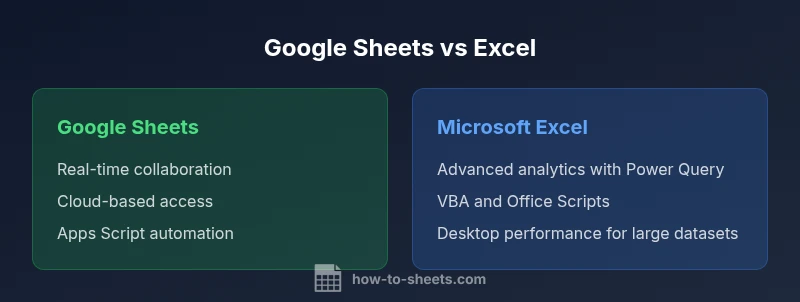
reddit google sheets vs excel: Google Sheets shines for real-time collaboration and cloud access, while Excel dominates with advanced analytics and large data handling. If your team works across devices and needs fast sharing, Sheets is ideal; for complex modeling and offline work, Excel remains the top choice.
Reddit's practical lens on reddit google sheets vs excel
Reddit discussions often surface a simple truth: there is no one-size-fits-all tool. According to How To Sheets, the core distinction is that Google Sheets prioritizes collaboration and cloud access, while Excel emphasizes deeper analytics and data modeling. The How To Sheets team found that successful tool selection hinges on your workflow, data scale, and licensing. The community frequently highlights how Sheets enables effortless sharing and simultaneous editing, while Excel is praised for its depth in analytics and its mature data-modeling capabilities. This article distills those conversations into practical guidance you can apply in a real project. The goal is to help students, professionals, and small business owners pick the right tool to match their specific workflows without getting lost in hype or vendor claims.
Core differentiators at a glance
- Collaboration and access: Sheets offers seamless real-time collaboration across devices; Excel delivers strong co-authoring and offline capabilities in the desktop app.
- Analytics depth: Excel provides advanced analytics, Power Query, and Power Pivot; Sheets shines in rapid prototyping and lightweight modeling with Apps Script extensions.
- Automation: Apps Script powers a broad automation ecosystem in Sheets; Excel utilizes VBA and Office Scripts for automation in a feature-rich desktop environment.
- Cost and licensing: Sheets is free with a Google account; Excel typically requires a licensed Office suite or subscription, depending on the plan.
- Interoperability: Both support common formats like CSV and XLSX, but retention of complex formatting may vary during transfers.
Compatibility of formulas and functions
A core consideration is the function library and syntax that analysts rely on daily. Google Sheets covers a broad set of functions, and it emphasizes array formulas and dynamic ranges. Excel offers a more extensive and traditional function catalog, complemented by VBA and advanced data modeling with Power Query. For teams that share workflows with external partners who rely on Excel formulas, expect some adjustments when porting work between platforms.
Collaboration and real-time editing
Google Sheets was built for cloud-native collaboration, allowing multiple users to edit simultaneously, visualize changes in real-time, and comment inline. This is invaluable for student groups, project teams, and client-facing dashboards. Excel Online adds co-authoring features, but the desktop-focused workflow remains more common among power users. The choice often comes down to whether your primary need is live teamwork or offline, feature-rich analysis.
Automation and scripting ecosystems
Sheets leverages Apps Script to automate repetitive tasks, trigger actions on edits, and connect with other Google services. This makes it easy to implement lightweight workflows without installing anything. Excel provides VBA for long-standing automation needs and Office Scripts for cloud automation, plus powerful integrations via Power Automate. The scripting ecosystems address different priorities: ease of use and rapid deployment in Sheets; depth and enterprise-grade automation in Excel.
Data capacity, performance, and reliability
For everyday data tasks, both tools offer solid performance, but their architectures influence behavior as datasets grow. Google Sheets runs in a browser and benefits from cloud-based storage, with performance tied to network reliability and device capabilities. Excel, especially in desktop deployments, can handle large datasets with robust performance, and relies less on internet connectivity. Consider your typical dataset size and whether you prioritize access on multiple devices or raw processing power.
Offline access and multi-device workflows
If you frequently work offline or on devices with limited connectivity, Excel’s desktop experience provides a reliable offline workflow with powerful features. Google Sheets supports offline mode as well, synced when you reconnect to the internet. The decision may hinge on how often you need uninterrupted work in travel or environments with spotty connectivity.
Import/export, file interoperability, and migration
CSV and XLSX are universally supported formats, but conversion quirks can occur. Google Sheets tends to preserve simple formats well, while complex Excel features such as macros or advanced formatting may not translate perfectly. When moving data or templates between platforms, test critical parts of your pipeline—especially formulas, conditional formatting, and data connections.
Pricing, licensing, and platform availability
Google Sheets offers broad accessibility through a browser-based interface with no extra software cost for typical use. Excel sits behind licensing, which can vary by plan and organization, influencing total cost over time. For teams evaluating cost of ownership, consider not just software price but the value of collaboration features, security controls, and IT overhead associated with deployment.
Migration tips and practical workflow design
If you’re transitioning from one tool to the other, plan a staged approach: map essential formulas, identify data connections, and document changes for team buy-in. Design templates with cross-platform compatibility in mind, avoiding platform-specific features where possible. A pragmatic approach emphasizes testing on representative tasks and maintaining a clear rollback plan.
Practical decision framework by user type
- Students and small businesses: prioritize cost, ease of sharing, and quick setup. Google Sheets often fits these needs best.
- Professionals and data analysts: lean toward Excel for advanced analytics, data modeling, and automation capabilities. A hybrid approach is common in larger teams, using Sheets for collaboration and Excel for deep analytics.
Comparison
| Feature | Google Sheets | Microsoft Excel |
|---|---|---|
| Collaboration and real-time editing | Excellent real-time collaboration in Sheets | Co-authoring in Excel Online with shared workbooks; desktop Excel supports collaboration via OneDrive |
| Formula and function depth | Rich set of functions including array formulas; Apps Script integration | Extensive function library; VBA and Power Pivot; robust data modeling |
| Automation and scripting | Apps Script for automation; triggers on edits | VBA for automation; Office Scripts; Power Automate |
| Data capacity and performance | Cloud-based with good performance for typical datasets | Desktop-optimized for large datasets and complex analytics |
| Offline access | Offline mode via browser/mobile, syncing when online | Native offline desktop/offline workflows |
| Platform availability and pricing | Web-based, free with Google account; cross-device | Desktop app with licensed purchase; Office 365 options |
| Interoperability and import/export | Solid CSV/XLSX support; formatting may shift on import | High-fidelity XLSX compatibility; strong exchange options |
The Good
- Helps users compare collaboration-first vs analytics-first workflows
- Highlights practical trade-offs in real-world use
- Promotes evidence-based tool selection for teams and individuals
- Encourages testing both platforms with representative tasks
The Bad
- Reddit discussions can be subjective and context-specific
- Nuances may vary by updates and features over time
- Hybrid workflows require careful planning and governance
- Overemphasis on one tool may overlook cross-platform interoperability
Sheets wins for collaboration; Excel wins for analytics.
If collaboration and cloud access drive your work, choose Sheets. If your priority is deep analytics and offline performance, choose Excel. The How To Sheets team emphasizes aligning the tool with your primary use case and validating with real tasks.
FAQ
What is the main difference between Google Sheets and Excel?
The core distinction is that Google Sheets prioritizes real-time collaboration and cloud access, while Excel emphasizes advanced analytics and data modeling. Your choice should reflect your most frequent tasks and team workflows.
Sheets is best for teamwork and cloud access; Excel excels at analytics and data modeling.
Can Google Sheets handle large datasets like Excel?
Both can manage sizeable datasets, but Excel typically performs better for very large datasets, especially on desktop. Sheets handles large datasets well for everyday use but may slow with complex formulas.
Excel handles big data better; Sheets works well for everyday tasks.
Is automation available in both tools?
Yes. Sheets uses Apps Script for automation and triggers, while Excel uses VBA and Office Scripts for cloud-based automation, plus Power Automate integrations for some workflows.
Sheets uses Apps Script; Excel uses VBA and Office Scripts.
How do I migrate data from Excel to Google Sheets?
You can upload Excel files to Google Sheets or open them directly; most formulas port over, but some advanced features may require adjustments.
Import XLSX directly; some features may need tweaks.
Are there pricing differences I should be aware of?
Google Sheets is typically free with a Google account; Excel licensing varies by plan and organization, influencing total cost over time.
Sheets is free; Excel costs depend on the license.
Which tool is better for beginners?
Google Sheets tends to be more approachable for beginners due to its simple interface and cloud access, while Excel offers more depth as users gain experience.
Sheets is friendlier for beginners; Excel grows with you.
The Essentials
- Assess collaboration needs before choosing
- Match tool to data scale and analytics requirements
- Account for offline access and licensing in planning
- Plan migration and interoperability early
- Test essential features with real tasks