The Ultimate Habit Tracker Spreadsheet: A Practical Guide
Create an ultimate habit tracker spreadsheet in Google Sheets. Learn a practical template to log daily habits, track progress, and visualize trends with charts.


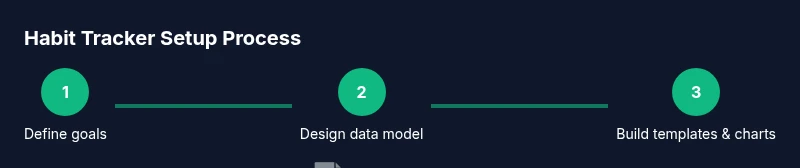
By the end of this guide you’ll build an ultimate habit tracker spreadsheet in Google Sheets that records daily routines, measures consistency, and visualizes progress over time. You’ll learn a practical layout, essential formulas, and a reusable template you can customize for any goal. This quick-start overview outlines what you’ll create and the core steps to get started today.
Why the ultimate habit tracker spreadsheet matters
A well-structured habit tracker spreadsheet helps you translate intentions into consistent daily actions. Instead of vague goals, you’ll track concrete habits, dates, and outcomes, which makes progress visible and motivating. According to How To Sheets, starting with a clear structure and a small, repeatable workflow dramatically improves adherence. With an ultimate habit tracker spreadsheet, you can capture why you did or didn’t complete a habit, identify patterns, and adjust your routine accordingly. In practice, you’ll set up a simple daily log, define clear success criteria, and choose a visual format that communicates progress at a glance. The beauty of a spreadsheet is that it’s flexible: you can start with a lean template and expand as your routines grow more complex, without losing data history or readability.
Core features that make a habit tracker effective
An effective habit tracker combines structure with flexibility. At minimum, include a daily log that records status (completed, skipped, or partial), a streak counter to reinforce consistency, and a simple goal section to frame what you’re aiming for. Charts, sparklines, and dashboards turn raw entries into insight, so you can see trends over weeks or months. Data validation keeps entries clean, while color cues help you distinguish high-priority habits from optional ones. In practice, you’ll want a dedicated sheet for your habits, a date dimension, and a compact entry row that you can copy across days. The end result should feel like a personal assistant, reminding you of what matters without becoming an extra chore. How To Sheets emphasizes a balance between thoroughness and ease of use to maximize long-term adherence.
Designing a robust data model
To support flexible reporting, design a small data model in Google Sheets rather than a flat list. Create a Habits table with columns: HabitID, HabitName, Category, Color, Frequency (daily, weekdays, weekly). Create an Entries table with Date, HabitID, Status (Completed/Skipped/Partial), Notes. Link entries back to habits with a simple lookup (VLOOKUP or XLOOKUP where available) and keep a separate Date axis. This separation makes it easier to add new habits without affecting historical data. The How To Sheets team notes that a clean data model reduces errors and simplifies charting, especially when you want to compare groups of habits or run trend analyses.
Practical templates and customization options
Start with a lean template that tracks just a few core habits across a calendar month. From there, add more habits, adjust frequencies (daily, weekdays, weekends), and categorize habits by goals (health, productivity, learning). You can implement a color scheme to differentiate priority levels and use a compact header row to keep the sheet scannable. If you’re collaborating, consider a shared template with permission controls and a changelog so everyone knows what’s been updated. The end result should feel customizable, but not overwhelming, so you can sustain use over weeks and months. As How To Sheets notes, the most effective trackers balance simplicity with enough structure to scale.
Formulas that keep you honest
A solid habit tracker relies on a few dependable formulas to automate counting and status aggregation. Use COUNTIFS to tally completed days for each habit, SUMIFS to compute total completions within a date range, and IF together with OR to normalize statuses. Create a streak metric by comparing consecutive days of success and resetting when a day is missed. Use conditional formatting to highlight achievements, such as green for streaks and red for gaps. For more advanced setups, incorporate dynamic named ranges and array formulas to handle multi-habit summaries without manual updates. The goal is to turn raw entries into trustworthy metrics you can trust with one glance.
Automations and data validation
Automate routine housekeeping to reduce manual work. Implement data validation on the Status column to ensure only predefined options (Completed, Skipped, Partial) are selected. Set up a simple script or built-in automation to archive older data monthly, preventing performance slowdowns while preserving history. Protect key ranges to avoid accidental edits, especially on the backbone tables (Habits and Entries). If you share the tracker with teammates or classmates, configure appropriate sharing permissions and set up a simple change log. Regularly back up your data to prevent loss and maintain continuity.
Visualizing progress with charts and dashboards
Translate data into insight with a clean dashboard. Line charts can show completion rates over time, bar charts can compare habit counts across categories, and sparklines provide mini-trends next to each habit. A compact dashboard sheet helps you see overall progress at a glance, while a more detailed page supports drill-downs into specific habits. Use slicers or filters to focus on a date range or a subset of habits. Effective visuals convert numbers into motivation and actionable next steps, turning a routine into a sustainable habit.
Common mistakes and how to avoid them
A common pitfall is trying to track too many habits at once, which leads to neglect and inconsistent entries. Start small, then gradually add more habits as the system proves itself. Don’t neglect data hygiene: inconsistent date formats, missing statuses, or manual data entry errors undermine insights. Establish a routine for updating the tracker (e.g., a daily 2-minute check-in) and keep a simple backup process. Finally, don’t over-Engineer the template; aim for a balance between reliability and ease of use. The How To Sheets team recommends a staged rollout to ensure you stay engaged.
Putting it all together: your practical plan
With the basics in place, you now have a practical, scalable framework for an ultimate habit tracker spreadsheet. Start by defining a few priority habits, set up the two core tables (Habits and Entries), implement key formulas, and build a visual dashboard. Iterate by adding new habits and adjusting the calendar view as needed. Remember, the most important feature is consistency—your template should make daily use effortless, not another chore. As you grow more confident, you can customize dashboards, refine formulas, and tailor the tracker to evolving goals.
Tools & Materials
- Google account with Google Sheets access(Sign in to access Sheets and save templates)
- Stable internet connection and web browser(Use Chrome or a modern browser for best compatibility)
- Starter habit-tracker template (optional)(Clone a template or build from scratch to customize)
- Basic knowledge of common formulas (SUMIFS, COUNTIFS, IF)(Helpful, not strictly required; refer to the guide as needed)
Steps
Estimated time: 90-120 minutes
- 1
Define goals and select a base template
Clarify which habits you want to track and pick a base template that matches your cadence (daily, weekly, or mixed). This sets the scope and reduces early overwhelm. Starting with 3-5 core habits increases your likelihood of sticking with the tracker.
Tip: Begin with a concrete, non-negotiable daily action you can perform every day. - 2
Set up the data schema
Create two core tables: Habits (HabitID, Name, Category, Color, Frequency) and Entries (Date, HabitID, Status, Notes). Link entries to habits via HabitID and keep a separate Date axis for consistency. A clean schema prevents duplicated data and simplifies reporting.
Tip: Use named ranges for Habits and Entries to simplify formulas later. - 3
Populate your habit list and create the date row
Enter your initial set of habits and prepare a date row (or a calendar view) where each date aligns with your entries. This creates a predictable footprint for daily logging and makes trend analysis straightforward.
Tip: Start with a single month to validate the flow before expanding. - 4
Add status options and validations
Limit statuses to predefined values (e.g., Completed, Skipped, Partial) using data validation. This reduces entry errors and ensures consistent data for analysis.
Tip: Use a drop-down list to minimize typos and inconsistent codes. - 5
Build basic calculations for streaks and completion
Implement COUNTIFS to count completions per habit, and create a streak metric by evaluating consecutive days with a Completed status. Validate results by checking a few edge cases such as weekends or holidays.
Tip: Test streak logic with intentional breaks to verify resets. - 6
Create charts and a dashboard
Add charts that show overall completion rate, per-habit progress, and category breakdown. Build a compact dashboard with filters for date ranges and habit subsets, so you can scan results quickly.
Tip: Label axes clearly and keep color schemes accessible for color-blind users.
FAQ
What is the best way to start an ultimate habit tracker spreadsheet?
Begin with a small set of core habits and a minimal layout. Validate the workflow on one month of data before expanding. This reduces overwhelm and builds confidence.
Start with a small set of core habits and test the one-month flow to build confidence.
Can I use a free template to track habits in Google Sheets?
Yes. Free templates can be cloned and customized to fit your goals. Use them as a baseline and tailor fields, formulas, and dashboards as you grow.
Yes, you can start with a free template and customize it to your goals.
How do I avoid data overload in my habit tracker?
Limit initial habits to 3-5 and enable a simple month-by-month expansion. Archive or prune older data to keep performance and readability high.
Limit habits early and gradually expand while archiving older data.
Which formulas help compute streaks?
Use IF in combination with logical tests and COUNTIFS to count consecutive completed days. Validate streaks against gaps to ensure accuracy.
Use IF with logical checks and COUNTIFS to track consecutive completions.
Is it possible to share the tracker with teammates?
Yes. Google Sheets supports sharing with different access levels. Assign view or edit rights and maintain a simple changelog for transparency.
Yes, share the tracker with appropriate access levels.
Watch Video
The Essentials
- Set a focused habit scope and a lean template.
- Design a clean data model for reliable insights.
- Automate validations to protect data quality.
- Visualize progress to stay motivated over time.