How to Create a Google Sheets Habit Tracker
Learn to build a practical Google Sheets habit tracker. Create a reusable template, log daily progress, and visualize trends with charts for lasting habit change.


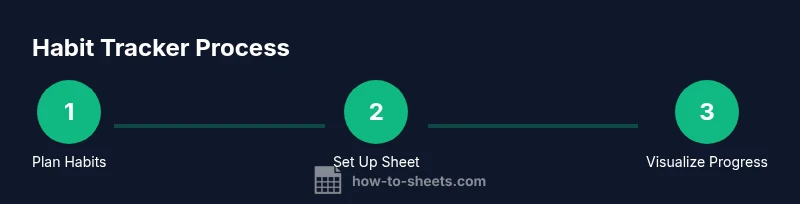
You’ll learn how to build a Google Sheets habit tracker that records daily actions, calculates streaks, and visually tracks progress. The guide covers a reusable template, data validation for consistent entries, and simple formulas to summarize activity. By the end you’ll have an actionable system you can copy for any habit.
What is a Google Sheets habit tracker?
A Google Sheets habit tracker is a simple, flexible system you build in a spreadsheet to log daily actions and monitor progress over time. At its core, it combines a date column, a list of habits, and a status indicator for each day. You can extend this with streak calculations, visual summaries, and even automatic reminders. The advantage of using Google Sheets is that it’s accessible from anywhere, easy to customize, and integrates with other Google tools. When you design your tracker, think about the minimal data you need to answer two questions: Did you perform the habit today? How consistently are you showing up over time? With the right layout, you’ll see both day-to-day activity and longer-term momentum. The term Google Sheets habit tracker stands for a practical, repeatable pattern you can reuse for multiple habits, from hydration to study sessions to exercise. This makes it ideal for students, professionals, and anyone building steady routines.
blocktype_start_intro_cleanup_even
note_filler_we_fix_text_points_to_match_word_count_if_needed
Why use Google Sheets for habit tracking?
Google Sheets offers a familiar, endlessly customizable canvas for habit tracking. According to How To Sheets, Sheets lets you tailor headers, drop-downs, and formulas to your exact workflow, rather than adapting to a rigid app. With features like data validation, conditional formatting, and charts, you can create a compact dashboard that updates as you enter data. Accessibility is a major benefit: you can work offline, sync across devices, and share templates with teammates or classmates. A habit tracker in Sheets is not a fixed product; it ollows your routine, scales with your needs, and grows with your goals. If you want a no-frills starter, begin with a single habit and a 30-day window; for long-term changes, layer in streak metrics, weekly summaries, and visual dashboards. How To Sheets Analysis, 2026, emphasizes that starting simple and evolving the sheet yields the best long-term adherence.
blocktype_start_intro_cleanup
note_filler_text_placeholder
Core components of a habit-tracker template
A robust Google Sheets habit-tracker template has a few essential building blocks:
- Date column: Keeps entries in chronological order and enables time-based calculations.
- Habit list: A fixed set of habits or a per-day selection, often implemented with a dropdown menu for consistency.
- Status column: Indicates completion (e.g., Done, Missed) with a simple data-validation rule to avoid typos.
- Streak and totals: Running counts that reveal momentum, along with a monthly or weekly summary.
- Notes: Optional space for context, adjustments, or blockers.
- Visuals: Conditional formatting, charts, and dashboards that translate data into insight.
Practical tip: keep most sheets on one tab to minimize switching, and use a separate summary tab for charts and aggregations. For multiple habits, you can either dedicate a per-habit sheet or include a habit column and filter on the dashboard. The key is a clean, repeatable structure that supports easy updates and analysis.
blocktype_core_components
note_filler_text_placeholder
Data integrity and reliability
Reliability comes from enforcing consistent data entry and guarding against common errors. Start with data validation: for the Status column, restrict entries to a small set like []Done[], []Missed[], []Skipped[]. Use a date picker for the Date column to ensure a valid date and set a fixed date range (e.g., 2026-01-01 to 2026-12-31) to keep data comparable. If you track multiple habits, consider a per-habit key (Habit + Date) to prevent duplicate rows for the same day. Use named ranges for your core tables so formulas stay readable, and add a lightweight data Validation checklist to verify that the dataset remains clean after import or edits. Finally, back up the template and enable version history in Drive so you can recover from accidental changes. These practices reduce human error and improve long-term usefulness of the tracker.
blocktype_data_integrity
note_filler_text_placeholder
Visualizing progress with charts and dashboards
Charts turn raw data into insights you can act on. A line chart showing daily completion rate or a stacked bar chart of habit statuses per day helps you spot trends and seasonality. A heatmap-style conditional formatting on the main data grid highlights streaks, gaps, and high-activity days at a glance. Add a small KPI card on a dashboard tab that shows current streak length, total days tracked, and completion rate. For scalability, design the dashboard to filter by habit and date range, so you can compare different routines side by side. Remember to label axes clearly and keep color codes consistent for quick interpretation. If you share the template, document the visualization logic so teammates can replicate your dashboard with minimal guidance.
blocktype_visualize
note_filler_text_placeholder
Templates, sharing, and future improvements
Starting with a solid starter template makes it easy to scale. Create a master template with one habit per row (Date, Habit, Status, Streak, Notes, etc.) and duplicate it for new habits or new cohorts. Share-friendly features include protected sections for formulas, clear instructions on the dashboard tab, and a printable version for offline use. As habits evolve, you can add weekly check-ins, import data from other sources, or attach reminders via Google Calendar. The template should remain modular so you can disable features you don’t need and add new metrics as your routines mature. Regularly test the sheet with users, gather feedback, and iterate the design to maintain relevance and usefulness.
blocktype_templates_sharing
note_filler_text_placeholder
Tools & Materials
- Computer with internet access(Access Google Sheets and browser (Chrome recommended))
- Google account(Needed to save to Google Drive and share templates)
- Habit list (4–8 items to start)(Examples: Hydration, Exercise, Reading, Sleep)
- Printer (optional)(If you want a printable version for offline use)
- Color markers or highlighters (optional)(Helpful for quick paper versions or livestreams)
Steps
Estimated time: 60-90 minutes
- 1
Set up the sheet layout
Create a clean grid with headers for Date, Habit, Status, Streak, and Notes. Decide whether you will track one habit per sheet or multiple habits on a single sheet and keep consistency across all entries.
Tip: Use a single header row and freeze it for easy navigation as you scroll. - 2
Create the date column and headers
Add a Date column with a data-validation calendar to ensure valid dates. Place your habits in a separate column, and include a Status column with a restricted list like Done/Missed/Skipped.
Tip: Sort data by date to ensure the streak formula works day-by-day. - 3
Add a Habits dropdown and statuses
Implement a dropdown for Habit entries so you can reuse the same template for multiple habits. Use a second dropdown for Status to keep entries uniform and analysis-friendly.
Tip: Keep the habit list in a named range to simplify updates across sheets. - 4
Compute streaks and totals
In a Streak column, use a running formula that increases on consecutive days with Status = Done and resets when not done. Add a total Days, Completion Rate, and per-habit summary in a separate dashboard tab.
Tip: Copy formulas down the entire date range for an accurate running streak. - 5
Add charts and a dashboard
Create a line chart for daily completion and a bar/heatmap for streaks. Build a small KPI card on the dashboard showing current streak, total days, and average success rate.
Tip: Keep color-coding consistent to avoid confusion across charts. - 6
Test, refine, and share
Test the tracker with a few sample entries, adjust validations as needed, and share the template with teammates or classmates. Document usage tips in a dedicated sheet for new users.
Tip: Request feedback and iterate—small changes compound over time.
FAQ
What is a habit tracker template in Google Sheets?
A habit tracker template in Google Sheets is a pre-structured spreadsheet that records daily actions, tracks completion, and summarizes progress. It typically includes date, habit, status, and a dashboard with charts to visualize trends.
A habit tracker template in Sheets records your daily actions and shows progress with simple charts.
Can I track multiple habits at once?
Yes. You can track several habits on one sheet by adding a Habit column and using a filter on the dashboard, or create separate tabs for each habit and consolidate results on a summary page.
Absolutely—either combine habits in one sheet with a filter or keep each habit on its own tab.
How do I handle missing days in the tracker?
If a day is missing, the status for that date should be treated as not done. Use the Streak calculation to reset when gaps occur and consider adding a Weekly Review to catch missed days.
Missed days reset the streak; review weekly to catch gaps and stay on track.
Can I share this tracker with teammates or classmates?
Yes. You can share the template via Google Drive, set appropriate permissions, and protect critical formulas while allowing others to enter data.
You can share it with teammates; just set permissions and protect formulas as needed.
Is it better to track habits daily or weekly?
Daily tracking gives a precise view of consistency and streaks, but a weekly summary can reduce data noise. Start with daily entries and add a weekly dashboard as you gain momentum.
Daily tracking shows consistency clearly; weekly summaries help when daily logging is too granular.
What if I want to export data to another tool?
You can export the data as CSV from Google Sheets and import it into other tools. Keep a dedicated data export tab to simplify sharing.
Export as CSV to integrate with other tools when needed.
Watch Video
The Essentials
- Define clear habits and dates for tracking
- Use data validation for consistency
- Streaks motivate and dashboards visualize progress
- Test on multiple devices and share templates