Google Sheets 75 Hard Tracker: A Practical Guide
Learn to build a reusable Google Sheets 75 Hard Tracker to monitor workouts, water, reading, and diet across 75 days with checklists, dashboards, and practical formulas for consistent progress.


Goal: Build a Google Sheets 75 Hard Tracker to monitor daily tasks for the 75-day challenge. You’ll track workouts, water, reading, diet, and milestones with checkboxes, date stamps, and automatic progress summaries. The template uses simple formulas, conditional formatting, and a clean dashboard to show streaks, remaining days, and daily completion rates. This quick setup ensures reusability for future cycles and easy sharing.
What a 75 Hard Tracker is and why Google Sheets fits
The 75 Hard challenge is a mental and physical discipline program that many students, professionals, and small business owners want to track for accountability. A dedicated tracker keeps daily commitments visible, helping you avoid slipping on workouts, water, reading, and diet. Google Sheets is ideal because it is accessible from anywhere, supports live collaboration, and can be reused for future cycles with minimal setup. By choosing Sheets, you gain a lightweight, shareable template that stores history, automatically calculates progress, and presents a clean dashboard. According to How To Sheets analysis, templates designed for habit-building improve consistency by reducing decision fatigue and making results easier to review. When your tracker lives in Sheets, you can customize the fields, timestamps, and dashboards to fit your exact routine and cadence.
Designing the data model for your tracker
A solid data model keeps the tracker scalable and easy to audit. Core sheets include a daily log (days 1–75), a dashboard for visuals, and a settings tab to adjust thresholds. Each day should capture key metrics: workouts (two booleans or a multi-select), water intake, reading minutes, and diet adherence. A small set of computed fields (e.g., Completed, DayStreak, and ProgressPct) aggregates daily data into meaningful insights. By organizing data with consistent headers and clear data types, you can reuse the same template across multiple cycles. How To Sheets’s approach to templates emphasizes modular design: separate input, calculations, and visuals so you can swap in new metrics without rewriting formulas.
Setting up tabs and file structure
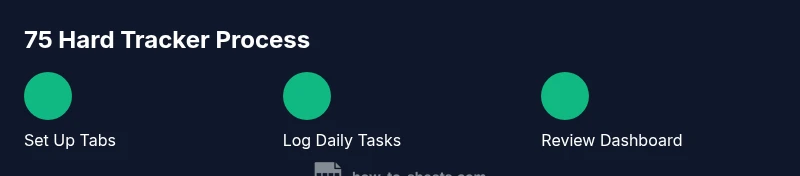
Create three core tabs: Log, Dashboard, and Settings. Name headers clearly (Date, Day, Workout1, Workout2, WaterLiters, ReadingMin, Diet, Notes). Freeze the header row for easy scrolling. Protect formula cells in Dashboard and Settings, while keeping Log open for updates. Use a consistent date format across your locale (e.g., YYYY-MM-DD) to avoid sorting quirks. This structure keeps data clean, makes filtering easy, and simplifies sharing with teammates or coaches. As you evolve the template, you can add extra tabs for targets or weekly summaries without altering the core log.
Creating the daily log with checklists
In the Log tab, use checkboxes for habit completion (Workout1, Workout2, Diet) and numeric inputs for WaterLiters and ReadingMin. Add a Date column that auto-fills when a new row is added. Data validations ensure entries stay within expected ranges (e.g., 0–2 workouts, 0–5 liters water). A daily note field can capture nuances like weather affecting outdoor workouts. The checklist approach makes it easy to see at a glance which tasks were completed and where adjustments are needed. If you have a team or accountability partner, you can share this sheet with real-time updates.
Formulas to calculate progress and streaks
A simple Completed flag can mark a day as done when all essential tasks are checked and numeric fields meet targets. Use a formula like =IF(AND(Workout1=TRUE, Workout2=TRUE, WaterOk=TRUE, ReadingMin>=15, Diet=TRUE),1,0) to count completed days. A Streak column can accumulate consecutive completed days: =IF(Completed=1, PreviousStreak+1, 0). Percentage progress can be derived with =SUM(CompletedRange)/COUNT(CompletedRange). These formulas give you a clear, automated picture of your adherence without manual tallying. Remember to test formulas on a sample row before applying them to the entire Log.
Visuals in the dashboard: progress bars and insights
Dashboard visuals translate raw data into motivation. Use conditional formatting to render a progress bar in a cell based on ProgressPct. Create a small sparkline chart to show week-over-week improvement. A donut chart can illustrate distribution of completed days by week, while a line chart tracks cumulative days. The dashboard should also display current Day, Total Completed, and Days Remaining. Keep visuals clean and avoid clutter; the goal is quick comprehension at a glance.
Data validation, protection, and data integrity
Protect formula cells to prevent accidental edits, especially in Dashboard and Settings. Use drop-downs for binary choices (Yes/No) and restrict numeric fields to sensible ranges (e.g., 0–2 workouts, 0–5 liters water). Regularly back up the sheet or enable version history so you can revert if a formula breaks. Establish a naming convention for cycles (e.g., 2026-04-75Hard-Cycle1) to avoid overwriting prior data and to simplify archiving.
Reuse, templates, and automation ideas
To reuse the tracker for a new 75-day cycle, duplicate the file or copy the Log and Dashboard tabs, preserving formulas. Consider a lightweight Apps Script that resets the Log for a new cycle while preserving historical data. You can add a Settings toggle to switch between cycles, automatically updating the date range and labels. A templated approach saves you time and reduces setup friction, letting you focus on habit-building rather than data entry mechanics.
Common pitfalls and optimization tips
Common problems include inconsistent date formats, missing data, and overcomplicated dashboards. Keep it simple: start with core metrics, and only add additional fields after you’ve stabilized the template. Regularly review Completed days to catch days you thought were logged but weren’t. Back up regularly, and consider sharing the tracker with a accountability partner to keep momentum. Finally, document any custom rules you apply so future cycles stay aligned with your initial design.
Tools & Materials
- Google account with access to Google Sheets(Required for creating and saving the tracker in Google Drive)
- Google Sheets(Used to create logs, formulas, and dashboards)
- Checkboxes and data validation(Enable in Log tab for task checklists and input control)
- Date format reference (YYYY-MM-DD)(Helpful for consistency when logging daily entries)
- Backup plan (version history or periodic exports)(Protects against data loss during updates)
- Optional: Apps Script or automation tool(For resetting cycles or advanced automation)
Steps
Estimated time: 60-90 minutes
- 1
Create base file and tabs
Start a new Google Sheet and add three tabs: Log, Dashboard, Settings. This establishes the data structure you’ll populate with daily entries.
Tip: Name tabs clearly and keep the same order for consistency. - 2
Define headers in Log
Enter headers such as Date, Day, Workout1, Workout2, WaterLiters, ReadingMin, Diet, Notes. Use a single header row and freeze it for easy navigation.
Tip: Use camelCase or PascalCase for readability. - 3
Insert checkboxes for habits
In the Log tab, add checkboxes for Workout1, Workout2, and Diet to record true/false entries quickly.
Tip: Keep the habit columns aligned to simplify formulas. - 4
Auto-fill the Date column
Set the Date column to auto-fill when a new row is added, ensuring each day is timestamped.
Tip: Use a simple formula or Apps Script to populate dates automatically. - 5
Apply data validation
Restrict numeric inputs (e.g., WaterLiters, ReadingMin) and enforce Yes/No options where needed.
Tip: Validation reduces data-entry errors and keeps metrics consistent. - 6
Create the Completed and Streak formulas
Add a Completed column using a logical AND of required fields. Build a Streak column that increments on completion and resets otherwise.
Tip: Test on a subset of rows before broad use. - 7
Build a dashboard with visuals
Create progress bars, sparklines, and charts on Dashboard. Link them to the Log data to reflect real-time progress.
Tip: Limit visuals to essential metrics to prevent clutter. - 8
Set up cycle reuse
Copy the template for a new 75-day cycle, preserving formulas while updating date ranges.
Tip: Keep a master template to simplify duplication. - 9
Review and optimize
Regularly review data quality, adjust thresholds, and refine formulas for clarity and speed.
Tip: Schedule a monthly review to keep the tracker sharp.
FAQ
What is the 75 Hard challenge and why track it?
The 75 Hard challenge is a daily habit program focused on consistency across two workouts, hydration, reading, and dietary adherence for 75 consecutive days. Tracking helps you stay accountable and review progress after each day.
The 75 Hard challenge is a daily habit program; tracking helps you stay accountable and review progress after each day.
Can I customize the tracker for different days or cycles?
Yes. The tracker is designed as a reusable template. You can adjust metrics, thresholds, and cycle length and reuse the same sheet for future 75-day cycles or adapt it for other habit programs.
Yes, you can customize the template for different cycles and habit programs.
How do I calculate daily progress automatically?
Use a Completed indicator based on all required tasks, a Streak that accumulates consecutive days, and a ProgressPct that summarizes overall completion. Tie these to the Log data to refresh as you log each day.
Use a completed flag, a running streak, and a progress percentage tied to your daily entries.
Is it safe to share this tracker with teammates or friends?
Sharing is fine if the sheet doesn’t contain sensitive personal data. Set appropriate permissions and avoid exposing formulas that could lead to accidental edits. Use comment threads for feedback instead of direct edits.
Share with appropriate permissions and use comments to avoid unintended edits.
Do I need Apps Script to reset the tracker for a new cycle?
Apps Script is optional. You can duplicate the template and manually reset certain fields. If you enjoy automation, a small script can reset the Log while preserving a history of prior cycles.
Automation is optional; you can reset manually or add a small script if you like.
What should I do after completing 75 days?
Archive the completed cycle data, review overall performance, and plan the next cycle. Use the Dashboard as a benchmark to compare future results and identify which habits improved most.
Archive, review, and plan the next cycle using your dashboard as a benchmark.
Watch Video
The Essentials
- Define a clear data model before building formulas.
- Keep Log, Dashboard, Settings separated for reuse.
- Use checkboxes and data validation to maintain data integrity.
- Leverage visuals to track progress at a glance.